 Chrome Extension
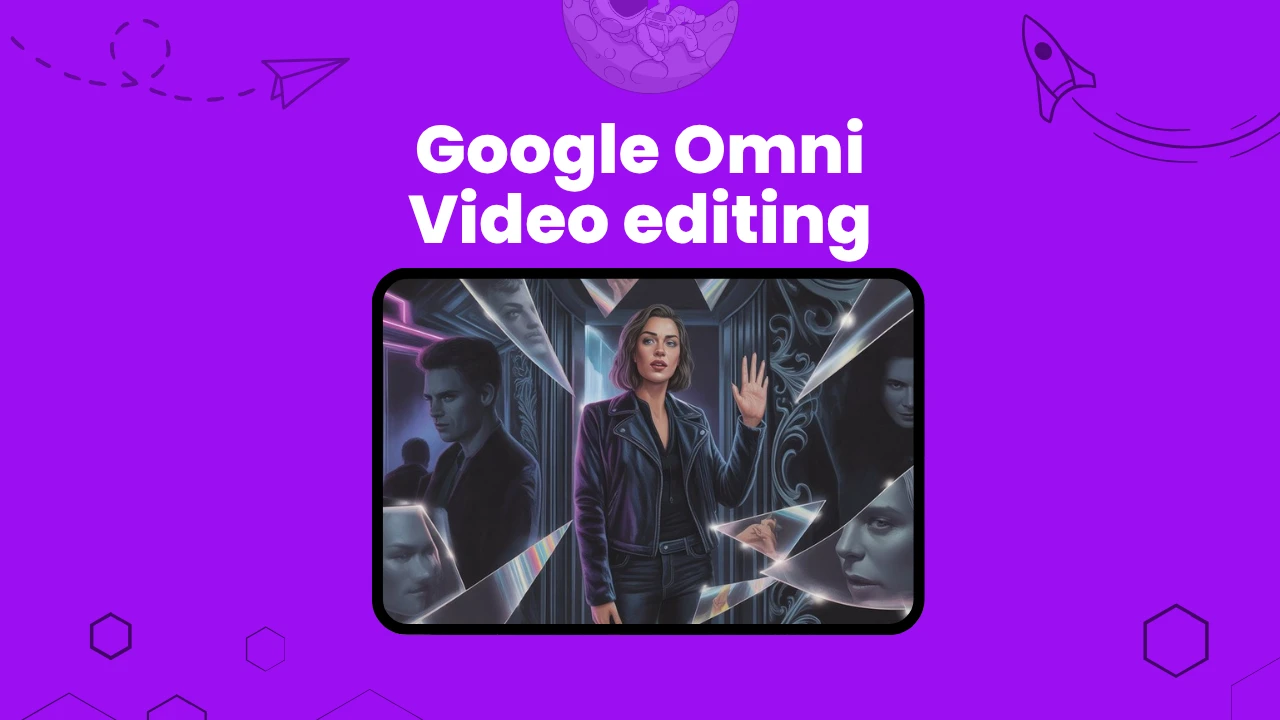
I have been testing Google Gemini Omni since it launched on May 19, 2026, and the most accurate way I can describe it is this: it turns video editing into a conversation.
You type what you want changed, it changes it. You say "now make the background a neon-lit Tokyo street," and the background becomes a neon-lit Tokyo street while everything else stays intact.
This guide covers how I use Gemini Omni for video editing across different content types, every platform where it runs, the full prompt framework that gets consistent results, and 20 real use cases with copy-paste prompts.
Also checkout our free Google Omni prompt guide and Google omni prompt generator here.
Key Takeaways
What Gemini Omni Actually Does
Gemini Omni is Google DeepMind's any-to-any world model. "Any-to-any" means it accepts any combination of inputs and produces video output from them. I can feed it a text description, a reference photo, a piece of existing footage, or an audio track, and it synthesizes a video that incorporates all of those inputs at once.
The "world model" part matters for editing. Omni understands how objects relate to each other physically and spatially. When I tell it to dim the lights in a scene, it does not just darken the entire frame uniformly. It understands that light sources have positions and that shadows shift when lighting conditions change. This is what separates Omni from simple filter-based editing tools.
The other key capability is conversational editing. Once I start a session, each prompt I write modifies the output from the previous prompt. If I start with a product video and ask it to change the setting to a minimalist white studio, that becomes the new baseline. My next prompt can build on that: "Now add a subtle lens flare from the top left." Then: "Slow down the camera movement by 30%." Each instruction layers on the previous one.
Google ships this capability across four products as of June 2026: the Gemini app, Google Flow, YouTube Shorts (via Remix), and YouTube Create.
Where to Access Gemini Omni for Video Editing
The Gemini App
The fastest place to start. Open the Gemini app, start a new conversation, and attach your input. For conversational editing, I upload a video clip or describe a scene, then edit through back-and-forth prompts. Generated clips are capped at 10 seconds. I use the Gemini app for quick experiments and short social edits.
Access requires a Google AI Plus, Pro, or Ultra subscription. Omni is not available on the free Gemini tier.
Google Flow
Google Flow is the dedicated AI filmmaking environment. It adds everything the Gemini app conversation lacks for longer productions: Scenebuilder for assembling shots into a timeline, Ingredients for locking down character consistency across scenes, Camera Controls for specifying exact directorial intent, and Asset Management for organizing reference images, audio, and footage.
I use Flow for anything that will become a multi-shot sequence. If I need five different scenes that all feature the same character, Flow's Ingredients system maintains that identity without me having to re-specify appearance details in every prompt.
Flow credits power everything you do in Flow. Plus plan users get 200 credits per month, Pro users get 1,000, and Ultra users get between 10,000 and 25,000 depending on tier.
YouTube Shorts and YouTube Create
Omni is integrated directly into YouTube Shorts via the Remix feature and into the YouTube Create app for mobile editing. This is the consumer surface and the most accessible entry point for creators who already live inside YouTube's ecosystem.
Veo 3.1 for Developers
If you are building video features into an app or pipeline, the developer path is Veo 3.1 via the Gemini API, Vertex AI, or Google AI Studio. Veo 3.1 generates 8-second clips at 720p, 1080p, or 4K with native audio. It supports portrait mode, video extension from an existing clip, frame-specific generation, and image-based direction.
The difference between Omni and Veo 3.1 is who they are for. Omni is for consumers and creators editing through conversation. Veo 3.1 is for developers building automated video pipelines.
The Six-Dimension Prompt Framework
Gemini Omni responds to six dimensions of input. I get consistent, high-quality output when I cover all six. I get mediocre or inconsistent output when I only cover two or three.
Dimension 1: Shot Framing and Camera Motion
Specify the camera before everything else. The camera instruction sets the visual grammar of the entire output. If I do not specify it, Omni defaults to "medium shot, static camera."
Camera vocabulary that Omni understands precisely:
Dimension 2: Style
Style sets the aesthetic register of the entire video. I use this to shift between realism and animation, between film genres, or between eras of filmmaking.
Style terms that work well:
cinematic, 35mm film grain, anamorphic lens flareanime style, Studio Ghibli-inspired color palettedocumentary footage, handheld, slightly desaturated1980s VHS aesthetic, scan lines, oversaturatedclean product photography, white studio, minimaloil painting animation, Baroque lightingpixel art, 16-bit video game cutsceneblack and white, film noir, high contrast shadowsDimension 3: Lighting
Lighting shapes the mood more than almost any other single variable. I always specify it explicitly.
Effective lighting descriptions:
soft diffused natural light, overcast sky, even shadowsgolden hour sunlight from the left, long shadowsneon city lights at night, pink and cyan ambient glowdramatic studio lighting, single key light from upper right, deep shadow on the leftcandlelight, warm amber, flickeringclinical fluorescent lighting, slightly unflattering, harshbacklit by a sunset, silhouette effectunderwater light, caustic patterns rippling across the subjectDimension 4: Location
Location grounds the scene and gives Omni's world model context for what physical objects and environmental details should be present.
Be specific: "a corner table at a quiet Paris cafe, rainy evening, street visible through the window" produces more coherent output than "cafe."
Dimension 5: Action
What is happening in the frame? Include the subject, what they are doing, and any object interaction. The more specific the action, the more accurately Omni renders it.
Poor: woman walking Better: a woman in her 30s in a grey coat walking quickly through a crowd, clutching a briefcase, glancing over her shoulder, rain beginning to fall
Dimension 6: Text Rendering
Gemini Omni can render readable text inside the video frame. Use this for title cards, on-screen labels, signage, UI mockups, and explainer overlays. Specify font style if you have a preference:
Title card reading "Chapter One: The Beginning" in white serif type, centered, fade in over 2 seconds
The Conversational Editing Workflow
This is the part of Gemini Omni that I find most useful in daily work. Here is how a typical multi-turn editing session looks:
Turn 1: Establish the baseline
[Upload your video clip or describe a starting scene]

Prompt: "This is [a 10-second product showcase video with a rotating coffee mug on a wooden table with warm ambient lighting]. Keep everything as it is."
Turn 2: Change one element
"Change the background to a clean white studio with soft diffused lighting from both sides. Keep the mug and its rotation speed exactly the same."
Turn 3: Adjust lighting
"Add a subtle warm glow from behind the mug, as if there's a soft amber light source behind it. Reduce the harshness of the studio lights by 30%."
Turn 4: Add motion
"Add a very slow push-in camera move, starting from the current position and ending 15% closer to the mug over the 10 seconds. No zoom, actual camera movement."
Turn 5: Add text
"In the final 2 seconds, fade in the text 'Handcrafted. Every Cup.' in white sans-serif, centered at the bottom third of the frame."
Each turn modifies the running output without losing the previous changes. This is the editing workflow that makes Omni different from any other AI video tool I have used.
20 Video Editing Use Cases With Prompts
Each prompt below includes [video type] placeholders in square brackets. Replace the brackets with your specific clip description or upload your actual video as the reference input.
Use Case 1: Style Transfer to Animation
Transform realistic footage into an illustrated or animated aesthetic.
transfer it to a hand-drawn anime style with bold outlines, flat color fills, and a pastel sky. Keep all the motion and character proportions. Style should feel like a 2000s Saturday morning anime. Medium shot, locked off camera. Soft daytime lighting through the illustration.
Use Case 2: Background Replacement
Swap the entire background while keeping the subject perfectly intact.
replace the background with pyramids in egypt as shes showing around.. The speaker's lighting should match a warm morning light source. Keep the subject sharp and fully intact.
Use Case 3: Cinematic Color Grade Shift
Convert flat, LOG-style footage or standard footage into a cinematic grade.
Apply a cinematic color grade to this footage. Add a teal-and-orange split tone: cool shadows shifting to teal, warm highlights staying orange. Add 35mm film grain at a subtle level (about 15% intensity). Slightly desaturate the mids. Wide establishing shot, locked off. No changes to composition.
Use Case 4: Day-to-Night Scene Conversion
Transform daytime outdoor footage into a photorealistic nighttime version without changing any subjects or motion.
Upload [your daytime outdoor video of a city street, park, residential neighborhood, or landscape].

Prompt: "Convert this daytime scene to nighttime. Add artificial light sources consistent with the location: street lamp glow on the ground, warm window light from nearby buildings, and a dark sky. Reduce ambient fill light to night levels. Keep all subjects, motion, camera movement, and composition exactly the same. No changes to any faces or people. The lighting shift should look photorealistic, not filtered."
Use Case 5: Slow Motion And aspect ratio Transformation
Render standard-speed footage as smooth cinematic slow motion.
Upload [your action footage: a sports clip, liquid pour, hair movement, vehicle pass, or any fast-motion shot].

Prompt: "Render this footage at 20% of the original speed. Apply motion interpolation so the slow motion is fluid, not choppy. Preserve all color grading, composition, and subject details exactly. Constant slow speed from the first frame to the last, no speed ramp."
Follow-up prompt for a speed ramp:
"Now apply a speed ramp: run at full speed for the first 2 seconds, then slow to 10% speed between seconds 2 and 4, and hold in slow motion through to the end."
Use Case 6: Weather Change in Outdoor Footage
Shift weather conditions in existing outdoor footage while keeping every other element identical.
Upload [your outdoor video shot on a clear sunny day: a street, park, beach, or open field].

Prompt: "Change the weather in this scene from clear and sunny to overcast with light rain. Add visible rain falling against darker areas of the frame. Add wet reflections on the ground surface. Reduce the ambient light as if clouds have covered the sun. Keep all subjects, motion, camera movement, and foreground elements unchanged. No changes to clothing or faces."
Use Case 7: Wardrobe and Outfit Swap
Change what the subject is wearing in existing video without altering anything else in the frame.
Upload [your video of a presenter, host, talent, or spokesperson in clothing you want to change].

Prompt: "Change the outfit the person in this video is wearing. Replace their current clothing with [a formal black business suit with white shirt / a casual navy linen shirt with light chinos / athletic wear in heather grey]. Keep their face, hair, skin tone, body movement, and all background elements exactly the same. The new clothing should move naturally with the person's motion throughout the clip."
Use Case 8: Unwanted Object Removal
Remove a distracting or unwanted object from every frame of existing footage.
Upload [your video containing something you want removed: a mic stand, crew member reflection, branded prop, or accidental object in frame].

Prompt: "Remove [the microphone stand visible in the lower left of the frame / the crew member's arm at the frame edge / the branded cup on the table] from every frame of this video. Fill the removed area with the surrounding background, matching the texture, color, lighting, and any motion in the background behind it. No other changes to the video."
Use Case 9: Camera Motion Addition to Static Footage
Add a simulated professional camera movement to footage shot on a locked-off tripod.
Upload [your static tripod footage: an interview, product shot, still life, or locked landscape].

Prompt: "Add a slow, smooth push-in camera movement to this static footage. The camera should begin at the current framing and move 15% closer to the central subject over the full duration of the clip. The movement should be continuous and even, matching the feel of a professional dolly shot. No changes to color, lighting, or subjects."
Alternative motion prompts:
"Add a slow orbit: the camera rotates 20 degrees to the right around the central subject over the full clip duration."

"Add a subtle handheld feel: very slight, organic camera micro-movements as if the shot was captured by a skilled handheld operator."
Use Case 10: Subject Swap with Environment Preserved
Replace the central subject in existing footage while keeping all background, lighting, and environment completely unchanged.
Upload [your video with a clear foreground subject against a distinct background].

Prompt: "Replace the central subject in this video with [a golden retriever sitting calmly / a minimalist ceramic vase with white peonies / a sleek espresso machine]. Keep the replacement subject in the same position and approximate size as the original. All background elements, shadows, ambient light, and camera movement stay completely unchanged. The replacement should feel naturally lit by the existing scene lighting."
Use Case 11: In-Frame Screen Content Replacement
Replace what is displayed on a screen, monitor, phone, or TV visible in existing footage.
Upload [your footage containing a visible screen: a laptop, smartphone, TV, tablet, or monitor in the shot].

Prompt: "Replace the content visible on the [laptop screen / phone screen / TV monitor in the background] with [a clean analytics dashboard showing upward charts in green / the homepage of a fictional brand called Greenvine / a messaging app open with no readable text]. The replacement screen content should be sharp. It should follow any perspective distortion or motion blur on the screen as the camera or device moves. Keep everything else in the video unchanged."
Use Case 12: Multi-Clip Visual Style Unification
Make two clips shot in different conditions look visually consistent for a single cut.
Upload [your first clip: the reference whose color grade and look you want matched].

Turn 1: "Analyze the color temperature, contrast ratio, saturation level, and film grain of this reference clip. Confirm back what you detect so I can verify before we proceed."

Upload [your second clip with a different visual look].

Turn 2: "Apply the color grade characteristics from my first reference clip to this second clip. Match the color temperature, contrast, saturation, and grain level precisely so both clips feel like they were shot in the same session. No changes to subjects, motion, or composition."
Use Case 13: Talking-Head Interview Background Upgrade
Replace or improve the background in a presenter or interview video without touching the subject.
Upload [your talking-head video: a presenter, spokesperson, or podcast host shot against a plain wall, cluttered room, or green screen].

Prompt: "Replace the background behind the speaker with [a warm book-lined home library with soft lamp light / a modern office with frosted glass partitions and greenery in soft focus / a clean light grey studio gradient]. Keep the speaker's face, hair, hands, clothing, and all micro-expressions and movements exactly as they are. The subject-to-background edge should look clean and photorealistic."
Use Case 14: Product Swap in Existing Ad Footage
Replace one product with another in existing promotional or demo footage.
Upload [your existing product video: an ad, demo reel, or showcase featuring the item you want to swap].

Prompt: "Replace [the product being held or shown: the blue insulated water bottle / the white wireless earbuds / the silver laptop] in this footage with [a matte black version of the same product / the same product style in a different colorway / a different product from the same category]. Keep all hand movements, angles, camera motion, pacing, lighting, and background exactly the same. The replacement product should appear naturally lit by the existing scene light."
Use Case 15: Atmospheric Element Addition
Add fog, mist, or volumetric light to existing footage for a cinematic effect.
Upload [your outdoor or indoor footage: a forest path, city street, dark hallway, studio, or interior set].

Prompt: "Add low-lying ground fog to this footage. The fog should drift in slowly from the edges and settle at ankle-to-knee height. Make it semi-transparent so it catches any existing light sources. Do not obscure subjects above knee level. Keep all existing lighting, motion, and composition above the fog line completely unchanged."
Volumetric light variation:
"Add volumetric light rays entering the scene from the upper left, as if sunlight is streaming through a gap above. The beams should interact with visible dust or atmospheric haze already in the scene."
Use Case 16: Speed Ramp on Action Footage
Apply a dramatic speed ramp to a clip, building from normal speed into slow motion at the peak moment.
Upload [your action footage: a sports moment, product drop, jump, or vehicle approach with a clear climactic action].

Prompt: "Apply a speed ramp to this clip: run at normal speed for the first 3 seconds, gradually slow to 10% speed over the next 2 seconds timed to [the moment of impact / the jump peak / the product landing], hold in slow motion for 3 seconds, then end. Apply motion interpolation so the slow motion is smooth, not choppy. Keep all color and composition unchanged."
Use Case 17: Adding Background People to an Empty Scene
Populate an empty or sparse location in existing footage with natural-looking background figures.
Upload [your footage of an empty or sparse location: a restaurant interior, retail floor, street, conference room, or event space shot before people arrived].

Prompt: "Add natural background people to this scene. Populate the space with [casually dressed shoppers browsing slowly / office workers walking through in the background / diners seated at tables in soft focus / event attendees mingling near the back wall]. All added people should be at least one visual plane behind the foreground subject, in soft focus, and lit by the existing light sources. The original framing, camera movement, and any foreground subjects stay unchanged."
Use Case 18: In-Frame Text and Signage Replacement
Replace visible text, signs, labels, or branding within existing video footage.
Upload [your video containing visible on-screen text: a storefront sign, product label, billboard, street signage, or printed prop].

Prompt: "Replace the text on [the storefront sign / the product label facing camera / the billboard in the background] that currently reads '[Original Text Here]' with '[New Text Here]'. Match the original font style, size, color, perspective, and positioning as closely as possible. The replacement text should look like it was physically part of the original scene, including any motion blur, lighting, or angle distortion on the sign. No other changes to the video."
Use Case 19: Seasonal Setting Change
Convert the season visible in outdoor footage without changing subjects, clothing, or composition.
Upload [your outdoor footage shot in summer or autumn: a park, garden, street, or countryside landscape].

Prompt: "Convert the season in this footage from summer to winter. Add snow coverage on horizontal surfaces: ground, tree branches, window ledges, and rooftops. Change any green foliage to bare branches. Shift the ambient light to the cool, low-angle quality of a winter afternoon. Keep all subjects, their clothing, their motion, and the camera movement exactly as they are. The seasonal change should look climatically accurate for a temperate northern hemisphere winter."
Use Case 20: Background Audio Swap
Replace the background music in existing footage while keeping all speech, dialogue, and sound effects intact.
Upload [your video with background music you want replaced: a vlog, ad, tutorial, or branded content clip].

Turn 1: "Keep all dialogue, voiceover, and specific sound effects exactly as they are. Remove only the background music track. Confirm once the music has been stripped."

Turn 2: "Now add new background music to the clip. The feel should be [calm and lo-fi with light piano and soft percussion / energetic and upbeat electronic that builds toward the midpoint / a cinematic orchestral swell that matches the visual pacing]. Mix the music at a level that supports the spoken content without overpowering it."
Gemini Omni Pricing: What Each Plan Gets You
| Plan | Monthly Cost | Flow Credits | Omni Access | Best For |
|---|---|---|---|---|
| Google AI Free | $0 | None | No | Basic Gemini text only |
| Google AI Plus | $7.99 | 200/month | Yes | Casual creators, short clips |
| Google AI Pro | $19.99 | 1,000/month | Yes | Regular content production |
| Google AI Ultra | $99.99+ | 10,000-25,000/month | Yes | Agencies, high-volume creators |
Flow credits power all video generation in Google Flow. A simple 10-second generation costs fewer credits than a complex multi-input edit. Google moved to compute-based usage limits at I/O 2026, so a plain text-to-video prompt uses a fraction of the credits that a multi-reference, multi-turn editing session consumes.
Omni requires Google AI Plus or higher. Users must be 18 or older.
Gemini Omni vs Veo 3.1: Which to Use
Both tools generate video but serve different workflows.
Use Gemini Omni when:
Use Veo 3.1 when:
Frequently Asked Questions (FAQs)
How long can Gemini Omni videos be?
Consumer clips through the Gemini app and YouTube Shorts cap at 10 seconds. Google Flow allows longer productions by assembling multiple 10-second clips in the Scenebuilder timeline. Developers using Veo 3.1 via the Gemini API can generate 8-second clips natively and extend them using the video extension feature.
Does Gemini Omni work with existing video footage I upload?
Yes. Omni accepts uploaded video as one of its input types. You can upload a clip and then edit it through conversation: change the style, swap the background, adjust the camera angle, or fix lip-sync drift. The original clip becomes the baseline, and each conversational prompt modifies it.
Is there a watermark on Gemini Omni videos?
Every video Omni generates carries a SynthID digital watermark. This watermark is not a visible logo or overlay. It is an imperceptible signal embedded into the video data that identifies it as AI-generated content. You cannot remove it.
Can I use Gemini Omni output for commercial purposes?
Google's terms permit commercial use of Omni-generated content for subscribers on paid plans. Review the current Google AI terms of service at gemini.google/policies for the most current guidance on commercial rights, especially for advertising and broadcast use.
What is the difference between Google Flow and the Gemini app for video editing?
The Gemini app is a conversation-first interface. It is fast for single-clip edits and short iterative sessions. Google Flow adds a production layer on top: Scenebuilder for multi-shot timelines, Ingredients for consistent character identity across scenes, Camera Controls for shot-by-shot directorial intent, and Asset Management for organizing a full project. Use the Gemini app for quick edits. Use Flow for anything that will become a multi-shot production.
Do I need any video editing experience to use Gemini Omni?
No prior video editing experience is needed. The entire interface is conversation-based. If you can describe what you want, you can use Gemini Omni. That said, learning the six-dimension prompt framework (shot framing, style, lighting, location, action, text rendering) significantly improves output quality regardless of your experience level.
Final Thoughts
Gemini Omni changes what solo creators and small teams can produce without a production budget. I used to need a camera operator, a colorist, and an editor to produce the kind of video output I can now generate through a 10-minute conversation. That is not an exaggeration.
The prompting framework is the part worth spending time on. Once you internalize the six dimensions, particularly specifying camera motion before anything else, your output consistency improves immediately. The [video type] placeholders in this guide are starting points. Replace them with your actual footage descriptions, upload your clips as reference inputs, and edit through conversation from there.
Start with one use case that matches something you already need. Run it through Draft Mode in Google Flow if you have a Pro or Ultra subscription. Iterate until the output matches your vision. The first session will teach you more about Omni's capabilities than any guide can.