 Chrome Extension
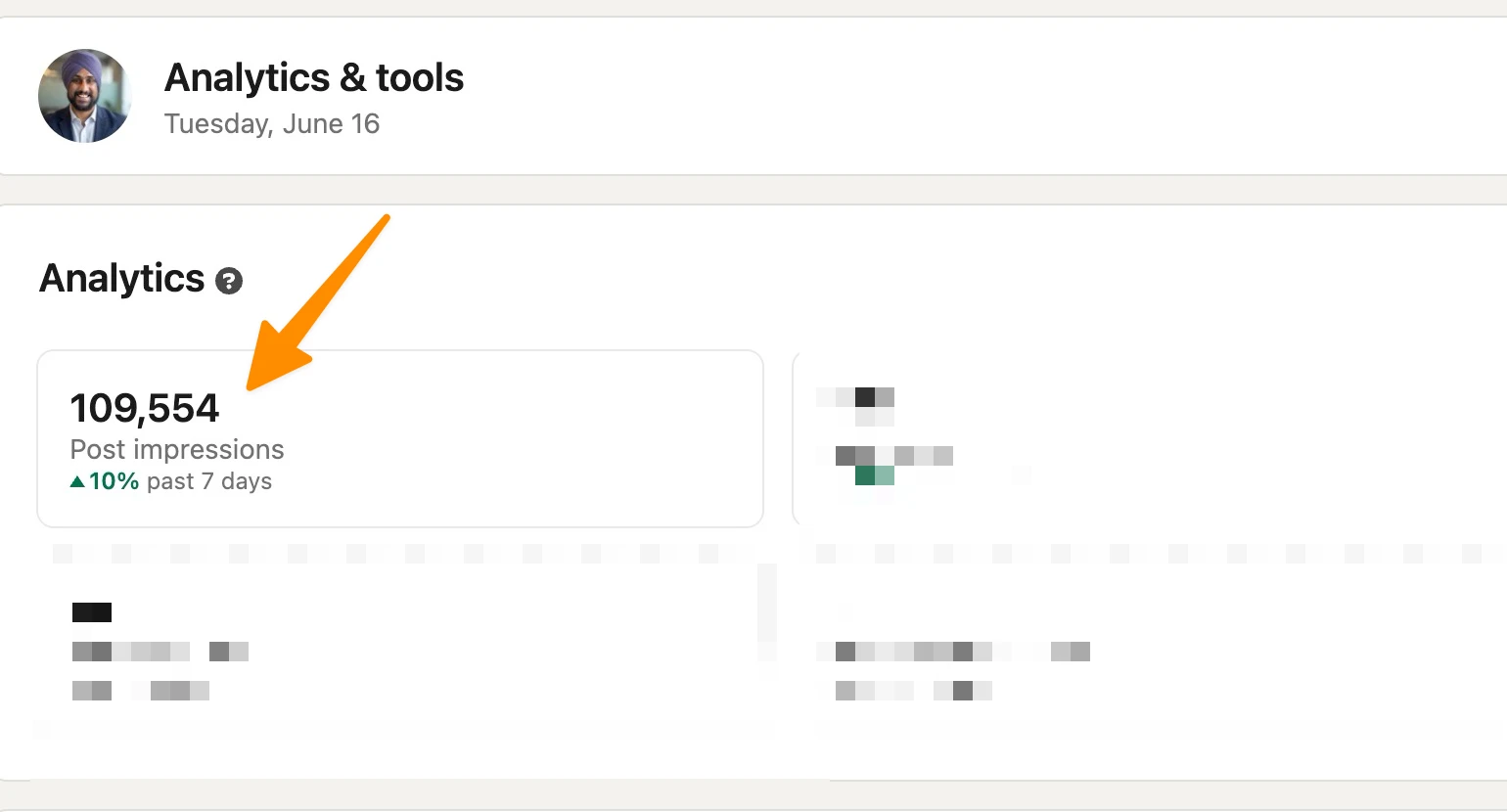
I post on LinkedIn three times a week. My engagement rate sits above 6% and Post impressions up 10% as you can see below image. I spend less than two hours total on content each week. ChatGPT handles the heavy lifting, but the way I use it is not what most people expect.
Most guides tell you to "ask ChatGPT to write a LinkedIn post." That produces generic, robotic output that your audience sees through instantly. My system is different.
I give ChatGPT specific context, use a structured prompt framework, and run every output through a formatting tool before it touches my profile. This guide covers that exact process, including the prompts I use, the workflow I follow, and the two free tools that make it work.
Key Takeaways
Why I Started Using ChatGPT for LinkedIn
Six months ago, I was spending 45 minutes writing a single LinkedIn post. Some weeks I skipped posting entirely because the blank page felt like too much work. My profile had traffic but no engagement, because I was not publishing consistently.
I tried ChatGPT early on and was disappointed. The posts it produced sounded exactly like everyone else's AI content, full of generic phrases, hollow insights, and em dashes in every sentence. I almost gave up on it.
The turning point was when I stopped treating ChatGPT as a ghostwriter and started treating it as a structured first-draft machine. I give it my exact role, my exact audience, and my exact goal. The output becomes something I can actually edit and own. That shift changed everything.
LinkedIn has 320 million monthly active users and 134 million daily active users as of Q1 2026. Two thirds of marketers already use generative AI in their content workflows, with adoption growing over 20% year over year. The platform is not going away, and neither is AI-assisted content. The question is whether you do it well or badly.
My Step-by-Step LinkedIn Content Workflow
This is the exact process I run every time I create a LinkedIn post.
Step 1: Build the Prompt First
Before I open ChatGPT, I go to the Promptslove ChatGPT Prompt Generator. This tool uses the PTCF framework that OpenAI recommends: Persona, Task, Context, Format.
The generator asks me to fill in:
The tool generates a fully structured prompt I can paste directly into ChatGPT. This takes me three minutes. Without this step, my prompts used to be vague and the outputs were thin.
Step 2: Run the Prompt in ChatGPT
I paste the generated prompt into ChatGPT, usually GPT-5 or GPT-5.5 for content tasks. I read the output once and note three things: what landed well, what sounds robotic, and what specific detail I need to add from my own experience.
I never post raw output. I rewrite the opener, inject one real data point or personal story, and cut any phrase that sounds like a press release.
Step 3: Format the Post
Once I have an edited draft, I copy the text and open the Promptslove LinkedIn Text Formatter. This free tool lets me add bold, italic, underline, strikethrough, script, doublestruck, and 14 other Unicode styles that display natively inside LinkedIn's plain-text composer.
I use it for two things: making the first line bold to stop the scroll, and formatting any list items or section headers so the post looks structured in the feed. The tool includes a real-time LinkedIn post preview so I see exactly how the content will look before I copy it.
It also supports emoji insertion directly in the editor, which I use for bullet points to add visual rhythm on mobile, where most LinkedIn content is consumed.
Step 4: Schedule or Post
I either post immediately or drop the formatted text into my scheduler. Done. The entire process runs in about 25 minutes per post.
The Exact Prompts I Use (With Use Cases)
Prompt Generator Plugin
I use my own AI Prompt Generator Plugin for ChatGPT, Where I write what I want and it generates optimized prompt which gives 10x better Output.
For example, Here I asked about "Linkedin post for new product launch "promptslove" ai prompt generator" and here's result;
It provides better result and result oriented output.
Profile Optimization
Use case: Writing or rewriting your LinkedIn headline and About section.
Prompt:
Act as a LinkedIn profile copywriter specializing in B2B personal brands. Write a LinkedIn headline and About section for a [your job title] who works with [your audience] to help them [specific result you deliver]. The headline must be under 220 characters and include the keywords [keyword 1] and [keyword 2]. The About section must open with a first-person hook, include three specific career achievements with numbers, and close with a clear call to action. Write in a conversational but professional tone. Avoid buzzwords.
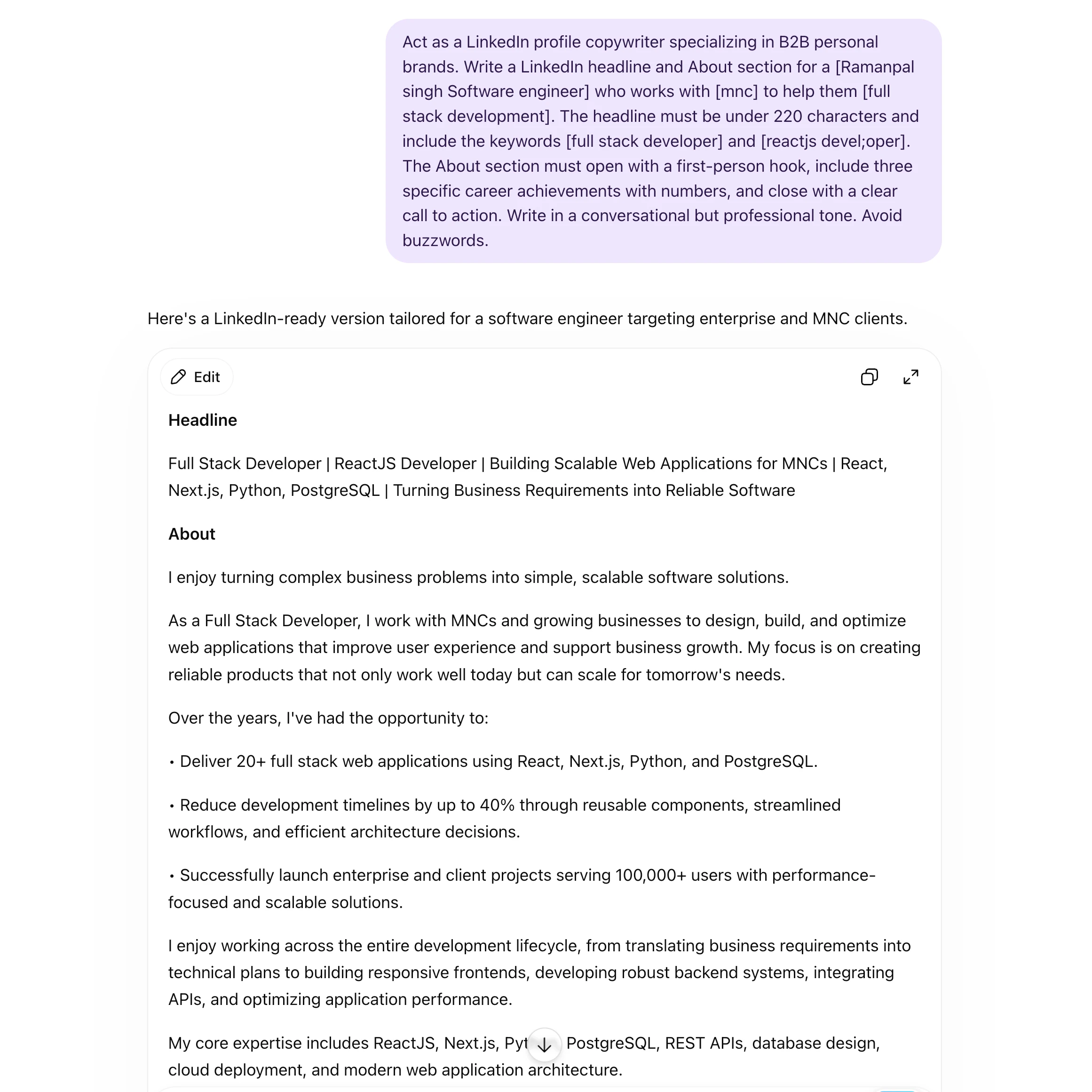
Why it works: LinkedIn functions like a search engine. Profiles that include specific job titles, tools, and result-oriented phrases show up more often in recruiter and prospect searches. This prompt forces ChatGPT to include both searchable terms and human-readable copy.
My edit: I always replace ChatGPT's generic achievement examples with my real numbers. If the model writes "increased revenue by X%," I replace X with the actual figure.
LinkedIn Post Writing (Text Posts)
Use case: Writing a 150 to 250 word text post with a strong hook.
Prompt:
Act as a LinkedIn content strategist writing for a [your role] audience. Write a LinkedIn text post about [specific topic or insight]. The post must open with a one-line hook that does not start with "I." The hook should create curiosity or state a counterintuitive fact. The body should have three short paragraphs of two to three sentences each. End with one clear question to drive comments. Write in a direct, first-person voice. No hashtags in the body. Max 250 words.
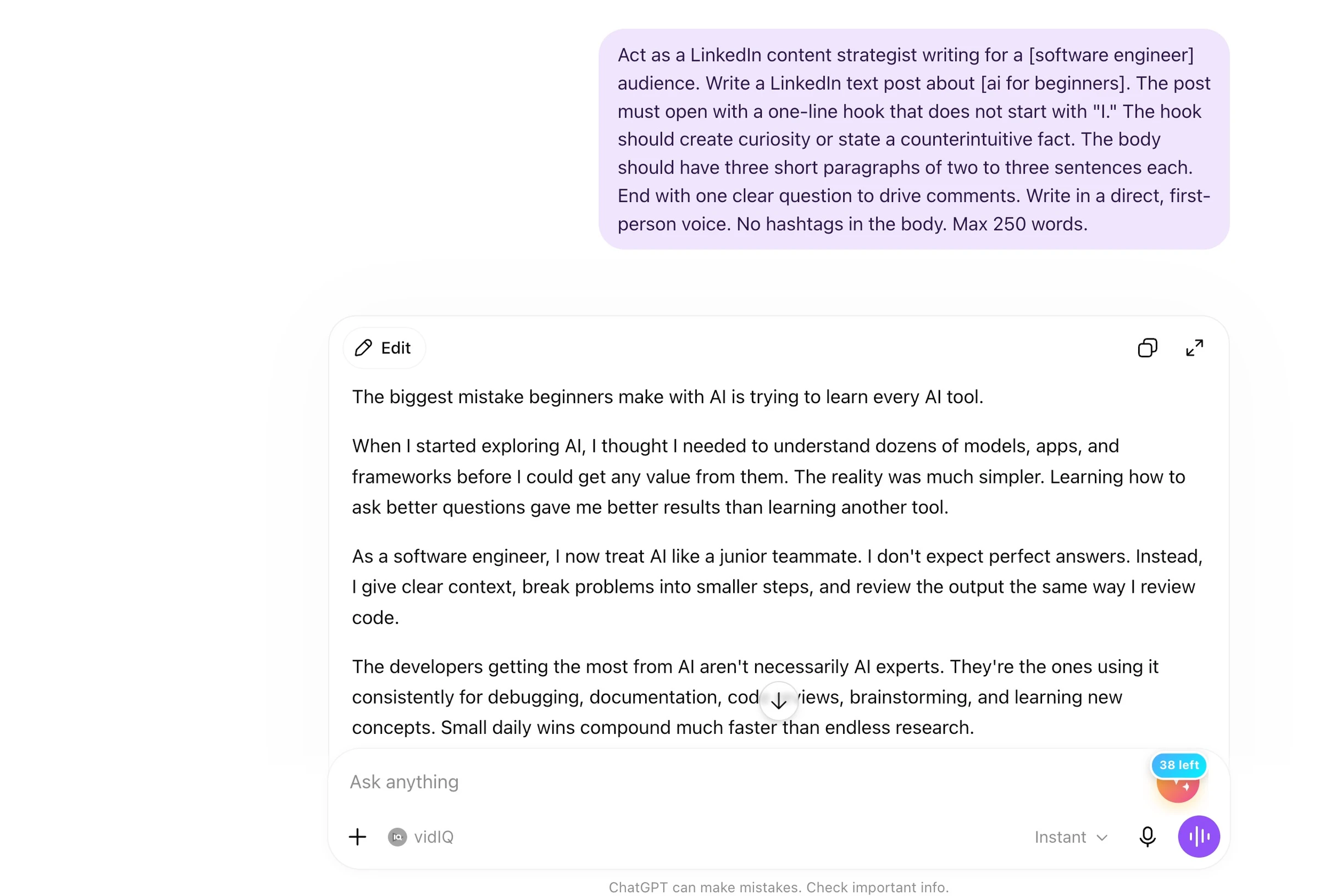
Why it works: LinkedIn algorithm research shows that posts opening with a curiosity hook or a strong opinion outperform generic informational openers. The one-line restriction forces specificity. The question at the end drives comment engagement, which the algorithm rewards.
Test it: Run this through the Promptslove prompt generator first by selecting "Social Media Post" as the format and "Authoritative" as the tone. The tool will add structure that makes the output more precise.
LinkedIn Carousel Posts
Use case: Creating a 7-slide carousel outline for a how-to or list topic.
Prompt:
Act as a LinkedIn carousel designer and copywriter. Create a 7-slide carousel script for LinkedIn on the topic: [topic]. Slide 1: hook headline that promises a specific benefit (10 words max). Slides 2 through 6: one key point per slide, each with a headline and two to three lines of supporting text. Slide 7: call to action with one specific next step. Each slide must work as a standalone piece of information. Use plain language. Avoid abstract claims, use specific examples or numbers on at least three slides.
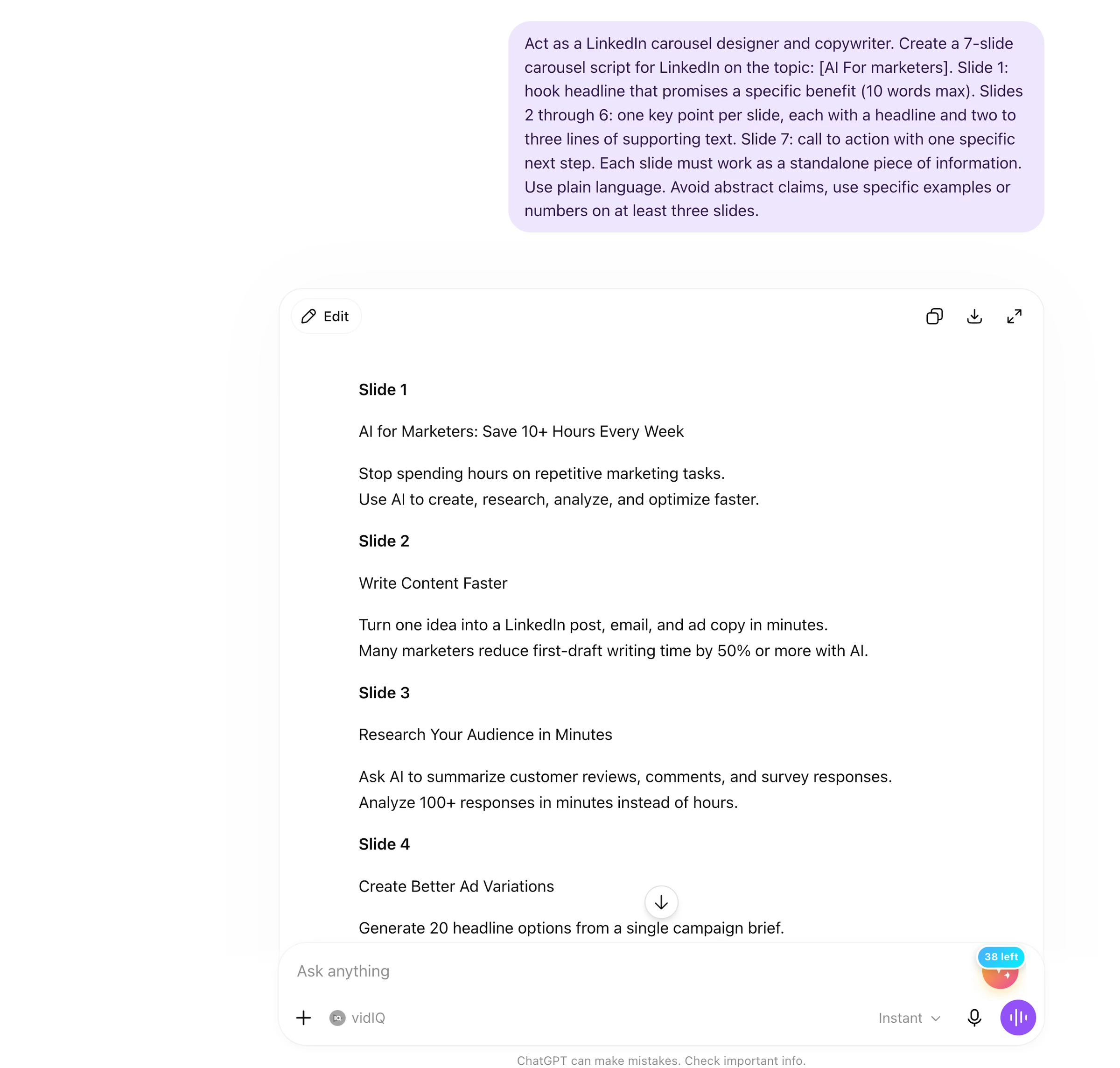
Why it works: LinkedIn carousels average a 6.60% engagement rate, higher than every other content format on the platform. They perform 585% better than text posts because they keep users on the post longer, which signals value to the algorithm. A seven-slide format hits the sweet spot between depth and scroll fatigue.
Formatting tip: After ChatGPT generates the carousel copy, paste each slide's text into the LinkedIn Text Formatter and apply bold to each slide headline. When you screenshot the text for your carousel image, the formatting adds hierarchy without needing a design tool.
Connection Request Messages
Use case: Writing personalized connection requests that get accepted.
Prompt:
Act as a LinkedIn outreach specialist. Write a personalized connection request message for [name], a [their job title] at [company]. I noticed [one specific thing about their profile, recent post, or company]. I want to connect because [genuine reason tied to shared interest, industry, or goal]. Keep it under 200 characters. Do not pitch anything. Do not mention any product or service. Sound like a real person, not a sales email.
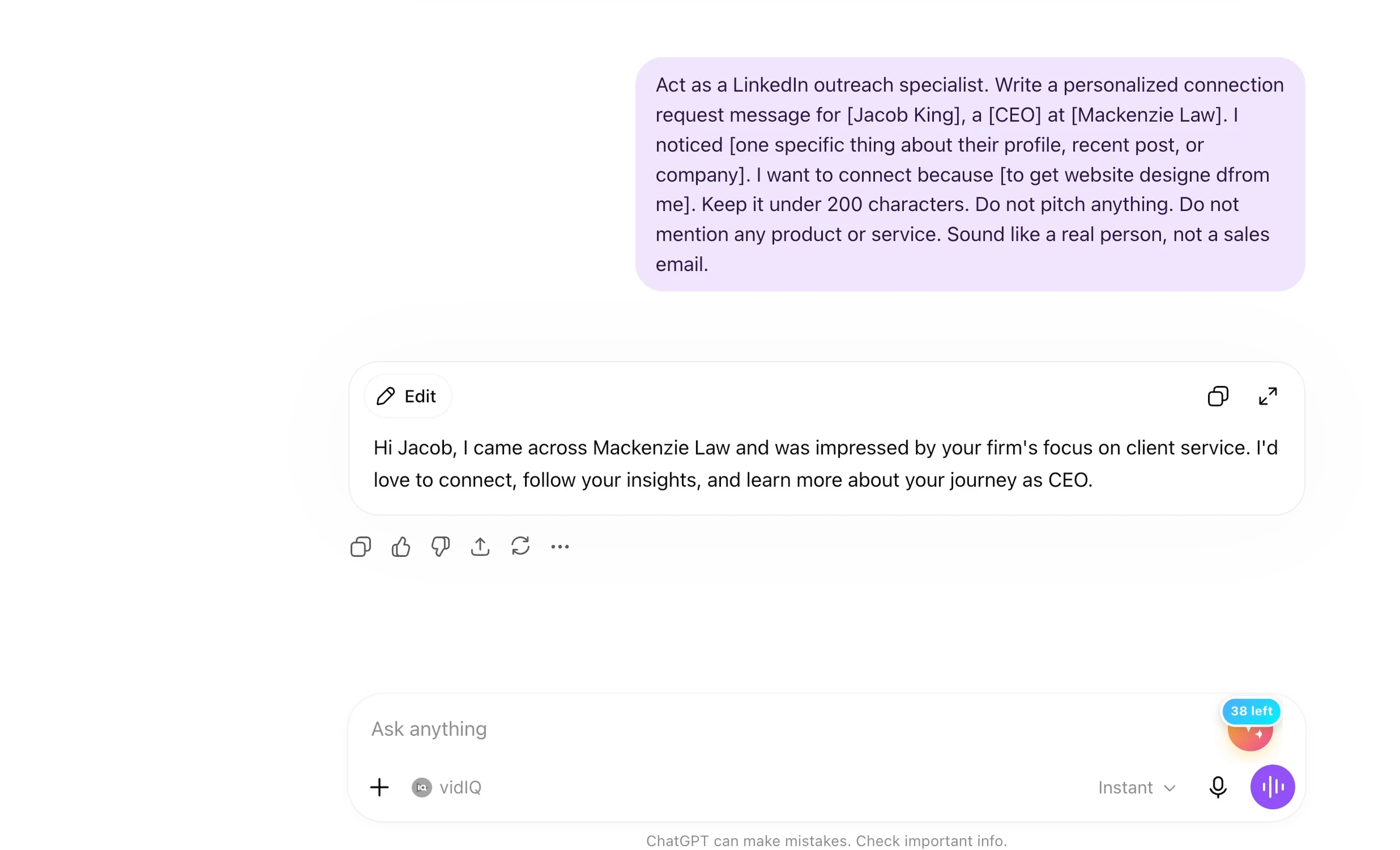
Why it works: Connection request acceptance rates drop when messages feel scripted or salesy. A message that references something specific to the recipient, without any ask, positions you as genuinely interested. Under 200 characters means it reads fast and does not look automated.
Do this first: Before writing the prompt, spend two minutes looking at the person's recent posts or their About section. Put one specific observation in the prompt. ChatGPT cannot observe their profile, but you can. That detail is what makes the message feel human.
Outreach DMs and Follow-Ups
Use case: Writing a first DM after connecting, or a follow-up message after no reply.
First DM prompt:
Act as a LinkedIn sales consultant. Write a first message to send after a connection request was accepted by [name], who is a [job title] at [company type]. The message should open with a light, casual remark, provide one specific piece of value (a resource, insight, or relevant observation), and end with a low-pressure question that invites a reply. Max 120 words. No mention of pricing, products, or services.
Follow-up prompt:
Act as a LinkedIn outreach consultant. Write a short follow-up message to send after receiving no reply to my first DM. Assume the first message introduced me and offered a piece of value. The follow-up should acknowledge the lack of response without being passive-aggressive, offer a different angle of value or ask a different question, and end with an easy yes or no option. Max 80 words.
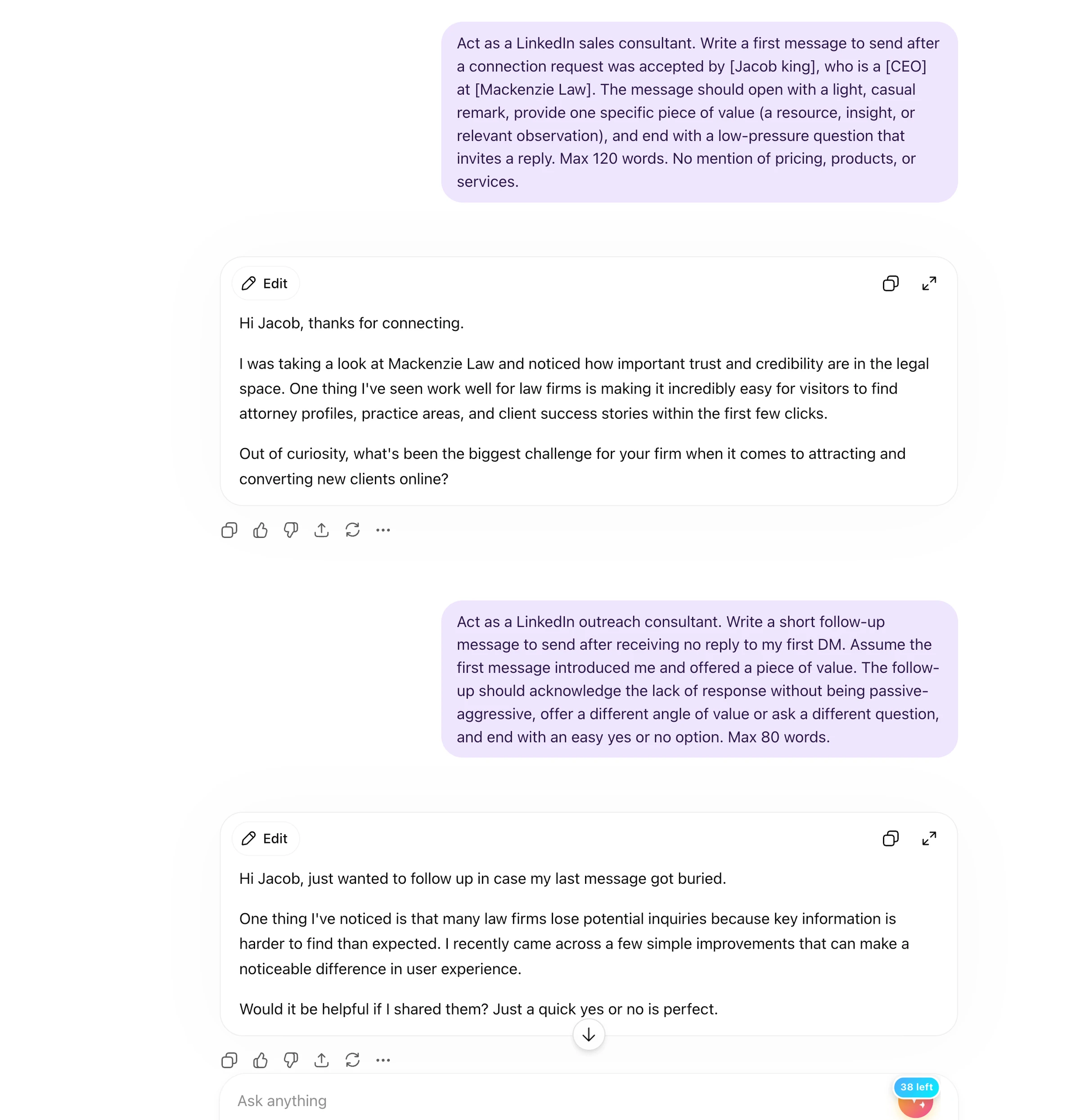
Why it works: Most people never follow up, or they send a second pitch. A follow-up that offers a new angle of value and ends with a yes/no question is easier to respond to and does not feel pushy. Response rates on well-structured follow-ups consistently run 2x to 3x higher than second-pitch messages.
Content Calendar Planning
Use case: Building a four-week LinkedIn content plan in one session.
Prompt:
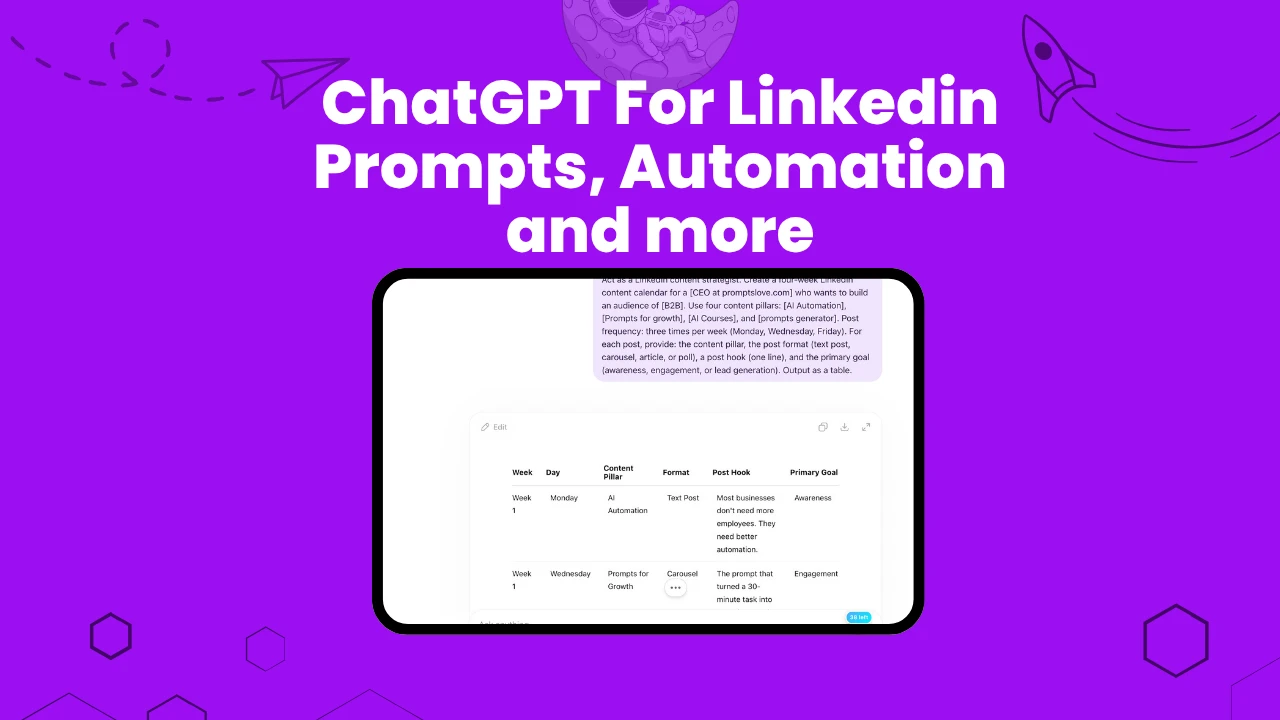
Act as a LinkedIn content strategist. Create a four-week LinkedIn content calendar for a [your job title] who wants to build an audience of [target audience]. Use four content pillars: [pillar 1], [pillar 2], [pillar 3], and [pillar 4]. Post frequency: three times per week (Monday, Wednesday, Friday). For each post, provide: the content pillar, the post format (text post, carousel, article, or poll), a post hook (one line), and the primary goal (awareness, engagement, or lead generation). Output as a table.
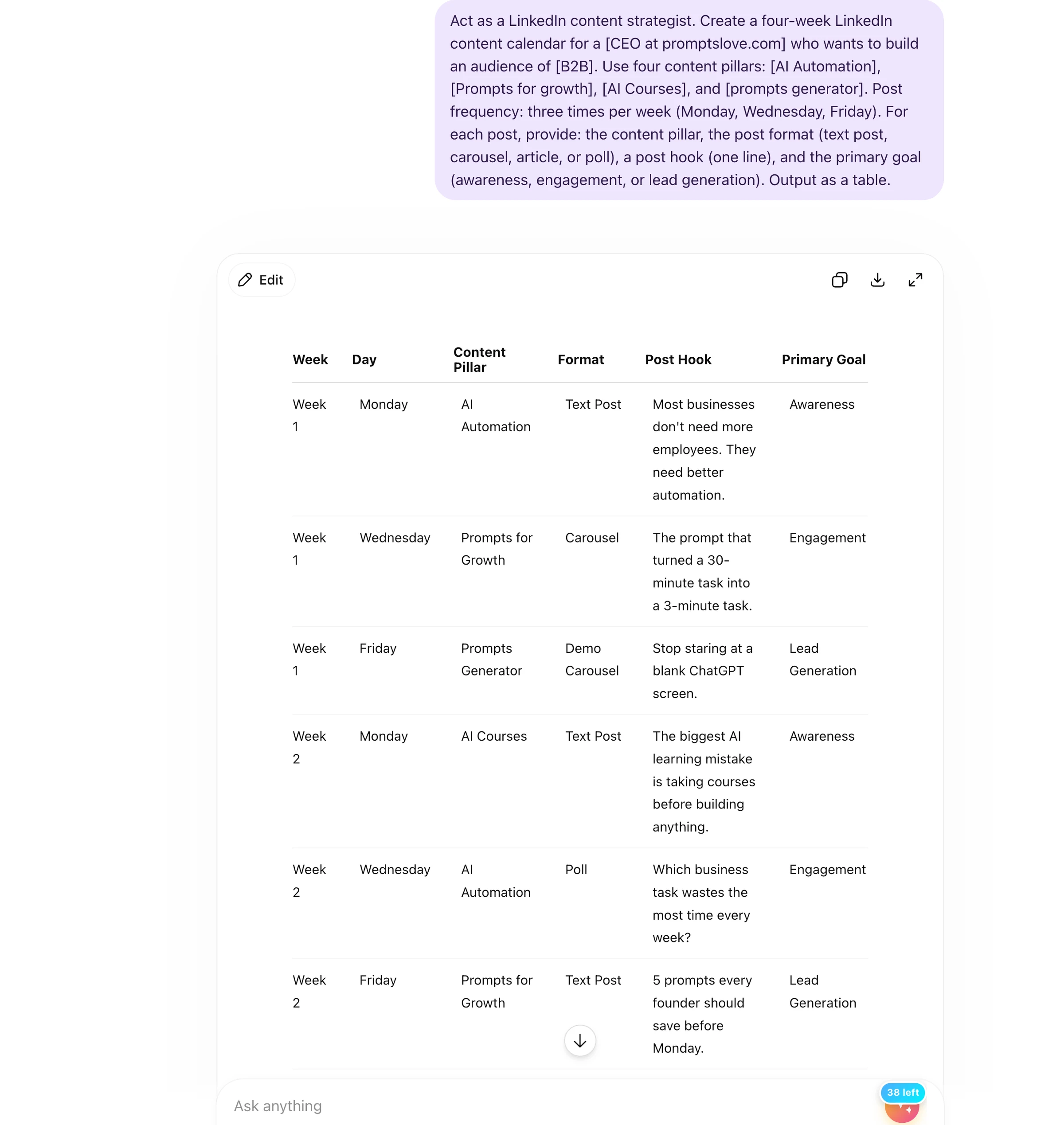
Why it works: Batching content planning into one session saves hours. A four-week calendar built around content pillars gives you variety and prevents the repetition that kills follower engagement. The table format makes it easy to track and adapt.
Commenting on Other Posts
Use case: Writing a comment that adds value and gets you noticed.
Prompt:
Act as a LinkedIn personal brand consultant. Write a comment on a LinkedIn post where the author said: "[paste their post or key point here]." The comment must add a new perspective, data point, or personal experience that extends the author's idea. It should not just agree or restate what they said. Max 60 words. End with a question for the author or their audience.
Why it works: Comments that add substance, rather than just "great post!", show up in your connections' feeds and introduce you to people you have never met. The algorithm treats meaningful comments as engagement signals and surfaces your profile alongside the original post.
Automate Linkedin With n8n
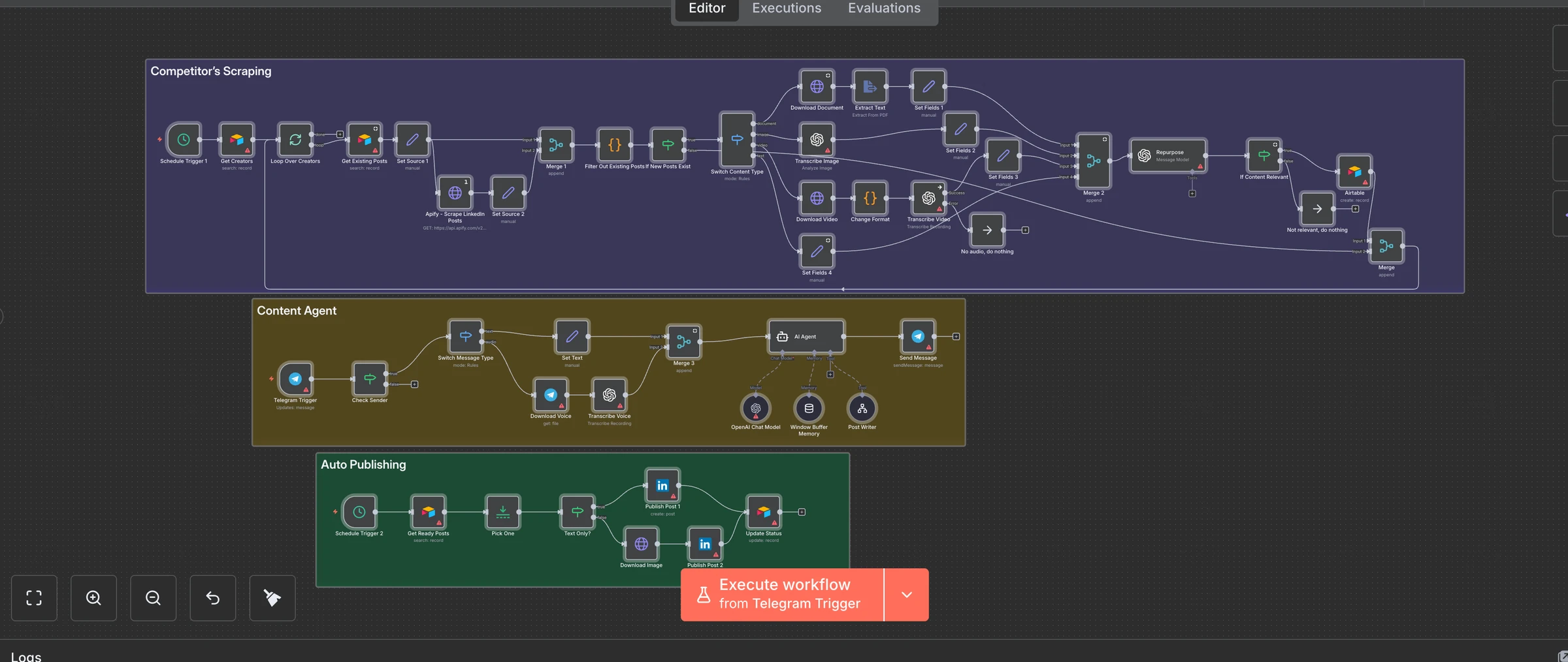
This Template I use which I shared on our members area which automates engagement, outreach, and lead nurturing on LinkedIn using n8n, OpenAI GPT Models, and Firecrawl. It reads recent posts, writes human-like comments, and optionally sends connection messages, acting as your intelligent personal brand assistant for professional networking.
How I Use the LinkedIn Text Formatter
Raw text on LinkedIn is flat. Every post looks the same. The Promptslove LinkedIn Text Formatter solves this without any signup or cost.
Here is how I use it in my workflow:
For text posts: I paste my edited draft, select the first line, and apply Bold or Bold Sans. LinkedIn truncates posts at about 200 to 300 characters with a "see more" link, so a bold first line stops the scroll before the reader has to click.
For carousels: I format slide headlines in Bold Italic or Italic Sans to give each slide visual hierarchy. The live preview on the right side of the tool shows exactly how the text will look.
For comments and messages: The formatter works across LinkedIn comments, messages, headlines, and the About section, not just posts. I use it to bold my name or a key phrase in connection request follow-ups to make them stand out.
Important note: Unicode-formatted text is not indexed by LinkedIn search. Do not format words you want people to find through search, like your job title or skills in your headline. Use formatting for visual emphasis only.
My ChatGPT LinkedIn Dos and Don'ts
Do This
Give ChatGPT your actual data. If your post mentions results, put the real numbers in the prompt. "I helped a client increase organic traffic by 47% in 90 days" produces a far better draft than "I helped a client improve their traffic."
Use the PTCF framework every time. The Promptslove prompt generator structures every prompt with Persona, Task, Context, and Format automatically. Skip any of these four elements and the output quality drops noticeably.
Rewrite the first line every time. ChatGPT openers are predictable. They sound like openers. Your audience has read a hundred posts that start with "In today's fast-paced world" or "I learned something this week." Kill the opener and write your own one-sentence hook.
Batch your content. Write four or five posts in one session. Running the same workflow four times in a row builds momentum, and you make better creative decisions when you are already in the mode.
Format before posting. Paste into the LinkedIn Text Formatter, bold the first line, check the preview, then copy to LinkedIn. This step takes under two minutes and makes your posts look more intentional than 90% of what gets published.
Do Not Do This
Do not post raw ChatGPT output. The AI vocabulary is recognizable. Phrases like "In the age of AI" and "As professionals, we often" appear constantly in unedited output. Your audience notices. Edit at least 30% of every draft.
Do not use vague prompts. "Write me a LinkedIn post about productivity" produces generic content. "Write me a LinkedIn text post about the one productivity system I use to write four blog posts per week, aimed at freelance writers who struggle with content consistency" produces something usable.
Do not skip verification. ChatGPT invents statistics. If it writes a number into your post, check it before publishing. Posting a fabricated statistic damages your credibility fast.
Do not automate your DMs. ChatGPT can write the message. You should send it. Bulk automated LinkedIn messaging violates LinkedIn's terms and gets accounts restricted. Use ChatGPT for copy, not distribution.
Do not format critical keywords. Unicode bold text is invisible to LinkedIn search. If your headline includes the phrase "SaaS Marketing Manager," keep that in plain text so LinkedIn's search engine can index it.
Frequently Asked Questions (FAQs)
Can ChatGPT write my entire LinkedIn profile for me?
ChatGPT can write a strong first draft of your headline, About section, and job descriptions. You must edit it. The model does not know your specific achievements, client names, or personal stories. Feed it your real data inside the prompt and then rewrite any section that sounds generic. A profile that reads like you wrote it converts better than one that sounds like an AI.
How do I make ChatGPT posts sound like me?
Start by giving ChatGPT three to five examples of your own writing. Paste them into the prompt and say: "Match the tone and sentence length of these examples." Then edit the output to add any word or phrase the model missed. Over time, this trains your own mental model of what edits are needed, and the process gets faster.
Is using ChatGPT for LinkedIn posts allowed?
Yes. LinkedIn does not prohibit AI-assisted content. The platform's policies address spam and fake accounts, not AI writing tools. Authenticity matters to your audience more than it matters to LinkedIn's rules. Write posts that reflect your real views and experience, even if ChatGPT drafted them.
What is the PTCF framework for LinkedIn prompts?
PTCF stands for Persona (who ChatGPT should act as), Task (the specific deliverable), Context (your audience, goals, and constraints), and Format (the output shape, such as a text post, list, or table). OpenAI recommends this structure for consistent ChatGPT results. You can build PTCF-structured prompts automatically using the free Promptslove ChatGPT Prompt Generator.
How often should I post on LinkedIn using AI-assisted content?
Three times per week is the standard recommendation for consistent audience growth. Consistency matters more than volume. Two solid AI-assisted posts per week that you actually edit and personalize beat five rushed posts that all sound the same. Use your content calendar prompt to plan a month at a time and avoid decision fatigue.
What LinkedIn post format gets the most engagement?
LinkedIn native documents and carousels lead all formats at an average 7.00% and 6.60% engagement rate respectively. Video posts get five times more engagement than static image posts. Text posts average 3.70 to 4.30%. If you want growth, prioritize carousels. They also take the least amount of production effort when ChatGPT builds the slide copy for you.
Final Thoughts
ChatGPT does not replace your voice on LinkedIn. It removes the blank-page problem so your voice has somewhere to start. The writers and creators I see growing fastest on LinkedIn in 2026 use AI for structure and first drafts, then edit hard to add the specific experiences and points of view that no AI can replicate.
Two tools make this workflow faster and better. Use the ChatGPT Prompt Generator at Promptslove before you write a single prompt, and use the LinkedIn Text Formatter at Promptslove before every post goes live. Both are free, both require zero signup, and both close the gap between a mediocre AI draft and a post that actually performs.
Start with one of the prompts in this guide this week. Pick the post type you need most and run it through the full workflow. Measure your engagement after two weeks of consistent posting. The results will tell you everything.