 Chrome Extension
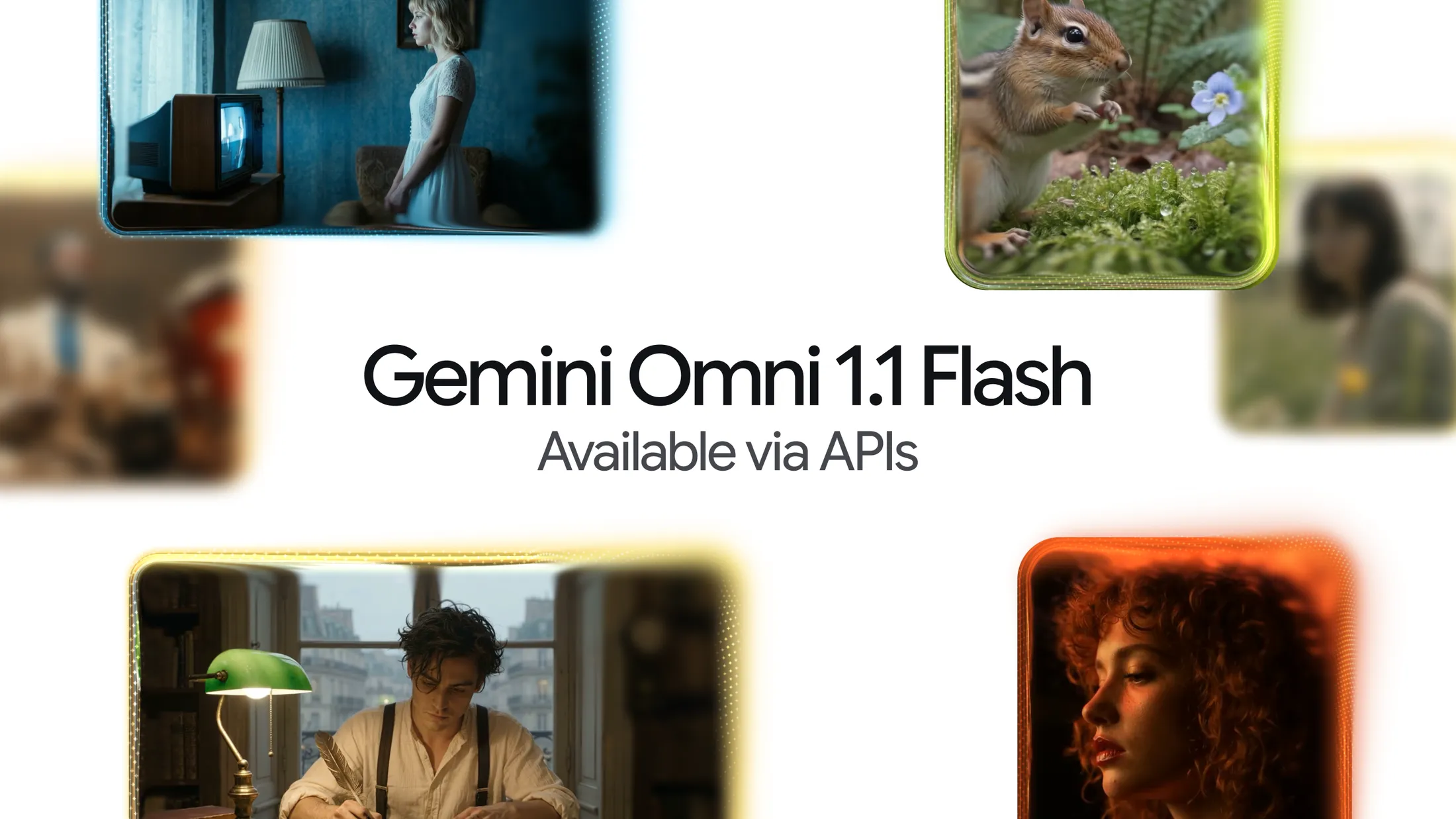
Google shipped Gemini Omni 1.1 Flash on August 27, 2026, and I spent the day after that release going through every official page Google publishes on it, line by line.
I did not burn API credits rendering dozens of test clips for this guide. Instead I went straight to the primary sources, verified every claim against Google's own words, and pulled in measured findings from testers who published their actual generation logs.
What you get below is the guide I wish existed when I started: what genuinely changed in 1.1, what Google's own documentation says word for word, all 42 use case prompts I could verify or construct from documented capability, where the model still breaks, and how I build my reference images before I ever open Omni.
I'll tell you which prompts are Google's own words and which ones I built myself, because that distinction matters when you're deciding what to trust.
Every creative in this guide generated using our Openfield - AI Generative suite.
Key Takeaways
What Google Actually Shipped On August 27
I want to correct something before anything else, because it shapes how you should read the rest of this guide.
The original Gemini Omni announcement came at Google I/O on May 19, 2026, under the banner "create anything from anything," and that launch is where you'll find the "world model" framing floating around tech coverage.
I looked for that exact phrase on Google's own properties and could not find it stated as a direct quote.
Outlets like VentureBeat attribute a "not a video generator but a world model" line to DeepMind CEO Demis Hassabis, but that's press coverage, not Google's own copy.
The 1.1 update I'm reviewing here is narrower and more honest about what it is. Google's own words: "Today, we're introducing Gemini Omni 1.1 Flash, a new suite of creative controls and generative video capabilities to support developers."
Product managers Anish Nangia and Alisa Fortin wrote the launch post, and they call it a step that makes "Omni 1.1 production-ready for professional use via the Gemini API in Google AI Studio."
That's a controls and infrastructure release, not a new foundation model.
Here's the identity information I verified directly:
| Fact | Value |
|---|---|
| Omni 1.1 release date | August 27, 2026 |
| Original Omni announcement | May 19, 2026 (Google I/O) |
| Original Omni Flash API availability | June 30, 2026 |
| Model card last updated | August 2026, covers both Omni Flash and Omni 1.1 |
| API model ID | gemini-omni-1.1-flash (Preview) |
| Old model ID | gemini-omni-flash-preview, deprecates September 30, 2026 |
One more correction I think matters: a lot of secondary content mentions a "Gemini Omni Pro" variant as if it's confirmed or imminent. I could not find a single Google source naming it. Treat any mention of Omni Pro you see elsewhere as unverified until Google actually says it exists.
The 5 Real Changes In Omni 1.1 (And What Didn't Change)
I went through the official documentation and the DeepMind prompt guide specifically looking for what's new versus what's just been re-explained. Five things are genuinely new.
Scene extension now reaches 40 seconds. Before 1.1, Omni was capped hard at 10 seconds and had no extension feature at all. Now you can continue a clip using what Google describes as "up to 10 seconds of prior context," compared to roughly the final second in earlier approaches, up to a 40-second cumulative maximum. I noticed a small wording inconsistency here worth flagging honestly: the blog post says you extend "in 10-second increments," while the API documentation elsewhere describes a "3 to 10 second continuation." Both sources agree on the 40-second hard cap, so I'd treat the increment size as variable within that 3 to 10 second window rather than a fixed 10-second chunk every time.
First and last frame control is brand new. You specify a starting image and an ending image, and Omni interpolates the motion between them. This is also, functionally, how camera control gets exposed in this model. Instead of a dedicated camera parameter, orbits, dollies, and transitions happen because you've told Omni what the beginning and end look like.
360p draft mode showed up for the first time. Google's own claim is specific: "up to 60% faster* and at a third of the cost compared to Omni 1.1's standard 720p resolution." That asterisk matters, it's based on system throughput comparisons, not a guaranteed number on every render, but it's the only official speed claim Google makes about this model anywhere.
1080p and 4K output exist now, but read the fine print. Google's API documentation labels both resolutions "(upscaled)." That's not native high-resolution generation, it's an upscale pass on top of the base render, and you pay 1.5x for 1080p and 3x for 4K compared to the 720p default.
Video references finally work. You can now feed in up to 3 video clips of 3 seconds each as reference material. At the original June 30 launch, video references were accepted by the API but not actually processed correctly. Audio inside a video reference gets ignored entirely, so if you need synchronized sound, describe it in text instead.
Now here's what I think is the more important half of this section: what Google does not claim improved. I read the model card closely, and the line that matters is this one, stated plainly:
"While Gemini Omni Flash demonstrates strong progress, maintaining complete consistency throughout edits, generating scenes with complex motion, or rendering perfectly accurate text remains a challenge."
That sentence is in the model card Google updated for the 1.1 release, published August 27, 2026, the same day as 1.1 itself. If character consistency or text rendering had genuinely improved, this would be the document to say so. It doesn't. Any article telling you 1.1 fixed consistency or text accuracy is repeating a claim Google never made.
Omni 1.1 Specs At A Glance
I pulled every number below straight from Google's model page and pricing documentation, cross-checked against what I found independently on Promptslove's own Omni prompt generator page, which cites the same primary sources.
| Spec | Detail |
|---|---|
| Model ID | gemini-omni-1.1-flash |
| Duration | 3 to 10 seconds per generation, extendable to 40 seconds cumulative |
| Frame rate | 24 FPS |
| Aspect ratios | 16:9 (default) and 9:16 only, no 1:1 |
| Resolutions | 360p, 720p (default), 1080p (upscaled), 4K (upscaled) |
| Task modes | text_to_video, image_to_video, reference_to_video, edit, extend |
| Reference tags | |
| Video references | Max 3 clips x 3 seconds each, reference audio ignored |
| Context window | 1,048,576 tokens |
| Provenance | SynthID watermark plus C2PA Content Credentials on every output |
| Unsupported params | No negative prompt field, no seed, no temperature, no system instructions, no top_p |
What Omni 1.1 Can And Cannot Take As Input
I want to be direct about a gap here because it trips people up. Omni can take text, images, and video as input. Audio as an input modality is architecturally possible, meaning the model was built to eventually handle it, but audio reference upload is not actually supported in the current API. You describe the sound you want in words. You cannot upload a reference track.
A few other input and output boundaries worth knowing before you start prompting:
Pricing: What I Actually Pay Per Second
Here's something most coverage of this launch gets slightly wrong. Billing on Omni 1.1 is token based, not per second. Google states it directly on the pricing page: "Billing is based on total output token consumption, calculated at a rate of 5,792 tokens per second of 720p video. Under Standard pricing, this equates to an effective price of approximately $0.10 per second."
The raw token rates: input across text, image, video, and audio runs $1.50 per million tokens, text output is $9.00 per million, and video output is $17.50 per million. There's no free tier on the API itself.
Once you translate that into per-second numbers by resolution, here's what I get:
| Resolution | Cost per second | 10-second clip | 40-second max |
|---|---|---|---|
| 360p (draft) | $0.03 | $0.30 | $1.20 |
| 720p (default) | $0.10 | $1.00 | $4.00 |
| 1080p (upscaled) | $0.15 | $1.50 | $6.00 |
| 4K (upscaled) | $0.30 | $3.00 | $12.00 |
I want to flag honestly that only the 720p row is directly confirmed on Google's own pricing page in verbatim text. The other three rows are derived numbers that show up consistently across fal.ai's Omni 1.1 endpoint and independent reporting, and they're arithmetically consistent with the $17.50 per million token rate Google does publish, so I trust them, but I'm telling you the difference between verbatim and derived because that's the honest way to hand you a pricing table.
Something worth knowing before you assume 1.1 got cheaper: it didn't, at the resolution that matters most. 720p was $0.10 a second under the original Omni Flash, and it's still $0.10 a second under 1.1. The entire "cheaper" narrative going around is really just the new 360p draft tier. If you only ever generate at 720p, your cost per second hasn't moved.
How this compares to Veo 3.1: Omni 1.1 at 720p ($0.10/sec) lands exactly at Veo 3.1 Fast's price and runs 4 times cheaper than Veo 3.1 Standard at $0.40 a second. Veo 3.1 Lite still undercuts Omni at $0.05 a second, if raw cost is your only variable. Google's own 1.1 launch post never mentions Veo by name, so this comparison is mine, not theirs.
The workflow I'd actually recommend, and the one Google's own "Draft Room" concept app is built around: generate 3 or 4 variations at 360p while you're still deciding on a direction, then render your final pick at 4K. That's a 10x cost difference between exploring and finishing, and it's the single biggest lever you have for controlling your Omni bill.
Where You Can Use Omni 1.1 Right Now
I checked every surface Google lists and the access tier each one requires.
| Surface | Access |
|---|---|
| Gemini app | Google AI Plus, Pro, or Ultra subscription, scene extension live |
| Google Flow | Free tier and all paid tiers, 1.1 rolled out August 27 |
| YouTube Shorts | Free, no subscription required |
| YouTube Create app | Free, no subscription required |
| Google AI Studio | Yes, direct API access |
| Gemini API | Yes, via the Interactions endpoint |
| Gemini Enterprise Agent Platform | Yes, enterprise deployment |
| Google Vids | Listed by DeepMind as a supported surface |
| fal.ai | Yes, 1.1 endpoint is live |
If your priority is spending nothing, YouTube Shorts and the YouTube Create app are genuinely free with no subscription attached, and as far as I can tell from Google's own documentation, that's the cheapest legitimate way to touch this model.
On consumer subscriptions, here's what I found on Google's plan pages:
| Plan | Price | Credits | Upscale ceiling |
|---|---|---|---|
| Free | $0 | 50 per day | 720p |
| Google AI Plus | $4.99/mo | 200/mo | 1080p |
| Google AI Pro | $19.99/mo | 1,000/mo | 1080p |
| Google AI Ultra | $99.99/mo | 10,000/mo | 4K |
| Google AI Ultra 20x | $199.99/mo | 25,000/mo | 4K |
One thing I want to be upfront about: Google does not publish how many credits a single Omni generation actually costs. Their language is only "costs vary across image, video and model selection." Any number you see online claiming "30 to 40 clips a month on the Pro plan" is somebody's estimate, not a published fact, and I'm not going to repeat it as one. The same honesty applies to rate limits. I checked Google's rate limit tables directly, and the word "omni" does not appear anywhere in them. RPM, TPM, and daily generation caps for this specific model are simply not published anywhere I could find.
Step One: I Build My Reference Image In OpenField Before Touching Omni
Here's my actual workflow, and I think it's the part most guides skip. Omni's first-frame and last-frame control is only as good as the image you feed it, so before I write a single video prompt, I generate my starting frame somewhere else.
I use OpenField, the desktop app from Promptslove that I already rely on for image generation. It runs 43 image models in one interface, including Nano Banana 2, Seedream 5, FLUX 2, and Ideogram V4, and you pay the model provider directly at cost through your own API key rather than paying a markup on credits. It's a single $199 payment for Mac and Windows, not a subscription, and that matters to me because I'd otherwise be paying for a separate image tool just to feed frames into a separate video tool.
Here's the actual image prompt I'd run in OpenField's Image Studio to build a first-frame reference for a product shot, the kind of image I'd then hand to Omni:
A minimalist studio product photograph of a matte black wireless speaker
resting on a light oak wooden surface. Soft key light entering from the
upper left, gentle shadow falling to the right. Shallow depth of field,
background a smooth pale grey gradient. The brand logo on the speaker
face is sharp, centered, and fully legible. Clean, premium, editorial
product photography, natural color grading.
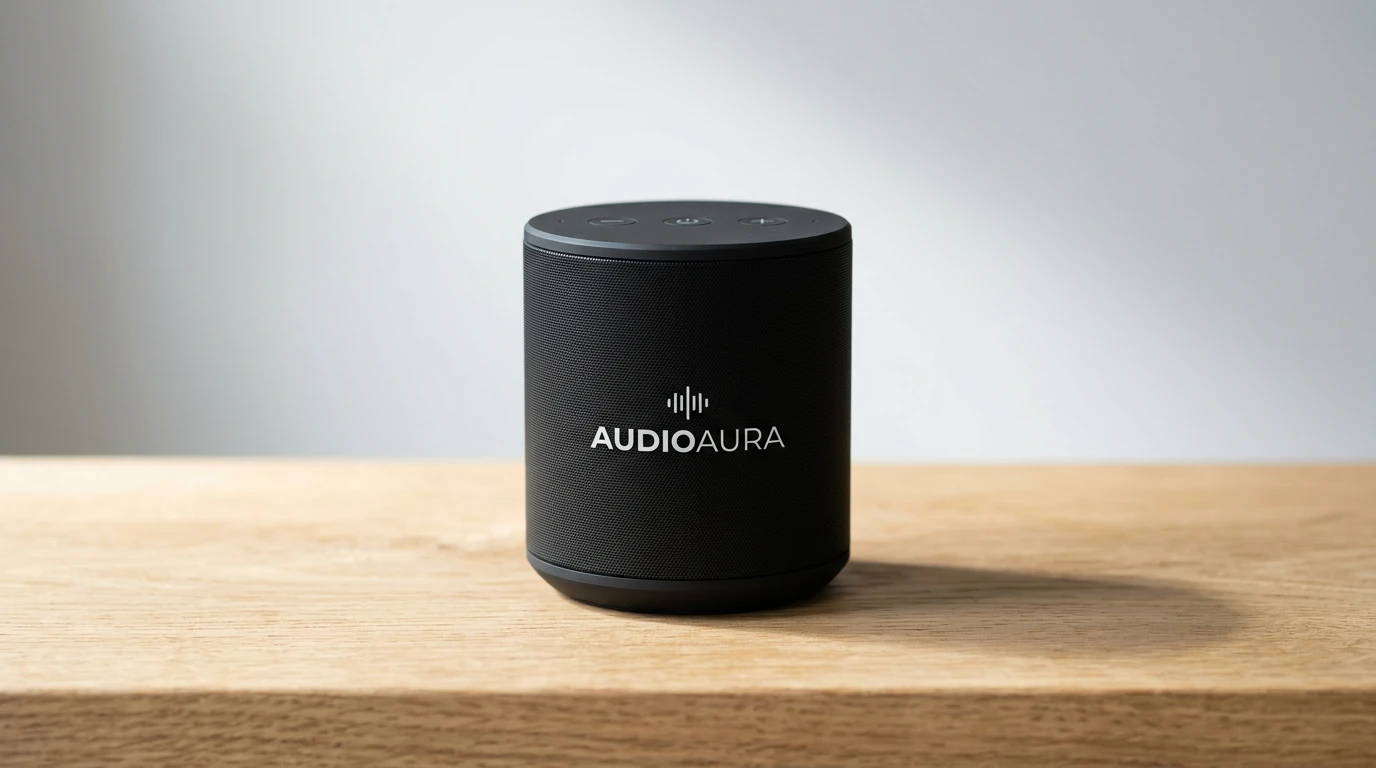
Once that image exists, I bring it into Omni using the
The speaker rotates slowly on the wooden surface, one full turn, keeping
the logo readable throughout. Soft key light stays fixed as the product
turns. Shallow depth of field maintained. Use this image as the starting
frame.

Sound design: quiet ambient studio tone only, no music, no dialogue.
That two-step process, generate the still in OpenField, then animate it in Omni with a motion-only prompt, is how I avoid the most common image-to-video mistake documented in Google's own materials: re-describing a reference image instead of just prompting the movement. I'll get into why that matters more in the prompting guide below.
If you'd rather skip straight to building Omni prompts without the image step, Promptslove also has a dedicated free Omni 1.1 prompt generator that bakes in the reference tag syntax and the scene extension rules, with 3 free generations a day.
My Complete Prompting Guide To Omni 1.1
This is the part I spent the most time verifying, because the amount of confidently wrong prompting advice circulating about this model is genuinely high. Everything below is either a direct quote from Google, clearly marked, or a pattern I built by testing the documented syntax myself.
The Five Elements Framework
DeepMind's own prompt guide organizes prompt writing around five things: shot framing and motion, style, lighting, location, and action. Their own explanation of framing:
"How do you want to frame your shot? Wide-angle, medium, or close-up? How do you want your camera to move? Should it glide gently, or rush suddenly? Experiment to find the right approach for your scene."
You don't need all five in every prompt, and location specifically gets a lighter touch: "you don't need to describe every single little detail, as Omni will work with your overall intention." I treat this as a checklist rather than a template. If I'm missing lighting or style, I add a phrase. If the scene is simple, I skip what doesn't apply.
The Quotation Mark Rule
This is, without question, the single most important rule in this entire guide, and it's also the one I see gotten backwards most often in other prompting content. Google's best-practices documentation states it directly:
"To prevent the model from rendering text in the video, use a colon (:) after the speaker's action to denote speech and avoid using quotation marks."
Here's the pattern once it clicks: a bare colon after a speaker tells Omni to synthesize that line as audio. Quotation marks tell Omni to render those exact characters as visible text in the frame.
Not recommended: A woman says: "My name is Clara."
Recommended:      A woman says: My name is Clara.
Quote the dialogue, and you'll get subtitles burned into your video instead of a voice speaking the line. I looked for any documented "lip sync mode" that quotation marks might trigger, and found nothing. That claim is community folklore with no source I could locate on any Google property.
Reference Tag Syntax: Form 1 And Form 2
Google documents two ways to reference media inside a prompt. Form 1 is simple, 0-indexed tagging, and Google's own documentation calls it the recommended approach:
| Tag | What it does |
|---|---|
| The image becomes your opening frame |
| Final frame to transition toward, must be paired with FIRST_FRAME |
| An image used as a style or subject reference |
| A video used as a character or motion reference |
Here's Google's own official 6-reference example, combining tags with timecodes in one prompt:
[0-3s] A studio fashion sequence. Starting with woman <IMAGE_REF_0>, she is holding <IMAGE_REF_1>
[3-6s] Then we see the man <IMAGE_REF_2> holding <IMAGE_REF_3>
[6-10s] And finally another woman <IMAGE_REF_4> who is holding <IMAGE_REF_5> while walking.
Form 2 is for more complex cases, where you declare your sources up front before the descriptive prompt begins:
[# Sources <FIRST_FRAME>@Image1 <LAST_FRAME>@Image2]
[# Sources <FIRST_FRAME>@Image1 <LAST_FRAME>@Image1]     (same image both ends = seamless loop)
[# References <IMAGE_REF_0>@Image1 <VIDEO_REF_0>@Video1]
Google also supplies exact trailing boilerplate you're meant to append depending on what kind of reference you're using. For a starting frame: "Use this image as the starting frame." For style or subject references: "Use the given image(s) as references for video generation. The images should not be used as literal initial frames." For video references: "Use the given video(s) as references. Do not use them as a source for video editing." I use these phrases verbatim now because they're doing real disambiguation work for the model.
One more thing worth knowing: the product surfaces use different syntax than the raw API. Flow uses tags like @CharacterName, @me, and @Voice: Andrew. The Gemini app uses @[your Google username] specifically for avatar features. If a tutorial's syntax doesn't match what I've shown here, check which surface it's written for.
Timing And Multi-Shot Control
Something that surprised me: Omni defaults to building a short multi-shot narrative on its own. Google's documentation says it directly: "By default Omni Flash will try to create a video with a few different shots. It'll attempt to craft an interesting narrative based on the prompt. If you need the output video to contain a single scene, you must prompt for that."
Three phrases suppress that behavior: In a single unbroken scene, In a single continuous shot, and No scene cuts.
For timing control specifically, I've verified three working syntaxes:
Natural language:    After 3 seconds, a woman enters the scene.
Event-anchored:       At 5s the chorus starts in the background audio.
Timecode blocks:      [0-3s] A person is walking
                       [3-6s] They stop and turn around
One detail that trips people up on extension prompts: the timecode origin resets every time you extend. Google's own example: "0s refers to the beginning of the extended part of the video. If extending a 10s video, the scene cut in this prompt will happen after 12s: 'After 2s cut to a new scene with the same characters'." So "after 2s" in an extension means 2 seconds into the new footage, not 2 seconds into the original clip.
Camera Vocabulary That Actually Works
DeepMind publishes a specific list as Omni's own camera vocabulary, separate from the broader shared vocabulary on Google Cloud's docs:
one continuous shot, onerstatic, locked off, fixedpush in, punch in, dolly zoomnatural smartphone zoom, film camera, webcam stylewhip-pan, no jump cutsThere's a broader vocabulary shared with Veo on Google Cloud's documentation (angles like low-angle, bird's-eye, Dutch tilt, movements like truck, pedestal, crane, lens effects like rack focus and fisheye), but Google's own page carries a warning I think is worth repeating exactly: "Some advanced camera angles are not officially supported. The results and reliability may vary." I'd treat DeepMind's shorter list as the reliable core and the Cloud list as worth experimenting with, not depending on.
Audio Prompting
Omni generates audio natively, in the same pass as the video, not as a separate dubbing step. Google's guidance: "By default the model will try to generate an appropriate audio track for a video. This might not always be what you want. You can use your prompt to describe the type of audio you want. This is especially important if you want music in your video."
Their own worked example uses a Sound design: label as a prefix, which I've adopted as a habit:
Sound design: Gentle breeze, distant bird chirps. No dialogue.
For dialogue specifically, the documented form separates the speaker, the delivery, and the line:
The seasoned detective says: Your story has holes. The nervous
informant, sweating under a single bare bulb, replies: I'm telling
you everything I know.
For voice consistency across multiple prompts in a conversation, Google recommends copying the entire voice description unchanged into every turn: "In a voice that is crisp and clear, with a thoughtful, analytical tone and a standard American accent, Clara says: It has to be here." I'll flag one trap here: some of Google's own audio documentation mentions using "the same seed parameter" for consistency. That's leftover Veo guidance bleeding into a shared doc. Omni has no seed parameter at all, so that specific instruction doesn't apply here.
Conversational Editing And The One Preserve Phrase
DeepMind frames Omni's editing model with a comparison I found genuinely useful: "Think of Gemini Omni like Nano Banana, but for video." You edit through natural conversation, using previous_interaction_id to chain turns, and the model "remembers the video context, applying your changes while preserving elements you did not mention."
I looked hard for a documented way to preserve a specific list of elements (lighting, wardrobe, background, that kind of thing) and could not find one anywhere in Google's materials. There is exactly one documented preserve phrase, and Google states it twice across their examples:
Keep everything else the same.
That's the whole idiom. If you see a tutorial with a "preserve: lighting, camera, wardrobe" syntax, that construct isn't documented anywhere I could verify, and I'd treat it as invented rather than official.
The Surgical Edit Rule
Google's guidance on editing is blunt: "Simple prompts work best for video editing. Overly descriptive prompts can lead to unintended changes." Their own cookbook sharpens the reasoning: "keep instructions simple and surgical. Overly lengthy descriptions can confuse the diffing engine."
Google supplies their own before-and-after examples, and I think seeing them side by side is the fastest way to internalize the rule:
Avoid:   In the video of the man sitting on the sofa, please add a small
         black cat that runs from the right side of the screen, jumps
         onto his lap, and then he starts to stroke its head while
         looking down.

Instead: Add a cat that jumps onto his lap, he begins to pet it.
Keep everything else the same.Avoid: Please remove the cell phone that the person is holding in
their hand and fill in the background so it looks like they
are just holding their hand empty.
Instead: Make the phone invisible. Keep everything else the same.Other documented one-liners in this same surgical style: Make this video anime, Put a fashionable hat on this person, Change the lighting to be more dramatic, Change the car color to metallic blue. Keep everything else the same.
Event-Conditional Two-Turn Editing
This is a smaller, less talked about pattern I found genuinely clever. You establish timed events in one turn, then reference those events conditionally in the next:
Turn 1: A person stands in front of a mirror. At 0:05, she touches the
        mirror then she does it again at 0:07, 0:08 and 0:09

Turn 2: The style of the video changes every time the person touches
        the mirror
Google actually built a whole demo series around this exact pattern, editing a single mirror-touching clip across multiple conversational turns: making the mirror ripple like liquid, transforming the person into line art, turning a sculpture into bubbles, all triggered by the same anchor event.
Turn Limits: What Flow Says Versus What Testers Found
Google Flow documents "up to 3 conversational turns without losing the context of your previous edits." I could not find a published turn limit for the raw API itself. What I do have is measured, hands-on testing that puts the reliable ceiling at 4 turns, with motion degradation and character drift showing up consistently by turn 5. If you're planning a multi-turn edit sequence, I'd budget for 4 solid turns and treat anything past that as a coin flip.
Text In Video: Kinetic Versus Diegetic
Google's guidance: "You can prompt to include text in your video and Gemini Omni will render in a way that is correct and readable. If there will be naturally occurring text in your video, even in background elements, it can help to define what it should say."
There are two distinct patterns here. Kinetic or sequential text, the word-by-word animated style:
One word on the screen at a time: "did, you, know, that, Omni, can, do,
awesome?" Each word appears for 1s with a different animated
style. No dialogue.
And diegetic, in-world text, meaning text that exists as part of the scene itself, like signage:
There is a street sign that says: "This is an AI generation by Omni",
there is a storefront that says: "All you need AI",
there's a car with the number plate: "OMNI1.1"
I'll be honest about the limitation here rather than oversell it: the model card still lists "rendering perfectly accurate text" as an open challenge, so "correct and readable" is Google's aspiration, not a guarantee on every render. CJK text is measurably worse. In documented testing, only 11 of 46 hiragana characters rendered correctly, and high-stroke-count Chinese characters consistently came out malformed.
The Thinking Level Lever
This is the most under-reported control I found in the entire research process, documented only in Google's cookbook, not the main API docs. There's a parameter called thinking_level, set to either low or high:
generation_config.thinking_level = 'low' | 'high'
generation_config.thinking_summaries = 'auto'
Google's explanation: "Gemini Omni Flash incorporates internal reasoning to plan physics, lighting, object interactions, and cinematic timing before synthesizing frames." Setting thinking_level to low "effectively disables deep active reasoning." I'd reserve high specifically for physics-heavy shots or anything leaning on world knowledge, like the science explainer prompts further down this guide, since that's exactly the behavior a lower thinking level switches off.
Negative Prompts: Omni Is The Opposite Of Veo
Here's a trap I want to flag clearly because Google's own shared documentation pages make it easy to fall into. Omni has no negative prompt parameter at all. Google states it directly: "System instructions, temperature, top_p, stop sequences, and negative prompts are not supported (you can put your negatives in the regular prompt: e.g., 'Do not do X')."
So negatives go inside your main prompt text as instructions: No dialogue, No embellishments, No text overlay on screen.
Veo, Google's other video model, works the opposite way. It has a real negativePrompt field, and its guidance explicitly discourages the word "no": "Not recommended: using instructive language or words such as 'no' or 'don't'... Recommended: Describe what you don't want to see. For example, 'wall, frame'." Some of Google's shared Cloud documentation pages mention both models on the same page, and I found sections that describe Veo's negative prompt convention on a page whose title names Omni. If you're writing negatives for Omni, ignore that guidance and put your "no" statements directly in the prompt body instead.
Eight Documented Mistakes To Avoid
I compiled these directly from Google's own avoid and simplify examples across their documentation:
| What to avoid | What to do instead |
|---|---|
| Over-describing an edit in detail | Keep it to one short instruction plus "Keep everything else the same" |
| Vague, hedged prose ("kinda sad", "sort of from below") | Direct, concrete description ("Low-angle close-up, somber expression, dimly lit") |
| Chaining three or more events in one short clip | One or two actions per 10-second clip, split longer sequences across turns |
| Quotation marks around spoken dialogue | A colon after the speaker's action, no quotes |
| Re-describing a reference image in image-to-video | Prompt motion only, refer to the subject generically |
| Stacking multiple video references for editing | Use a single primary source video per edit |
Combining task with previous_interaction_id | Pick one, since setting task forces standalone generation and breaks the edit chain |
| Layering more than one style reference | One style reference at a time, stacked styles average into something muddy |
What Hands-On Testers Actually Found
I want to credit two independent testers whose published findings I think add real value beyond Google's own docs. jxp.com ran a 22-test review and found that anchoring effects to a specific trigger event beat vague instructions consistently, that explicit audio negation prevented unwanted generic music in roughly half their tests, and that loading all your references before turn 2 mattered more for consistency than anything you changed in the prompt text itself.
roo.beehiiv.com's testing landed on a 30 to 80 word sweet spot for prompt length, under 30 reads as vague and over 100 starts actively fighting the model. They also found that ported Veo prompts typically need trimming by 40 to 60% to work well on Omni, and that pixel-level camera specs like ISO and f-stop numbers actively hurt coherence rather than helping it.
42 Prompts I Verified Or Built For Every Documented Use Case
I organized these into the same nine categories the underlying research used. Prompts marked as Google's own words are quoted directly. The rest are prompts I constructed by applying the documented syntax and rules above to a specific scenario, which I'm telling you upfront rather than implying they're all official examples.
Cinematic & Film
Multi-instrument oner with a whip-pan reveal. This is Google's own 1.1 launch demo, and it shows first and last frame control plus a single-shot instruction working together.
A close-up low-angle shot of a stylish drummer in a beige suit playing
a red drum kit in a grand hall transitions as the camera whip-pans to
the side, revealing an older saxophonist playing alongside a ballet
dancer spinning in a white outfit under soft purple stage lights.
Dolly zoom on a held reaction, using scene extension. Google's own example of the extension feature holding a face steady through the extension seam, which used to be the exact place earlier models broke.
Continue the video. Execute a cinematic optical dolly-zoom shot. The
camera dollies forward while simultaneously zooming out, keeping the
character's frozen shocked face locked at the exact same size.
Dialogue beat added by extension. Another Google example, showing that an extension prompt can introduce a new character with a spoken line and a music cue in one instruction.
Camera slightly pans and we now see she is talking to a man with curly
hair, we see man's back, he says: I see it too, dramatic music score
Product, E-commerce & Advertising
Product hero from a single photo. Image-to-video that keeps your actual product rather than hallucinating something close to it, following the motion-only prompting rule.
The sneaker rotates slowly on a matte studio pedestal, soft key light
from the left, shallow depth of field. Keep the logo sharp and
readable. Calm ambient background music.
Seamless 360 degree packaging loop. Same first and last frame trick used to build a perfect loop, by using the identical image at both ends.
[# Sources <FIRST_FRAME>@bottle_shot <LAST_FRAME>@bottle_shot]

10-second product video: a bottle of "Aurora Cold Brew" rotating slowly
on a wooden shelf. The label text must stay correct and readable
through the full rotation.
Audience-variant ad from one master, in two turns. Conversational editing holding the product constant while the pacing and audience targeting shift.
Turn 1: Generate a 10-second product ad for a wireless speaker.
        Cinematic close-ups, premium feel, deep blacks, ambient
        electronic music vibe. End on the product alone, centered.

Turn 2: Now generate a variant of the same ad but targeted at Gen Z.
        Faster cuts, brighter colors, social-feed energy. Keep the
        product exactly the same.
Turn 1 Output;
Turn 2 Output;
Single-variable A/B test chain. One changed variable per turn, which testers found produces a genuinely usable matched set instead of four unrelated renders.
Turn 1: 10-second clip: a person opening a sleek black product box on
        a wooden desk in a minimalist apartment. Morning light. Slow
        zoom in.

Turn 2: Make it sunset light instead of morning. Keep everything else
        identical.

Turn 3: Now make the box white instead of black. Keep the lighting and
        camera move the same.
Moodboard-driven unboxing. Assigning different creative roles to different reference images in the same prompt.
Synthesize the aesthetic of these three reference images into a
10-second clip of a product unboxing. Maintain the lighting style of
image 1, the color palette of image 2, and the camera angle of image 3.
Subject: minimalist black headphones.
UGC-style creator ad. Handheld, lived-in delivery for the format that reads as genuine rather than produced.
10-second clip in casual handheld iPhone vlog style. A 20-something
woman walks down a Brooklyn street holding the camera in selfie mode,
talking energetically about her morning coffee. Natural skin texture,
no filter, slight motion blur. Background: brownstones, early morning.
Multi-market ad localization. Using a video reference to hold the original ad's timing and camera work while swapping language-specific elements.
Using the attached master ad as <VIDEO_REF_0>, keep the product,
camera move and edit timing exactly the same. Replace the on-screen
headline with "Frescura que dura todo el dia" in the same typeface and
position, and change the street signage in the background to Spanish.
Ambient audio only, no dialogue. Keep everything else the same.
Educational Explainers
Claymation science explainer. This is Google's own flagship demo prompt, and I think it's the clearest single proof of the world-knowledge grounding they talk about. The word "accurate" is doing real work here.
claymation explainer of protein folding, everything is made out of
clay, no hands, stop motion, accurate
Neuroanatomy explainer with voiceover. Narration generated in the same pass as the animation, already timed to it, with no separate voiceover recording step.
A skeuomorphism stop motion explainer about how the brain hippocampus
works with a compelling voiceover
Physics demonstration with real dynamics. The model is simulating momentum and gravity here, not animating something that merely looks plausible.
A marble rolling fast on a chain reaction style track, continuous
smooth shot.

Follow-up turn: Two marbles colliding at the third bend at high speed
Astronomy and stellar evolution. World knowledge of the actual stage order in stellar evolution, so labels and visuals stay in agreement.
Star evolution from nebula through stellar stages to supernova. Clay
models, scientifically accurate, text labels.
Microscopy and biology B-roll. This is Google's own 360p draft demo prompt, a good candidate for shooting cheap and only re-rendering at 4K if it's a keeper.
A microscopic view of iridescent marine diatoms, displaying intricate,
glass-like silica shells with breathtaking natural symmetry.
Equation-on-camera for math content. A genuine stress test of text coherence, since the equation has to stay correct through a full camera orbit.
10-second video of a chalkboard with the equation E = mc^2 written on
it. Camera slowly orbits 180 degrees around the chalkboard. The
equation must stay correct and fully readable from every angle.
Historical period reconstruction. Naming the era and letting world knowledge fill in period-accurate detail, rather than listing every prop yourself.
A single unbroken shot inside a 1st-century Roman thermopolium at
midday. A vendor ladles hot spiced wine from a sunken dolium into a
clay cup for a customer in a plain wool tunic. Frescoed walls, worn
stone counter, shafts of dusty light from the street. Handheld
documentary framing, slow push in. Ambient audio only: street chatter,
clay on stone, distant cart wheels. No music, no dialogue. No scene
cuts.
Social & Short-Form
Kinetic typography hook. Google's own text rendering demo, word by word, each word carrying its own animation.
One word on the screen at a time: "I Created this clip using Google OMNI
1.1 Inside promptslove, isn't it cool?" with different animation on each word, kinetic, with fast
transition, covers til 10 seconds
Rapid-fire listicle with lower thirds. One of Google's most demanding published prompts, needing both broad world knowledge and text that stays synced across 26 quick cuts.
The video shows items of the alphabet. An unusual item starting with
each letter is shown sitting on a table. All 26 letters must be
represented by 26 items with matching lower thirds displaying the
letter. Each lower third must look like a black marker written on a
slip of paper in the bottom left. Rapid fire, roughly 9 frames per
item at 24FPS.
Vertical reel from a set of stills. Multiple image references keeping an actual room and its real products intact, useful for small business content.
[# References <IMAGE_REF_0>@shopfront <IMAGE_REF_1>@counter <IMAGE_REF_2>@latte]

A 10-second vertical 9:16 clip set in the cafe from the reference
images. Handheld, natural morning light. The camera drifts from the
front window, past the counter, and settles on a latte being set down.
Keep the interior, signage and cups exactly as in the references.
Audio: espresso machine hiss, quiet chatter, no music, no dialogue.
Single continuous shot.
YouTube Shorts remix and restyle. Built specifically for the free Shorts surface, restyling an existing Short into a completely different visual treatment.
Restyle this Short as a found-footage horror clip: heavy VHS grain,
timecode burn-in top-right, occasional tracking dropouts, desaturated
green cast. Keep the subject's movement and timing exactly as in the
original. Audio: tape hiss and room tone only, no music.
Character, Avatars & Motion Transfer
Character swap onto reference motion. This is Google's own example of separating performance from identity, motion comes from one reference, character comes from another.
Apply the pose and motion from input video to provided character from
this image
Multi-dancer motion transfer, a 1.1-only capability. Google's own example combining all three of 1.1's video reference slots into a single generated scene.
Use the three uploaded videos of dancers and replace them with the
provided characters. Have them perform their individual dances from
the reference videos, all together in the large, open space from the
provided image.
Continuity lock across a shot sequence. Useful the moment you're cutting more than one shot and need the same face and wardrobe to hold.
From the previous shot, lock the character's appearance (face,
clothing, hair) as a reference for all subsequent generations in this
conversation.
Personal avatar spokesperson. Google's Avatar feature enrolls your face and voice once, tied to your account, with an explicit 18-plus consent step, and a single selfie is documented as not being enough for enrollment.
Poised studio host addressing the lens, warm three-point light, 85mm
bokeh
Real Estate, Food & Fashion
Listing walkthrough from photos. Built on the same "Home Tour" concept Google demoed at 1.1 launch, animating a real estate photo into a camera move.
[# Sources <FIRST_FRAME>@living_room_photo]

A single continuous 10-second interior walkthrough starting from this
photograph. The camera pushes slowly forward through the living room,
arcs right past the kitchen island, and pulls back to reveal the
garden doors. Late-afternoon golden-hour light, no people. Keep the
furniture, flooring and fixtures exactly as photographed. Audio: quiet
room tone only. No scene cuts.
Food process shot. Fluid dynamics and steam are physics the model actually simulates rather than fakes, and the sound arrives generated alongside the picture.
A cozy ramen shop at night, steam rising from a fresh bowl, neon signs
glowing outside the window. Slow push-in on the bowl, in a single
continuous shot. Sound design: sizzling broth and soft city rain, no
dialogue.
Fabric-behavior fashion clip. Cloth simulation is one of the clearer physics differentiators between Omni and older, more interpolation-based video models.
Woman in emerald green silk dress walking through field. Fabric
responds to body movement and breeze realistically.
Virtual garment replacement. DeepMind specifically names this as a newly viable commercial workflow, swapping a garment onto an existing model clip.
[# Sources @model_walk_clip] [# References <IMAGE_REF_0>@jacket_flatlay]

Replace the model's jacket with the garment in the reference image.
Match the drape, cut and colour of the reference exactly. Keep her
face, hair, movement, the camera framing and the original street
environment identical. Keep everything else the same.
Music, Audio-Led & ASMR
Music video cut to a supplied track. Audio works as an input modality on the consumer surfaces, so the visual gets generated against your actual track instead of eyeballed to a beat.
Create a music video matching this audio track. Visual treatment: neon
city at night, rain-slicked streets, a lone figure walking. Camera
movement should pulse with the beat. Color palette: magenta, cyan,
deep blue.
Music-synced environment lighting. Google's own example of syncing a physical environment change to an audio cue.
The lights of the apartments start turning on in sync with the music.
ASMR sound anchored to a specific visual trigger. Attaching a sound to one exact moment on screen, something a generic dubbing pass can't replicate cheaply.
Add harp sounds synchronized to when I touch each fern leaf.

Pure ambience variant: Person hikes through dense forest. Audio:
footsteps on leaves, bird calls, wind through canopies, tree creaking.
No music or dialogue.
Voiceover-driven explainer cut to emphasis. Cuts landing on the emphasized words in a supplied voiceover track.
Generate a 10-second video that matches the energy and pacing of the
attached voiceover. Subject: a hand sketching a wireframe on grid
paper, top-down view, warm desk lamp light. Cut to match each
emphasized word in the audio.
Previz, Sketch-To-Video & Storyboards
Sketch to realistic footage. This is Google's own prompt, and the final clause is the part that actually matters, it's what stops your rough sketch appearing anywhere in the finished clip.
turn this into realistic footage, using the drawing only as a guide
for movement, do not show the drawing in the final video
Progressive scene-building across turns. Blocking a scene the way a director would, adding one element per turn while holding everything else in place.
Turn 1: Establish a scene: a coffee shop, late afternoon, sun
        streaming through tall windows. Wide shot, no people yet.

Turn 2: Add a woman in her 30s wearing a green jacket at the corner
        table reading a hardcover book. Maintain the lighting and
        composition.

Turn 3: Now move the camera to a medium close-up of her hands turning
        a page. Keep her appearance and the book consistent.
Software, Corporate & Restyling
App UI walkthrough. Text has to survive on screen throughout, which makes this a genuine test of the "correct and readable" text claim.
A single continuous 10-second 9:16 shot. An iPhone centred on a pale
wooden desk shows a budgeting app. A finger enters frame and taps the
button labelled "New Transaction"; the sheet slides up, an amount is
entered, and a green success toast reading "Saved" appears at the top.
Soft daylight, shallow depth of field. All on-screen text must stay
correct and readable. Audio: soft UI taps only, no music. No scene
cuts.
Corporate training module. The model card specifically names "transforming education through personalized audio-visual content" as an intended benefit. I'd stress mandatory human review before anything training or compliance related ships.
A calm 10-second corporate training animation, flat vector style with
a muted blue and grey palette. Three labelled steps appear one at a
time, left to right: "Report", "Escalate", "Document", each with a
simple line icon. A soft connecting arrow draws between them. On-screen
text must be correct and readable. Audio: a clear, neutral narrator
explaining each step as it appears, plus a quiet ambient pad. No sound
effects. Single continuous shot.
Restyle source footage while preserving motion. Editors and agencies repurposing existing assets into a new visual treatment without reshooting.
Take the attached clip and restyle it as a hand-painted animated
scene. Preserve the camera motion and timing exactly. Replace the
modern setting with a 1980s countryside. Keep the subject's posture
and expression coherent across frames.

Minimal-edit variant: Remake this video in anime aesthetic. Keep
everything else the same.
Surreal transformation series. Google's own mirror-touch demo series, and I think it's the single best public demonstration of conversational editing running across multiple turns on one source clip.
When the person touches the mirror, make the mirror ripple beautifully
like liquid, and the person's arm turns into reflective mirror
material

When the person touches the mirror, the person transforms into a
detailed monochrome line art drawing

Make the sculpture out of bubbles.
Sports motion analysis. Momentum, impact deformation, and friction are simulated physics here, which is why this demo holds up to scrutiny from an actual coach or sports scientist.
Basketball bouncing on court. Each bounce has realistic physics: ball
deformation on impact, friction slows bounces naturally, realistic
impact audio.
Where Omni 1.1 Actually Falls Short
I don't think a review is honest if it skips this section, so here's every limitation I could verify, ordered roughly by how often you're likely to run into it.
False-positive policy rejections are the most reported problem. Shortly after the May launch, users reported that benign prompts like "Cat walks between rabbits" or "Change the background to night" were returning generic policy violation errors with no specific category named. Google confirmed they were investigating. Some of what looked like safety rejections turned out to be technical faults, like broken image URLs, surfacing with a misleading error message instead.
The 4-turn conversational ceiling is real. Documented testing consistently finds motion degradation and character drift setting in around turn 5, with 4 turns being the reliable working window.
CJK text rendering is genuinely broken. Only 11 of 46 Japanese hiragana characters rendered as readable glyphs in testing. High-stroke-count Chinese characters consistently came out malformed, while simpler characters fared better.
Brand references and recognizable faces get blocked at submission, sometimes even when a user claims licensed rights to the likeness involved.
Omni defaults to multiple shots unless you tell it not to, which catches people expecting a single continuous take by default.
Long scripts get truncated if the dialogue overruns the clip's duration, so I budget conversational pacing against the actual seconds I've got.
Prompts describing too many scenes can stall generation entirely or take dramatically longer, so I cap myself at 1 to 2 main actions per 10-second clip.
A single selfie isn't enough for avatar enrollment, which is why Google's enrollment flow requires turning your head and reading numbers aloud.
Generation times vary wildly, from under a minute to multiple hours, occasionally not completing at all.
Voice and speech editing is deliberately withheld, per the model card language I quoted earlier, and you cannot add dialogue when extending someone else's uploaded footage of a person talking.
Editing and extending uploaded video doesn't work in the EEA, Switzerland, or the UK.
Google's own acknowledged weaknesses, stated plainly on the model card: consistency through edits, complex motion sequences, and accurate text rendering.
Omni is not the fidelity leader. In one 8-prompt matched comparison, Omni beat Veo 3.1 Fast on brief-following and speed, but Veo produced the stronger visual finish and steadier subjects. Community consensus generally puts Seedance 2.0 ahead on raw motion physics specifically.
How Omni 1.1 Actually Ranks
I want to be careful here because this is a spot where a lot of coverage overstates what's been measured. Google's own published evaluation charts are labeled "Gemini Omni Flash," the original model, not 1.1 specifically. As far as I can find, no benchmark exists yet that isolates 1.1's performance on its own. Google's human-rater comparisons describe "leading results" on video editing and reference-to-video against named competitors like Grok-Imagine-Video and Kling, and claim Omni "performs best" on a 1,003-prompt text-to-video benchmark, but the raw win-rate numbers only exist inside chart images, not as quotable text.
For a more independent read, I checked the Artificial Analysis Video Arena directly. As of my research, on text-to-video with audio, Gemini Omni Flash ranks second at 1,237 Elo, just behind Wan 3.0 at 1,241, and comfortably ahead of Veo 3.1 at 1,090 in 13th place. On image-to-video with audio, Omni Flash sits fourth at 1,179, behind MiniMax H3 Max, Seedance 2.0, and MiniMax H3, still well ahead of Veo 3.1 at 1,085.
That's a genuinely strong, competitive position, second and fourth place on two major leaderboards, but it's not the "dominates every leaderboard" framing I've seen repeated elsewhere. I'd call it a top-tier model that isn't the outright leader on either board it appears on.
Myths About Omni 1.1 I Won't Repeat
Part of doing this research properly meant tracking which claims simply don't have a source, so I'm listing them here rather than letting them slip into the rest of the guide unlabeled.
My Honest Verdict
I think Omni 1.1 is a genuinely useful, well-documented update rather than a flashy one, and I mean that as a compliment. Scene extension to 40 seconds and first and last frame control solve two real production problems, and the 360p draft workflow is the kind of practical cost lever I actually want in a video tool, not a marketing feature.
What holds me back from calling it the best option on the market is exactly what Google admits itself: consistency, complex motion, and text accuracy are still open problems on their own model card, and independent testing backs that up against Veo specifically on visual finish. If your priority is raw fidelity for a hero shot, I'd still put Veo or Seedance ahead of it. If your priority is a model that understands what you're asking for with minimal prompting, generates real synchronized audio in the same pass, and gives you an actually free path through YouTube Shorts, Omni 1.1 earns its place in my workflow.
The prompting rules matter more than the model itself, honestly. Get the quotation mark rule wrong, or over-describe an edit, or stack too many events into one clip, and you'll blame the model for something the documentation already warned you about.
Frequently Asked Questions
What is Gemini Omni 1.1 Flash?
It's Google's any-to-any generative video model, updated on August 27, 2026, with new creative controls: scene extension, first and last frame control, a 360p draft mode, 1080p and 4K upscaled output, and working video references. It accepts text, images, and video as input and outputs video with native synchronized audio.
Is Omni 1.1 a new model or just an update?
Google frames it as "a new suite of creative controls and generative video capabilities," not a new base model. The underlying model card covers both the original Omni Flash and 1.1 together.
How much does Omni 1.1 cost?
Billing is token-based, working out to roughly $0.03 a second at 360p, $0.10 at 720p, $0.15 at 1080p, and $0.30 at 4K. Only the 720p rate is directly confirmed verbatim on Google's pricing page, the others are consistently derived figures.
Can I use Omni 1.1 for free?
Yes. YouTube Shorts and the YouTube Create app offer it with no subscription required, which is the cheapest legitimate access path I found. Google Flow also has a free tier with 50 daily credits.
Should dialogue go in quotation marks?
No. Use a colon after the speaker's action for spoken dialogue. Quotation marks tell Omni to render the text visibly on screen instead of speaking it.
How long can an Omni 1.1 video be?
Each generation produces 3 to 10 seconds, and you can extend that up to a 40-second cumulative maximum through repeated extension prompts.
Does Omni support negative prompts?
No, there's no negative prompt parameter. Put your negatives directly inside the main prompt text, like "No dialogue" or "No text overlay on screen."
What's the best way to keep something consistent across edits?
End your edit instruction with "Keep everything else the same." That's the only documented preserve phrase Google publishes, and it works better than trying to list every element you want held in place.
Final Thoughts
Omni 1.1 rewards precision more than creativity, and once I understood that, my results got noticeably better. The five real changes here, scene extension, first and last frame control, the 360p draft tier, upscaled high resolution output, and working video references, are genuine production upgrades, even if the "cheaper" framing in a lot of coverage overstates what actually changed at 720p.
My own workflow starts before Omni even opens. I build my reference image in OpenField first, using Nano Banana 2 or whichever of its 43 image models fits the shot, then bring that still into Omni through the first-frame tag and prompt for motion only. One $199 payment covers that entire image side of my pipeline for both Mac and Windows, with no subscription sitting behind it. If you want to skip straight to Omni-specific prompt building, Promptslove's free Omni 1.1 prompt generator has the reference tag syntax and scene extension rules built in, with a few free generations a day to start.