 Chrome Extension
Most AI images look like slop for one reason: nobody decided anything. The prompt names a subject, and the model fills the rest of the canvas with its defaults. I write prompts the way a director blocks a shot and a painter plans a canvas, so every part of the frame gets a job.
In this guide I show you how to direct 20 kinds of pictures, from profile photos and menu flyers to video frames and transparent stickers, with what to include, what to leave out and a fillable prompt for each. It is written for two leading image model families: Nano Banana 2.1 or newer, and GPT Image 2.5 or newer.
Key Takeaways
Which Image Models This Guide Is For
I wrote this guide for the two model families I would use for this work: Google's Nano Banana 2.1 or newer, and OpenAI's GPT Image 2.5 or newer. Google published the Nano Banana 2.1 model card on 6 October 2026. Both families read full sentences and edit an image you attach. I treat layout directions as requests the model tries to follow, not guarantees, so one method works on either. In the rest of the guide I say "the model" and flag the few places where they differ.
What Works on Both
| Habit | The rule from the model makers |
|---|---|
| Describe the scene in sentences | Google's guide says a list of keywords will not cut it and you should describe the scene narratively. OpenAI's guide suggests labeled sections for scene, subject, details and constraints on complex requests |
| Quote exact words | OpenAI says to put required wording in quotes, describe its position and typography, and ask for no extra text |
| Edit by naming what stays | Google's edit template says to change only one element and keep everything else exactly the same. OpenAI's ChatGPT image guide uses the same pattern: "Change only X. Keep everything else exactly the same." |
| Give every reference a job | Google's Pro tips say to define the role of each uploaded image. OpenAI's guide says to state each input's purpose |
| Set the ratio on purpose | State it in the prompt or the settings. OpenAI's guide says to specify the composition, aspect ratio and important placement constraints. In one independent test of OpenAI's model through OpenRouter, the first run came back 3:2 when 16:9 was wanted, and setting the aspect ratio fixed it (Anass Kartit) |
Where They Differ
| Topic | Nano Banana 2.1 or newer | GPT Image 2.5 or newer | What I do |
|---|---|---|---|
| "No X" lists | Google advises describing what you want. Its example is an empty street, not "no cars", though some of its own example prompts add a short exclusion such as "No other text" | OpenAI's guide uses short constraint lines such as "no extra text" and "no watermarks" | Describe the scene in positive terms, then end with one short constraints line |
| Transparent background | Google's image docs do not mention transparent output. Google's sticker example prompt says "The background must be white", and a published Gemini tutorial by Philipp Schmid generated stickers on a #00FF00 background with Nano Banana Pro and removed the green in code | OpenAI's guide lists a transparent background value for API users | Use the transparent setting if your tool has it. Otherwise ask for a flat bright green or magenta background that your art does not use, and remove it in an editor. Always check the edges |
| Thinking | The API docs list thinking levels (minimal, medium, high) for 2.1, and say thinking cannot be turned off | OpenAI's guide has no thinking setting. Its quality setting (low to max) is the nearest control, and it warns that a higher setting does not guarantee a better result for every prompt | For a prompt with many constraints or a lot of text, I raise the level or the quality before I rewrite the prompt |
| References | Up to 14 reference images, split into 10 objects and 4 characters | Several inputs, each with its own role | Fewer is better. Give each a number and a job |
| Known weak spots | Google's model card says small text is often blurry at 1K, long text is weak, character consistency is not always perfect and left and right can be confused | OpenAI's guide publishes no limitations list, so this row is not like for like. It says repeated edits can change details you meant to keep, and to compare medium and high quality for small text | Check the text, the sides and the details after every generation |
Which One Should You Pick?
Early tests disagree, and every one I found is a single run per prompt. Atlas Cloud, a company that sells access to the models, found Nano Banana 2.1 held a strict poster layout best. Independent tester Anass Kartit ran eight prompts once each: of the five models he tested, OpenAI's models won three challenges, Google's three Nano Banana models won two and three had no winner. That is a family tally, not a head to head of 2.1 against 2.5. Single runs prove little. When a job matters, I run the same prompt in both and keep the better picture.
Models also change fast. If a newer version of either family appears, the method should carry over, but check the new model's documentation for settings and limits.
Direct the Prompt Like a Director and a Painter
A painter does not walk up to a blank canvas and say "make it nice". A painter decides what goes where:
the sky takes the top, the hills sit behind, the figure stands in the lower left. A film director does the same on set: where the actor stands, where the camera sits, where the light comes from.
I write image prompts that way. I treat the frame as a canvas and give every part of it a job. Here are the six moves.
Move 1: Say What the Picture Is For
Start with the use, not the subject. "A menu flyer", "a profile photo" and "the first frame of a video" each tell the model what to build. OpenAI's guide opens the same way: name the subject and its intended use, such as a product photo, an advertisement or a diagram, then add composition, aspect ratio and placement.
Move 2: Paint From the Back to the Front
Layers keep the prompt in order and give the picture depth. I use five.
| Layer | What goes here | Example |
|---|---|---|
| Sky or backdrop | The farthest thing in the frame | A violet dusk sky, a blue studio wall |
| Background | Large shapes behind the subject | Far mountains, a blurred office |
| Midground | The stage the subject stands on | A river valley, a wooden pier |
| Foreground (subject) | The one thing the viewer looks at | A traveler, a running shoe, a loaf of bread |
| Frame edge | Props at the edges that add depth | A rope coil, a basket of apples |
Move 3: Give Each Zone an Address
When a detail must sit in a certain place, give it an address. I use a nine zone map, like the grid a painter sketches on a canvas.
| Left | Center | Right | |
|---|---|---|---|
| Top | Top left | Top center | Top right |
| Middle | Left third | Dead center | Right third |
| Bottom | Bottom left | Bottom center | Bottom right |
Then add three kinds of precision.
Say whose left and right you mean. "On the viewer's left" cannot be misread; "his left" can. Give addresses to the three or four things that matter and let the model handle the rest. Placement words guide the picture, but no model follows every one every time, so check the result and fix a miss with one line.
Move 4: Direct the Light and the Camera
Light is the cheapest way to change the mood of a picture. Name four things: where the light comes from, how hard or soft it is, what color it is and what it hits. For photos, add the lens and the angle. OpenAI notes that camera specifications are cues for appearance, not exact physical simulations, so "85mm portrait lens" is a style hint, not a measurement.
Move 5: Put Exact Words in Quotes
If the picture needs text, write the text yourself. Put the words in quotes, say where they sit, describe the type style ("bold sans serif") and name a font only if you need that exact look, and say how many times each line appears. For unusual names, spell them letter by letter. OpenAI's advice is to put the required wording in quotes, describe its position and typography, ask for no extra text, and check the spelling.
Move 6: Finish With a Short Constraints Line
The last line names the few things that must not appear or change: extra text, logos, watermarks, extra people, changes to a face. Keep it short and specific. A ten item list of "no" words is noise.
The Master Canvas Template
Here is the skeleton behind every template in this guide. Delete the lines you do not need and replace every [bracket].
CANVAS: [what it is for], [aspect ratio], [medium: photo / oil painting / 3D render / flat vector]
BACKDROP OR SKY: [farthest layer]
BACKGROUND: [large shapes behind the subject]
MIDGROUND: [the stage]
FOREGROUND (main subject): [who or what, pose, expression, size in the frame, position]
TOP LEFT: [detail]   TOP RIGHT: [detail]
BOTTOM LEFT: [detail]   BOTTOM RIGHT: [detail]
EMPTY SPACE: [where to leave it clear]
TEXT: [exact words in quotes, position, type style, how many times]
LIGHT: [direction, softness, color]
CAMERA: [lens, angle, depth of field]
COLOR PALETTE: [3 to 5 colors]
MOOD: [one or two words]
CONSTRAINTS: [the few things that must not appear or change]
A logo uses six of these lines. A landscape painting might use ten.
From a Weak Prompt to a Directed One
A short prompt leaves every decision to the model. A directed prompt makes the decisions for you. Here is the same idea written both ways.
Weak prompt:
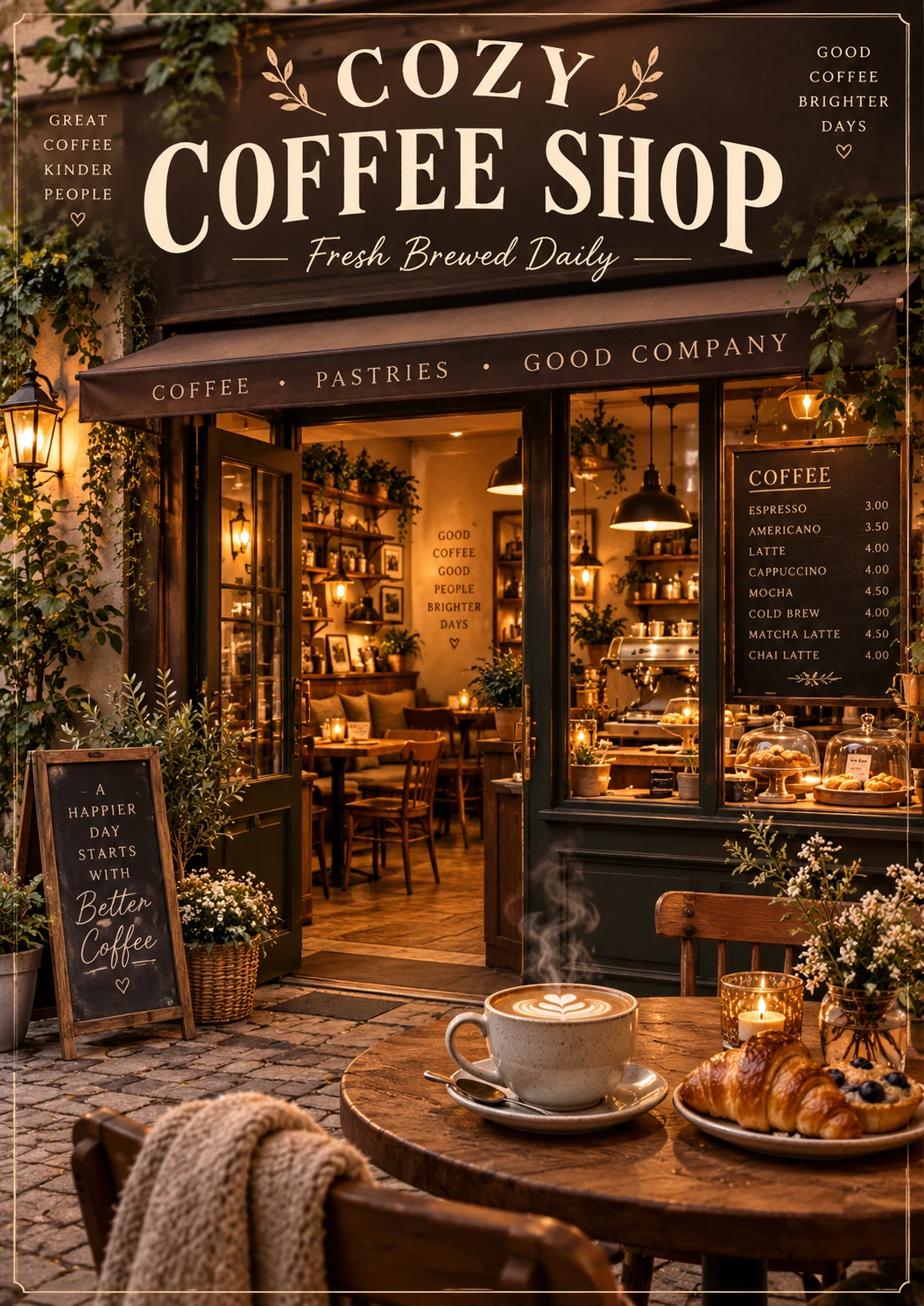
A cozy coffee shop poster.
Directed prompt:
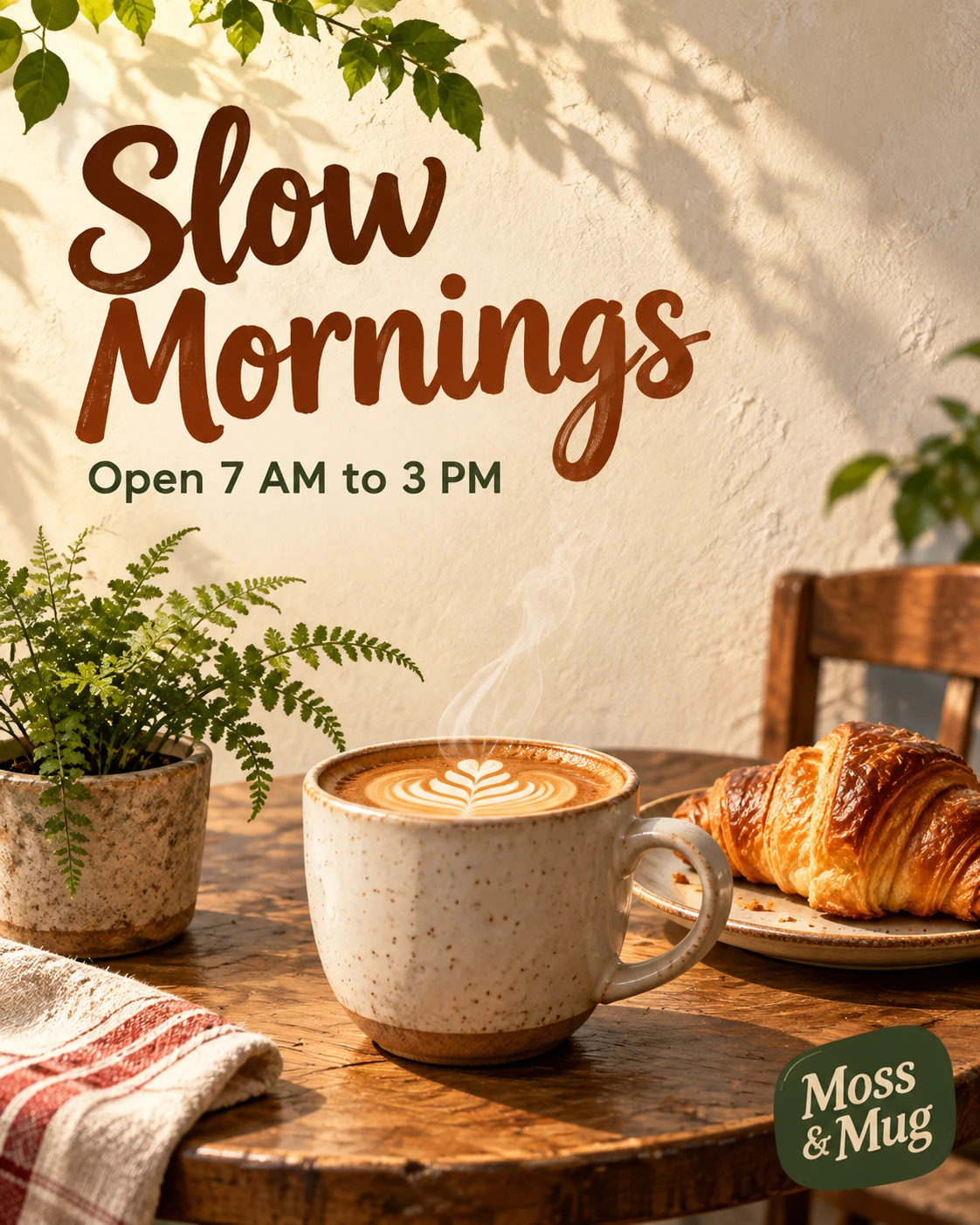
Create a vertical 3:4 poster for a neighborhood coffee shop called "Moss & Mug", warm illustrated style with a paper texture.

BACKGROUND: a cream wall with soft green leaf shadows falling from the top left.
CENTER: a large steaming ceramic mug on a small round wooden table, drawn from slightly above.
LEFT OF THE MUG: a small potted fern. RIGHT OF THE MUG: a plate with one croissant.
TOP: the headline "Slow Mornings" in big hand lettered brown letters, centered.
BOTTOM: a thin line of small text, centered: "Open 7 AM to 3 PM".
EMPTY SPACE: keep the area around the mug clear.
LIGHT: warm morning light from the top left.
COLOR PALETTE: cream, forest green, caramel brown, tomato red accent.
CONSTRAINTS: use only the text in quotes, written once each. No logos, no watermark.
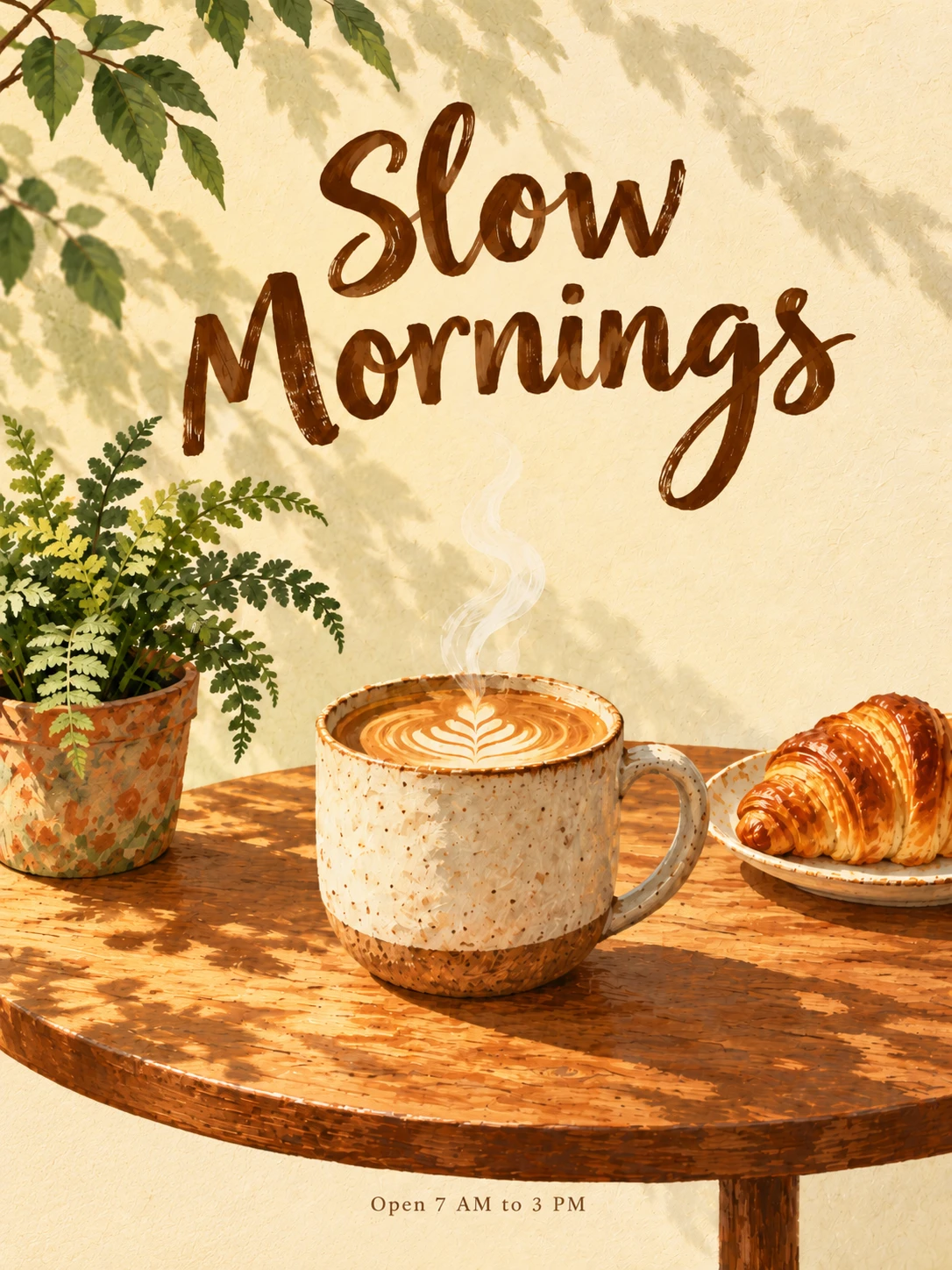
The second prompt is longer, but it removes guesswork. You get a picture you can use or fix with one change, instead of a random result you have to roll again.
How to Use the Fillable Templates
Every use case below ends with a template. Four habits make them work.
Words That Do the Work
A big vocabulary helps. Here are the words I reach for, grouped by what they control. Pick one or two per picture and avoid stacking ten.
| What you control | Words to try |
|---|---|
| Shot size | extreme close up, close up, medium shot, full body, wide shot, aerial view |
| Angle | eye level, low angle, high angle, overhead, three quarter view, over the shoulder |
| Lens look | 24mm wide angle, 35mm documentary, 50mm natural, 85mm portrait, macro, shallow depth of field |
| Light | soft window light, hard midday sun, golden hour, rim light, backlight, studio softbox, candlelight, neon glow |
| Medium | photograph, oil painting, watercolor, gouache, ink drawing, pencil sketch, screen print, flat vector, 3D render, paper cut |
| Surface and material | matte, glossy, brushed metal, knit mesh, linen, wet stone, frosted glass, worn leather |
| Color | muted earth tones, pastel, high contrast, monochrome, limited palette of 4 colors |
| Print texture | film grain, paper grain, visible brush strokes, halftone dots, soft vignette |
Replace mood words with visible details. OpenAI's advice for rainy, neon or low light scenes is to specify scale, atmosphere and color rather than relying on mood words alone. "Sad rainy street" is vague. "Wet asphalt reflecting red tail lights, a lone figure with an umbrella, cold blue shadows" is a picture.
Grab Image prompting cheatsheet here;
Why AI Images Look Like Slop, and How I Stop It
AI slop is the image that nobody decided. The skin is smooth, the subject sits dead center, every corner is filled and the light comes from nowhere. One AI platform's blog makes the same diagnosis: the image has no point of view because the prompt had none. So my fix is simple. Before I generate, I make five decisions out loud: one focal point, one light source, one palette, one real imperfection and one empty area.
Here are the most common tells, what causes them and what I put in the prompt to prevent them. Most lists of AI tells come from companies that sell AI tools, and I found no controlled test of any fix. Treat each fix as something to try, then check the result.
The Tells and the Prompt Fixes
| The tell | What you see | What I include in the prompt |
|---|---|---|
| Plastic skin | Airbrushed, poreless faces with a sheen | Real skin texture, a named lens and one directional light. OpenAI's portrait example asks for real skin texture and no heavy retouching. In one informal six pair quiz, a tester found that a polished face was not always the AI one and said the newer model drops super smooth skin in some cases, so check the result and do not assume |
| The average face | Every person looks alike | Specific, slightly asymmetric features and one imperfection of your choice, such as uneven brows or a freckle. The asymmetry advice comes from a tool vendor, not a tested result |
| Crunchy over sharpening | Harsh edges and artifacts | Fewer parameters. Decrypt's review saw one model over sharpen when it got too many instructions |
| Glossy, oversaturated sheen | Everything looks varnished | A named palette, muted colors and a real camera or film look. Lower the saturation in an editor if it persists |
| Default color cast | A yellow brown wash on whites and greys | Name the palette and ask for neutral white balance. Say "bright midday light" instead of "cinematic". It was reported on ChatGPT's earlier image models, so check whether your model does it |
| Grain and noise | Fine texture in skies and skin | Plan a denoise pass. TechRadar's four tests found that asking for smooth gradients did not remove it |
| Dead center symmetry | The subject sits in the middle, balanced | An off center address ("left third"), the size of the subject and an empty area |
| Every pixel filled | Clutter, props nobody asked for | Fewer elements and an empty zone. One former product designer puts it this way: AI fills every pixel because it has nothing telling it to stop |
| Hands | Extra or fused fingers | Hide them (in pockets, behind a cup) or give them one simple task. Check every hand |
| Garbled text | Letters swap or invent words | Quote the words, place them, keep them short and add critical text in a layout tool. In one lab test, a name changed from "CBORG" to "CBO6" |
| Pasted in subject | Flat light on the subject, a floating product | The same light direction for subject and scene, a contact shadow and a stated scale. Photoroom names a missing contact shadow and mismatched light as the giveaways |
| Repeating patterns | Foliage, hair or crowds that look stamped | A simpler scene and a closer crop |
"No" Lists, Quality Words and Style Stacks
Prompts fill up with words that feel safe and do nothing. Here is how I handle the three habits.
Negative lists. The two makers lean different ways, and both are useful. Google's guide says to use positive framing: describe what you want, not what you do not want, with "empty street" in place of "no cars". OpenAI's guide tells you to state exclusions such as unwanted text, logos or watermarks. Google's own example prompts also add short exclusions such as "No other text", so the gap is smaller than it looks. My rule follows both: describe the look I want in positive terms, then end with one short constraints line for text, logos, watermarks and the things that must not change. One vendor warns that a negation can read as a cue to include the thing, which is another reason to keep the list short.
Quality words. "Masterpiece", "8k", "ultra detailed" and "best quality" probably add little. I found no controlled test of them on the newest models, and neither maker's guide says whether they help or hurt. Google's advice is to stop typing keywords and start directing the scene. OpenAI's guide asks for concrete detail such as materials, lighting, colors and medium, and lists no quality keywords like these. Its quality setting is an API control, and a higher setting does not guarantee a better result for every prompt. So I replace every quality word with a visible detail: the material, the light, the lens.
Style stacks. "Cinematic, epic, dramatic, moody, hyper detailed" is five words that pull in five directions. I pick one medium, one light and one palette.
My Pre Generate Checklist
Before I press the button, I read the prompt and ask eight questions.
If the answer to any of these is no, the model will decide for me. That is where slop comes from.
The 20 Use Cases at a Glance
Each use case follows the same pattern: the job, how to direct it, what to include, what to leave out, a fillable prompt and an example fill. The examples use invented names, so swap in your own. I built the templates from the model makers' guides and from tester reports. I have not run these templates on either model family, so run each one once and adjust a line or two.
| # | Use case | The core direction | The slop trigger to leave out |
|---|---|---|---|
| 1 | Profile photo | Edit a real photo and name what stays | "Flawless" and "retouch" words |
| 2 | Fantasy concept art | Bands of depth and one bright light | A pile of genre words |
| 3 | Oil painting | Zones, stroke direction, named pigments | Camera and lens words |
| 4 | Storybook character | One character line, one change per page | New adjectives on every page |
| 5 | Social post | One hero and one headline zone | More than about eight words of copy |
| 6 | YouTube thumbnail | One face, one object, a few big words | Busy backgrounds |
| 7 | Menu flyer | Zones plus the full menu in quotes | Invented dishes and prices |
| 8 | Event poster | Layers and three or four flat colors | Fake sponsor logos and barcodes |
| 9 | Product ad | Hero angle, one light plan, one tagline | Marks that resemble a real brand |
| 10 | First frame for video | Calm scene with space to move | Text and motion blur |
| 11 | Last frame for video | A keep list and a changed list | Big jumps between frames |
| 12 | Sticker | Strong silhouette and a thick border | Drawn shadows and glass |
| 13 | Game asset sheet | A grid by row and column | Labels and cast shadows |
| 14 | Product on a plain background | An edit with a keep list | Restyling the product |
| 15 | Logo | One idea, two colors, padding | Gradients and mockups |
| 16 | Infographic | Every caption in quotes | Facts the model invents |
| 17 | App or website mockup | Describe it as if it exists | Lorem ipsum |
| 18 | Book cover | A title third and one scene | Real titles and barcodes |
| 19 | Interior render | Camera, walls, depth, materials | Clutter |
| 20 | Food photograph | Layers, side light, one imperfection | Plastic shine and too many garnishes |
Your Own Images and Art (Use Cases 1 to 4)
These four are personal. You are the subject, the painter or the storyteller, so the prompt has to protect what must stay the same and spell out what you want to see.
1. Your Own Profile Photo
The job: a clean, believable headshot for LinkedIn, a speaker page or an About page. This is an edit of a real photo, so identity comes first.
ChatGPT Prompts for Pictures of Yourself: 50+ Use Cases That Actually Work
Direct it like this
Include
Leave out (this is what creates the slop)
Fillable prompt
Use the attached photo as Image 1. It shows [me / the person]. Keep the same person: same face shape, skin tone and hair [and the same glasses, if any]. Do not change identity.

PURPOSE: a [LinkedIn / speaker page / About page] profile photo, [1:1 for LinkedIn or a round avatar, 4:5 for a speaker page], head and shoulders, realistic photograph.
BACKGROUND: [office / studio wall / quiet street] in [two real colors], softly out of focus.
SUBJECT: [my own expression / a calm half smile that keeps my face shape], eyes on the lens, shoulders turned about [20] degrees, wearing [garment, color, fabric].
LIGHT: [soft window light from the left], no other light source. Natural skin texture with small real imperfections, no heavy retouching.
CAMERA: [85mm portrait lens], eye level, sharp focus on the eyes.
FRAME: leave about [15] percent empty space above the head so it crops cleanly into a circle.
CONSTRAINTS: no text, no logos, no extra people, no change to face shape, skin tone, hair or identity.

Example fill: LinkedIn, 1:1, studio wall in pale grey and warm wood, charcoal blazer over a white shirt, soft window light from the left.
2. A Fantasy or Concept Art Scene
The job: one wide, atmospheric picture with a clear story and a sense of scale.
Direct it like this
Include
Leave out
Fillable prompt
Paint a wide fantasy illustration, [16:9], in the style of detailed digital concept art with visible brush strokes.

SKY (top third): [colors and time of day], [one or two sky details].
BACKGROUND: [far landmark, for example jagged mountains] hazy with atmospheric perspective. [One story landmark] on the [right], rising into the sky band.
MIDGROUND: [terrain, for example a river valley], [one crossing or path] in the [center].
FOREGROUND (bottom third): on the [bottom left], [hero: who, clothing, what they hold], seen from [behind / the side], about [one tenth] of the image height, looking toward [the landmark].
LIGHT: [the brightest light source, where it sits in the frame, and its color]. One weaker light: [source and color]. Shadows fall away from the brightest light.
EMPTY SPACE: keep the [bottom right] and the [middle of the sky] calm, with no extra detail or glow.
COLOR PALETTE: [three or four colors].
MOOD: [two words], shown by one visible detail, for example [a tiny lantern glow under a huge dark sky].
CONSTRAINTS: no text, no watermark, no signature, no extra characters.
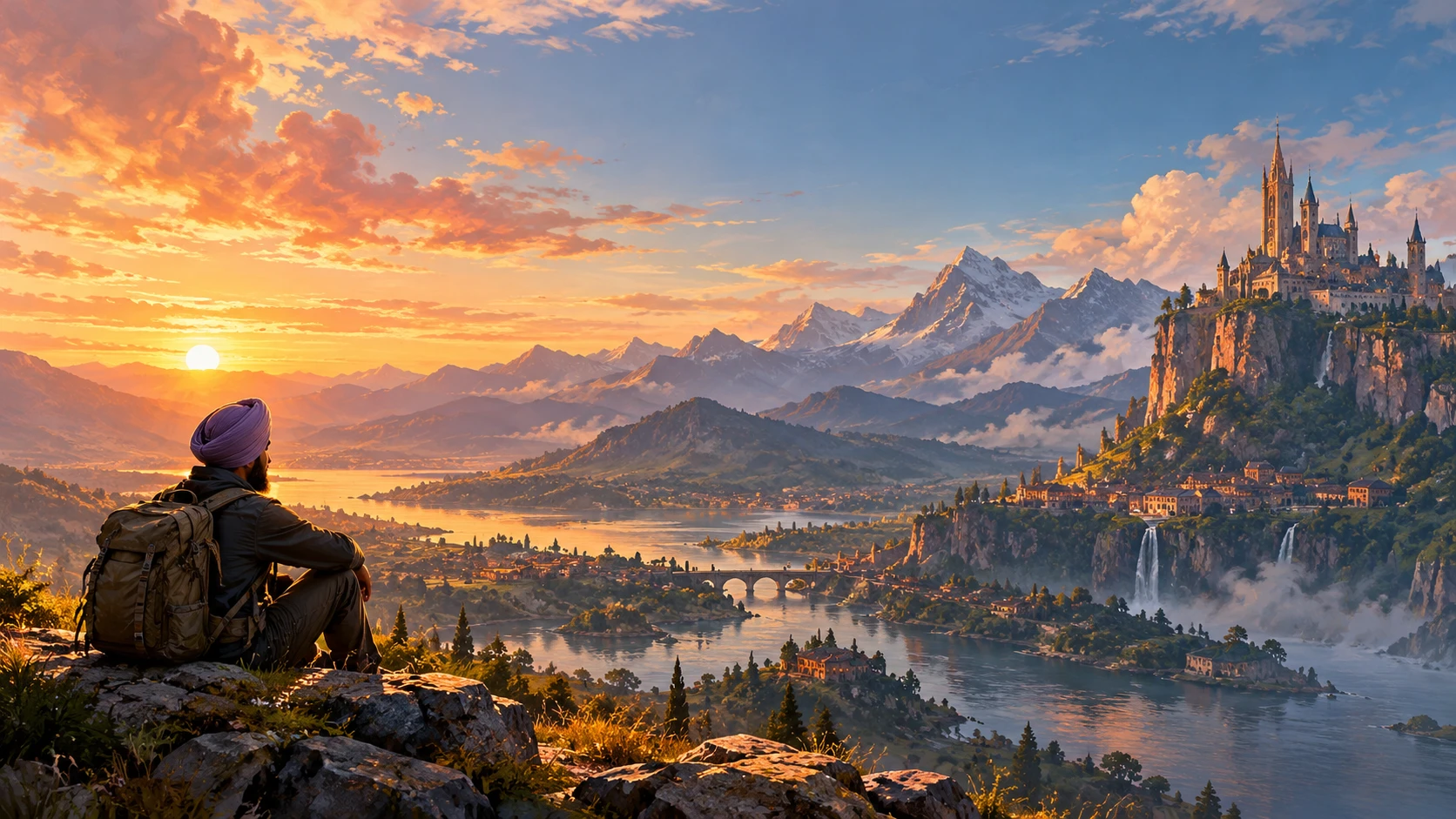
Example fill: violet and amber dusk, a castle on the top right peak, a traveler in a green cloak holding a lantern on the bottom left.
3. A Traditional Oil Painting
The job: a picture that reads as paint, not as a photograph with a filter.
Direct it like this
Include
Leave out
Fillable prompt
Create an oil painting on linen canvas, [landscape 3:2], in the style of a loose [impressionist / realist] painter. Thick, visible brush strokes and palette knife texture, with the canvas weave faintly visible at the edges.

SUBJECT: [one simple scene].
TOP HALF: [sky colors], painted with [wide horizontal] strokes.
MAIN OBJECTS ([left third / right third], lower half): [main objects, count and colors].
THE OTHER THIRD: [secondary element, painted with only a few strokes].
CENTER GAP: keep the middle quiet, only [water or sky] in soft broken color.
BOTTOM HALF: [ground or water], [how it reflects or breaks into dabs of color].
LIGHT: [soft or hard, direction, time of day, and where the lightest light sits in the frame].
PALETTE: [four or five named pigments].
CONSTRAINTS: oil paint, not a photograph, no digital smoothness, no text, no signature.
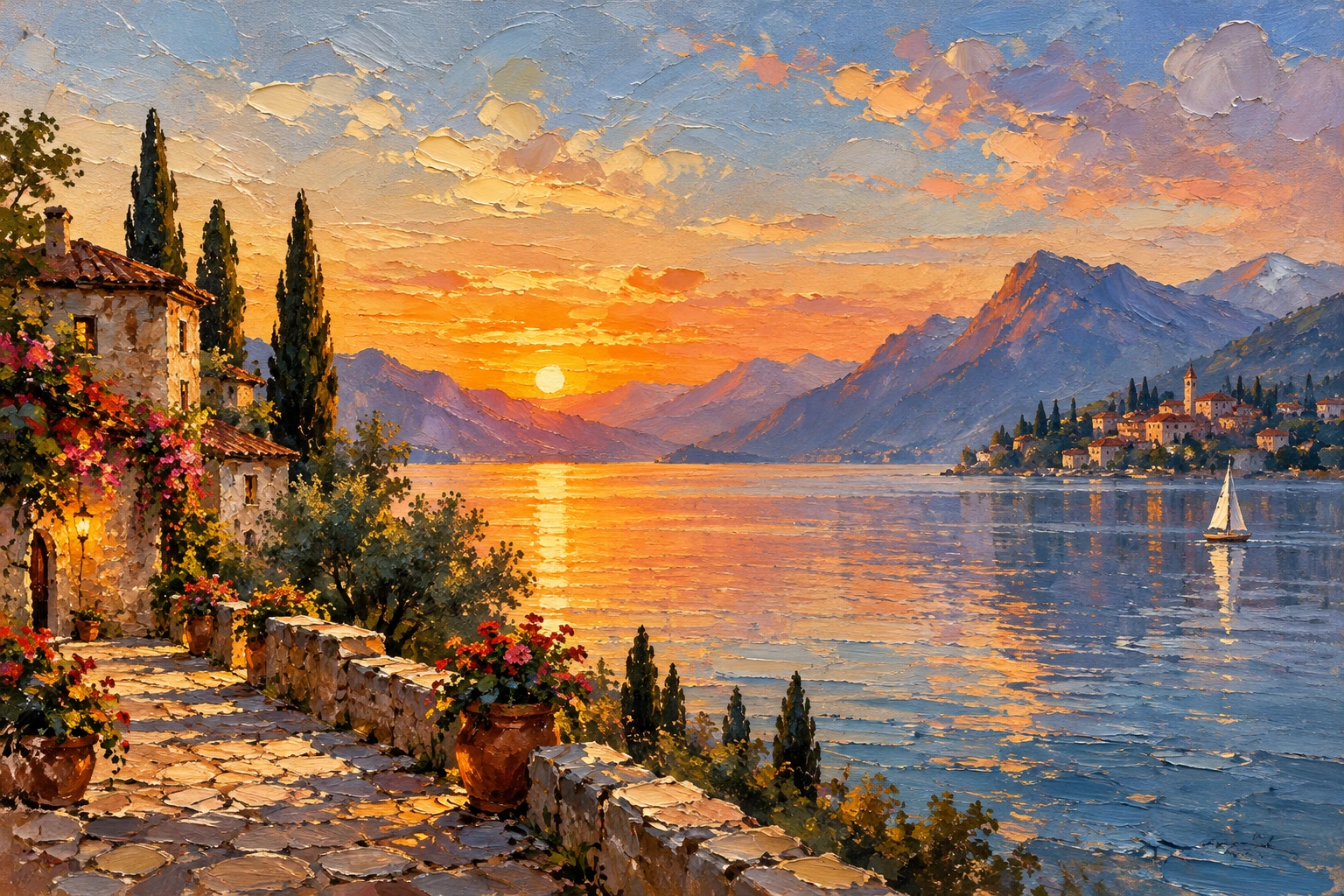
Example fill: a fishing harbor at dawn, three small boats with red, white and ochre hulls on the right third, a stone wall with two figures in yellow raincoats on the left third, calm water between.
4. A Storybook Character That Stays the Same
The job: a character that looks like the same character on every page.
Direct it like this
Include
Leave out
Fillable prompt: the style line
STYLE LINE: [hand painted watercolor] with soft paper texture, [landscape 3:2], palette of [three or four colors].
Fillable prompt: the character line
CHARACTER LINE: [name], a [species and age] with [fur or hair color], [chest or face marking], wearing [clothing and color], carrying [prop]. [One trait, for example big friendly eyes and round cheeks].
Fillable prompt: a page
Create an original children's storybook illustration. [Paste the style line without its label]. This is an original character with its own design.

CHARACTER (center left): [paste the character line without its label].
BACKGROUND: [setting and light].
MIDGROUND: [path, river or fence].
FOREGROUND ([bottom center]): [one prop].
ACTION: [one clear action in one sentence].
QUIET AREA: keep the [top left] corner calm and empty for text.
CONSTRAINTS: no text, no watermark, no new characters.
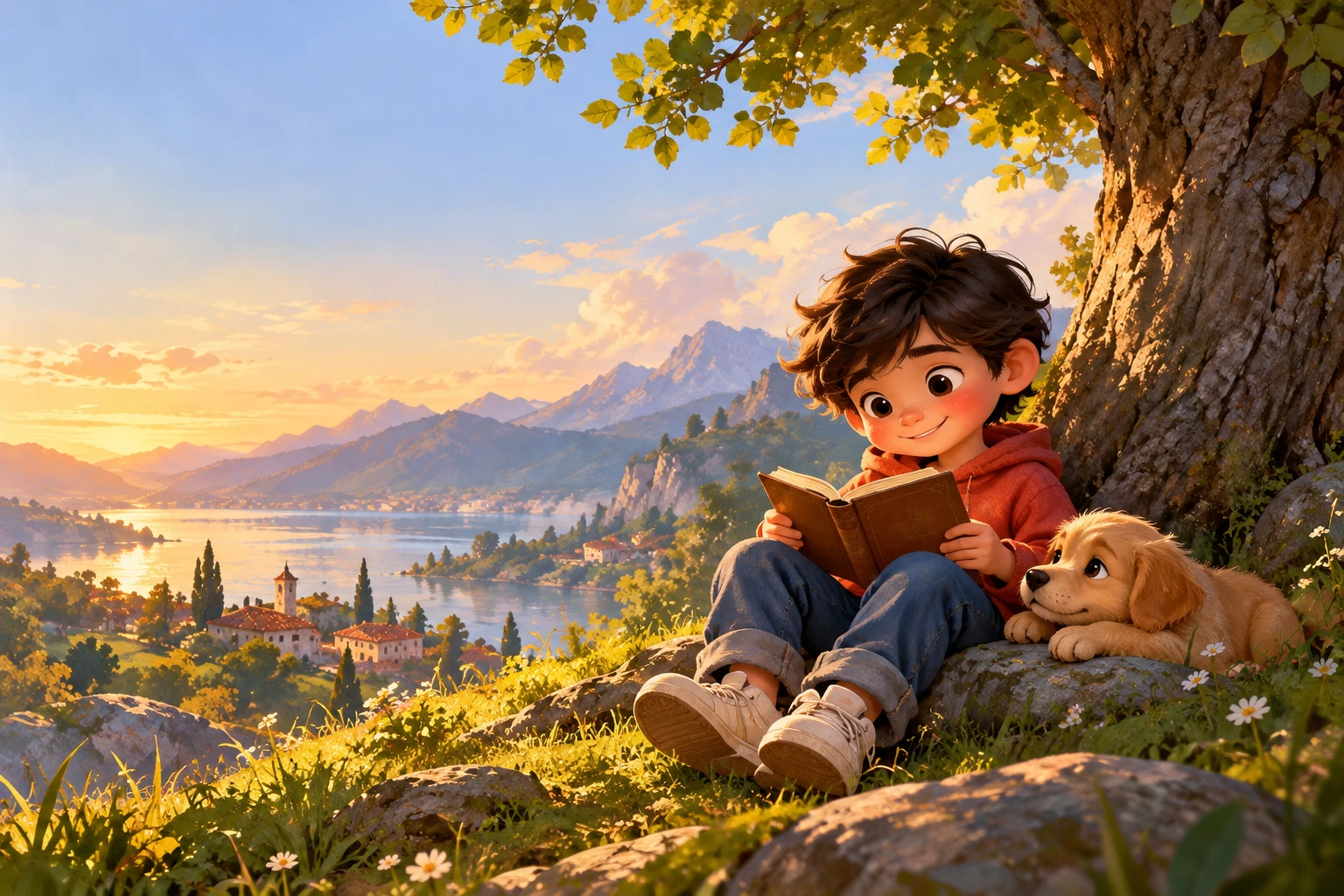
For page two, attach page one and add: "Use Image 1 for the character. Do not redesign [name]. Keep [list the fixed traits]. Change only: [season / place / action]."
Example fill: Pip, a young hedgehog with warm brown spines, a cream chest patch, a red scarf and a small blue lantern, with big friendly eyes and round cheeks. Page one: an autumn meadow at dusk, a wooden fence in the midground, a fallen leaf in the foreground, and Pip stops to watch a glowing firefly.
Social Posts, Flyers and Ads (Use Cases 5 to 9)
Commercial work has two extra rules. The words must be exact, and the picture must have one clear job. In every template below, you quote the words, place them and say how many times each line appears.
5. An Instagram or Social Post
The job: a post that reads in one second on a phone.
Direct it like this
Include
Leave out
Fillable prompt
Design a vertical [4:5] social post for [business type] called [Brand] (the name appears on the image only once, in the bottom right badge). [One medium, for example flat illustration or studio photograph].

BACKGROUND: [flat color or simple surface] with [faint texture].
CENTER: [hero object, material, angle, small detail such as steam].
BOTTOM LEFT: [one small supporting prop].
TOP THIRD (text area, left aligned, 8 percent margin): a headline in [type style, color]: "[HEADLINE]". Below it, in a clearly readable size and [type style]: "[SUPPORTING LINE]".
BOTTOM RIGHT corner: a small [badge shape and color] with the text "[BRAND]", written once.
LIGHT: [direction and softness].
COLOR PALETTE: [three or four colors].
CONSTRAINTS: use only the text in quotes, each exactly once, spelled exactly as written. No extra words, no other logos or marks, no watermark. Keep the center clear of text.
Example fill: a bakery called Rye & Ember (invented), 4:5, a sourdough loaf on a wooden board, headline "Fresh Sourdough Saturdays", supporting line "8 AM to 1 PM".
6. A YouTube Thumbnail
The job: win a glance at phone size. I keep it to one face, one object and a few big words.
Direct it like this
Include
Leave out
Fillable prompt
Create a YouTube thumbnail, 16:9, bold and high contrast, readable at phone size.

BACKGROUND: [simple color gradient] with [soft light rays from the top right].
LEFT HALF: [an original character / me, using the attached photo as Image 1 with the same face and hair] from the chest up, [a believable emotion, for example raised eyebrows and a slightly open mouth], looking toward the right side of the frame. Bright rim light on the edge of the face and shoulder on the viewer's right. Fills about [70] percent of the frame height.
TOP RIGHT: huge bold text in [color] with a thin [black] outline, filling the top [35] percent of the right half: "[1 TO 3 WORDS]", [one word per line], very thick letters, spelled exactly as written.
RIGHT HALF, below the text: [one hero object] with [one detail on it], about [40] percent of the frame height. [One arrow or highlight] points to [the object's key part].
BOTTOM RIGHT corner: empty, kept clear for the video length badge.
CONSTRAINTS: only the text in quotes, written once. No logos, no watermark, no small text.

Example fill: deep blue to purple background, a glowing laptop showing an abstract chart, title "10X FASTER".
7. A Restaurant Menu Flyer
The job: a one page menu where every word and every price is right. This is the hardest commercial prompt in the list.
Direct it like this
Include
Leave out
Fillable prompt
Design a one page restaurant menu flyer, vertical, [US Letter / A4] proportions, for a [cuisine] kitchen called [Name] (the name appears only in the top band). Flat print layout, [paper color] paper, generous space between sections.

CANVAS: [paper color and texture] with a thin [accent color] border. Keep all text inside a 6 percent margin on all sides; the top and bottom bands run edge to edge.
TOP BAND (top 18 percent): the name "[NAME]" centered in [type style and color]. Under it: "[HOURS LINE]".
LEFT COLUMN: section title "[SECTION 1]" with items, each name followed by its price on the right: "[ITEM]" "[PRICE]", "[ITEM]" "[PRICE]", "[ITEM]" "[PRICE]".
Section title "[SECTION 2]" with items: "[ITEM]" "[PRICE]", "[ITEM]" "[PRICE]", "[ITEM]" "[PRICE]".
RIGHT COLUMN, top: one large round photograph of [dish], seen from above, [light].
RIGHT COLUMN, below the photo: section title "[SECTION 3]" with items: "[ITEM]" "[PRICE]", "[ITEM]" "[PRICE]".
BOTTOM BAND (bottom 10 percent): a plain [accent color] strip with no text, left clear for a phone number and web address added later.
TYPOGRAPHY: section titles in [bold serif], item names in [medium sans serif], prices right aligned.
COLOR PALETTE: [four colors].
CONSTRAINTS: use exactly the text in quotes, each piece once, spelled exactly as written, and no other words. No lorem ipsum, no fake logos. Every price must match the item next to it.
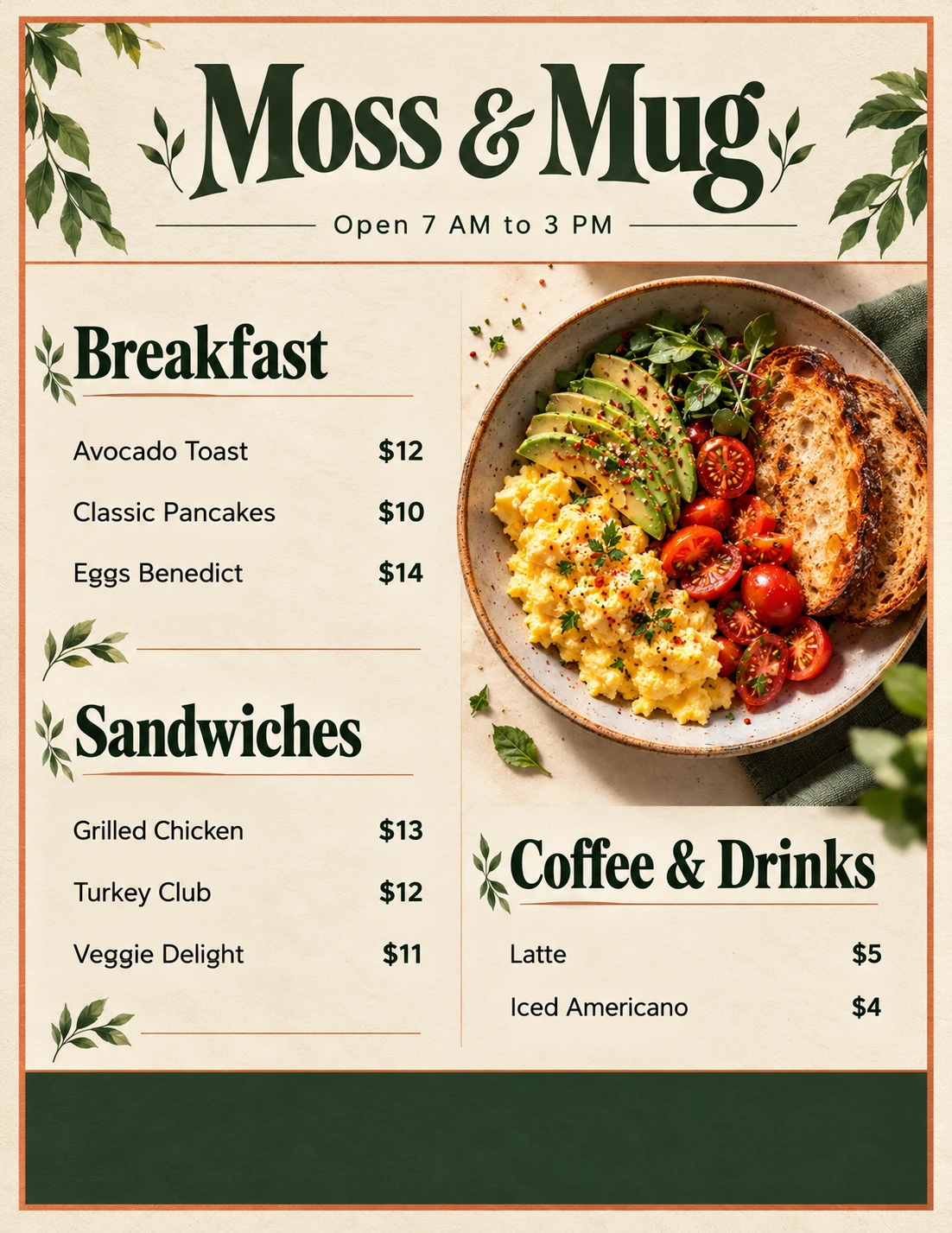
Add or delete item pairs to match your menu and keep the total at eight to ten.
Example fill: Indian fusion kitchen, US Letter, three starters, three mains, two desserts.
8. An Event Poster
The job: a poster with a strong picture and a clear order: title, then date, then place.
Direct it like this
Include
Leave out
Fillable prompt
Create a [concert / festival / workshop] poster, vertical [3:4], in the style of a screen printed poster with [4] flat colors and a paper grain texture.

BACKGROUND: [dark color], with a large [pale shape: moon / sun / spotlight] in the upper [left / right] taking up the top [35] percent.
MIDGROUND: a [skyline / crowd / mountain] silhouette in solid [color] across the lower middle.
FOREGROUND, [LEFT / RIGHT] THIRD: [subject] in a solid [color] silhouette, with [two or three small accent shapes] floating up.
EMPTY SPACE: keep about [50] percent of the poster as flat, quiet color with no detail.
TOP: inside the [pale shape], the title in huge condensed letters, [dark color], sized to fit entirely within the shape: "[TITLE]".
BOTTOM THIRD, on the side opposite the subject, three lines of [color] text: "[DATE]", "[TIME]", "[VENUE AND ADDRESS]".
COLOR PALETTE: only these [4] colors plus paper grain: [list].
CONSTRAINTS: write only the text in quotes, exactly as written, each once. No logos, no sponsor marks, no barcodes, no watermark.
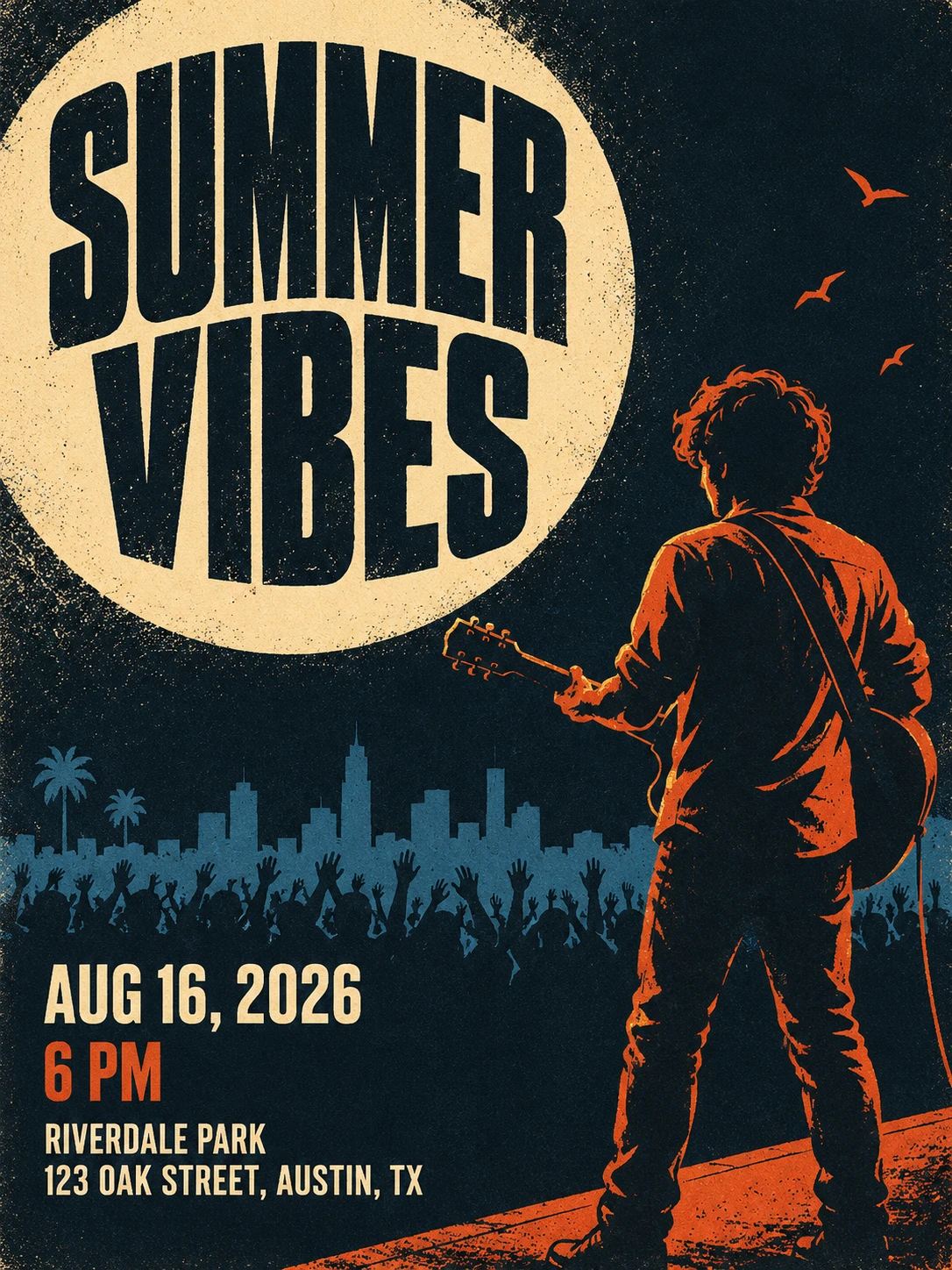
Example fill: rooftop jazz night: midnight blue background, a moon yellow moon, an orange skyline, a saxophone player in a cream silhouette, cream text.
9. A Product Ad
The job: one hero, one idea and one line of copy.
Direct it like this
Include
Leave out
Fillable prompt
Create an advertisement for [product type] from a fictional brand called [Brand] (the name appears only in the wordmark). Vertical [4:5], realistic studio photograph.

BACKGROUND: a seamless solid [color] studio wall.
CENTER (hero): one [product, colors] floating at a slight angle, [pointing toward the top right], [one motion detail]. [A few small particles in a matching color] frozen in mid air.
BELOW THE PRODUCT: a crisp shadow on the floor falling toward the bottom right, away from the key light, then a sharp reflection that fades quickly.
TOP LEFT: a tagline in bold [color] [type style], left aligned: "[TAGLINE]".
BOTTOM RIGHT: a small wordmark in clean capital letters: "[BRAND]", written once.
LIGHT: hard key light from the [top left], a [color] rim light from behind, crisp highlights on [material].
LENS: [85mm macro look], very sharp product detail.
CONSTRAINTS: each quoted text exactly once and no other text, no real brand logos, no marks that resemble an existing brand, no hands, no watermark.
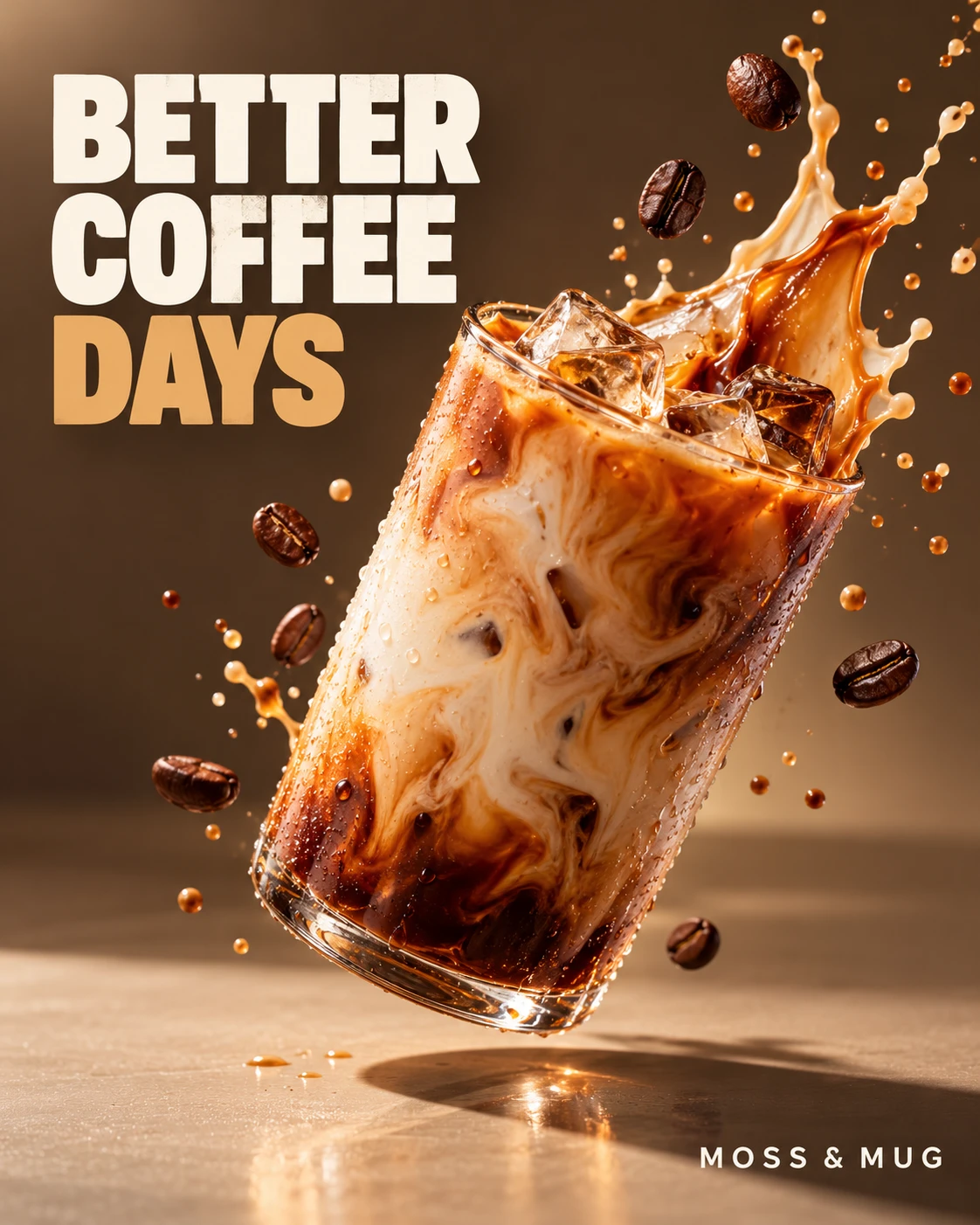
Example fill: a running shoe from an invented brand called Northpace, electric blue wall, white and neon lime shoe, tagline "Run Lighter."
First and Last Frames for Video (Use Cases 10 and 11)
Some image to video tools, such as Kling and Veo 3.1, let you set a first frame, a last frame or both. The picture is not the final art. It is a starting or ending point, so you prompt like a director blocking a shot: where the subject stands, where the empty space is, and what changes between the two frames.
Video tools differ and change fast, so check the current docs of the one you use. Two published tips are worth borrowing, though each comes from one tool's docs. Kling's quickstart says to choose two similar images with the same theme for smoother transitions within 5 seconds, because large differences may trigger a shot switch. Google's Veo 3.1 guide says that when you use its First and Last Frame feature, you describe the transition and the audio you want in the prompt.
10. A First Frame for a Video
The job: a calm, clear picture that is ready to move.
Direct it like this
Include
Leave out
Fillable prompt: the first frame
Create the opening frame of a video shot, [16:9], [photorealistic / illustrated]. This image will be the first frame of an image to video clip, so the scene must be calm, clear and ready to move.

SUBJECT ([left third]): [who, clothing, pose, seen from behind or the side], standing still, [one small sign of life].
BACKGROUND: [far scene, colors, haze].
MIDGROUND: [the ground or path the subject stands on, with a few objects].
OPEN SPACE ([right two thirds]): left empty on purpose, showing only [water and sky], with nothing else in it.
FOREGROUND: in the bottom left corner, below the subject, [one soft, out of focus prop].
LIGHT: [time of day, color, direction].
CAMERA: [35mm lens], eye level, wide shot, locked off, sharp focus on the subject.
CONSTRAINTS: no text, no watermark, no motion blur, no extra people. The subject sits fully inside the frame with space around it.
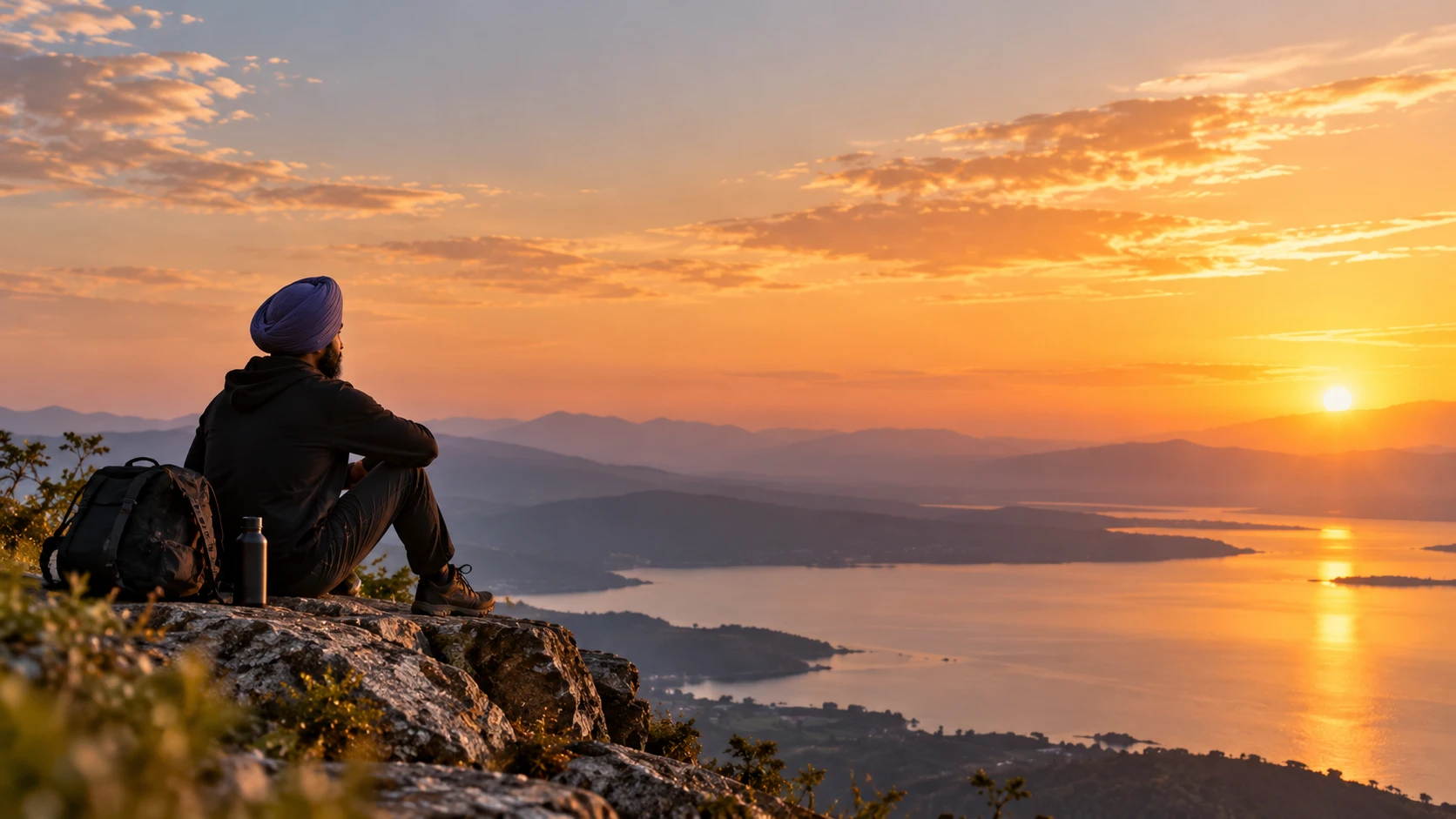
For 9:16, put the subject in the lower third and the open space in the upper two thirds. Keep the new element out of this image prompt and put it only in the video prompt.
Fillable prompt: the video prompt (paste into the video tool)
Over [5] seconds, [camera move, for example a slow push in] on [subject]. [What moves: hair, mist, water]. After [3] seconds [new element] enters from the [right] edge and [action]. [Subject reaction]. Calm, natural movement, no cuts.
Example fill: a woman in a rust coat at the end of a pier at dawn, open water to her right. In the video prompt, a fishing boat enters from the right.
11. A Last Frame for a Video
The job: the same shot a few seconds later. A last frame is an edit of the first, so you name what stays identical and then list what changed.
Direct it like this
Include
Leave out
Fillable prompt
Use Image 1 as the first frame of a shot. Create the final frame of the same shot, [five] seconds later.

KEEP EXACTLY THE SAME: [subject's face, hair, clothing and build], [the setting], the lens, the camera height, the photographic style and the direction of the light.
WHAT HAS CHANGED (three changes at most):
- [The subject's new pose or action].
- [New element], in the [right third] of the frame, about [10] percent of the frame width, [action].
- The camera has [pushed in slightly], so the subject is about [15] percent larger and still in the [left third].
CONSTRAINTS: same style, no text, no watermark, no new people unless listed above.
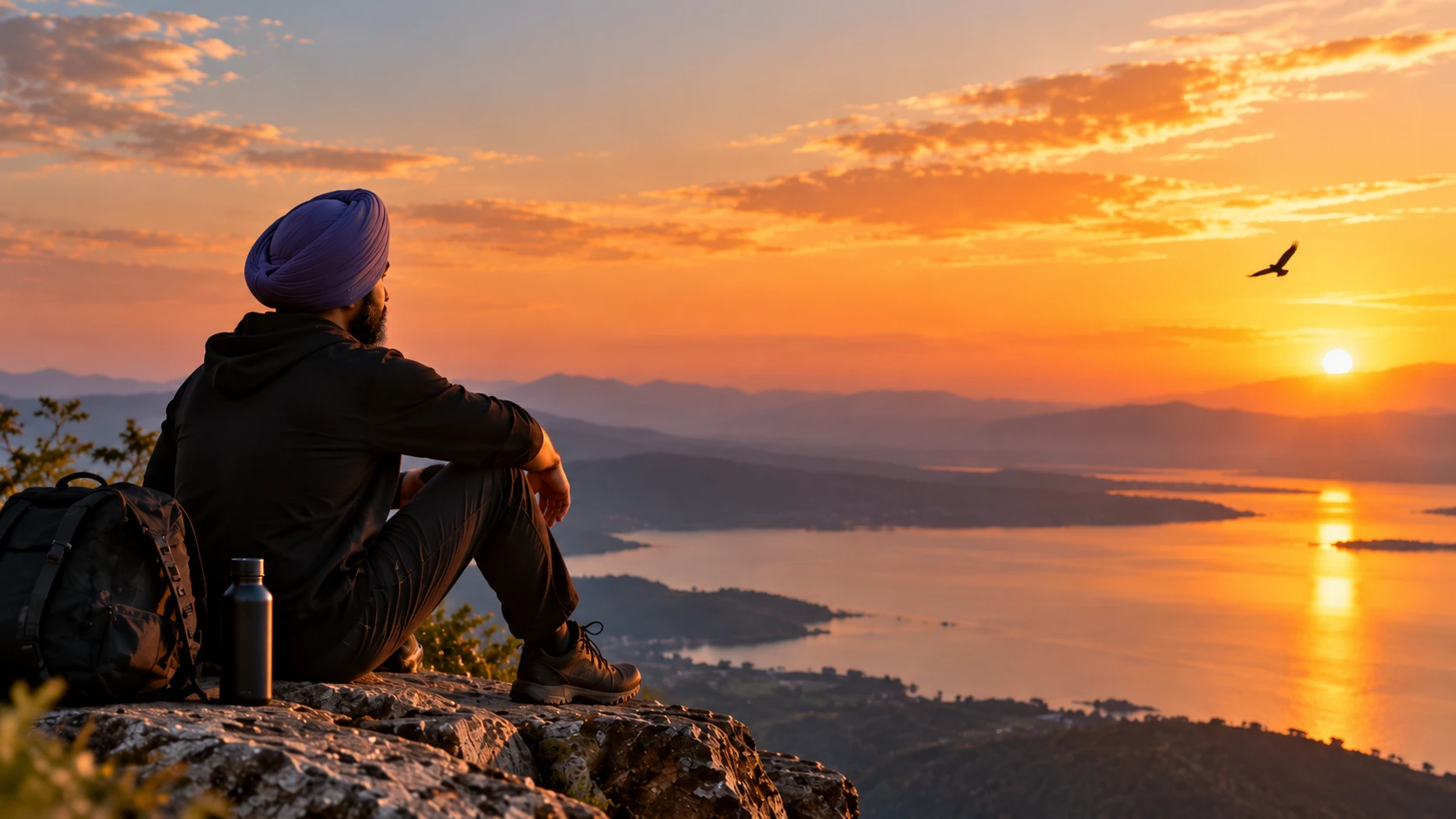
If the story needs a change in light, keep the same direction (for example, the sun slightly higher), swap it in for one of the three lines and keep the total at three. Generate two or three versions and pick the one that matches the story best.
Example fill: Image 1 is the pier shot. KEEP: rust coat, the pier, 35mm lens, eye level, soft dawn light from the right. CHANGED: a fishing boat in the right third, about 10 percent of the frame width, with its bow light on; the camera has pushed in slightly, so she is about 15 percent larger and still in the left third.
Assets With Transparent or Plain Backgrounds (Use Cases 12 to 14)
Assets are pictures you place into something else: a sticker, a game, a store page. The background is part of the brief, and it is where AI images fail most quietly. A "transparent" request can come back as a painted checkerboard or a pale backdrop, so always check the real file.
12. A Sticker
The job: a die cut sticker with a strong silhouette that stays readable when it is small.
Direct it like this
Include
Leave out
Fillable prompt
Create a die cut sticker of [character or object, one action]. [Flat vector] style with bold clean outlines and flat color fills, on a [fully transparent / plain flat bright green] background.

SUBJECT (center): [shapes, colors, face, pose, small detail].
OUTLINE: a thick white border around the whole design, about [4] percent of the image width, smooth and even.
TEXT (below, curved slightly): "[WORDS]" in [chunky rounded letters, color], written once.
STYLE: flat colors, [three to five colors], [one small sparkle or accent].
PADDING: a generous margin of [8] percent on all sides.
CONSTRAINTS: no surface, no drop shadow, no checkerboard, no gradient behind the subject, no extra text, no watermark. Crisp edges with no halo.

Example fill: a smiling avocado half holding a coffee cup, text "Pit Stop", three greens, brown and cream.
13. A Game Asset Sheet
The job: several items on one sheet, each in its own cell, readable at small sizes.
Direct it like this
Include
Leave out
Fillable prompt
Create a landscape 3:2 game asset sheet of [6] [item type] in a grid of [3] columns by [2] rows, [isometric 3D render / flat vector] style, [glossy / matte] with soft shading, on a [plain flat background in a color no item uses / fully transparent background].

LAYOUT: top row, left to right: [item 1], [item 2], [item 3]. Bottom row, left to right: [item 4], [item 5], [item 6].
EACH ITEM: centered in its own cell with equal padding, the same size, the same camera angle ([isometric, from slightly above]). Each has a different shape: [shape list].
LIGHT: soft light from the [top left], no cast shadow on the ground.
STYLE: [bright mobile game art], thick soft edges, clean silhouettes that stay readable at [48] pixels.
CONSTRAINTS: no text, no labels, no frames, no grid lines, no surface, no shadow, no overlap.

Example fill: six fantasy potion jars made of opaque glazed clay in different shapes (round flask, tall vial, square jar, teardrop, hexagon, skull), each with a cork.
14. A Product on a Plain Background
The job: a clean marketplace or catalog image from your own product photo. The product has to stay identical.
Direct it like this
Include
Leave out
Fillable prompt
Use Image 1, my product photo of [product]. Create an ecommerce main image, [1:1 square].

BACKGROUND: [pure flat white / flat color], no texture, no gradient, no horizon line.
CENTER: the same [product], upright and centered, filling about [80] percent of the frame height, in the same [three quarter] view as Image 1.
BOTTOM: a very soft, light contact shadow directly under the product, and nothing else on the floor.
KEEP: the exact shape, [handle, color, finish], and any printed label exactly as in Image 1, with the same proportions.
CHANGE: only the background, the shadow and the studio light. Keep the product's colors and finish. Remove [old surface, window, plants].
LIGHT: soft, even studio light from the [front left], no strong room reflections.
CONSTRAINTS: no props, no added text, no watermark, no halo around the edges, do not restyle the product.
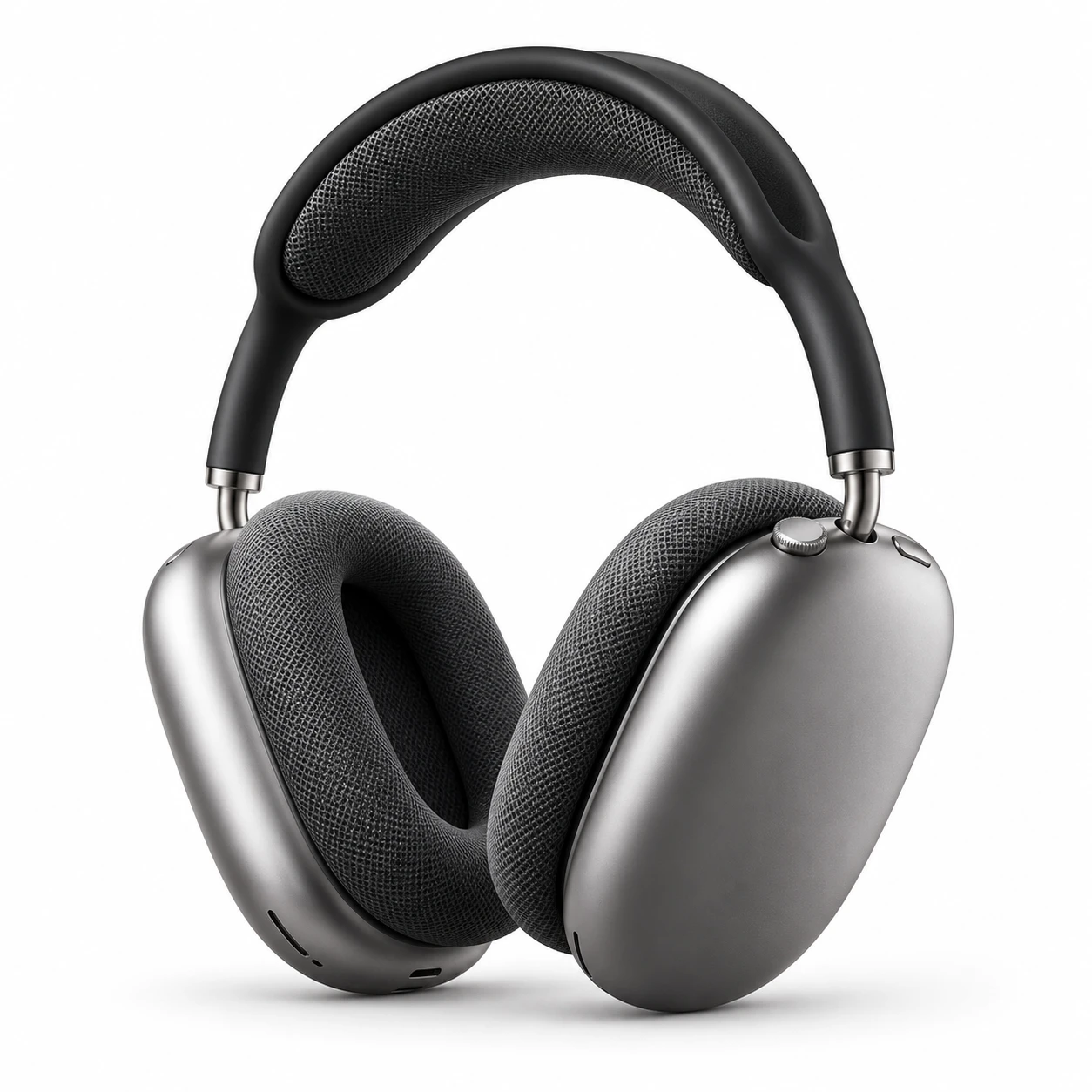
For a cutout, replace the BACKGROUND line with "plain flat [bright green or magenta, not a color in the product] background, no surface", delete the BOTTOM line and remove the key color in an editor.
Example fill: my matte forest green travel mug with a printed fox label, pure flat white, filling about 80 percent of the frame height, three quarter view, soft even light from the front left. Remove the kitchen counter, the window and the plant.
Brand and Information Design (Use Cases 15 to 18)
These four are about clarity. A logo has to be simple, an infographic has to be correct, a mockup has to look like a real interface and a book cover has to read as a thumbnail.
15. A Logo Concept
The job: a simple mark you can judge in seconds. Treat the output as a sketch, then redraw the winner as real vector artwork.
Direct it like this
Include
Leave out
Fillable prompt
Design a simple logo mark for [business type] called [Brand] (the name appears only below the emblem), flat vector style, on a [fully transparent / plain white] background.

CENTER: a [round / shield / square] emblem. Inside it, [one symbol and one twist].
BELOW THE EMBLEM: the name "[BRAND]" in a clean, [rounded sans serif], [color], written once, centered.
OPTIONAL, delete for a cleaner mark because small text will not read at 32 pixels. BELOW THE NAME, small: "[TAGLINE IN CAPITALS]" with wide letter spacing, in the same color.
STYLE: two colors only, [color 1] and [color 2]. Strong silhouette, even line weight, generous padding. It must still read at 32 pixels.
CONSTRAINTS: use only the text in quotes, each once. No gradients, no shadows, no 3D effects, no realistic textures, no scene or surface behind the mark, no watermark, no mockup.
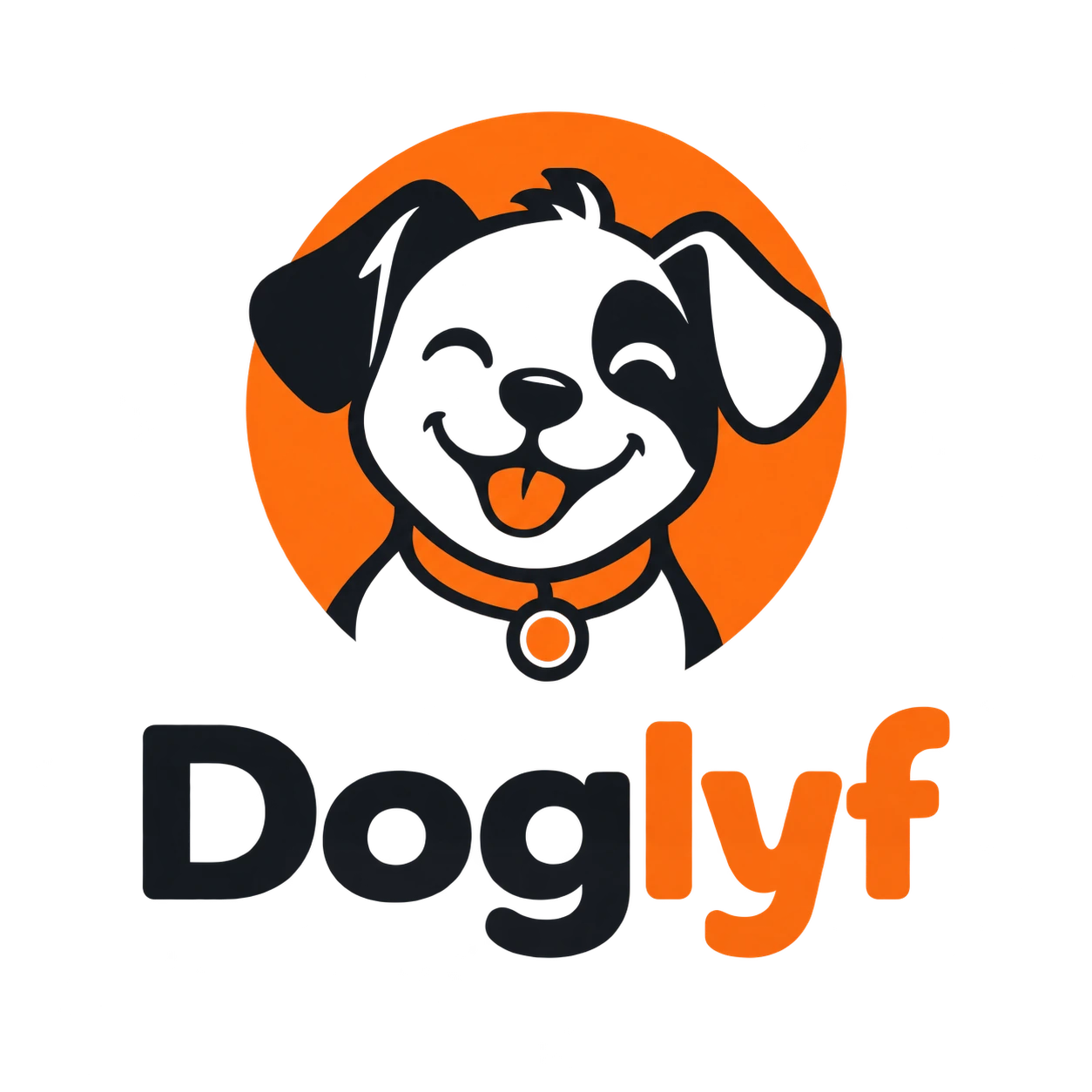
Example fill: a coffee roaster called Harbor Bean, a bean whose center line forms a wave, navy and copper.
16. An Infographic
The job: explain a process or a set of facts so that the labels are right. Infographics fail when the labels are wrong, not when the art is ugly.
Direct it like this
Include
Leave out
Fillable prompt
Create a vertical infographic titled "[TITLE]", clean flat illustration style, easy to read.

CANVAS: [2:3], [background color], 6 percent margin.
TOP (title area): the title in bold [color] [serif / sans serif], centered, on one line.
BODY: [5] steps from top to bottom along a thin wavy line. Each step is one row: a number in a [color] circle on the left, the caption in the middle, a small flat illustration on the right:
1. "[CAPTION 1]" with [illustration].
2. "[CAPTION 2]" with [illustration].
3. "[CAPTION 3]" with [illustration].
4. "[CAPTION 4]" with [illustration].
5. "[CAPTION 5]" with [illustration].
BOTTOM: a thin line and the text "[SUMMARY LINE]".
STYLE: flat shapes, [5] colors only: [list].
CONSTRAINTS: use only the text in quotes, each once, and the step numbers 1 to 5, spelled exactly. No tiny text, no extra labels, no watermark. Every number matches its step.
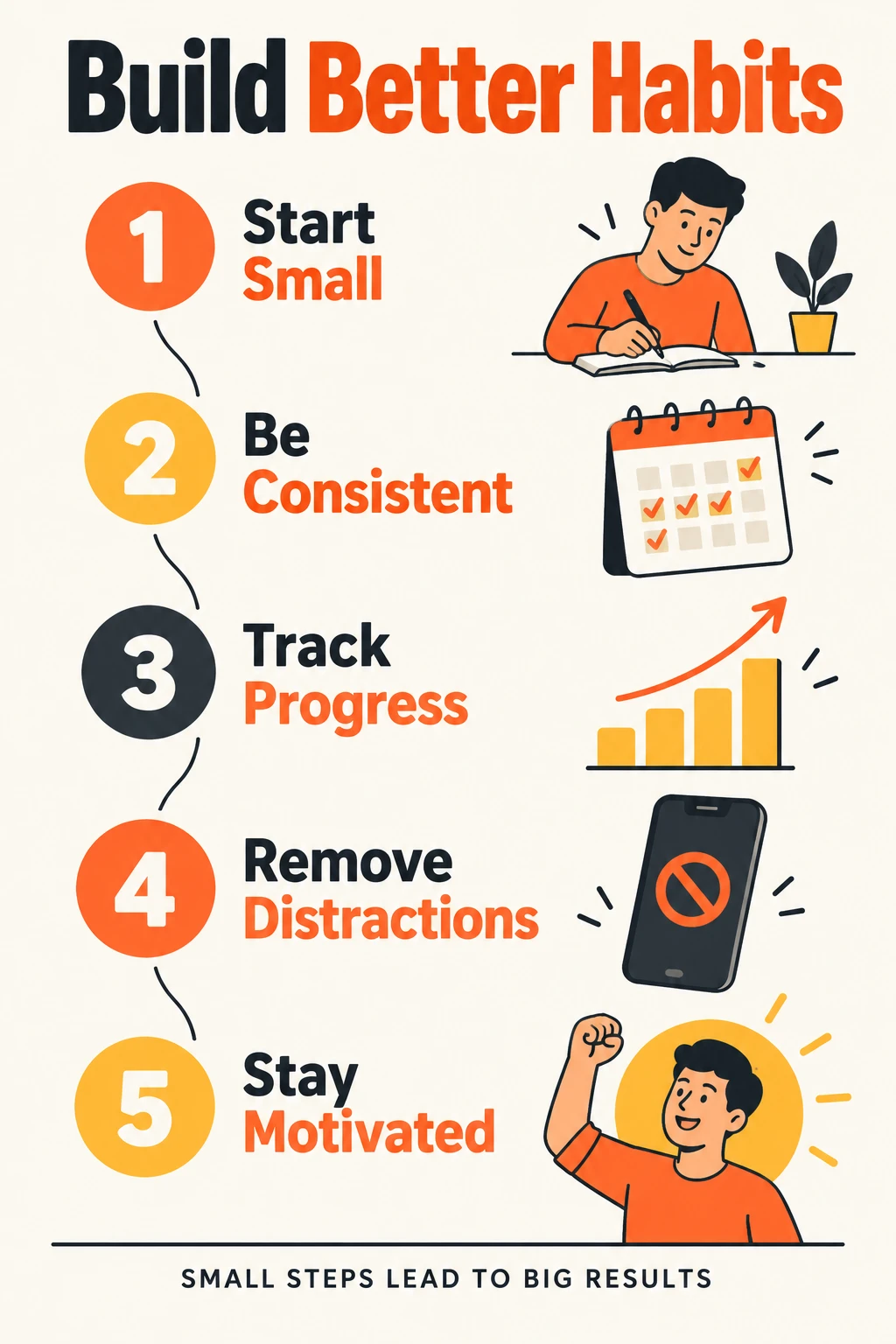
Example fill: "Pour Over Coffee in 5 Steps", with captions such as "Heat water to 205 F" and "Rinse the paper filter".
17. An App or Website Mockup
The job: a believable interface picture, useful as a design brief for a developer or designer, not as a working interface.
Direct it like this
Include
Leave out
Fillable prompt
Create a realistic mobile app mockup of [app type], shown on a modern phone with a thin bezel, on a plain light grey studio background, tilted slightly by about [10] degrees.

SCREEN, TOP: a status bar with the time and signal icons only, then a small wordmark "[APP NAME]", then the greeting "[GREETING]" left aligned, and a small avatar circle on the right.
SCREEN, UPPER MIDDLE: a large rounded card in the accent [color] with the text "[SUMMARY TEXT]" and [a circular progress ring that matches the checked rows; 3 of 5 is 60 percent].
SCREEN, MIDDLE: a vertical list of [5] rows. Each row has an icon on the left, the name, and a checkbox on the right: "[ROW 1]", "[ROW 2]", "[ROW 3]", "[ROW 4]", "[ROW 5]". The first [three] are checked.
SCREEN, BOTTOM: a tab bar with [four] icons, the [second] one highlighted.
STYLE: clean, friendly, rounded corners, generous spacing, one accent [color], dark grey text, real interface hierarchy.
CONSTRAINTS: legible text, only the text in quotes, each exactly once, no lorem ipsum, no fake brand logos, no watermark.
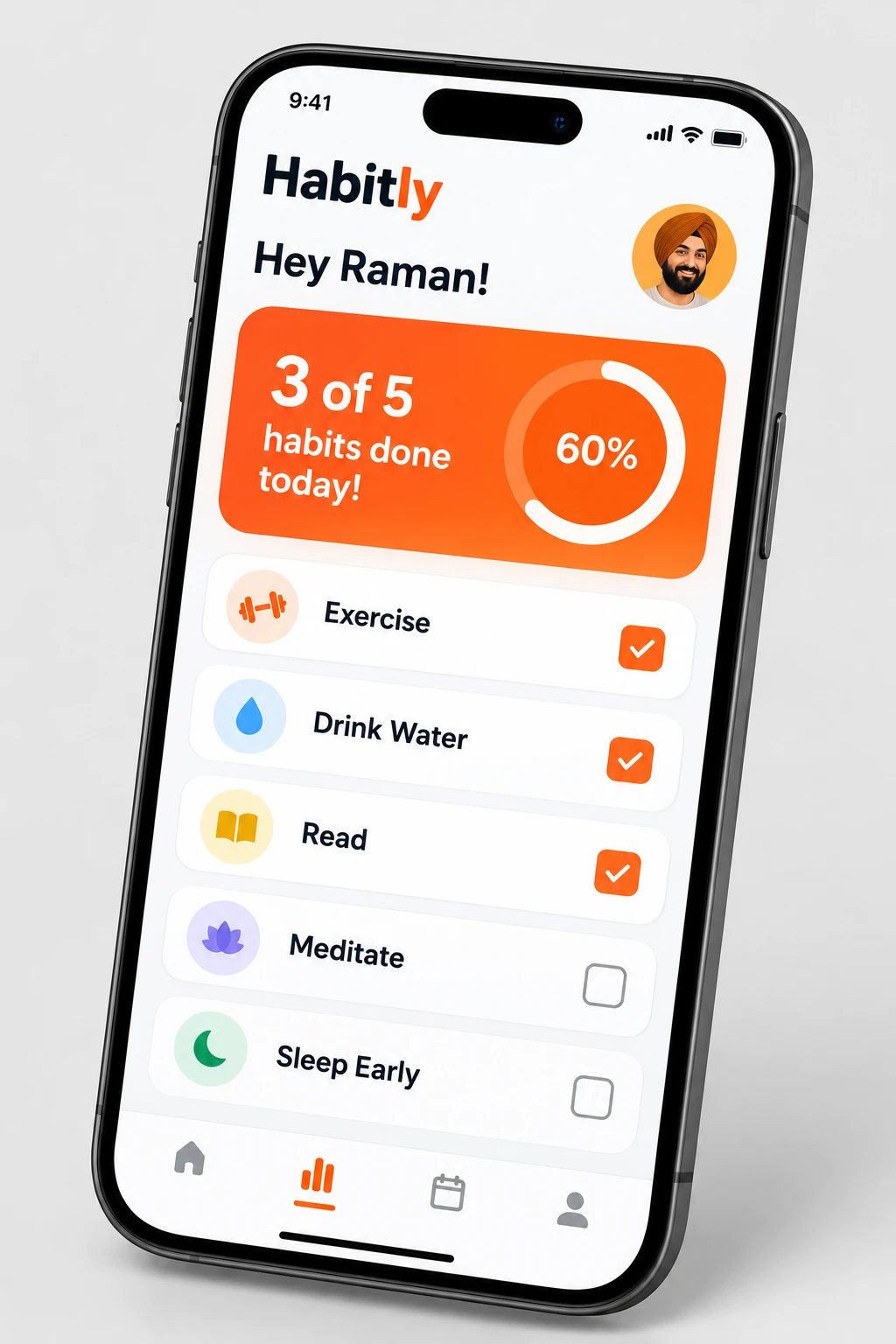
Example fill: a habit tracker with the rows "Drink water", "Read 10 pages", "Stretch", "Walk 20 minutes", "Journal".
18. A Book Cover
The job: a cover that works as a small thumbnail, so the title zone and the picture zone need clear borders.
Direct it like this
Include
Leave out
For a cleaner final file, generate the art without text and add the title in a layout tool.
Fillable prompt
Design a front book cover for a [genre] novel, vertical [2:3], [painterly illustration] with a slightly textured paper print finish.

BACKGROUND: [sky or backdrop and colors].
MIDGROUND: [one strong shape or path], with a vanishing point at the horizon if it is a road or corridor.
FOREGROUND (bottom third): [one focal object, position, one detail that hints at the story].
TOP THIRD: the title in tall condensed capitals, [color], centered: "[TITLE]", on [two] lines, letters well spaced.
BELOW THE TITLE, small: the author name "[AUTHOR]" (fictional) in [light italic serif].
SAFE AREA: keep all text at least 6 percent away from every edge.
COLOR PALETTE: [three or four colors].
CONSTRAINTS: use only the text in quotes, each exactly once, spelled exactly. No publisher logo, no barcode, no review quotes, no watermark.
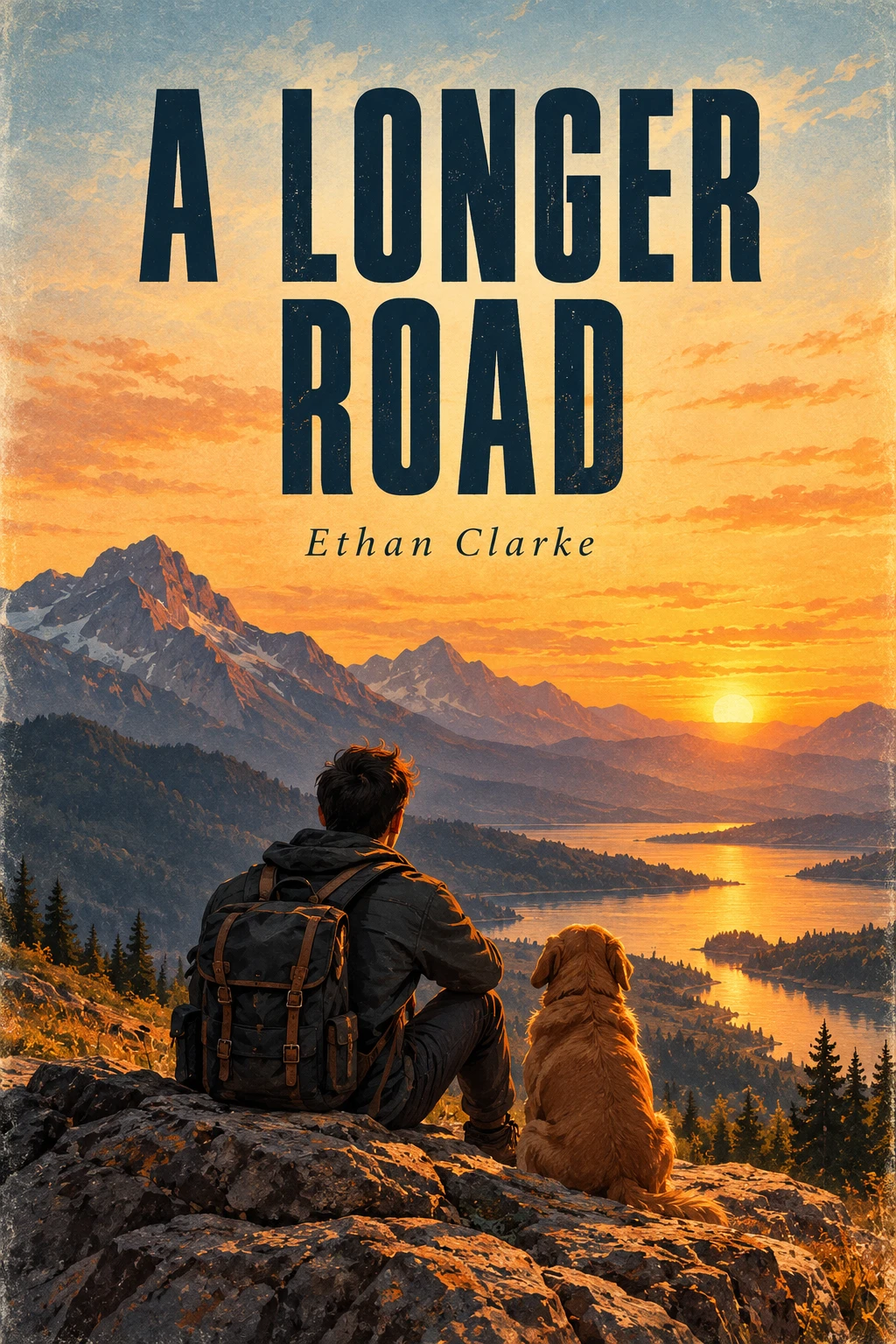
Example fill: a literary mystery, a red car abandoned on a desert highway through white salt flats, teal, ember orange and pale sand.
Spaces and Food (Use Cases 19 and 20)
Both live or die on camera language. A real estate photo and a food photo look different because of the lens, the angle and the light, so those lines carry the prompt.
19. An Interior Design Render
The job: a believable room picture for a concept, a listing or a mood board.
Direct it like this
Include
Leave out
Fillable prompt
Create a photorealistic interior design render of a [size and style] [room], [landscape 3:2], shot like a real estate and magazine photo.

CAMERA: [wide angle 24mm lens], camera height about [1.2] meters, straight vertical lines, [facing the back wall straight on / standing in the right corner looking toward the left].
BACK WALL ([center]): [window or feature, curtains, light]. In the [right corner], [one plant or object].
LEFT WALL: [built in shelves with three named items at most].
MIDGROUND ([left of center]): [main furniture, colors, cushions], facing the camera at a slight angle.
BETWEEN THE FURNITURE AND THE CAMERA: [table, two books, one bowl].
FLOOR: [material and color], [rug under the table and front half of the sofa].
LIVED IN DETAIL: [a folded blanket over one sofa arm].
LIGHT: [soft north light from the window], bright but gentle, soft shadows, no harsh sun patches.
PALETTE: [four or five colors].
CONSTRAINTS: realistic scale and proportions, no people, no text, no logos on objects, no watermark.
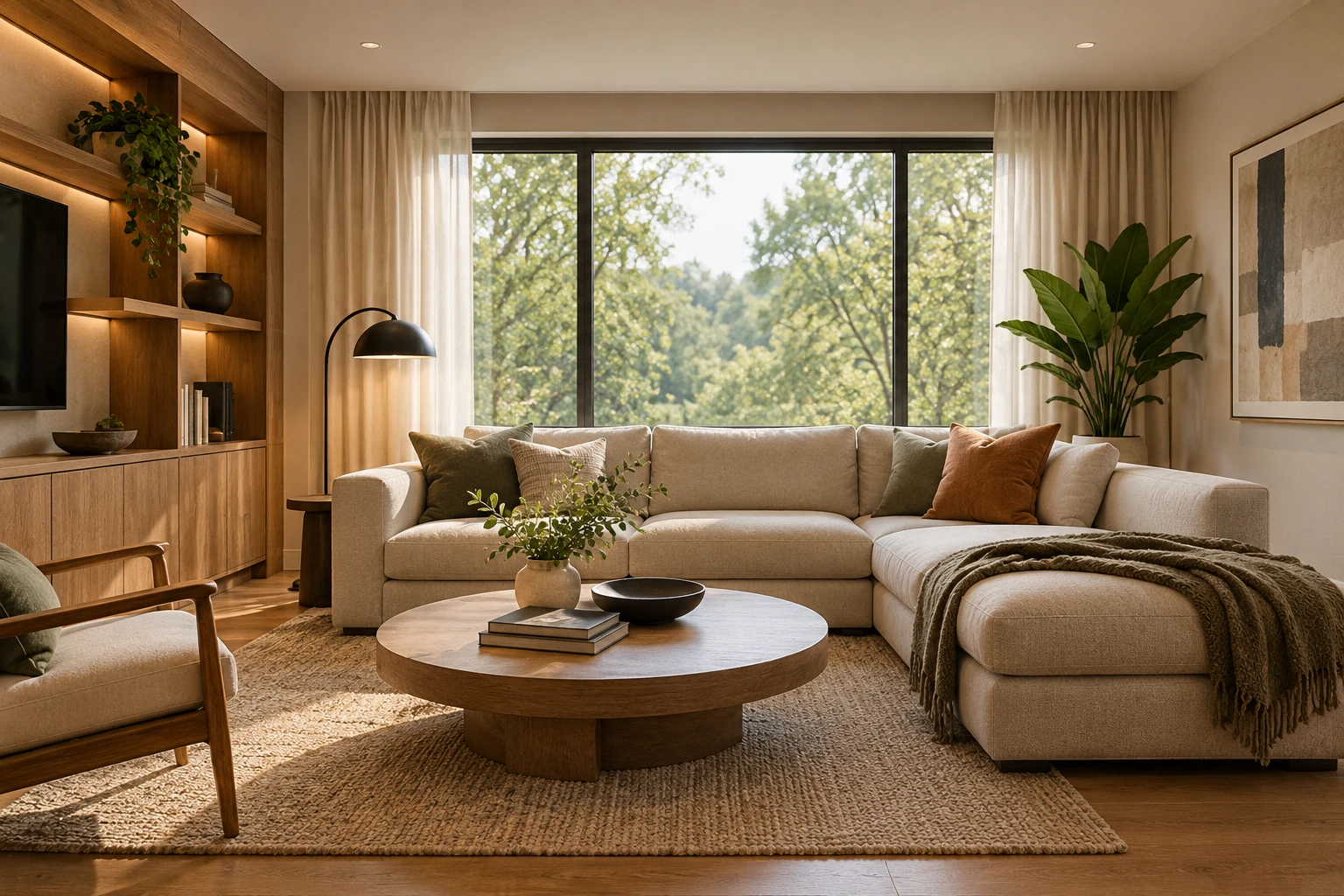
To redecorate a real room instead, attach a photo and say "replace ONLY the [item]. Keep the camera angle, lighting and surrounding objects the same."
Example fill: a small Scandinavian living room, a light grey three seat sofa with mustard cushions, oak shelves on the left wall.
20. A Food Photograph
The job: a dish that looks delicious and real.
Direct it like this
Include
Leave out
Fillable prompt
Create a photorealistic food photograph for a restaurant menu, vertical [4:5], shot at a [45 degree] angle with a [50mm] lens and shallow depth of field.

SUBJECT (center): [dish in a named bowl or plate]. [Layer by layer: base, protein, garnish, sauce, one imperfection].
UTENSILS: [chopsticks / fork] resting on the rim of the dish, tips touching a small portion of [noodles]. No hand is visible.
FOREGROUND ([bottom left]): [one small dish], slightly out of focus.
BACKGROUND: [table material] and a blurred [warm restaurant interior] with tiny [amber] lights in the [top right].
STEAM: gentle steam rising from the center, backlit.
LIGHT: [warm side light from the top left] and a soft rim light from behind, one soft highlight on [the broth only].
COLOR: [four colors that match the dish].
CONSTRAINTS: no text, no logos, no watermark, no hands.
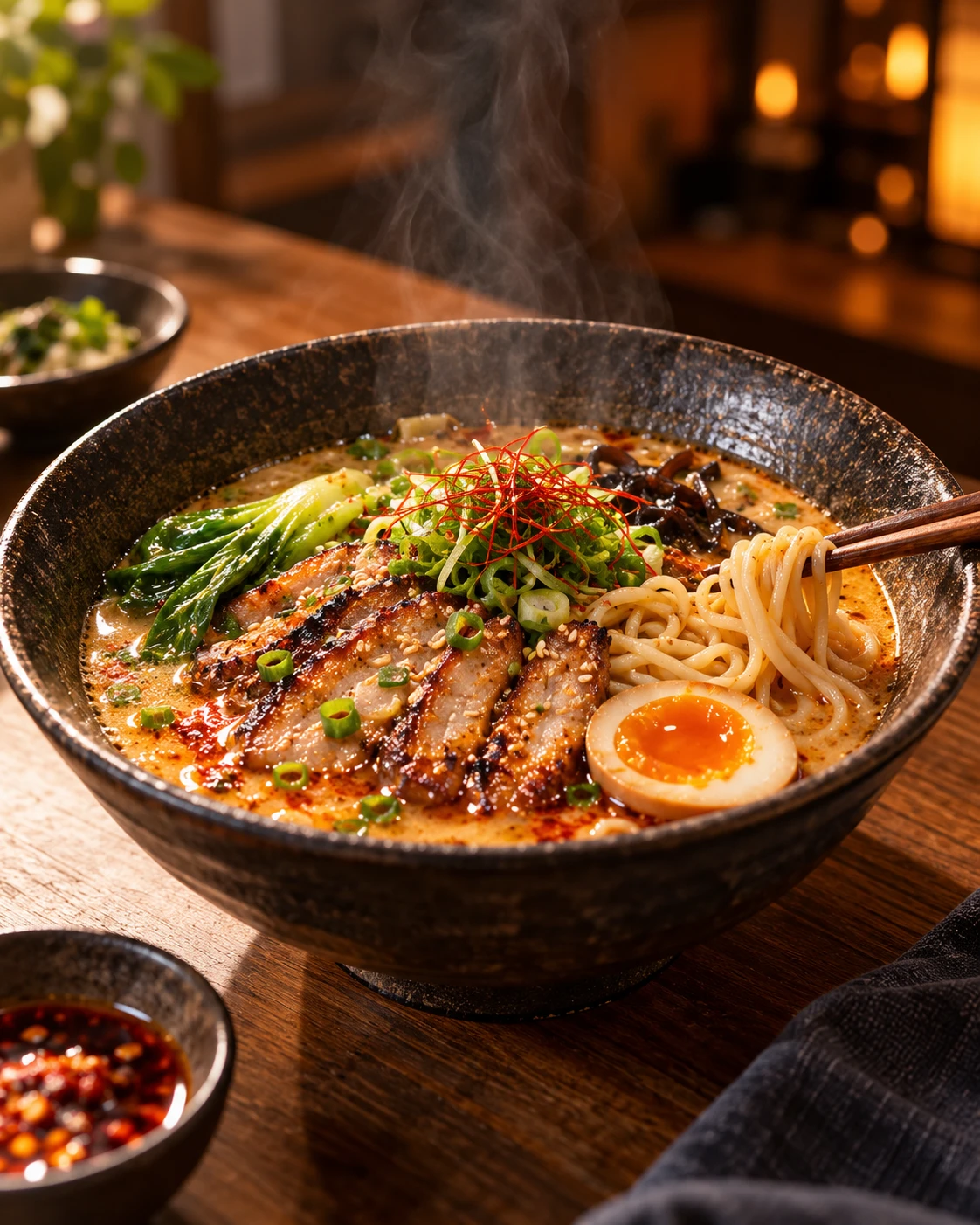
Example fill: a bowl of tonkotsu style ramen in a dark ceramic bowl, two slices of chashu pork, a halved soft boiled egg, chopsticks resting on the bowl rim.
Fix It Fast: Symptoms and One Line Repairs
When a picture misses, I do not rewrite the prompt. I find the symptom, change the one line that caused it and run it again.
| Symptom | The one line I change |
|---|---|
| The image looks generic | Add the purpose to line one, then make the five decisions: focal point, light, palette, imperfection, empty area |
| Something sits in the wrong place | Add an address and a size, and say "on the viewer's left" or "on the viewer's right" |
| Left and right flipped | Name the side from the viewer's view. Google's own model card says the model occasionally confuses left and right |
| Extra words appeared | Put only the needed words in quotes, add "use only the text in quotes", and place critical text in a layout tool |
| A face or label changed in an edit | Write a KEEP list, change one thing, and go back to the last good image if the thread drifts |
| Skin looks plastic or the image looks crunchy | Add real skin texture and one directional light, remove stacked parameters and plan a light denoise |
| A real product got redrawn | Attach reference photos and add "keep the label text exactly as in Image 1" |
| The character changed between pages | Paste the exact character line again and attach the previous page |
| The cutout has a halo | Check it on a dark and a light background, use a flat key color and remove it in an editor |
| The picture is too busy | Cut to three or four elements and add an EMPTY SPACE line |
Build a Prompt Library You Can Reuse
The best prompt is the one you do not have to write twice. The canvas template makes this easy because the skeleton stays the same and only the contents change.
Frequently Asked Questions (FAQs)
How do I make AI images look less AI generated?
Make decisions the model would otherwise make for you. Name one focal point, one light source with a direction, a short palette, one real imperfection and an empty area. Some tells, such as fine grain in skies, may not respond to prompts at all, so plan a quick edit afterward.
How detailed should an image prompt be?
As detailed as the job needs. For a quick idea, OpenAI's ChatGPT image guide says one to three clear sentences are usually enough. For a picture with fixed text, a layout or a brand, use labeled lines like the canvas template, because every missing decision becomes a random one.
Should I use negative prompts?
Use them sparingly. Google advises describing what you want instead of what you do not want, and OpenAI's guide uses short exclusions for unwanted text, logos and watermarks. I describe the picture positively and end with one short constraints line.
How do I stop misspelled text in images?
Put the exact words in quotes, say where they sit and how many times they appear, and keep them short. Then read every character. For anything legal or financial, such as prices and phone numbers, add the text as real text in a layout tool.
How do I get a transparent background?
It depends on your tool. OpenAI's guide lists a transparent background setting for API users, while Google's image docs do not mention transparent output. If your tool has no setting, ask for a flat key color that appears nowhere in the art, such as bright magenta or green, and remove it in an editor, then check the edges on a dark and a light background.
How do I fix one small flaw without regenerating the whole image?
Use the change and keep pattern: "Change only [the flaw]. Keep everything else exactly the same." Google recommends multi turn conversation as the way to iterate on images, and OpenAI's guide says to composite the approved edit into the original when a region must stay pixel identical.
Final Thoughts
A good image prompt is a set of decisions made before the model starts. When you say what the picture is for, paint it from the back to the front, give the important parts an address and put the exact words in quotes, you stop leaving your design to chance. The 20 templates above apply that method to profile photos, flyers, thumbnails, assets, video frames and more. Your next step is simple: pick the use case closest to your project, replace every bracket, run it in Nano Banana 2.1 or GPT Image 2.5, and change one line at a time until the picture matches the one in your head.