 Chrome Extension
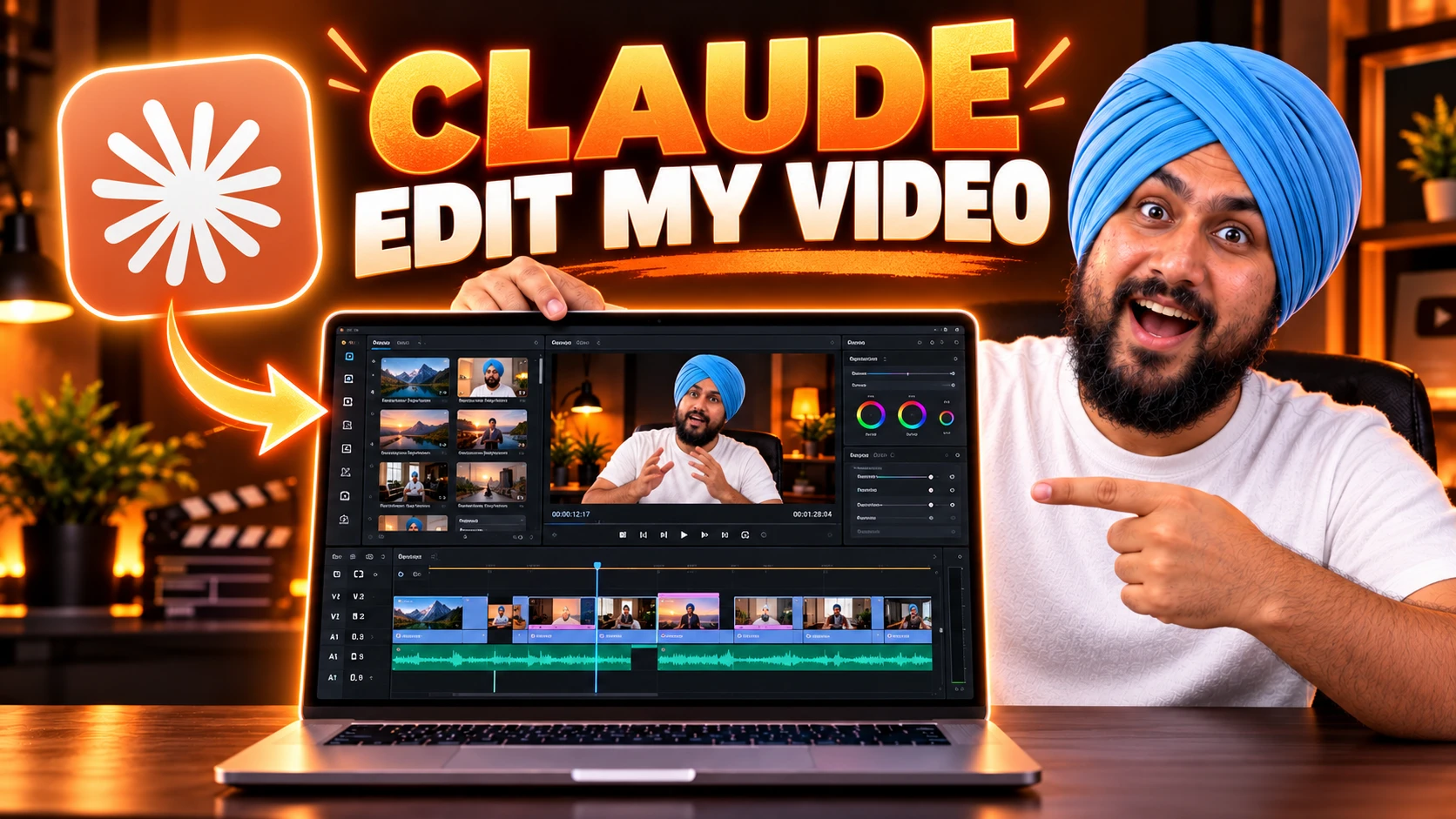
Claude cannot watch a video file. It reads your audio as a transcript, looks at still frames and writes the commands that cut, caption and export your footage.
This guide gives you a copy and paste prompt for 20 common edits, plus the command or script that runs underneath each one.
I ran the tools behind 17 of the 20 on test clips in my workspace, and I say which three I did not test. The guide also shows you when to use plain FFmpeg, a transcript cut list, code rendered motion graphics or an editor plugin. I built one of the tools I recommend, a motion graphics skill for Claude, and I say so where it appears.
Key Takeaways
-c copy cut at 5 seconds produced a file that still carried the 5 seconds before it, hidden by an edit list that FFmpeg honors and some players and upload services may not. Reencode when the cut point must be exact.Can Claude Edit Videos? What It Does and Does Not Do
Yes, Claude can edit videos, but not the way a person does. It never sees your timeline. It works from text and pictures about your video, and it writes the instructions a video tool follows.
Claude Cannot Watch a Video File
Anthropic's model overview says current models accept text and image input. The claude.ai upload help page lists documents (PDF, DOCX, CSV, TXT and similar) and images (JPEG, PNG, GIF, WebP). I found no video format on either page, or in the Claude Code and API pages I read.
Other writers reach the same answer. VOMO's guide, a transcription vendor, tells readers to prepare text and images rather than a raw video file. Tella, a video tool vendor, says Claude cannot edit a video file by itself, and that through its connector Claude sees video as stills and short previews. A July 2026 Medium post titled "Claude Can Finally Watch Videos" describes an open source tool that extracts key frames and a timestamped transcript, then hands both to Claude. That is the same workaround this guide uses.
Features change fast. If Anthropic adds video input, every prompt here still works, because each one hands Claude files and commands instead of relying on one feature.
What Claude Does Instead
Claude edits video from four kinds of evidence:
ffprobe reports duration, resolution, frame rate and codecs.From that evidence, Claude writes a command, a cut list or a script. A tool such as FFmpeg runs it and writes a new file. Your original never changes unless you let it.
Where I Use Claude and Where I Do Not
Claude is strong at rule based, repeatable work: cutting silence, removing filler words, captions, resizing for each platform, loudness, batch exports and clip lists from a transcript. It writes the same command for file 40 as it does for file 1.
I do not use Claude for edits that depend on feel. It never sees motion, so it cannot tell whether a jump cut flows. It cannot judge comic timing, match color between two cameras by eye or pick music you will love. For those, I let Claude do the rough cut and finish in an editor.
The Four Ways to Edit Video With Claude
Four methods cover almost every request. They differ in what you install and what Claude produces.
| Method | Best for | What you need | What Claude produces | My testing |
|---|---|---|---|---|
| 1. Plain FFmpeg | Trims, silence removal, resizing, captions, loudness, export, batch jobs | FFmpeg | Commands and small scripts | Tested on a 20 second 1080p clip |
| 2. Transcript cut list | Talking head, podcast, tutorial, interview | FFmpeg plus a transcription tool such as faster-whisper | A list of start and end times to keep | Tested with faster-whisper |
| 3. Code rendered motion graphics | Animated titles, charts, kinetic text, explainer clips | Remotion, HyperFrames or my Motion Graphics PRO skill | Scene code that renders to MP4 | Not tested by me. For the skill, I rely on its product page and instruction file |
| 4. Editor control | Projects that must stay in DaVinci Resolve, Premiere or Tella | An MCP server or plugin for that editor | Actions inside the editor | Not tested |
Start with methods 1 and 2. They need no paid accounts, and they cover most of the use cases below.
Which Claude Surface Should You Use?
Set Up in 10 Minutes
You need four things: FFmpeg, a project folder, a copy of your footage and Claude Code.
brew install ffmpeg on macOS, winget install ffmpeg on Windows or sudo apt install ffmpeg on Ubuntu. Then run ffmpeg -version. For captions, run ffmpeg -filters | grep subtitles to confirm your build supports it. The subtitles filter needs libass. For titles and lower thirds, run ffmpeg -filters | grep drawtext, because drawtext needs FFmpeg built with freetype.originals, work, exports and assets (logo, fonts, music).originals. Treat it as read only.Look at this folder. Run ffprobe on every file in originals and give me a table with name, duration, resolution, r_frame_rate, avg_frame_rate, rotation, video codec, audio codec and file size. Do not change or move anything. Then tell me which of these could cause trouble in an edit: variable frame rate (r_frame_rate and avg_frame_rate differ), different frame rates between files, a missing audio track, rotated video, or a very large file (over [2] GB).
Give Claude Eyes: The Contact Sheet
A contact sheet turns a video into images Claude can read. This command takes one frame every 4 seconds and tiles them in a grid of 5 columns and 4 rows, so each sheet covers 80 seconds. A longer video gives you several sheets. I ran a one row version on my test clip, and it produced a single wide image.
ffmpeg -i originals/talk.mp4 -vf "fps=1/4,scale=384:-1,tile=5x4" work/sheet_%02d.png
Use the prompt below when you want Claude to understand what happens on screen before it edits.
Make contact sheets of [originals/FILE.mp4]: one frame every [4] seconds, [5] frames per row and [4] rows per sheet, saved as work/sheet_01.png, work/sheet_02.png and so on. Look at every sheet. Frame k on sheet s (counting k from 1, row by row) sits at ([20] x (s minus 1) + k minus 1) x [4] seconds, where [20] is the number of frames per sheet. Then give me a list of what happens on screen, with approximate timestamps, and flag any moment where the picture changes a lot (a new slide, a cut, a screen share).
Do not edit anything yet.
The Editing Prompt Formula
Every editing prompt in the 20 use cases follows the same six parts. When an edit goes wrong, one of the six was missing. In every prompt, replace each [bracketed] part, brackets included. A number in brackets is the value I used in my tests.
| Part | What it does | Example |
|---|---|---|
| GOAL | Names the finished video and where it will be posted | A 45 second vertical clip for Instagram Reels |
| INPUT | Names the exact files | originals/interview.mp4 and assets/logo.png |
| OUTPUT | Names the new file, format, size and length limit | exports/interview_reel.mp4, 1080x1920, under 60 seconds |
| STEPS | Lists the edit in order, with numbers | Cut silences longer than 0.5 seconds, then crop to 9:16 |
| RULES | Sets limits | Never change anything in originals. Show the plan before you run it |
| CHECK | Says how Claude proves the result | Report the new duration and look at three frames |
The Master Editing Prompt
GOAL: [one sentence: what the finished video is and where it will be posted]
INPUT: [file names in originals, plus any logo, music or SRT file in assets]
OUTPUT: [new file name in exports, container and codec, resolution, frame rate, maximum length]
STEPS: [the edit in numbered order, with times, decibel levels, seconds, fonts and colors]
RULES: Never change, move or delete anything in originals or assets. Write every result to exports or work with a new name, and use ffmpeg -n, never -y, so no existing file is overwritten. Show me the plan and the exact commands before you run anything. If a step could cut speech or change the picture in a way I did not ask for, stop and ask.
CHECK: When you finish, report the new duration, resolution and file size. Extract three frames, look at them and tell me what you see. Tell me what you could not verify.
From a Weak Prompt to a Directed One
Weak: "Edit this video and make it better for TikTok."
Claude has to guess the length, the crop, the captions and the loudness. It will guess, and you will not know which guesses it made.
Directed:
GOAL: A 40 second vertical clip for TikTok from my podcast episode.
INPUT: originals/episode12.mp4 (1920x1080, 30 fps).
OUTPUT: exports/episode12_tiktok.mp4, 1080x1920, H.264 and AAC, under 45 seconds.
STEPS: 1. Keep 00:12:10 to 00:12:50. 2. Crop to 9:16 centered on the speaker on the left. 3. Burn in white captions with a black outline, two lines at most, bottom third. 4. Normalize loudness to -14 LUFS.
RULES: Never change, move or delete anything in originals, and use ffmpeg -n, never -y. Show the plan first.
CHECK: Report duration and look at three frames, including one with a caption.
How I Check Claude's Work
I run four checks on every result. I ask Claude to run them, and I spot check one myself.
ffprobe reports the new duration, resolution and frame rate. Compare them to what the prompt asked for.The 20 Use Cases at a Glance
Below is before and after editing my video with Claude;
| # | Use case | Method | What I tested |
|---|---|---|---|
| 1 | Trim a clip | FFmpeg | Reencode and stream copy |
| 2 | Remove silence | FFmpeg script | Script on a 20 second clip |
| 3 | Cut filler words and bad takes | Transcript cut list | faster-whisper plus a render script |
| 4 | Pull highlights for shorts | Transcript cut list | The render script on three cuts |
| 5 | Change speed, ramps and slow motion | FFmpeg | 2x, a ramp and slow motion |
| 6 | Join clips with crossfades | FFmpeg | A 1 second crossfade |
| 7 | Add captions | Transcript plus FFmpeg | SRT burn in |
| 8 | Add titles and lower thirds | FFmpeg | drawbox and drawtext |
| 9 | Add a logo watermark | FFmpeg | Overlay at 70 percent opacity |
| 10 | Write chapters, titles and descriptions | Claude chat | Not tested (prompt only) |
| 11 | Reframe to vertical 9:16 | FFmpeg | Center crop, offset crop and blurred fill |
| 12 | Export for each platform | FFmpeg | YouTube flags |
| 13 | Thumbnails, contact sheets, scenes and GIFs | FFmpeg | All four |
| 14 | Batch a whole folder | Shell loop | A two file loop |
| 15 | Normalize loudness | FFmpeg | Measured before and after, one pass and two pass |
| 16 | Add music, duck it and clean the voice | FFmpeg | Ducking and noise filters |
| 17 | Apply a color look | FFmpeg | eq and a 3D LUT |
| 18 | Zoom punch ins on a screen recording | FFmpeg | One zoom and a two zoom version |
| 19 | Animated titles, charts and explainers | Remotion, HyperFrames or my skill | Not tested by me |
| 20 | Control an editor | MCP or plugin | Not tested |
"Tested" means I ran the command or script on a synthetic 20 second 1080p clip (or a short clip with a computer generated voice for the transcript cases) with FFmpeg 6.1.1 and faster-whisper 1.2.1, and I checked the result. It does not mean I ran each prompt end to end through Claude. I wrote the prompts, and I tested the tools they lead to. Run each prompt once on a short clip before you trust it on your real footage.
Cutting and Pacing (Use Cases 1 to 6)
These six change what stays in the video and how fast it plays. Each one can go wrong in a quiet way: a clipped word, a drifting soundtrack, a cut that lands a few seconds early.
1. Trim a Clip
The job: keep one section of a longer video, from a start time to an end time.
Direct it like this
HH:MM:SS.mmm so nobody misreads minutes as seconds.-c copy) is instant and lossless but starts on a keyframe. A reencode starts on the exact frame and takes longer.Include
Leave out
-c copy when the cut must be exact or the file is going to YouTube or Reels.Fillable prompt
GOAL: Keep one section of [FILE] for [use].
INPUT: originals/[FILE]
OUTPUT: exports/[NAME].mp4, same resolution and frame rate as the source.
STEPS: Keep from [HH:MM:SS.mmm] to [HH:MM:SS.mmm]. Put -ss [start] before -i and set -t to the length (end minus start). Never use -to together with -ss. Reencode with H.264 (CRF 20) and AAC so the cut lands on the exact frame. [Delete the previous sentence if you want a stream copy instead: use -c copy and tell me how far the real start is from my start time.]
RULES: Never change, move or delete anything in originals, and use ffmpeg -n, never -y. Show me the command before you run it.
CHECK: Report the new duration. Extract the source frame at my start time and the first frame of the result, compare them with FFmpeg's ssim filter, and report the score (close to 1.0 means a match).
What runs underneath
ffmpeg -ss 5 -i originals/src.mp4 -t 7 -c:v libx264 -crf 20 -preset veryfast -c:a aac exports/trim.mp4
I put -ss before -i because the FFmpeg documentation says that placement seeks to the closest seek point and stays accurate when you transcode.
What I saw: the reencoded cut was 7.00 seconds, and its first frame matched the source at 5 seconds. The stream copy version (-c copy with the same times) was 7.07 seconds and about twice the size. My clip had keyframes at 0, 8.3 and 16.7 seconds, so the copy file started at the keyframe at 0 and hid the first 5 seconds behind an edit list. FFmpeg's own tools honor that list, so a frame check on the copy file looks fine. Another player or an upload service might not honor it, and YouTube's upload guidance lists "no edit lists". For anything you upload, reencode.
A reencode removes the hidden frames, but it does not remove every edit list. My reencoded file still had a tiny one (about 0.07 seconds, from the encoder delay), and adding -use_editlist 0 to the command removed it. I did not test whether YouTube cares about a list that small. To see the hidden frames, count the frames with and without the list:
ffprobe -v error -count_frames -select_streams v:0 -show_entries stream=nb_read_frames -of csv=p=0 file.mp4
ffprobe -v error -ignore_editlist 1 -count_frames -select_streams v:0 -show_entries stream=nb_read_frames -of csv=p=0 file.mp4
Two different numbers mean hidden frames. My copy file counted 212 and 362, and my reencoded file counted 210 and 210.
Check it: the duration, a frame comparison at the start, and the two frame counts if you used a stream copy.
Example fill: keep 00:12:10.000 to 00:12:50.000 of episode12.mp4, reencode, name it episode12_clip.mp4.
2. Remove Silence
The job: delete dead air from a talking video so it moves faster.
Direct it like this
silencedetect only logs; it removes nothing.silenceremove filter works on audio only, so it would leave your picture out of sync.Include
Leave out
Fillable prompt
GOAL: Remove dead air from [FILE] so it plays tighter, without clipping any word.
INPUT: originals/[FILE]
OUTPUT: exports/[NAME]_tight.mp4, same resolution, H.264 CRF 20 and AAC.
STEPS: 1. Transcribe originals/[FILE] with `faster-whisper` [small.en] and word timestamps. Run FFmpeg silencedetect at noise=[-35dB] and d=[0.5]. List every silence with its start, end and whether it falls between sentences or inside one. Wait for my OK. 2. Cut each silence, but keep [0.15] seconds of padding on each side so words are not clipped. 3. Cut video and audio together using trim, atrim and concat. Split the input once with split and asplit (one output per segment) and pass the graph with -filter_complex_script, so a long video does not fill my memory. Do not use silenceremove, because it only touches audio.
RULES: Never change, move or delete anything in originals, and use ffmpeg -n, never -y. Leave in any silence that falls inside a sentence (the speaker is thinking) unless I tell you to cut it.
CHECK: Report both durations and the number of cuts. Transcribe the result and compare it word by word with the original transcript. List every word that is missing, doubled or changed near a cut.
What runs underneath: a short Python script that runs silencedetect=noise=-35dB:d=0.5, turns the silences into a list of segments to keep, and joins them with trim, atrim, setpts, asetpts and concat. The core of it:
# excerpt: add import re, subprocess, then define src (the input file) and dur (its length in seconds)
log = subprocess.run(["ffmpeg", "-hide_banner", "-i", src, "-af", "silencedetect=noise=-35dB:d=0.5",
                      "-f", "null", "-"], capture_output=True, text=True, errors="replace").stderr
# silence_start can be slightly negative and silence_end can pass the end of the file, so clamp both
starts = [max(0.0, float(x)) for x in re.findall(r"silence_start: (-?[\d.]+)", log)]
ends = [min(float(x), dur) for x in re.findall(r"silence_end: (-?[\d.]+)", log)]
# keep everything between silences, with 0.15 s of padding on each side, then build one graph:
# [0:v]split=N[x0]...; [0:a]asplit=N[y0]...; [x0]trim=a:b,setpts=PTS-STARTPTS[v0]; [y0]atrim=a:b,asetpts=PTS-STARTPTS[a0]; ... concat=n=N:v=1:a=1
What I saw: the 20 second test clip came out at 15.62 seconds, with three kept segments. The script printed every segment it kept, which made the result easy to check. The padding works on each side of a silence, so it must stay below half of the minimum silence length. With 0.15 seconds of padding and a 0.5 second minimum, neighboring segments never overlap.
Long videos need the explicit split. If you reuse [0:v] in many trim filters, FFmpeg adds the split itself and buffers frames for every segment that has not played yet. In a test, I cut a 60 second 1080p clip into 40 pieces. That version peaked at 5.5 GB of memory, and the same graph with an explicit split=40 and asplit=40 peaked at 143 MB, with the same 40 second result. A second test with 100 cuts on a 2 minute clip ran out of memory at about 6 GB with the implicit version, and the explicit version used 317 MB. For a 14 minute recording with dozens of cuts, always ask Claude for the explicit split, and ask it to pass the graph with -filter_complex_script so the command line stays short.
Check it: the new length, then listen to three cut points.
Example fill: a 14 minute screen recording tutorial, threshold -35 dB, minimum silence 0.7 seconds, padding 0.2 seconds.
3. Cut Filler Words and Bad Takes
The job: remove "um", "uh" and false starts from speech by working on the words, not the waveform.
Direct it like this
video-use project's instruction file says running Whisper locally on a CPU is slow and normalizes fillers, and it uses the hosted ElevenLabs Scribe service instead. Whisper can also mishear a filler as a real word.Include
Leave out
Fillable prompt
GOAL: Clean the filler words and false starts out of [FILE] while keeping my natural rhythm.
INPUT: originals/[FILE]
OUTPUT: exports/[NAME]_clean.mp4, same resolution, H.264 CRF 20 and AAC.
STEPS: 1. Transcribe the audio with `faster-whisper` using the [small.en] model and word timestamps. Save the transcript with a timestamp on every word. 2. Read the transcript and list every filler ([um, uh, er, ah, hmm]), every repeated word ("the the"), and every false start. For each, give the timestamp and why you would cut it. Wait for my approval. 3. After I approve, write work/cuts.json with the segments to keep, using [0.05] seconds of padding. Render with trim, atrim and concat (split the input once with split and asplit, and pass the graph with -filter_complex_script), with a 30 ms audio fade at every cut.
RULES: Never change, move or delete anything in originals, and use ffmpeg -n, never -y. Do not cut inside a word. Cut only approved items plus [0.05] seconds of padding. Do not shorten any pause, including pauses longer than [1.0] seconds.
CHECK: Transcribe the result again with initial_prompt set to "Um, uh, er, ah, hmm." and list any filler that survived. Report the old and new duration. This check can miss fillers that Whisper hides, so also save a 1.5 second audio clip around each of the three tightest cuts to work/ for me to hear.
What runs underneath: one script writes the transcript and a cut list, and a second renders it.
# excerpt: add import re and from faster_whisper import WhisperModel
FILLERS = {"um", "umm", "uh", "uhm", "er", "erm", "ah", "hmm"}   # I added "oh" after reading my transcript
model = WhisperModel("small.en", device="cpu", compute_type="int8")
segments, _ = model.transcribe("_a.wav", word_timestamps=True)
words = [w for s in segments for w in s.words]
# tokens come back as " Um," with a space and punctuation, so normalize before you compare
token = lambda w: re.sub(r"[^a-z']", "", w.word.lower())
# walk the words; whenever token(w) is in FILLERS, close the current keep segment at w.start - pad
# (only if that segment is longer than 0.05 s), and start the next one at w.end + pad# render_cuts.py: cuts.json is [{"start": 0.5, "end": 2.5, "note": "hook"}, ...]
fade = 0.03 # 30 ms audio fade at every cut hides clicks
# split the input once: [0:v]split=N...; [0:a]asplit=N...
# per cut: trim/atrim + afade in and out, then concat=n=N:v=1:a=1Padding means opposite things in use cases 2 and 3. In use case 2, padding keeps extra speech around each silence. In use case 3, padding removes extra audio around each filler, so a larger value cuts deeper into the neighboring words.
What I saw: this is where my tests failed first. With the tiny.en model and 0.03 seconds of padding, "uh" and "um" stayed in the output, and Whisper had heard one "uh" as "Oh,". After I switched to small.en, raised padding to 0.05 seconds and added "oh" to the list after I read the transcript, a second transcription of the cleaned file had no fillers. The test speech was a computer generated voice reading a script with fillers written in, so real speech will be messier. Keep the review step.
Check it: the second transcript, then play the three tightest cuts.
Example fill: a 9 minute product demo, small.en, fillers um, uh, er and "you know", approval before render.
4. Pull Highlights for Shorts
The job: turn a long video into three to five short clips that each make sense alone.
Direct it like this
Include
Leave out
Fillable prompt
GOAL: Find [4] standalone clips of [30 to 60] seconds in this [podcast / webinar / interview] for [Instagram Reels and YouTube Shorts].
INPUT: originals/[FILE]. If work/transcript.txt does not exist, create it first with `faster-whisper` [small.en], one line per word with start, end and the word.
OUTPUT: work/highlights.json with start, end, a one line hook, a one line reason and a confidence of high, medium or low for each clip. Then exports/highlight_01.mp4, exports/highlight_02.mp4 and so on, one file per clip.
STEPS: 1. Pick moments that contain [a clear claim, a short story with an ending, or a direct answer to a question]. 2. Start each clip at the beginning of a sentence and end it on a finished thought. 3. Skip anything that needs earlier context. 4. Show me the list and wait for my approval before you render.
RULES: Never change, move or delete anything in originals, and use ffmpeg -n, never -y. Do not invent text that is not in the transcript.
CHECK: After rendering, report each clip's duration and read its transcript again to confirm it starts and ends cleanly.
What runs underneath: the same render_cuts.py from use case 3, run once per clip with a cuts file that holds one item. I tested three cuts from my 20 second clip, and they rendered to 2.0, 3.0 and 4.5 seconds, as the cut list said. The same three cuts in one cuts file rendered one joined 9.5 second file.
Check it: read each clip's first and last sentence. Then watch the first three seconds.
Example fill: a 52 minute founder interview, four clips of 40 to 60 seconds, each with a one line hook.
5. Change Speed, Add Ramps and Make Slow Motion
The job: speed up a long process, slow down a key moment, or do both in one clip.
Direct it like this
atempo changes tempo without raising the pitch.Include
Leave out
Fillable prompt
GOAL: Change the pace of [FILE] for [use].
INPUT: originals/[FILE]
OUTPUT: exports/[NAME]_paced.mp4, same resolution and frame rate.
STEPS: Play [00:00:00 to 00:00:05] at normal speed. Play [00:00:05 to 00:00:11] at [3]x speed. Play [00:00:11 to the end] at normal speed. Keep the audio in sync and keep the pitch natural. [Optional, only if it does not overlap the ranges above: play 00:00:20 to 00:00:23 at 0.5x speed and fill its audio with silence from anullsrc.]
RULES: Never change, move or delete anything in originals, and use ffmpeg -n, never -y. Tell me the expected output length before you render, and check it afterward.
CHECK: Report the new duration. It should equal each section's length divided by its speed, added together.
What runs underneath: three commands I tested.
# 2x speed, video and audio
ffmpeg -i src.mp4 -filter_complex "[0:v]setpts=PTS/2[v];[0:a]atempo=2[a]" -map "[v]" -map "[a]" out_2x.mp4

# a ramp: normal, then 3x, then normal, joined together
ffmpeg -i src.mp4 -filter_complex "[0:v]trim=0:5,setpts=PTS-STARTPTS[v0];[0:a]atrim=0:5,asetpts=PTS-STARTPTS[a0];[0:v]trim=5:11,setpts=(PTS-STARTPTS)/3[v1];[0:a]atrim=5:11,asetpts=PTS-STARTPTS,atempo=3[a1];[0:v]trim=11:20,setpts=PTS-STARTPTS[v2];[0:a]atrim=11:20,asetpts=PTS-STARTPTS[a2];[v0][a0][v1][a1][v2][a2]concat=n=3:v=1:a=1[v][a]" -map "[v]" -map "[a]" ramp.mp4

# slow motion, plain stretch to half speed (no audio)
ffmpeg -ss 5 -t 3 -i src.mp4 -an -vf "setpts=2*PTS" slow.mp4
What I saw: the ramp came out at 16.07 seconds, which matches 5 + 6/3 + 9 = 16. The plain slow motion stretch of a 1 second piece took 1.4 seconds. Frame interpolation was the slow part. I tested setpts=2*PTS,minterpolate=fps=30:mi_mode=mci (stretch first, then fill in the missing frames), and 1 second of 1080p footage took 17 seconds on my workspace. A second test took 42 seconds even with -preset ultrafast, and a 3 second 1080p piece had not finished after 100 seconds in my first try. The interpolation filter is the bottleneck, so a faster x264 preset does not fix it. Two cheaper options worked in my test: mi_mode=blend took 1.6 seconds on 1080p (it blends neighboring frames, so fast motion looks soft), and mci on a 640 pixel wide copy took 2.2 seconds. Try interpolation on a short, small clip first.
Check it: the length math, and a listen to the sped up section.
Long videos: the ramp command above reuses [0:v] and [0:a] in three trims, which is fine on a short clip. On a long video with many ranges, ask Claude to use the explicit split and asplit from use case 2, or memory use grows with the length of the video.
Example fill: a 12 minute build video, 6x speed between 02:00 and 09:30, normal speed otherwise, no audio during the fast part.
6. Join Clips With Crossfades, an Intro and an Outro
The job: combine several clips into one video with smooth transitions.
Direct it like this
Include
Leave out
Fillable prompt
GOAL: Join [intro, main clip, outro] into one video for [use].
INPUT: assets/intro.mp4, originals/[MAIN].mp4, assets/outro.mp4
OUTPUT: exports/[NAME]_joined.mp4, [1920x1080], [30] fps, H.264 and AAC at 48 kHz.
STEPS: 1. Run ffprobe on all three and tell me where resolution, frame rate or audio settings differ. 2. Convert the odd ones out to match, with black bars if the aspect ratio differs, and write the converted copies to work/ with new names. Add silent audio (anullsrc, 48 kHz stereo) to any clip that has none. 3. Join them with a [1] second crossfade (xfade for video, acrossfade for audio) between each pair. Compute each xfade offset from the ffprobe durations: the first offset is the length of clip 1 minus the fade, and the second is the length of clip 1 plus the length of clip 2 minus both fades.
RULES: Never change, move or delete anything in originals or assets, and use ffmpeg -n, never -y. Show me the plan first.
CHECK: Report the final duration. It should equal the sum of the clip lengths minus the overlap of each crossfade.
What runs underneath
ffmpeg -i a.mp4 -i b.mp4 -filter_complex "[0:v][1:v]xfade=transition=fade:duration=1:offset=5[v];[0:a][1:a]acrossfade=d=1[a]" -map "[v]" -map "[a]" xfade.mp4
The offset is where the fade starts: the first clip's length minus the fade length. For a longer chain, the offset of join number k is the sum of the first k clip lengths minus k times the fade. Two 6 second clips with a 1 second fade should give 11 seconds, and my test file was 11.0 seconds. I tested the crossfade itself. A clip with no audio track makes acrossfade fail, which is why the prompt adds silent audio first. Clips with different sizes also fail: xfade stopped with "do not match" when I joined a 1080p clip to a 720p clip. Different audio sample rates (48 kHz and 44.1 kHz in my test) joined without trouble, because FFmpeg resampled one automatically. The conversion step is something I leave to Claude, so check the result with ffprobe.
Check it: total length math, and watch both seams.
Example fill: a 3 second intro, a 6 minute main clip and a 4 second outro, 0.5 second fades, 1080p at 30 fps. The result should run 6 minutes and 6 seconds (3 + 360 + 4 minus two fades of 0.5 seconds).
Captions, Text and Branding (Use Cases 7 to 10)
Words on screen carry most short videos, because many people watch with the sound off. These four use cases add captions, names, a logo and the text around your video.
7. Add Captions
The job: turn speech into readable captions, burn them into the picture and keep a separate SRT file for platforms that take one.
Direct it like this
Include
Leave out
Fillable prompt
GOAL: Add captions to [FILE] for [YouTube / Reels / TikTok].
INPUT: originals/[FILE]. Spelling list: [Claude, FFmpeg, DaVinci Resolve, ...].
OUTPUT: exports/[NAME]_captioned.mp4 with burned in captions, plus a copy of the SRT at exports/[NAME].srt (write the working SRT to work/ first).
STEPS: 1. Transcribe with `faster-whisper` [small.en] and word timestamps. 2. Fix any word that matches my spelling list, and show me every change. 3. Write an SRT: maximum [7] words per caption, break at sentence ends and pauses over 0.6 seconds, no caption longer than [5] seconds. 4. Burn it in with the FFmpeg subtitles filter. Style: font [Poppins], bold, [white] text, [black] outline, centered. The subtitles filter does not use pixels: FontSize and MarginV are measured in a script that is 288 units tall and scaled to my frame height (3.75 times at 1080p). Start with FontSize [22] and MarginV [60], render one frame, and adjust until the tall letters are about [35] px high and the text sits about [250] px above the bottom edge at 1080p.
RULES: Never change, move or delete anything in originals, and use ffmpeg -n, never -y. Check that my FFmpeg build supports the subtitles filter before you start. Apart from the spelling list fixes, do not change what was said.
CHECK: Extract three frames that show captions. Look at them and tell me whether the text is readable, inside the frame and not cut off.
To add translated captions, add this line to STEPS: "Translate the SRT into [Spanish], keep every timestamp, and save it as a separate file." Claude translates well enough to start, but ask a native speaker to read it before you publish.
What runs underneath: a short script writes the SRT from the word timestamps, and one command burns it in.
segments, _ = model.transcribe(src, word_timestamps=True)
# start a new caption after sentence punctuation, after 7 words, or at a pause over 0.6 s
# (also split any caption longer than 5 seconds)
# write: index, "00:00:01,820 --> 00:00:02,780", text, blank line
ffmpeg -i originals/talk.mp4 -vf "subtitles=work/talk.srt:force_style='FontName=Poppins,FontSize=22,Bold=1,PrimaryColour=&H00FFFFFF,OutlineColour=&H00000000,BorderStyle=1,Outline=3,Shadow=0,Alignment=2,MarginV=60'" -c:a copy exports/talk_captioned.mp4
Alignment=2 means bottom center.
What I saw: my test clip produced seven captions, and I looked at a frame with captions. The text was white with a black outline, centered and fully inside the frame. FontSize and MarginV did not behave like pixels. FFmpeg turns an SRT file into a script that is 288 units tall, and the renderer scales every size by your frame height divided by 288. On a 1080p test frame (a flat gray background), FontSize=22 produced tall letters about 35 px high, and MarginV=60 left the text about 254 px above the bottom edge. The same numbers give the same proportions at 720p and 4K, because the scale follows the frame height. To work in real pixels, convert the SRT to an ASS file with ffmpeg -i talk.srt talk.ass, change PlayResX and PlayResY in its header to your frame size, edit the Style: line, and burn it in with the ass filter. I tried that once with a style size of 48 on a 1080 unit script, and the tall letters came out only about 20 px high, so a style size is not a letter height in pixels either. Either way, test the size on one frame before you render the full video. The font must be installed on the machine that renders, or FFmpeg quietly picks another one.
Check it: read the captions against the audio for names and numbers.
Example fill: a 90 second founder update for LinkedIn, Poppins bold, white with a black outline, spelling list with three product names.
8. Add Titles and Lower Thirds
The job: show a name and role when someone starts to speak, or put a title card text on screen for a few seconds.
Direct it like this
drawtext does not stop with an error when the path is wrong. In my test, a font path that did not exist printed nothing and the text rendered in a default font.Include
Leave out
Fillable prompt
GOAL: Add a lower third that names the speaker in [FILE].
INPUT: originals/[FILE], font at [/full/path/to/Poppins-Bold.ttf] (check that the file exists before you start)
OUTPUT: exports/[FILE NAME]_titled.mp4
STEPS: From [2] seconds to [8] seconds, draw a [black] box at [60] percent opacity in the lower left, [80] px from the left edge and [130] px above the bottom edge, [760 by 130] px at 1080p. Inside it, line one: "[SPEAKER NAME]" in white at [48] px. Line two: "[ROLE]" in [yellow, #ffd400] at [34] px. Use drawbox and drawtext with the enable option so the text appears only between those seconds.
RULES: Never change, move or delete anything in originals, and use ffmpeg -n, never -y. Scale all sizes for my frame size [1920x1080]. Do not add animation.
CHECK: Extract one frame at [4] seconds and one at [10] seconds. The first should show the lower third, and the second should not.
What runs underneath
ffmpeg -i src.mp4 -vf "drawbox=x=80:y=ih-260:w=760:h=130:color=black@0.6:t=fill:enable='between(t,2,8)',drawtext=fontfile=/usr/share/fonts/truetype/google-fonts/Poppins-Bold.ttf:text='Maya Chen':fontcolor=white:fontsize=48:x=110:y=h-240:enable='between(t,2,8)',drawtext=fontfile=/usr/share/fonts/truetype/google-fonts/Poppins-Bold.ttf:text='Head of Product':fontcolor=0xffd400:fontsize=34:x=110:y=h-175:enable='between(t,2,8)'" -c:a copy out.mp4
Replace the font path with the path on your own machine.
What I saw: at 4 seconds the frame showed a dark translucent box with the name in white and the role in yellow. I also compared the box area against the source video at five times. At 1.9 seconds it matched the source (absent), at 2.1 and 7.9 seconds it differed strongly (present), and at 8.1 and 10 seconds it matched the source again (absent). The text appears and disappears on the seconds I asked for. Special characters in the name (a colon, an apostrophe or a percent sign) need escaping inside drawtext, so ask Claude to test your exact text.
Check it: a frame inside the window and one outside it.
Example fill: name "Maya Chen", role "Head of Product", seconds 2 to 8, bottom left, Poppins Bold.
9. Add a Logo Watermark
The job: place your logo in a corner for the whole video.
Direct it like this
Include
Leave out
Fillable prompt
GOAL: Put my logo on [FILE].
INPUT: assets/logo.png (transparent PNG), originals/[FILE]
OUTPUT: exports/[NAME]_logo.mp4, same resolution and frame rate.
STEPS: Scale the logo to [140] px wide, set its opacity to [70] percent and place it in the [top right] corner, [40] px from the top and right edges. Keep the audio unchanged.
RULES: Never change, move or delete anything in originals, and use ffmpeg -n, never -y. If the logo has a solid background instead of transparency, stop and tell me.
CHECK: Extract one frame from a light scene and one from a dark scene, and look at both. Tell me whether the logo is sharp, inside the frame and not covering faces or captions.
What runs underneath
ffmpeg -i src.mp4 -i assets/logo.png -filter_complex "[1:v]scale=140:-1,format=rgba,colorchannelmixer=aa=0.7[l];[0:v][l]overlay=W-w-40:40" -c:a copy out.mp4
What I saw: the test logo appeared in the top right corner, and the output kept the 1080p size and the audio.
Check it: one frame on a light scene and one on a dark scene.
Example fill: a 100 px wide white logo at 60 percent opacity, bottom left, 32 px margin, for a folder of 12 videos (see use case 14).
10. Write Chapters, Titles and a Description
The job: turn a transcript into the text that sits around a long video on YouTube.
Direct it like this
Include
Leave out
Fillable prompt
GOAL: Write the chapters, three title options and a description for a YouTube video.
INPUT: [paste the transcript with timestamps, or attach work/transcript.txt]
OUTPUT: 1. Chapters in the format "00:00 Label", one per line. 2. Three titles under [60] characters, each with a different angle (a how to, a result and a question). 3. A description whose first two lines work as a standalone summary, followed by the chapters.
STEPS: Start the first chapter at 00:00. Use at least 3 chapters, none shorter than 10 seconds, labels of [5] words or fewer. Use only topics that appear in the transcript.
RULES: Do not invent timestamps, claims or numbers. Mark any chapter where you are unsure of the exact start.
CHECK: List each chapter's first sentence from the transcript so I can confirm the start times.
What runs underneath: nothing. This is text work. I did not test this prompt on a real episode, so read every timestamp against the video before you publish.
Check it: open the video at three chapter starts.
Example fill: a 38 minute tutorial transcript, audience new FFmpeg users, keyword "edit videos with Claude".
Reframing and Export (Use Cases 11 to 14)
These four change the shape and the file format of your video: vertical crops, platform exports, preview images and whole folders at once.
11. Reframe a Wide Video to Vertical 9:16
The job: turn a 16:9 video into a 1080 by 1920 vertical video without cutting off the speaker.
Direct it like this
Include
Leave out
Fillable prompt
GOAL: Make a vertical version of [FILE] for [Reels / TikTok / Shorts].
INPUT: originals/[FILE] (1920x1080)
OUTPUT: exports/[NAME]_vertical.mp4, 1080x1920, H.264 and AAC, same length.
STEPS: 1. Make a contact sheet with one frame every [5] seconds and the timestamp on each. Look at it and tell me where the [speaker] stands in each frame, in source pixels (x from the left edge). 2. Choose a method: a crop centered on the speaker (the crop is 608 px wide, so the left edge is x minus 304, kept between 0 and 1312), or a fit with a blurred copy of the video as the background. Tell me which and why. 3. Render it.
RULES: Never change, move or delete anything in originals, and use ffmpeg -n, never -y. List every sampled timestamp where the speaker leaves the crop, and tell me that movement between samples is unchecked.
CHECK: Extract three frames from the result, look at them and confirm the [speaker's face] is fully inside the frame in each.
What runs underneath
# center crop
ffmpeg -i src.mp4 -vf "crop=ih*9/16:ih,scale=1080:1920,setsar=1" -c:a copy vert_crop.mp4

# crop with the window's left edge moved to x = 900 pixels from the left
ffmpeg -i src.mp4 -vf "crop=ih*9/16:ih:900:0,scale=1080:1920,setsar=1" -c:a copy vert_crop_x.mp4

# fit the whole picture over a blurred, filled background
ffmpeg -i src.mp4 -filter_complex "[0:v]split=2[bg][fg];[bg]scale=1080:1920:force_original_aspect_ratio=increase,crop=1080:1920,boxblur=30:5[bgb];[fg]scale=1080:-2[fgs];[bgb][fgs]overlay=(W-w)/2:(H-h)/2,setsar=1" -c:a copy vert_blur.mp4
What I saw: all three produced 1080 by 1920 files at the same length as the source. The crop width ih*9/16 is 607.5 pixels on a 1080 pixel tall frame, which FFmpeg rounds to 608. Scaled to 1080 by 1920, that leaves a pixel aspect ratio of 1216:1215 instead of 1:1, a tiny stretch that some players and platforms may treat oddly. The setsar=1 at the end of each command fixes it, and I confirmed that all three files report 1:1 after I added it.
Check it: three frames, and the face position in each.
Example fill: a two person podcast at 1080p, a crop centered on x = 500 for the guest on the left, and a fit with blur for the wide shots.
12. Export for Each Platform
The job: produce a file that a platform accepts without recompressing it badly.
Direct it like this
ffprobe, so you can compare each field to the spec.Include
Leave out
| Platform | What I could verify | Source |
|---|---|---|
| YouTube | MP4, H.264 High profile, AAC LC at 48 kHz stereo, BT.709 color for SDR, moov atom at the front, no edit lists, closed GOP with two consecutive B frames. Recommended SDR bitrate for 1080p at 24 to 30 fps is 8 Mbps (12 Mbps at 48 to 60 fps) | YouTube upload guidance |
| YouTube Shorts | Up to 3 minutes for videos uploaded on or after 15 October 2024, square or vertical | YouTube help |
| Instagram Reels | Meta's API documentation recommends 9:16, MOV or MP4, moov atom at the front, no edit lists, H.264 or HEVC, 23 to 60 fps, and a 300 MB maximum for API uploads. Meta's own sample code says 1 GB, so the sources disagree. I could not read the Instagram help page, so confirm in the app | Meta's Instagram API reference |
| TikTok | TikTok's in feed ad specs list 9:16 as the recommended ratio, a minimum of 540 by 960 and a 500 MB limit. Specs vary by ad placement, and I found no readable organic upload spec | TikTok's in feed ads page |
| X | The X help page lists 140 seconds and 512 MB for accounts without a Premium or higher plan. X's API documentation lists different limits, so check both | X help and X's API documentation |
Fillable prompt
GOAL: Export my master video for [YouTube].
INPUT: exports/[MASTER].mp4
OUTPUT: exports/[NAME]_youtube.mp4
STEPS: 1. Open the platform's current upload guidance and tell me the key requirements before you encode. 2. Encode to match: H.264 High profile, CRF [18], preset slow, yuv420p, [30] fps, two B frames, a keyframe every half second (-g equals the frame rate divided by 2), BT.709 tags, AAC LC at 384 kbps, 48 kHz stereo, moov atom at the front (faststart), [1920x1080]. 3. Run ffprobe on the result and list each field next to the requirement, including the real audio bitrate and the color tags. Tell me if the source is not BT.709, because the tags alone do not convert it.
RULES: Never change, move or delete the master, and use ffmpeg -n, never -y. Do not upscale. If any requirement is missing from the guidance or conflicts across pages, say so.
CHECK: Show me the ffprobe table. Mark each field as matching, not matching or unverified. Use ffprobe -v trace to confirm that the moov atom comes before the mdat atom, and look for an edit list (elst) atom.
What runs underneath
ffmpeg -i master.mp4 -c:v libx264 -preset slow -crf 18 -profile:v high -pix_fmt yuv420p -bf 2 -g 15 \
  -colorspace bt709 -color_primaries bt709 -color_trc bt709 \
  -c:a aac -b:a 384k -ar 48000 -ac 2 -movflags +faststart youtube.mp4
The -g 15 sets a keyframe every 15 frames, which is half the frame rate at 30 fps, as YouTube's guidance asks. At 24 fps use -g 12, and at 60 fps use -g 30. -movflags +faststart moves the moov atom to the front. The three -color flags only write BT.709 tags into the file. They do not convert the colors, so a source that is not BT.709 (an HDR phone clip, say) needs a real conversion first, or the tags will describe colors the file does not have.
What I saw: ffprobe reported H.264 High, yuv420p, two B frames, BT.709 for color space, primaries and transfer, and AAC LC at 48 kHz stereo, and the moov atom sat before the media data. The first test file I checked showed no color tags, and I do not know which flags that run used. A rerun of the full command above wrote the BT.709 tags, so check the tags on your own file.
Two details did not match the request. First, the audio bitrate came in far below 384k: my test files measured about 131 to 141 kbps, and two more files from a second test measured 210 and 243 kbps. I did not find out why, so treat -b:a as a ceiling and read the real number with ffprobe. Second, YouTube's guidance says "no edit lists", and my encode had one on each track. Adding -use_editlist 0 to the command removed both, and the video track then started at 0.067 seconds instead of 0. I did not test how YouTube treats either file. I also have no proof that YouTube prefers this exact encode over a simpler one. I followed its published list.
Check it: the ffprobe table.
Example fill: 1080p, 30 fps, YouTube, with a 4K master kept for later.
13. Make Thumbnails, Contact Sheets, Scene Lists and GIFs
The job: pull still images and short loops out of a video, and find where the scenes change.
Direct it like this
Include
Leave out
Fillable prompt
GOAL: Find a good thumbnail frame and make a short GIF from [FILE].
INPUT: originals/[FILE]
OUTPUT: work/candidates.png (a contact sheet), exports/[NAME]_thumb.jpg (1280x720), exports/[NAME]_loop.gif
STEPS: 1. Extract [12] frames, evenly spaced between [00:00:10] and [00:05:00], and tile them into one image. Look at it and pick the [3] best thumbnail frames: sharp, well lit, a clear face with open eyes, space for text. Tell me why, show me the three and wait for my choice. 2. After I choose one, save it as a 1280x720 JPG. 3. Make a GIF from [00:00:42] for [4] seconds at [12] fps and [640] px wide, using a generated palette. 4. Optional: list scene changes with select='gt(scene,[0.3])',showinfo and give me the timestamps.
RULES: Never change, move or delete anything in originals, and use ffmpeg -n, never -y. Tell me the GIF file size.
CHECK: Report the GIF file size and run ffprobe on it. A 4 second GIF at 12 fps should have about 48 frames.
What runs underneath
# a contact sheet of 12 candidate frames, evenly spaced over 16 seconds from the 2 second mark (4 columns, 3 rows)
ffmpeg -ss 2 -t 16 -i src.mp4 -vf "fps=12/16,scale=320:-1,tile=4x3" -frames:v 1 -update 1 candidates.png

# one thumbnail at 3 seconds
ffmpeg -ss 3 -i src.mp4 -frames:v 1 -q:v 2 thumb.jpg

# scene changes: prints the time of each cut
ffmpeg -i src.mp4 -vf "select='gt(scene,0.3)',showinfo" -f null - 2>&1 | grep pts_time

# GIF with a generated palette
ffmpeg -ss 5 -t 4 -i src.mp4 -vf "fps=12,scale=640:-1:flags=lanczos,split[s0][s1];[s0]palettegen[p];[s1][p]paletteuse" loop.gif
What I saw: the candidates command wrote a 1280 by 540 image with 12 tiles. The -update 1 flag tells FFmpeg you want one image file, not a numbered sequence, and it silences a warning about the file name. The thumbnail command wrote a 116 KB JPG. My 4 second GIF had 48 frames at 640 pixels wide and was about 1.1 MB. The scene filter found nothing in my main test clip, which is one continuous test pattern, so I made a second clip with two hard cuts, and the filter reported them at 3 and 6 seconds. Real footage with slow dissolves needs a lower threshold.
Check it: open the files.
Example fill: a 30 minute webinar, 12 candidates, a 4 second GIF at the demo start.
14. Batch a Whole Folder
The job: run the same edit on every video in a folder.
Direct it like this
Include
Leave out
Fillable prompt
GOAL: Apply the same edit to every video in [originals/batch].
INPUT: [originals/batch/*.mp4]
OUTPUT: [exports/batch/NAME_720p.mp4] for each file
STEPS: 1. Run ffprobe on every input and list the sizes. Tell me if any file is narrower than 1280 pixels or is vertical. 2. Run the edit on ONE file first and show me the result. 3. After I approve, run it on the rest, skipping any file whose output already exists. The edit: [scale to 1280 wide, never wider than the source, with the height set automatically to an even number, H.264 CRF 24, AAC].
RULES: Never change, move or delete anything in originals, and use ffmpeg -n, never -y. If a file fails, log it and continue. Do not delete anything.
CHECK: Print a table with each file's status, input size, output size and duration. Flag any output whose duration differs from its input by more than 0.5 seconds.
What runs underneath
mkdir -p exports/batch
for f in originals/batch/*.mp4; do
  out="exports/batch/$(basename "${f%.*}")_720p.mp4"
  [ -e "$out" ] && { echo "skip $out"; continue; }
  ffmpeg -n -nostdin -i "$f" -vf "scale='min(1280,iw)':-2" -c:v libx264 -crf 24 -c:a aac "$out" || echo "FAILED $f" >> exports/batch/failed.log
done
What I saw: a two file loop produced two outputs, named from the inputs, and a second run skipped both because the outputs already existed. I did not test a large batch or a failing file. The -2 in the scale filter keeps the height even, which H.264 needs. The -n flag tells FFmpeg never to overwrite an existing file, and it also stops a script from hanging at FFmpeg's "overwrite? [y/N]" question when an output already exists. The -nostdin flag keeps FFmpeg from reading keystrokes inside a loop.
The min(1280,iw) part matters. My first version, scale=1280:-2, turned a vertical 1080 by 1920 test clip into 1280 by 2276, which enlarges it and makes it bigger than the source. With min(1280,iw), the same vertical clip stayed at 1080 by 1920, and a 1920 by 1080 clip became 1280 by 720.
Check it: count the outputs and compare durations.
Example fill: 40 screen recordings at 1920 by 1080, scale to 1280 wide, CRF 24, run on file 1 first.
Sound and Look (Use Cases 15 to 17)
Viewers forgive soft focus before they forgive bad sound. These three use cases fix loudness, add music and give your footage a consistent look.
15. Normalize Loudness
The job: bring the audio to a consistent loudness so viewers do not reach for the volume.
Direct it like this
ebur128 filter.Include
Leave out
Fillable prompt
GOAL: Make the audio of [FILE] a consistent loudness for [YouTube].
INPUT: originals/[FILE]
OUTPUT: exports/[NAME]_loud.mp4, video untouched (copied), audio AAC at 48 kHz.
STEPS: 1. Measure the integrated loudness and true peak with the ebur128 filter and report both. 2. Apply loudnorm with I=[-14], TP=[-1.5] and LRA=[11]. 3. Measure the result. If it misses the target by more than 0.5 LU, run loudnorm in two passes (measure first with print_format=json, then apply with the measured values and linear=true) and tell me which result is closer. Tell me if the true peak blocks the target.
RULES: Never change, move or delete anything in originals, and use ffmpeg -n, never -y. Copy the video stream without reencoding. Report the before and after numbers.
CHECK: Tell me the new integrated loudness, the true peak (it must be -1.5 dB or lower), the audio sample rate and whether the duration changed.
What runs underneath
# measure
ffmpeg -i src.mp4 -af ebur128=peak=true -f null - 2>&1 | grep -A15 Summary

# normalize, one pass
ffmpeg -i src.mp4 -af loudnorm=I=-14:TP=-1.5:LRA=11 -c:v copy -c:a aac -b:a 192k -ar 48000 loud.mp4
The -A15 matters. With -A12, the summary was cut off before the true peak line.
What I saw: my synthetic test clip measured -21.9 LUFS before and -14.0 LUFS after, with a true peak of -12.2 dBFS. The output ran 20.1 seconds against 20.0 for the input, so check sync on longer files. My first run without -ar 48000 came out at a different sample rate (a second test saw 96 kHz), so I set the audio options in the command.
One pass does not always reach the target. On my 11 second speech clip, which had peaks at 0 dBFS, one pass gave -15.1 LUFS against my -14 target, and a two pass run (measure with print_format=json, then apply the measured values with linear=true) gave -14.5 LUFS. Neither hit -14. The ceiling is the reason: to move a clip with a 0 dBFS peak up by 2.4 dB, the peak would pass the -1.5 dB limit, and loudnorm only applies a straight linear gain when the result fits under that limit. Otherwise it falls back to dynamic processing. A second speech clip in another test landed at -15.0 LUFS with a true peak of -1.2 dBFS, above the ceiling. After AAC encoding, my speech clip's true peak read -1.4 dBFS, 0.1 dB over the -1.5 target, so leave extra headroom (use -2) if a platform is strict. The video-use project's instruction file also calls for a two pass loudnorm on the final mix. Always read the numbers back instead of trusting the target you typed.
Check it: the numbers, and a listen to a loud and a quiet section.
Example fill: a 25 minute interview recorded at -27 LUFS, target -14 LUFS, true peak -1.5 dB.
16. Add Music, Duck It Under the Voice and Clean the Speech
The job: put a music bed behind a voice, lower it automatically while the voice speaks and reduce steady background noise.
Direct it like this
Include
Leave out
Fillable prompt
GOAL: Add a quiet music bed under the speech in [FILE], and clean the voice.
INPUT: originals/[FILE], assets/[MUSIC].wav (licensed for my use)
OUTPUT: exports/[NAME]_mixed.mp4, video copied unchanged, audio AAC 192 kbps.
STEPS: 1. Clean the voice: high pass at [80] Hz and afftdn with nf=[-25]. 2. Set the music to [80] percent of its volume, then duck it with sidechaincompress using the cleaned voice as the trigger (threshold [0.02], ratio [8], attack [20] ms, release [400] ms). After ducking, the music should sit near 20 to 30 percent of the voice level. 3. Mix the cleaned voice and the music with amix, and keep the video length.
RULES: Never change, move or delete anything in originals, and use ffmpeg -n, never -y. Tell me if the music is shorter than the video.
CHECK: Report the final duration. Measure the loudness (ebur128 or astats) in three 1 second windows: while the voice speaks, in a pause and in the last second. Report each number. The music should be louder in the pause than under the voice. Tell me you cannot hear the result, so I will listen.
What runs underneath
# voice cleanup on its own
ffmpeg -i noisy.wav -af "highpass=f=80,afftdn=nf=-25" clean.wav

# cleanup, then music under the voice with ducking
ffmpeg -i src.mp4 -i music.wav -filter_complex "[0:a]highpass=f=80,afftdn=nf=-25,asplit=2[voice][sc];[1:a]volume=0.8[bed];[bed][sc]sidechaincompress=threshold=0.02:ratio=8:attack=20:release=400[duck];[voice][duck]amix=inputs=2:duration=first:normalize=0[a]" -map 0:v -map "[a]" -c:v copy -c:a aac -b:a 192k mixed.mp4
What I saw: both graphs ran, and the mixed file kept the 20 second length. My first measurement graph failed because one output of asplit was not connected, and I fixed it by sending the unused output to anullsink. I could not listen to the result, so I cannot tell you how the duck sounds. Listen for the music dipping within a fraction of a second after the voice starts.
Check it: listen to the first sentence, a pause and the end.
Example fill: a narrated product demo, music at 80 percent before ducking, release 400 ms.
17. Apply a Color Look
The job: give a clip a consistent color style, either with simple adjustments or a LUT file.
Direct it like this
Include
Leave out
Fillable prompt
GOAL: Give [FILE] a [warm, slightly punchier] look without changing skin tones noticeably.
INPUT: originals/[FILE] [and assets/look.cube if I have a LUT]
OUTPUT: exports/[NAME]_graded.mp4, audio copied.
STEPS: 1. Extract a frame from the first, middle and last third. 2. Apply the FFmpeg eq filter to those three stills first, starting from contrast=[1.1], saturation=[1.2] and gamma=[0.95]. [For a warmer look, add gamma_r=[1.04] and gamma_b=[0.96].] [Or apply the LUT with lut3d.] Save each before and after pair side by side as work/compare_1.png to work/compare_3.png and wait for my OK. 3. After I approve, render the full video with the same values. Adjust one value at a time if skin looks too red or highlights clip.
RULES: Never change, move or delete anything in originals, and use ffmpeg -n, never -y. Show me the before and after frames side by side.
CHECK: Report the values you changed, and the signalstats values YAVG (brightness), YMAX and SATAVG before and after. I will judge the color on my own screen.
What runs underneath
# simple adjustments
ffmpeg -i src.mp4 -vf "eq=contrast=1.1:saturation=1.2:gamma=0.95:gamma_r=1.04:gamma_b=0.96" -c:a copy graded.mp4

# a LUT file
ffmpeg -i src.mp4 -vf "lut3d=file=look.cube" -c:a copy graded.mp4
What I saw: the eq version rendered, including the gamma_r and gamma_b warmth values, and the signalstats filter printed brightness numbers I could compare. I did not judge how warm the result looks. For the LUT, I used a tiny 2 by 2 by 2 test file that inverts colors, which proved the filter loads and applies a file but says nothing about a real grade. I used a synthetic test pattern, so I cannot say how skin tones look.
Check it: before and after frames, on a screen you trust.
Example fill: interview footage, contrast 1.08, saturation 1.1, a camera maker's LUT for log footage.
Screen Recordings, Motion Graphics and Editor Control (Use Cases 18 to 20)
The last three use cases go beyond cutting. They add emphasis to a screen recording, make animated graphics from code and hand control to a full editor.
18. Zoom In on the Action in a Screen Recording
The job: zoom toward a point on screen at the moment it matters, such as a button click, then zoom back out.
Direct it like this
Include
Leave out
Fillable prompt
GOAL: Add smooth zoom ins to a screen recording so viewers see each click.
INPUT: originals/[FILE] (1920x1080, [30] fps)
OUTPUT: exports/[NAME]_zoom.mp4, [1280x720]
STEPS: Zoom list: 1. from [2] s to [4] s, target x=[1400], y=[700], zoom [1.8]x. 2. from [9] s to [11] s, target x=[300], y=[200], zoom [1.6]x. Ease in over [0.4] seconds starting at each start time, and ease out over [0.4] seconds starting at each end time, so the picture is back to full frame [0.4] seconds after the end time. The target point must stay inside the frame, but near an edge it may sit off center because the crop cannot leave the picture. Build it with scale (eval=frame) and crop expressions that depend on time t, and make the target x and y depend on t as well. Keep the audio with -c:a copy. Do not use zoompan.
RULES: Never change, move or delete anything in originals, and use ffmpeg -n, never -y. Test on the first [12] seconds before you render the whole video.
CHECK: Extract frames at [1], [3], [5.5], [8], [10] and [12] seconds, look at them and tell me whether the target point is inside the frame during each zoom and whether the picture returns to full frame between zooms.
What runs underneath: one zoom, with the zoom factor Z written once and reused in the scale and crop expressions.
Z="(1+0.8*(min(max((t-2)/0.4,0),1)-min(max((t-4)/0.4,0),1)))"
ffmpeg -i src.mp4 -c:a copy -vf "scale=w='trunc(1920*$Z/2)*2':h=-2:eval=frame,crop=1920:1080:'min(max(1400*$Z-960,0),1920*$Z-1920)':'min(max(700*$Z-540,0),1080*$Z-1080)',scale=1280:720,setsar=1" zoom.mp4
This eases in from 2.0 to 2.4 seconds, holds 1.8 times toward x=1400, y=700 until 4.0 seconds, and eases back out by 4.4 seconds. For a second zoom, add one more term to Z and make the target depend on time, then use X and Y where the first command has 1400 and 700:
Z="(1+0.8*(min(max((t-2)/0.4,0),1)-min(max((t-4)/0.4,0),1))+0.6*(min(max((t-9)/0.4,0),1)-min(max((t-11)/0.4,0),1)))"
X="if(between(t,2,5),1400,if(between(t,9,12),300,960))"
Y="if(between(t,2,5),700,if(between(t,9,12),200,540))"
ffmpeg -i src.mp4 -c:a copy -vf "scale=w='trunc(1920*$Z/2)*2':h=-2:eval=frame,crop=1920:1080:'min(max($X*$Z-960,0),1920*$Z-1920)':'min(max($Y*$Z-540,0),1080*$Z-1080)',scale=1280:720,setsar=1" zoom2.mp4
What I saw: frames at 1, 3 and 5.5 seconds showed the full picture, the zoomed picture and the full picture again. My first two attempts failed. zoompan produced only a weak zoom, and a scale then crop version drifted to the top left because crop keeps the original width in its iw expression, so I wrote the zoom factor out in full. I also ran the two zoom version, and frames at 3 and 10 seconds showed the two different zoomed views. The second target sits near the top left corner, so the crop cannot center it. I tested on a test pattern. A recording with a real cursor needs a look at the frames.
Check it: frames before, during and after each zoom.
Example fill: a 6 minute app tutorial with eight zooms, each 1.7 times and 2 seconds long.
19. Animated Titles, Charts and Explainer Clips
The job: make motion graphics that do not exist in your footage: an animated title, a kinetic text line, a chart that builds, a logo reveal or a whole explainer.
Direct it like this
Include
Leave out
You have three ways to do it.
Route A: Remotion. Remotion renders video from React code and publishes agent skills for coding assistants. Install them with npx skills add remotion-dev/skills, or use its Claude Code plugin with claude plugin marketplace add remotion-dev/claude-code-plugin followed by claude plugin install remotion@remotion. Check the license: Remotion's terms make it free for individuals, nonprofits and for profit companies of up to three employees, and larger for profit companies need a company license.
Route B: HyperFrames. HyperFrames turns HTML into video, uses an Apache 2.0 license and needs Node 22 or newer plus FFmpeg. Its Claude Code plugin installs with two commands: claude plugin marketplace add heygen-com/hyperframes and claude plugin install hyperframes@hyperframes.
Route C: My Motion Graphics PRO skill. It runs a short intake, a brief card and a storyboard before it renders. The next section covers it in full.
Fillable prompt (works for any route)
GOAL: Make a [20] second [vertical 1080x1920] [explainer / title animation / chart / logo reveal] at [30] fps for [platform].
INPUT: assets/logo.png, brand colors [#hex, #hex], font [name], and this content: [the exact words and numbers].
TOOL: use [Remotion / HyperFrames / /promptslove-motion-gfx]. If it is not installed, tell me and stop.
OUTPUT: exports/[NAME].mp4 [and exports/[NAME]_overlay.mov with a transparent background].
STEPS: Scene 1 ([4] s): [text], [motion]. Scene 2 ([10] s): [chart or visual], [motion]. Scene 3 ([6] s): [text and call to action]. The scene lengths must add up to the total. Transition between scenes: [push / fade / wipe]. Style: [flat, minimal, bold type]. 1. Build the scenes. 2. Render one still per scene and show me. 3. Wait for my notes by scene number. 4. Render the final video[, then a second version with a transparent background and no background layer].
RULES: Use only the numbers I gave you and label sample data as sample. Never use a logo I did not supply. Keep text inside the safe margins ([8] percent from each edge).
CHECK: Extract one frame from the final MP4 in the middle of each scene that has text, look at each frame, and report the duration, resolution and frame rate.
What runs underneath: the renderer of your route. I tested none of the three routes' renders in this guide. I did test the step that puts a transparent clip over footage, which is the same for all three:
# ProRes 4444 overlay with alpha (works with FFmpeg's default decoder).
# setpts delays the overlay to start at 1 second, and eof_action=pass lets the video continue after it ends.
ffmpeg -i video.mp4 -i overlay.mov -filter_complex "[1:v]setpts=PTS+1/TB[ov];[0:v][ov]overlay=0:0:eof_action=pass" -c:a copy out.mp4

# WebM overlay with alpha: force the libvpx-vp9 decoder before the input, or the alpha is dropped
ffmpeg -i video.mp4 -c:v libvpx-vp9 -i overlay.webm -filter_complex "[1:v]setpts=PTS+1/TB[ov];[0:v][ov]overlay=0:0:eof_action=pass" -c:a copy out.mp4
What I saw: with a ProRes 4444 overlay, the banner appeared from 1 second and was gone before the end of the clip. With the WebM overlay, the default decoder filled the whole frame with black behind the banner. Adding -c:v libvpx-vp9 before the overlay input fixed it. My 3 second ProRes file was 8.7 MB and the WebM was 34 KB, so use WebM when your toolchain allows it.
Also try: a podcast audiogram. This command turns audio into a square waveform video with no design tool. I tested it on an 8 second clip.
ffmpeg -i talk.mp4 -filter_complex "[0:a]showwaves=s=1080x320:mode=cline:colors=white:rate=30:draw=full[w];color=c=0x101820:s=1080x1080:r=30:d=8[bg];[bg][w]overlay=0:380:shortest=1[v]" -map "[v]" -map 0:a -t 8 -c:v libx264 -pix_fmt yuv420p -c:a aac audiogram.mp4
The draw=full option fills the waveform solid white. The d=8 and -t 8 are fixed at 8 seconds, so change both to the length of your audio, or the video will end at 8 seconds.
Check it: a frame from the final video for every scene that has text, then the full video.
Example fill: a 20 second vertical explainer, three scenes, brand blue #1c64f2, text supplied by me, push transitions.
20. Control an Editor Such as DaVinci Resolve or Premiere
The job: let Claude drive an editing program you already use, so cuts and markers appear in a real timeline you can adjust.
Direct it like this
What exists (as of 24 October 2026)
davinci-resolve-mcp is an MIT licensed MCP server. Its README says external scripting is a Studio feature, and it describes a workaround bridge for the free edition that it tested on Resolve 21.0.x and does not confirm for 21.1. A vendor page from PremiereCopilot (June 2026) describes a plugin called DavinciClaude and says it works with the free and Studio editions. It is a vendor claim. The same page says the free tier has no time limit, while the Claude chat editor and some advanced tools need a paid plan from $7.99 a month.Include
Leave out
Fillable prompt
GOAL: Rough cut the timeline "[TIMELINE NAME]" in [DaVinci Resolve] using the connected editor tools.
INPUT: The open project "[PROJECT NAME]", which is a duplicate of my real project. Cut rules: [for example, remove silences over 1 second using work/transcript.txt, or keep these ranges: ...].
OUTPUT: A new timeline named "[NAME] rough cut" in the same project.
STEPS: 1. List the tools you can use and what each one does. 2. Read the timeline and report the clips, durations and markers. 3. Propose the edit as a numbered list of actions and wait for my approval. 4. After approval, duplicate the timeline, name the copy "[NAME] rough cut" and apply the actions only to that copy. 5. Add markers at each cut with a one line reason.
RULES: Never delete media or clips from the media pool. Never change the original timeline. If the project name does not contain "copy" or "duplicate", ask me to confirm before any change. If a tool call fails, stop and report it instead of retrying with a different approach.
CHECK: Read the new timeline back through the tools and list its clips, durations and markers next to the original's. Report anything you could not do.
Check it: open the new timeline, and compare it to the original.
Example fill: a 40 minute interview timeline, a duplicate project, markers at each of 12 proposed cuts.
Make Motion Graphics With the Promptslove Skill
Use case 19 needs a storyboard, a style and a lot of small decisions. I built a Claude skill, Motion Graphics PRO, that runs those decisions as a conversation. I am the author, so read this section as my own product page, and judge the rest of the guide on its own. It does not edit your footage. It makes the animated pieces that sit around footage: intros, titles, explainers, charts and overlays.
The skill's command is /promptslove-motion-gfx. The product page describes four steps, and the instruction file splits the same flow into nine, including host detection and a quality check pass. The four steps are:
The product page lists 54 video types in eight families, 18 design styles, 14 transitions and 1080p output. Types include a YouTube intro, lower thirds, chapter cards, a podcast audiogram, kinetic typography, a short form reel and a transcript to video clip. The page also lists a soundtrack mastered to -14 LUFS and transparent overlays. The skill's instruction file adds the details: overlays render as ProRes 4444 or WebM, which fit the overlay commands in use case 19, and a transcript helper turns an SRT file into timed words and ranks hook lines. On Claude apps that cap downloads at about 30 MB, the instruction file tells the skill to lower the frame rate and size to fit.
Three output modes cover different setups, according to the instruction file. A full render needs a machine where Claude can run commands, with Node, Chromium, FFmpeg and Python with numpy and scipy, and the skill tries to install what is missing. In a chat that can show files or artifacts but cannot render video, you get a single file HTML preview you can play and screen record. In a plain chat, you get a prompt pack with the brief, the beat sheet and the project file as code. The page says the skill works with Claude Code, Claude Desktop, claude.ai, ChatGPT (on Business plans and up, or as a Custom GPT), Cursor, Gemini CLI, OpenCode, Devin, Antigravity and Codex.
I did not time a render for this guide, so I give no speed claim.
A sample prompt
/promptslove-motion-gfx
Make a [30] second vertical (9:16) [explainer] for [PRODUCT]. Source: the attached [screenshots / SRT / CSV]. Style: [minimal SaaS]. Brand colors: [#hex, #hex, or "match my brand" with the attached logo]. Message: "[one sentence]". Call to action: "[text]" at [URL]. Sound: [upbeat, no vocals]. Show me the brief card and the storyboard before the final render, and I will change scenes by number.
Price and where to get it. As of 24 October 2026, the Motion Graphics PRO page lists two plans: Prompter at $49 and Premium at $199, both one time payments. Prompter includes the skill, and Premium bundles it with a larger library of skills. The page uses seat based pricing, so the price rises as seats sell out. When I read it on 24 October 2026, the next step up was $99 for Prompter and $299 for Premium, so the price you see may differ from these. Check the page before you buy and compare what each plan includes.
Fix It Fast: Symptoms and One Line Repairs
When an edit goes wrong, I find the symptom, change one line and run it again on a 10 second clip.
| Symptom | What I change |
|---|---|
| A trimmed clip starts earlier than I asked, or the file has an extra lead in | I used -c copy. Reencode with -ss before -i, and compare the first frame to the source. Count frames with and without -ignore_editlist 1 to see hidden ones, and add -use_editlist 0 if a platform wants no edit list |
| FFmpeg is killed or my memory fills up on a long cut list | The graph reuses [0:v] in many trim filters. Split once with split=N and asplit=N, and pass the graph with -filter_complex_script |
| A filler word survived | Use a larger transcription model (small.en over tiny.en), add 0.02 seconds of padding, add the misheard word to the list and transcribe the result again |
| Clicks or pops at cuts | Add a 30 millisecond audio fade in and out on every segment |
| Audio drifts from the picture on a phone clip | Ask Claude to check r_frame_rate against avg_frame_rate in ffprobe. If they differ, convert to a constant frame rate with fps=30 first. I did not test this on a variable frame rate file |
| No audio after a speed change | The command changed the picture only. Add atempo to the audio branch |
| Captions look huge or tiny | FontSize and MarginV are scaled by frame height divided by 288 (3.75 at 1080p), not pixels. Test one frame and change the number |
| Captions or titles use the wrong font | The font is not installed on the rendering machine, or the drawtext font path is wrong. FFmpeg falls back to a default font without an error. Install the font or give the full path |
| A vertical crop reports an odd pixel aspect ratio | Add setsar=1 at the end of the filter chain |
| A WebM overlay turns the frame black | Add -c:v libvpx-vp9 before the overlay input |
| The video is stretched | Say "keep the aspect ratio" and add force_original_aspect_ratio with padding, or crop |
| The file is too big | Raise -crf by 2 or 3, scale down or both. Compare a frame at each setting |
| A command runs forever | Frame interpolation is slow, and a faster x264 preset does not help. Test on 1 second, use a smaller frame or try mi_mode=blend |
| The loudness changed the length | loudnorm made my test file 0.1 second longer. Check sync on long files |
| The loudness target was missed | A true peak ceiling can block the target. Read the numbers back, try two passes with linear=true, or lower the target or the ceiling |
| A batch makes small or vertical clips bigger | Use scale='min(1280,iw)':-2 instead of scale=1280:-2 |
Privacy, Cost and Safety
Editing with Claude moves more data and money around than most guides admit. Know where each piece goes.
What Leaves Your Computer
faster-whisper keeps your audio on your computer. Hosted services such as ElevenLabs Scribe and AssemblyAI receive the audio, so read their terms before you send client footage.What It Costs
| Layer | Cost |
|---|---|
| Claude plan | Editing prompts use your plan's usage. A long session with many frames uses more than a short one |
FFmpeg and faster-whisper | Free. Both are open source (faster-whisper is MIT licensed) |
| Hosted transcription | Paid, by the minute or by plan |
| Remotion | Free for individuals, nonprofits and small for profit companies. Larger for profit companies need a license |
| My Motion Graphics PRO skill | One time payment, see the price above |
| Music and sound effects | You pay for licenses, or use music you have rights to |
| Render time | Your computer's time. Interpolation, 4K and long videos take the longest |
How I Keep My Footage Safe
originals and remove write permission.exports.rm, mv or -y, which overwrites files.edit_log.md with every command it ran, so I can repeat or undo a step.Frequently Asked Questions (FAQs)
Can Claude watch or analyze a video?
No. Anthropic's pages list text, images and documents as inputs and no video format. Claude works from a transcript, still frames and file facts instead. Tools that claim to let Claude watch video, such as the open source project described in a July 2026 Medium post, extract frames and a transcript for it.
Can Claude edit videos in Premiere Pro or DaVinci Resolve?
Only through add ons. Third party MCP servers exist for Resolve and Premiere, and Adobe offers its own Claude connector, which it expanded in September 2026. I tested none of them, so work on a duplicate project and read each tool's permissions.
How do I remove silence or filler words from a video automatically?
Use the two methods in use cases 2 and 3. For silence, run FFmpeg's silencedetect with your own threshold and cut video and audio together. For filler words, transcribe with word timestamps, review a cut list and render it. In my test, the smallest model missed some fillers, so transcribe the result again.
Do I need to know how to code to edit videos with Claude?
No, but you need to be comfortable with a terminal. You install FFmpeg, open Claude Code in a folder and paste a prompt. Claude writes and runs the commands for you, and the prompts above tell it to show them first. If a terminal is not an option, use chat for transcripts, chapters and cut lists, then run the edit in an app you know.
Can Claude make motion graphics and animated videos?
Yes, through code. Claude writes the scenes, and a renderer such as Remotion or HyperFrames turns them into video. My Motion Graphics PRO skill uses its own canvas renderer, not Remotion or HyperFrames, and adds a guided flow of intake, brief, storyboard and render. Plain FFmpeg handles only simple graphics, such as lower thirds and zooms.
Is my footage private when I edit with Claude?
The video file stays on your computer if you run FFmpeg locally. Your prompts, any transcript you share and any frame Claude looks at go to Anthropic as part of the conversation. Hosted transcription services receive your audio. Use local transcription for sensitive footage.
Final Thoughts
Claude edits video by reading what you can give it: facts, words and pictures. Once you accept that, every edit becomes a prompt with six parts and a check at the end, and the commands underneath are ordinary FFmpeg. Start with one use case, run the prompt on a 20 second clip and look at the frames Claude shows you before you trust it with real footage. When your video needs animated titles, charts or explainers that your footage does not contain, try my Motion Graphics PRO skill, which I sell, and the storyboard step it runs before the first full render.