
 Chrome Extension
Building skills for Claude takes one folder and one text file called SKILL.md. Anthropic launched skills on 16 October 2025, and you can now use them in claude.ai, Claude Code and the Claude API.
This guide covers every part: what a skill is, how Claude loads one, how to install Claude, how to build a skill from scratch, and how to test, share and fix it. I built and tested a real skill while writing this, so every screenshot and terminal capture below is real.
Key Takeaways
SKILL.md, plus optional scripts/, references/ and assets/ folders. Claude reads the file, follows the steps and runs the scripts when your request matches.SKILL.md body when the skill triggers, and bundled files only when the task needs them.~/.claude/skills or .claude/skills, and the API takes an upload to /v1/skills.What Is a Claude Skill?
A Claude skill is a folder of instructions, scripts and resources that Claude loads when a task matches it. Anthropic's documentation calls skills "modular capabilities" that Claude uses automatically when they are relevant. You write the folder once, and Claude applies it every time the same kind of task comes up.
Think of a skill as a training document for a new teammate. You explain the job, give the checklist and attach the template, and then you stop repeating yourself. The difference is that Claude reads the document in seconds and follows it the same way every time.
A short history
Anthropic introduced Agent Skills on 16 October 2025. On 18 December 2025, Anthropic published the format as an open standard at agentskills.io, added organization wide skill management for Team and Enterprise plans, and opened a partner directory. Because the format is open, a skill you write for Claude follows the same folder rules that other tools can read.
Anthropic also ships ready made skills for PowerPoint, Excel, Word and PDF files. Claude uses those automatically when you ask for one of those file types. You can read their source in the anthropics/skills repository.
What skills are good for
Anthropic's guide groups skills into three jobs. You will recognize most of your own ideas in one of them.
A good test is repetition. If you paste the same instructions into Claude every week, or a section of your project notes has grown into a procedure, that content wants to be a skill.
What a skill does not do
A skill adds instructions, not permissions. It cannot give Claude access to an account, a file or a website that Claude could not already reach. On the Claude API, for example, the sandbox has no network access, so a skill cannot call the internet there.
A skill also does not replace a good prompt for a one off request. If you will use the instructions once, type them in the chat and move on.
Skills vs prompts, CLAUDE.md and MCP
Four tools overlap, and people mix them up. The comparison below shows where each one fits.
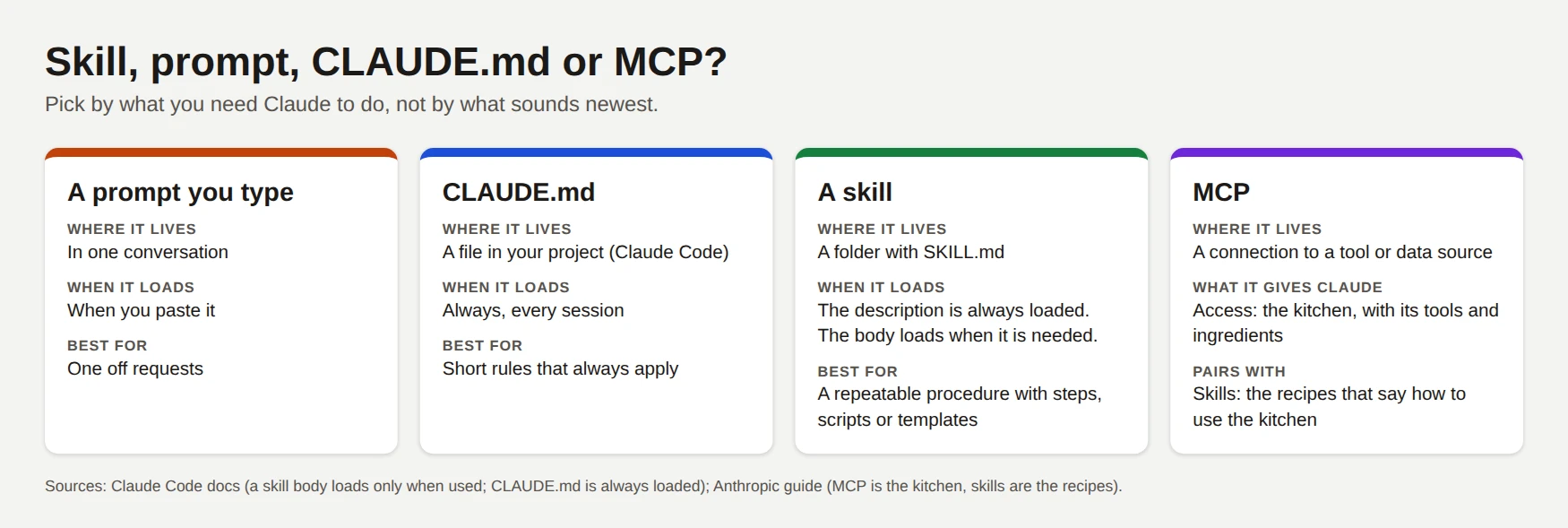
A prompt lives in one conversation. A CLAUDE.md file in Claude Code loads at the start of every session, so keep it to short rules that always apply. A skill keeps only its description in context until the skill is needed, which makes it the right home for long procedures.
MCP does a different job. It connects Claude to tools and data, and Anthropic's guide uses a kitchen comparison: MCP supplies the kitchen with its tools and ingredients, and skills supply the recipes. The two work best together.
Grab 87 Pro Level Claude + ChatGPT Skills for All Marketing, Coding, Business Task here;
How Claude Loads a Skill: Three Levels
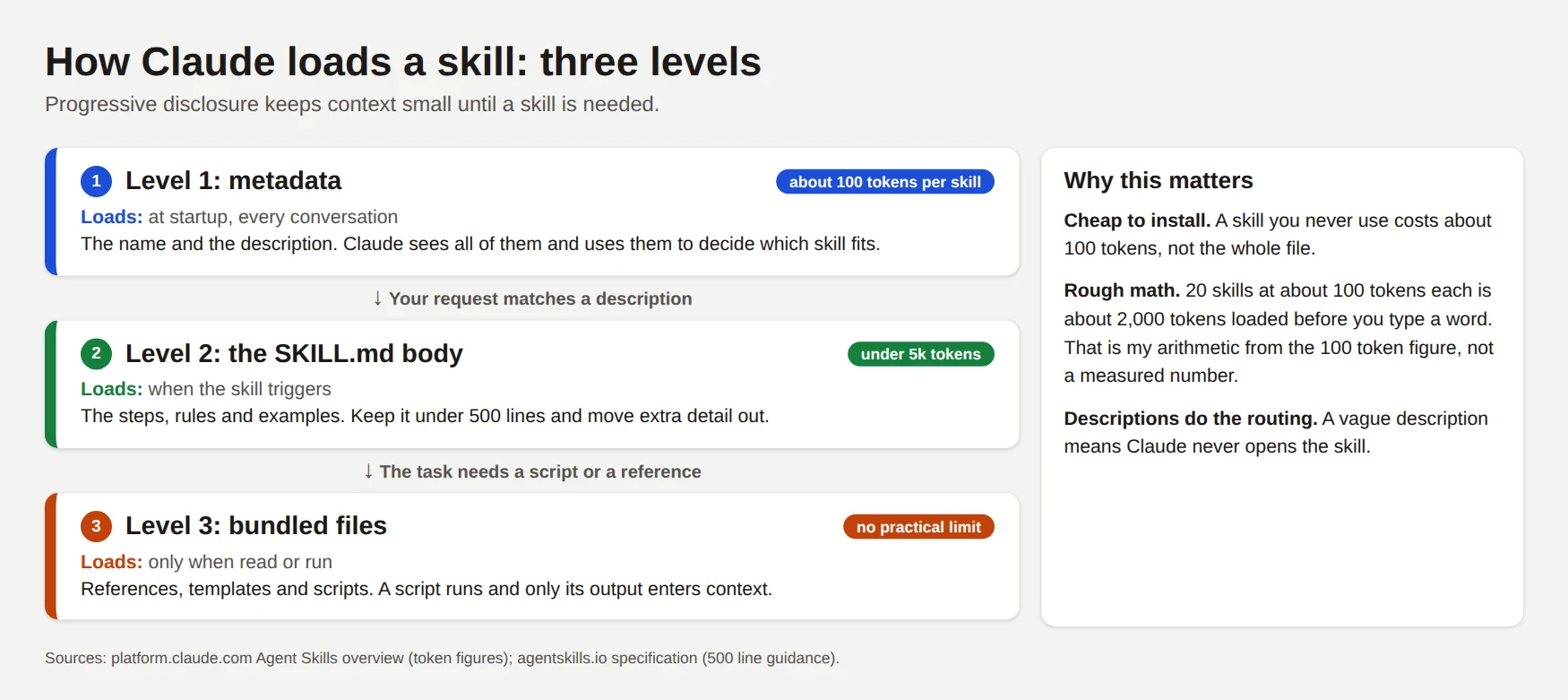
Claude does not read every skill in full at the start of a conversation. It loads each skill in three levels, and Anthropic calls this progressive disclosure. The design keeps your context window small until a skill earns its place.
Level 1: metadata, always loaded
At startup, Claude reads the name and description of every skill you have enabled. Anthropic's documentation puts the cost at about 100 tokens per skill. This is the only part of your skill that sits in context all the time.
Level 2: the SKILL.md body, loaded when it triggers
When your request matches a description, Claude reads the full SKILL.md file with a bash command. The docs recommend a body under 5,000 tokens and under 500 lines. Past that size, move detail into separate files.
Level 3: bundled files, loaded on demand
Your skill can point to reference documents, templates and scripts. Claude reads a reference only when the task needs it. When Claude runs a script, only the script's output enters the conversation, not the code.
This last point matters more than it looks. A 140 line Python script costs you almost nothing in context, and it gives the same answer every time. In my demo skill later in this guide, a script counts words exactly, because Claude should not count words by eye.
How Claude decides to use a skill
Claude sees a list of available skills, each with its name and description. It picks a skill when the description matches the task. Anthropic's skill-creator guidance adds an important detail: Claude only consults skills for tasks it cannot easily handle on its own. A one step request will often skip your skill, however good the description is.
I saw that in my own test. I installed my demo skill in a Claude Code session with 162 skills loaded and asked an unrelated coding question. Claude answered in one turn and never called the skill.
When I asked Claude to check a draft against "our style rules", it picked my skill on its own. You will see both runs in the testing section.
What it costs
Rough math helps here. Twenty skills at about 100 tokens each add about 2,000 tokens before you type a word. That is my arithmetic from Anthropic's figure, not a measured number. The takeaway is simple: many small, well described skills are cheap, and one bloated SKILL.md is not.
In Claude Code, a loaded skill stays in the conversation for the rest of the session. Claude Code does not read the file again on later turns. After automatic compaction, it attaches the most recent use of each skill again and keeps the first 5,000 tokens of each, within a combined budget of 25,000 tokens. Put your most important instructions near the top of the file.
Anatomy of a Skill: Files, Frontmatter and Limits
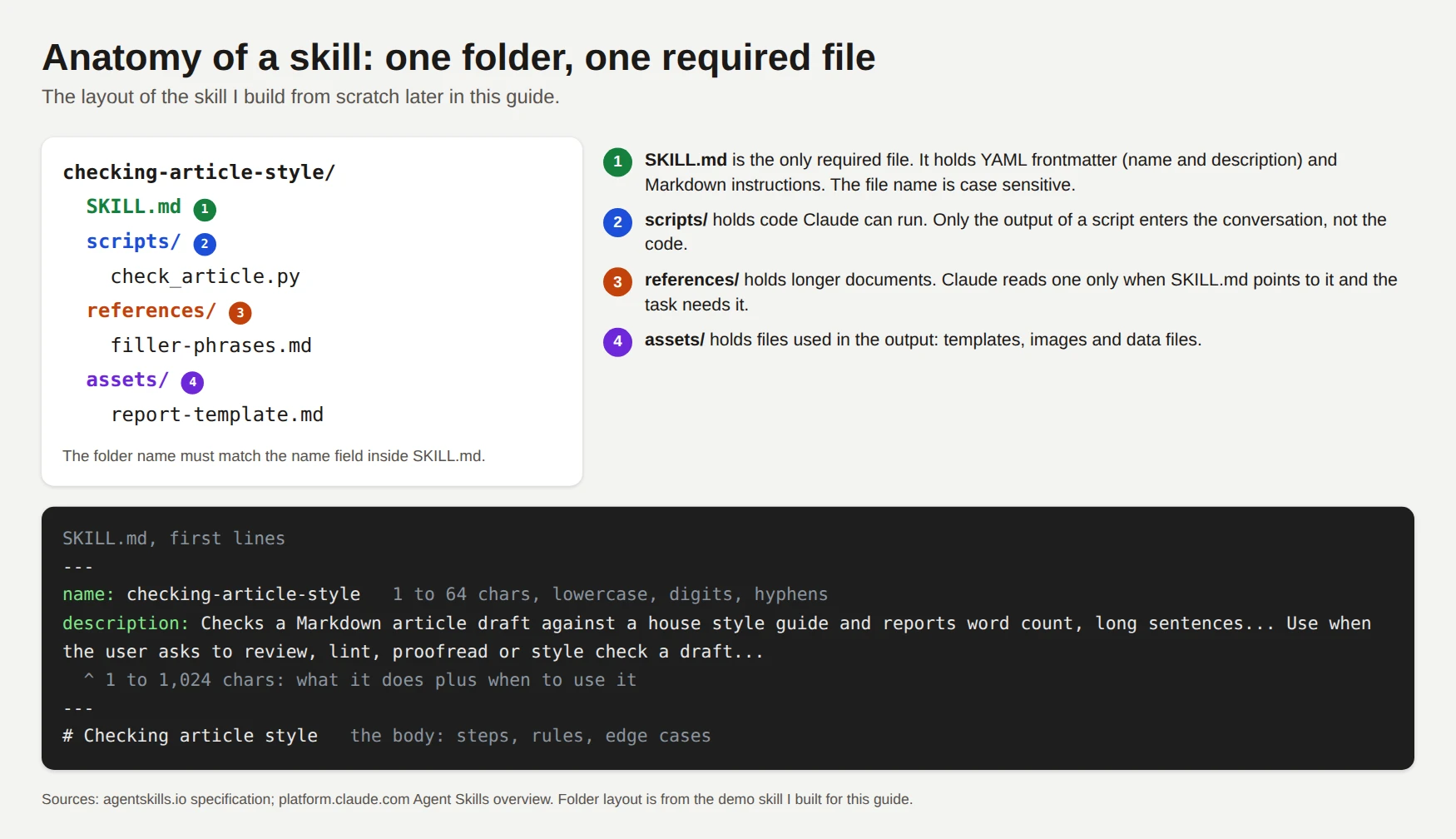
A skill is a folder. The folder name, the file name and the first lines of the file all follow strict rules, and most upload errors come from breaking one of them.
The folder rules
checking-article-style.SKILL.md. The name is case sensitive, so skill.md and Skill.md fail.name field inside the file must match the folder name.scripts/ for code, references/ for documents and assets/ for templates and other files.README.md out of the skill folder. Put human documentation in the repository root instead.The frontmatter fields
SKILL.md starts with YAML between two lines of ---. Two fields are required, and four are optional. The table follows the open specification at agentskills.io and Anthropic's documentation.
| Field | Required | Rules |
|---|---|---|
name | Yes | 1 to 64 characters. Lowercase letters, digits and hyphens only. No leading, trailing or double hyphen. Must match the folder name. The words anthropic and claude are reserved. |
description | Yes | 1 to 1,024 characters. Say what the skill does and when to use it. No XML tags. |
license | No | A license name or the file that holds it. |
compatibility | No | Up to 500 characters on environment needs. Most skills do not need it. |
metadata | No | A map of extra text values, such as an author or version. |
allowed-tools | No | Tools the skill may use. The specification marks this field as experimental. |
Claude Code accepts many more fields, and I cover them in the Claude Code section. Be careful, though: claude.ai uploads, the API and Anthropic's packaging script accept only the six fields above. An extra key such as argument-hint stops the upload with an "Unexpected key(s) in SKILL.md frontmatter" error.
The body
After the frontmatter, you write plain Markdown. The format has no required layout, but the specification suggests step by step instructions, examples of inputs and outputs, and common edge cases. Keep the file under 500 lines. When a topic needs more room, move it into a file under references/ and link to it from SKILL.md.
Keep every link one level deep. A reference that points to another reference can make Claude read the file partially, and it may miss content.
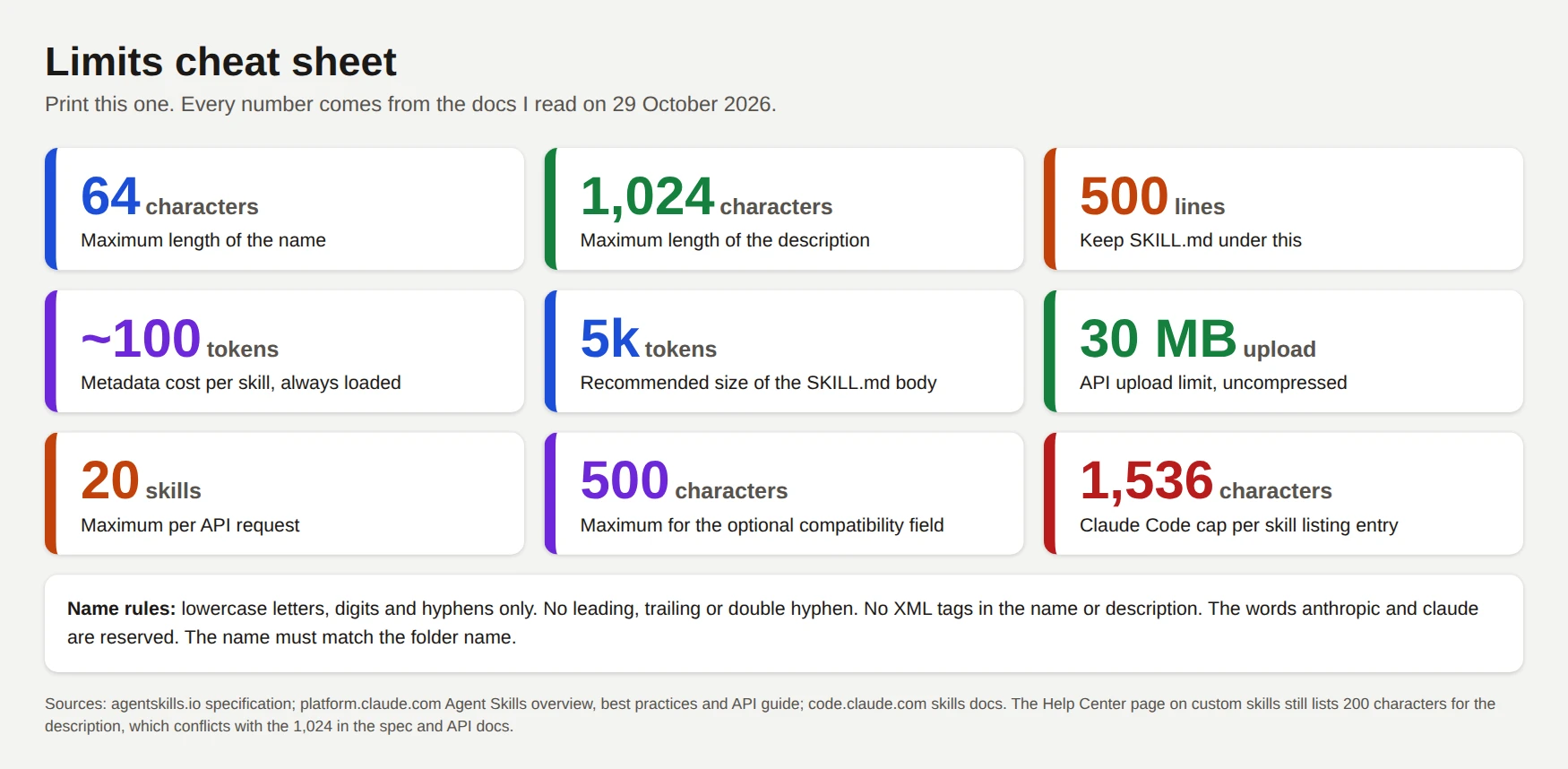
Limits at a glance
Every number in this guide comes from the documentation I read on 29 October 2026. The sheet below puts them in one place.
Install Claude Before You Build (Annotated Screenshots)
You can run skills in three places: the Claude app or claude.ai, Claude Code, and the API. You need at least one of them. I walk through the first two here with real screenshots from 29 October 2026, and I cover the API in its own section.
Anthropic changes these screens often, so treat the labels below as a snapshot. If a button has moved, search for the same word in the page and you will find it.
Option 1: install the Claude app
Go to claude.com/download. The page shows one big button for your system and, further down, a card for every option.
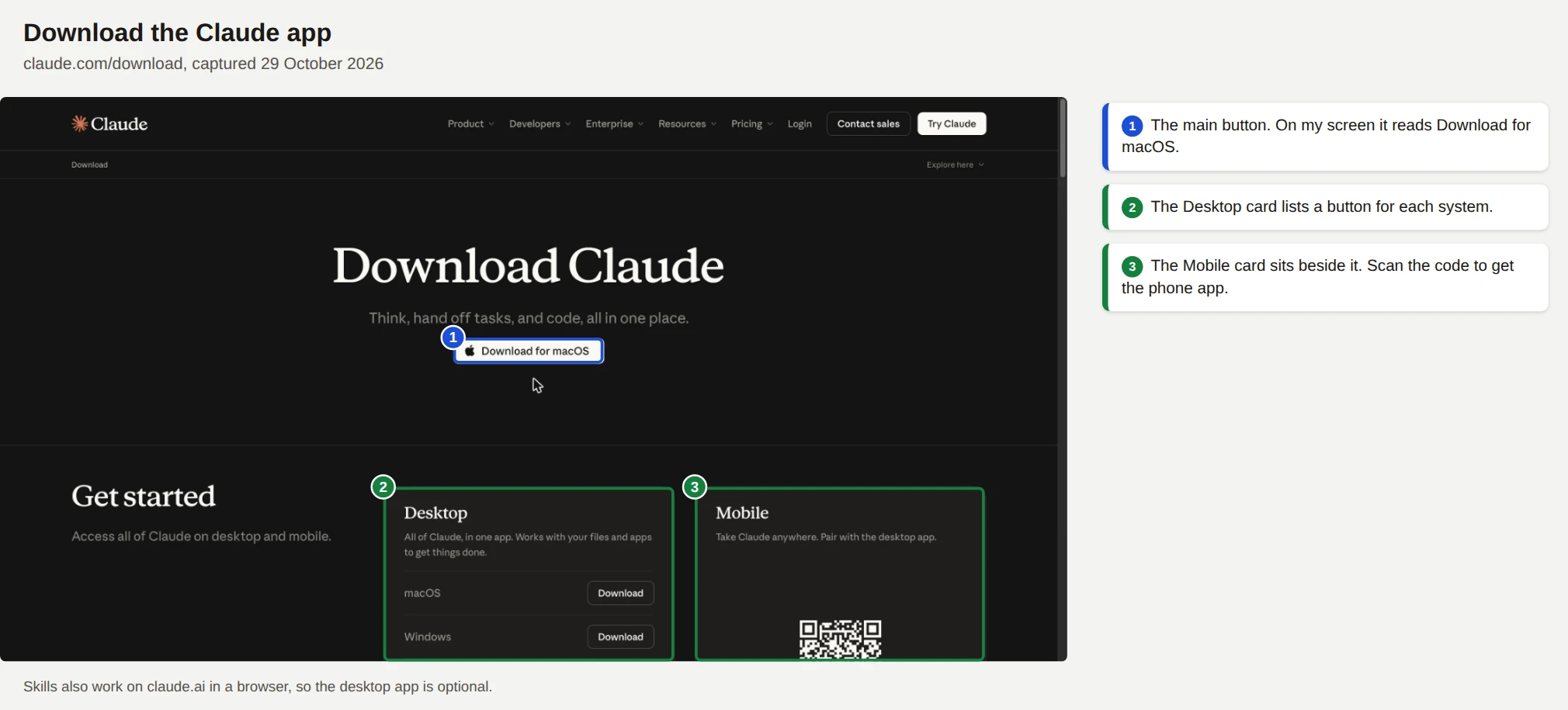
Skills also work in claude.ai in a browser, so the desktop app is optional. I use the app because it keeps Claude one click away.
Scroll down and you will see the full list.
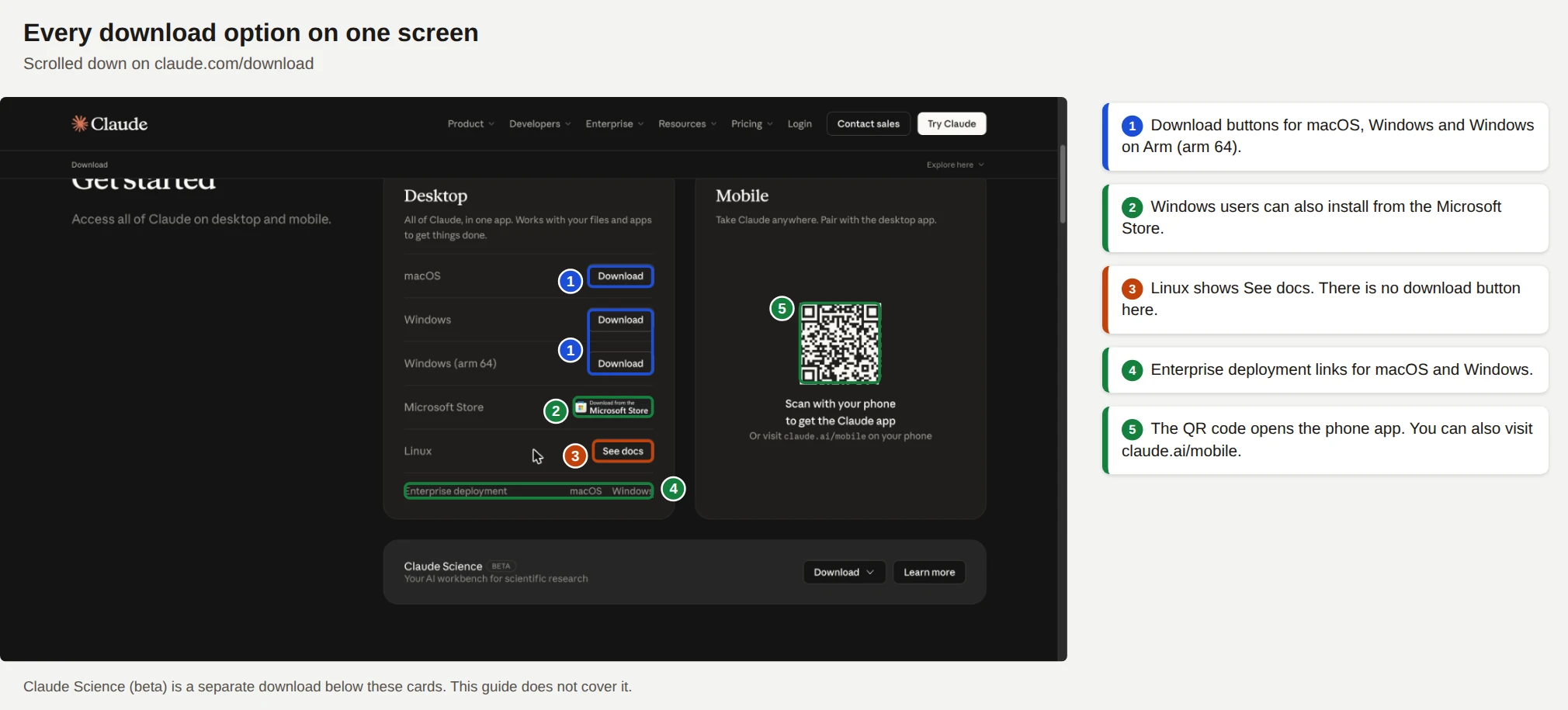
Here is what each option does:
claude.ai/mobile, to get the phone app.After the install, sign in with your Claude account. The page also lists Claude Science as a separate beta download. This guide does not cover it.
Option 2: install Claude Code
Claude Code is Anthropic's coding agent for your terminal. It reads skills straight from folders on your disk, so it is the fastest place to build and test one. The install steps live on the quickstart page at code.claude.com/docs/en/quickstart.
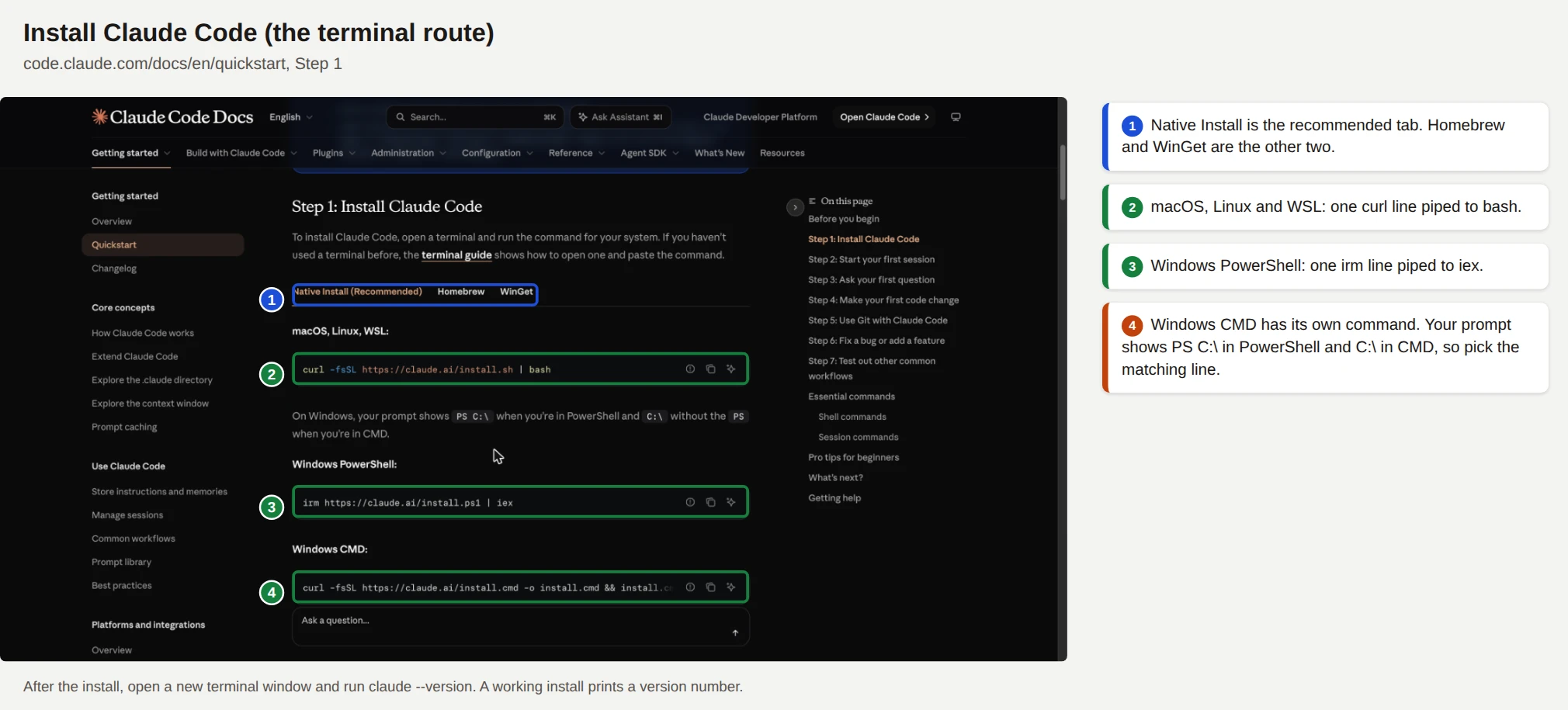
Pick the tab for your setup. Native Install is the recommended one, and Homebrew and WinGet are the other two. On macOS, Linux and WSL, the command is a single line:
curl -fsSL https://claude.ai/install.sh | bash
On Windows, the right command depends on your shell. Your prompt shows PS C:\ in PowerShell and C:\ in CMD. Use the PowerShell line below in PowerShell, and copy the CMD line from the docs page because it is long.
irm https://claude.ai/install.ps1 | iex
Open a new terminal window afterward and check the install. A working install prints a version number. My sandbox printed 2.1.312.
Then type claude in a project folder to start your first session. The docs also cover signing in on first launch.
Turn on code execution in claude.ai
Skills run in a code environment, so claude.ai needs code execution turned on. Open Settings from your user menu, then click Capabilities.
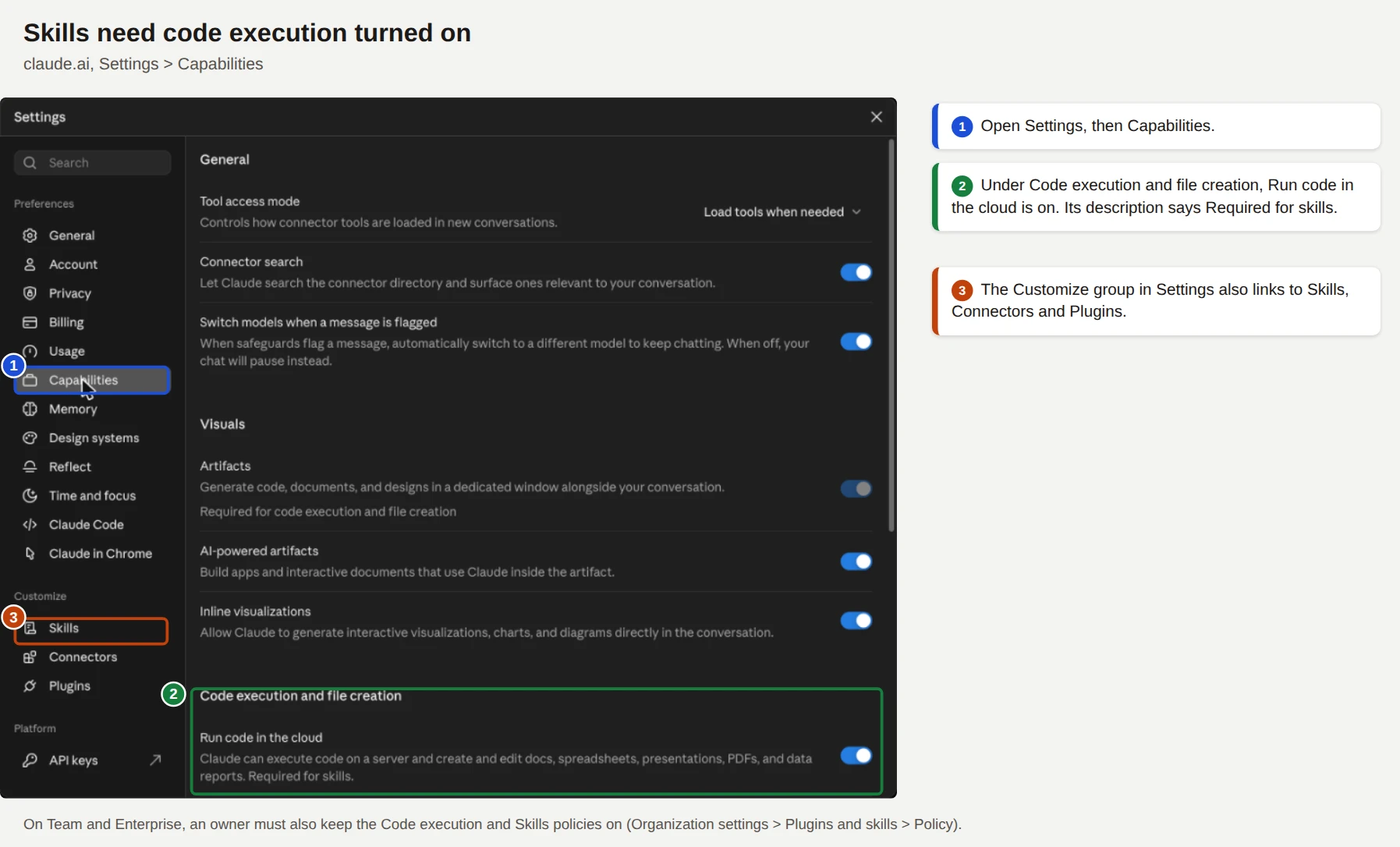
Look for the "Code execution and file creation" group. On my screen, the switch named "Run code in the cloud" was on, and its description ended with "Required for skills." Anthropic's Help Center says some newer layouts call this setting "Create and edit files".
Team and Enterprise plans add one more step. An owner opens Organization settings, then Plugins and skills, then the Policy tab, and keeps both "Code execution and file creation" and "Skills" enabled. If the Skills section is missing for you, this switch is the first thing to check.
Find Skills under Customize
Click Customize in the left sidebar, then open the Skills tab. I hid my chat list and account name in the screenshot below, and I changed nothing on this page.
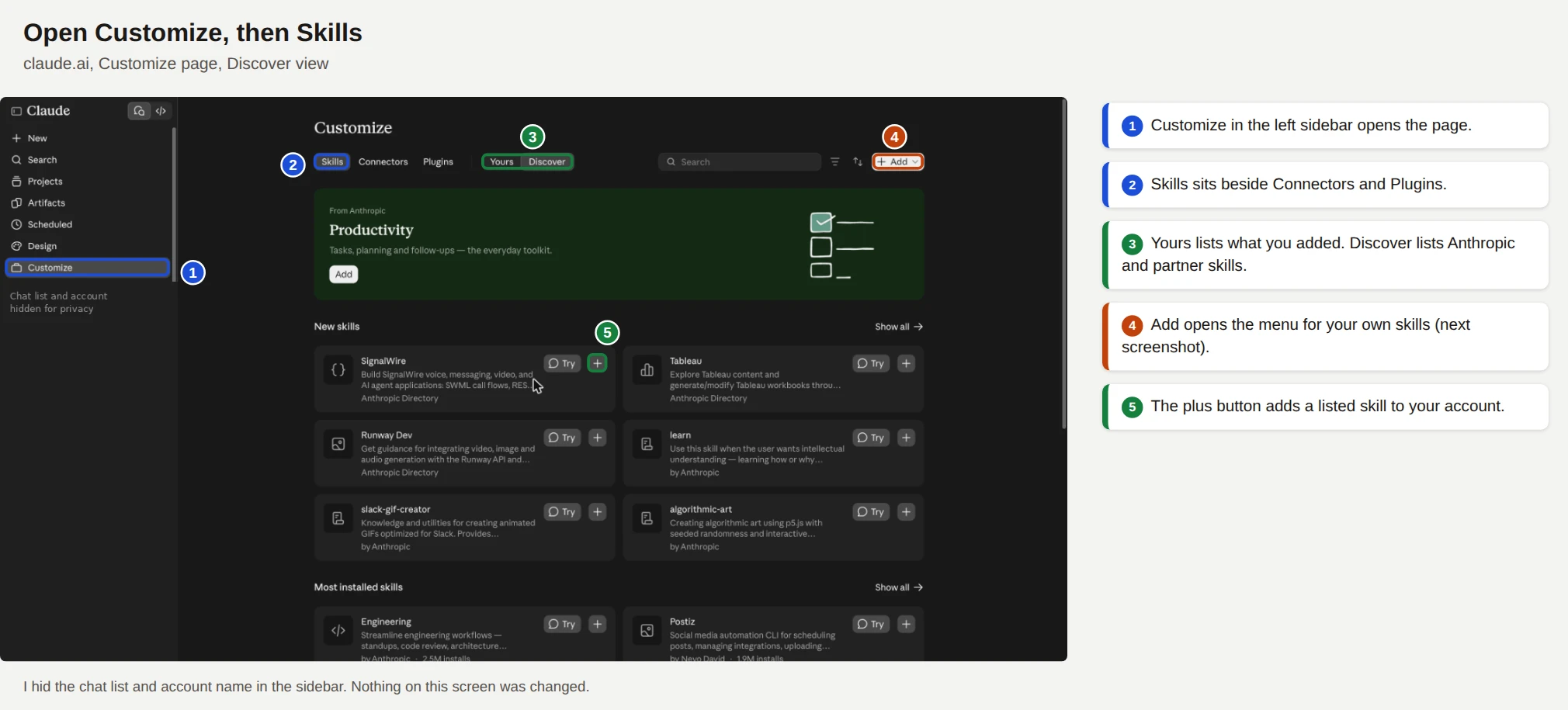
The page has three tabs: Skills, Connectors and Plugins. The Yours and Discover toggle switches between the skills on your account and the skills Anthropic and partners offer. Each card has a Try button and a plus button. The plus button adds the skill to your account.
Search for skill-creator
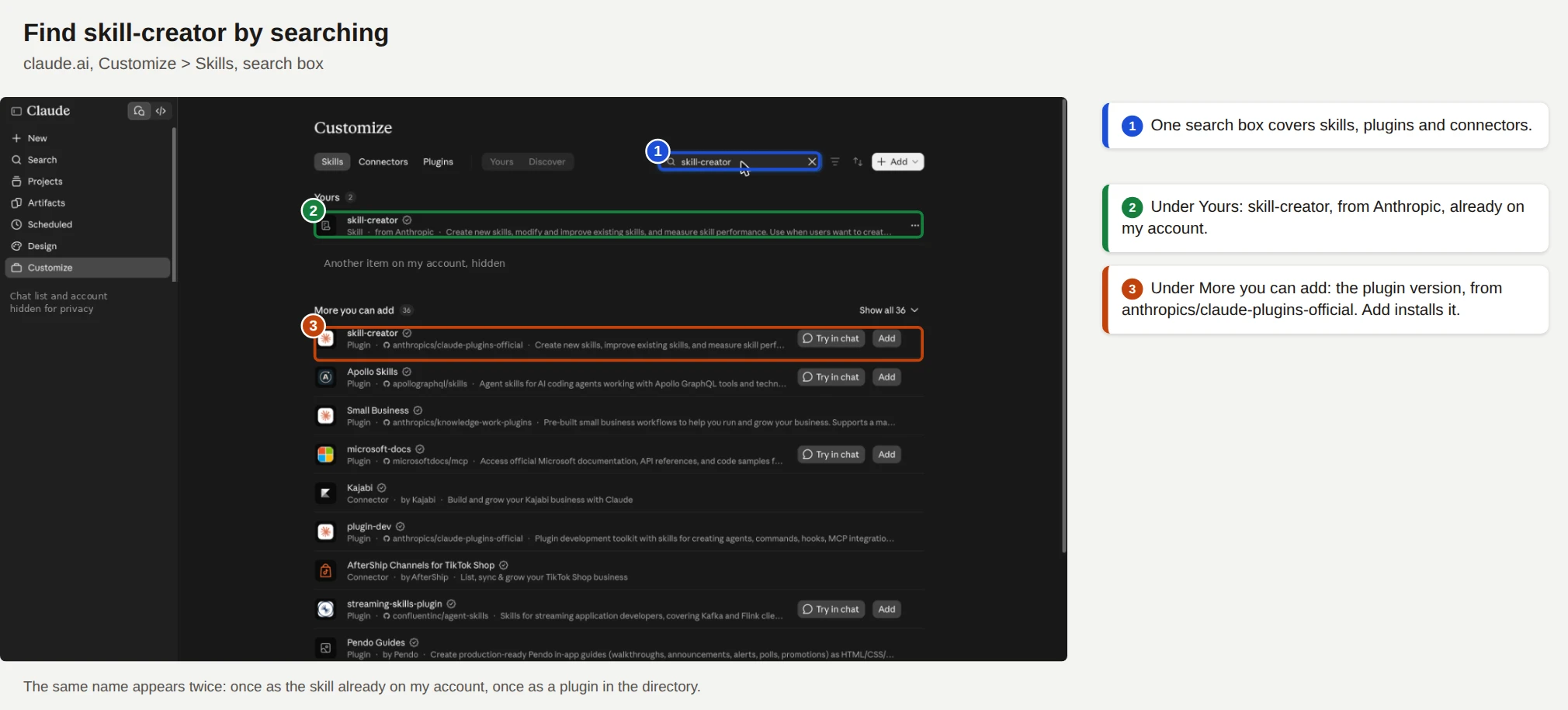
The search box covers skills, plugins and connectors. When I searched for skill-creator, it showed up twice.
The first result sits under Yours: a skill from Anthropic that was already on my account. The second sits under "More you can add": a plugin from the anthropics/claude-plugins-official repository. I cover what this skill does in its own section.
The Add menu
The Add button opens a menu with three items. This menu is where your own skills come in.
I opened the menu, looked, and closed it. I did not upload or create anything in my account while writing this guide.
Open a skill and read its files
Click any skill in your list, then the Contents tab. This view shows every file in the skill, which makes it the best way to learn by reading. I opened Anthropic's skill-creator.
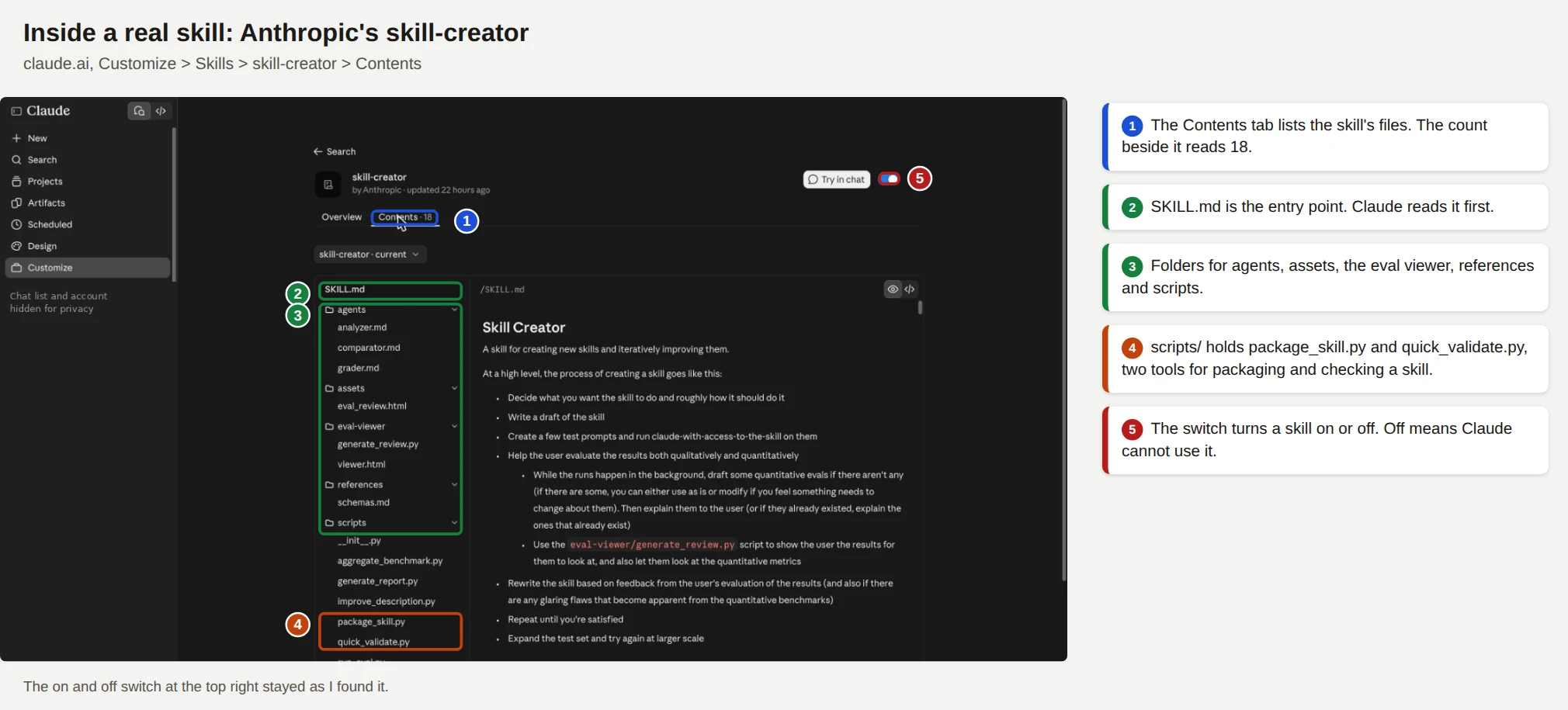
The Contents tab listed 18 files. You can see SKILL.md at the top, then folders for agents, assets, the evaluation viewer, references and scripts. The scripts/ folder includes package_skill.py and quick_validate.py, two tools for packaging and checking a skill. A switch at the top right turns the skill on or off, and I left it as I found it.
Do skills work on a free plan?
The Help Center says yes. Its pages list Free, Pro, Max, Team and Enterprise, and they require code execution to be on. Anthropic's platform overview lists only Pro, Max, Team and Enterprise. I trust the Help Center here because it is the newer page, and I explain the gap in the section on where the docs disagree.
Where Skills Work and How Each Place Differs
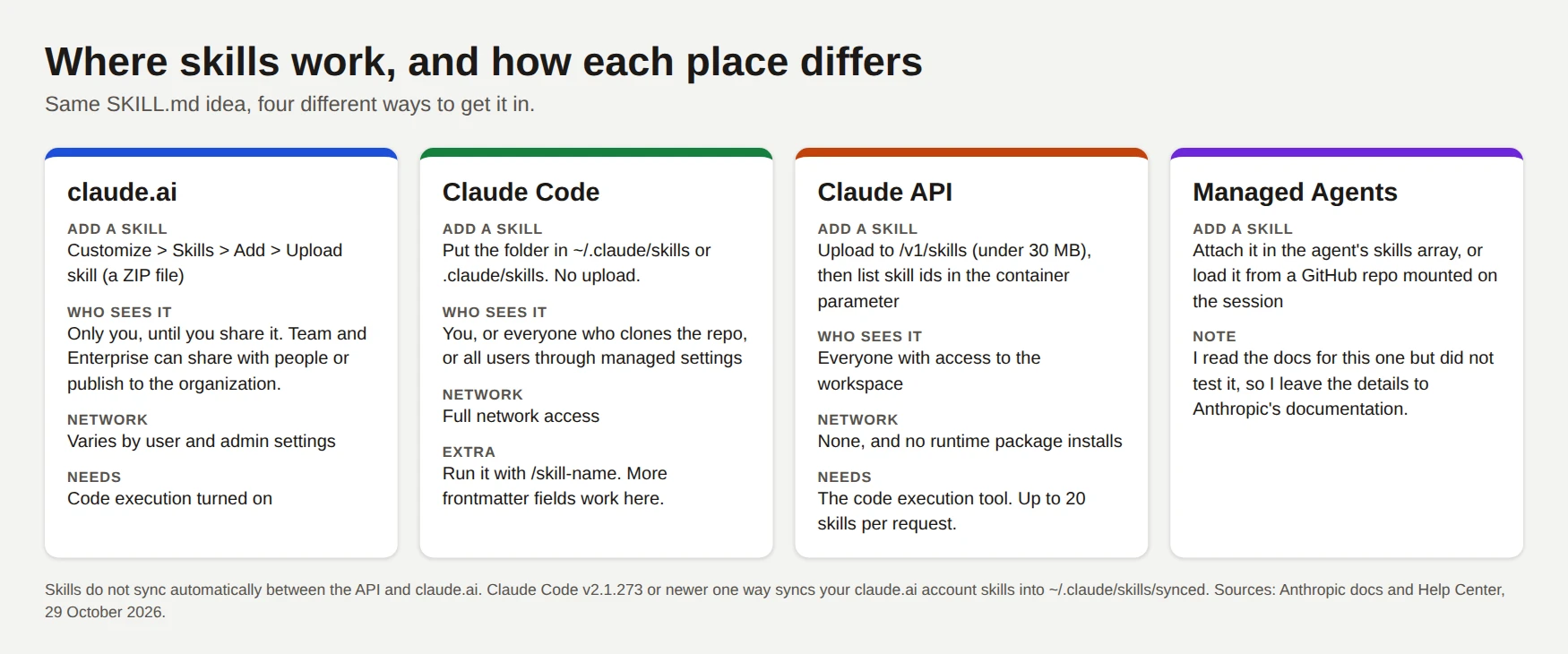
The SKILL.md idea stays the same everywhere, but each product stores, shares and runs skills differently. The comparison below shows the four main places.
claude.ai and the Claude app
You upload a ZIP file in Customize, then Skills. A skill you upload stays private to you until you share it. On Team and Enterprise plans, an owner can also provision skills for everyone, and admins see skill names and sharing status but not the files.
Network access for skills in claude.ai varies by user and admin settings. Claude can also install packages from PyPI and npm when a skill needs them, which the API does not allow.
Claude Code
Claude Code reads skills from folders. You drop a folder in the right place, and Claude Code picks it up without an upload. Claude Code has full network access, and it adds extra frontmatter fields for invocation control, subagents and argument passing.
The location decides who can use a skill, and it also decides which one wins when two share a name.
~/.claude/skills//SKILL.md covers all your projects on one machine..claude/skills//SKILL.md covers one repository. Commit the folder to Git and your whole team gets it.skills/ folder, and you call them as /plugin-name:skill-name.If two skills share a name, enterprise beats personal, and personal beats project. A skill also beats an old .claude/commands file of the same name, because Anthropic merged custom commands into skills. Both .claude/commands/deploy.md and .claude/skills/deploy/SKILL.md create a /deploy command.
Claude API
The API takes skills through a container parameter on the Messages API, together with the code execution tool. You upload a custom skill once to /v1/skills, and every API key in the workspace can then use it. The sandbox has no network access and cannot install packages at runtime, so a skill that needs a library must work with what the container already has. I cover the code in the API section below.
Managed Agents
Anthropic's Managed Agents product accepts skills in two ways: you attach them in the agent's skills array, or you load them from a GitHub repository mounted on the session. I read the documentation for this route but did not test it.
Cowork and Microsoft 365
In Cowork, open Customize in the left sidebar, then the plus directory, then the Skills tab, and click Install. Pro, Max and Team users on Claude for Mac can also record a skill. You record your screen and voice for up to about 10 minutes, and Claude proposes a skill from what you did. Anthropic warns you not to type passwords while recording.
Claude for Microsoft 365, in Excel, PowerPoint, Word and Outlook, can use your enabled skills too. You type / in the sidebar to pick one.
Do skills sync between surfaces?
Mostly no, with one exception. Anthropic's API overview says custom skills do not sync across surfaces, so an API skill and a claude.ai skill are separate copies. Claude Code version 2.1.273 and newer adds a one way sync from your claude.ai account into ~/.claude/skills/synced/.
That sync only downloads. Edits you make to the synced files are not saved back to your account, and the sync does not run for API key sessions. Cowork and cloud sessions do the reverse: they never read ~/.claude/skills on your machine, and they use the skills enabled on your claude.ai account instead.
Build a Skill From Scratch: A Complete Walkthrough
Now we build one. I picked a small job with a clear result: checking a Markdown article draft against a house style. The skill counts words and sentences with a script, flags long sentences, long paragraphs, filler phrases and heading problems, and returns the report in a fixed layout.
I built and ran every file below in a Linux sandbox with Claude Code 2.1.312. I did not upload this skill to claude.ai, and I say so again at that step.
Step 1: Pick one job
Anthropic's guide says to start with two or three concrete use cases. For each one, write who asks, what they say, which steps follow and what a good result looks like.
My use case is this. A writer asks Claude to review a draft. Claude runs the checker, reads the issues, and writes a report in the same layout every time. Claude then offers to fix the problems and waits for a yes.
Step 2: Write your test prompts first
Anthropic's best practices say to build your evaluations before your instructions. Write at least three test prompts, and include one that should not trigger the skill. Mine were:
./draft.md and tell me what is wrong with it against our style rules?" (should trigger)I ran prompts 1 and 3 in a headless Claude Code session. I wrote the skill in one quick pass before running them, so treat my results as a demonstration of the method, not as a benchmark. When you build your own, write the prompts first.
Step 3: Create the folder
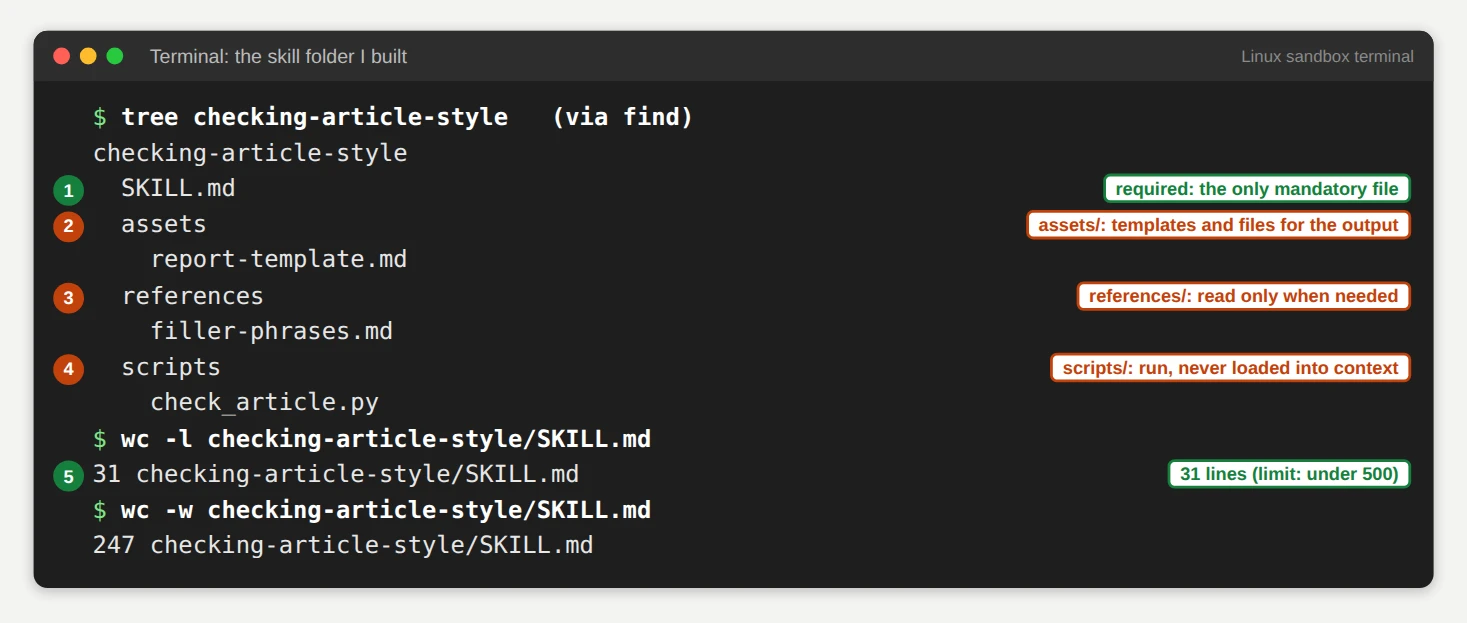
Make the folder with the three optional subfolders. The folder name becomes the skill name, so choose it with care. Anthropic suggests a gerund form such as processing-pdfs, and mine is checking-article-style.
mkdir -p checking-article-style/scripts checking-article-style/references checking-article-style/assets
Step 4: Write SKILL.md
This is the heart of the skill. The first lines hold the frontmatter, and the rest holds the instructions.
---
name: checking-article-style
description: Checks a Markdown article draft against a house style guide and reports word count, long sentences, long paragraphs, filler phrases and heading problems. Use when the user asks to review, lint, proofread or style check a draft, blog post or article, or says "run the style check", even if they do not name this skill.
---

# Checking article style

Run the bundled script first. Do not count words or judge sentence length by eye, because the script is exact and you are not.

## Steps

1. Find the draft. If the user gave no path, ask for one.
2. Run the checker:
   ```bash
   python3 scripts/check_article.py <path-to-draft.md>
   ```
3. Read the JSON that the script prints. Every issue has a line number.
4. Write the report with the layout in [assets/report-template.md](assets/report-template.md).
5. Offer to fix the issues. Do not edit the draft unless the user says yes.

## Rules the script applies

- Sentences longer than 25 words are flagged.
- Paragraphs longer than 4 sentences are flagged.
- Phrases listed in [references/filler-phrases.md](references/filler-phrases.md) are flagged. To add a phrase, edit that file and leave the script alone.
- A draft needs exactly one H1, and heading levels must not skip (an H2 followed by an H4 is flagged).

## If something goes wrong

- "file not found": ask the user for the correct path.
- Any Python import error: the script uses only the standard library, so report the Python version and stop.
Here is why each part is there:
skill-creator guidance says to explain why, because Claude follows reasoning better than shouted rules.The file is 31 lines and 247 words, far under the limits.
Step 5: Add the reference file and the template
The reference file holds the filler phrases. I kept them out of the script so that you can add a phrase without touching code. Save this as references/filler-phrases.md.
# Filler phrases

One phrase per line, each starting with "- ". The checker flags these in any draft.

- in order to
- it is important to note
- at the end of the day
- game changer
- in today's fast-paced world
- needless to say
- a wide range of
- very unique
- leverage
- delve
The template fixes the layout of the report. Save this as assets/report-template.md.
# Style check: [file name]

**Verdict:** [Pass | Needs edits] ([N] issues)

## Numbers

- Words: [n]
- Sentences: [n], average [n] words
- Paragraphs: [n]

## Issues

### Long sentences
- Line [n]: "[first 10 words]..." ([n] words)

### Long paragraphs
- Line [n]: [n] sentences

### Filler phrases
- Line [n]: "[phrase]"

### Headings
- Line [n]: [what is wrong]

## Next step

One sentence that offers to fix the issues.
Step 6: Add the script
The script does the counting that Claude should not do by eye. It uses only the Python standard library, which matters because some environments cannot install packages. Save it as scripts/check_article.py.
#!/usr/bin/env python3
"""Check a Markdown article against a small house style.

Usage: python3 check_article.py path/to/draft.md

Prints one JSON object with a summary and a list of issues.
Uses only the Python standard library.
"""
import json
import re
import sys
from pathlib import Path

# Style limits. Change them here and in SKILL.md together.
MAX_SENTENCE_WORDS = 25   # long sentences are hard to scan on a phone
MAX_PARAGRAPH_SENTENCES = 4  # more than 4 reads as a wall of text

FILLER_FILE = Path(__file__).resolve().parent.parent / "references" / "filler-phrases.md"


def load_filler():
    """Read '- phrase' lines from references/filler-phrases.md."""
    if not FILLER_FILE.exists():
        return []
    phrases = []
    for line in FILLER_FILE.read_text(encoding="utf-8").splitlines():
        if line.startswith("- "):
            phrases.append(line[2:].strip().lower())
    return phrases


def split_blocks(lines):
    """Yield (start_line, kind, text) for headings and paragraphs.

    Code fences, tables, lists and front matter are skipped.
    """
    in_fence = False
    buf, start = [], 0

    def flush():
        nonlocal buf, start
        if buf:
            yield start, "paragraph", " ".join(buf)
        buf, start = [], 0

    for n, raw in enumerate(lines, 1):
        line = raw.rstrip()
        if line.strip().startswith("```"):
            yield from flush()
            in_fence = not in_fence
            continue
        if in_fence:
            continue
        if not line.strip():
            yield from flush()
            continue
        if re.match(r"^#{1,6}\s", line):
            yield from flush()
            yield n, "heading", line
            continue
        if re.match(r"^\s*([-*+]|\d+\.)\s", line) or line.lstrip().startswith("|"):
            yield from flush()
            continue
        if not buf:
            start = n
        buf.append(line.strip())
    yield from flush()


def sentences(text):
    parts = re.split(r"(?<=[.!?])\s+(?=[A-Z\"'(])", text.strip())
    return [p for p in parts if p]


def main():
    if len(sys.argv) != 2:
        print(f"Usage: python3 {sys.argv[0]} <draft.md>", file=sys.stderr)
        return 2
    path = Path(sys.argv[1])
    if not path.is_file():
        print(f"file not found: {path}", file=sys.stderr)
        return 1

    lines = path.read_text(encoding="utf-8").splitlines()
    filler = load_filler()
    issues = []
    words = n_sent = n_par = 0
    headings = []

    for start, kind, text in split_blocks(lines):
        if kind == "heading":
            level = len(text) - len(text.lstrip("#"))
            headings.append((start, level))
            continue
        n_par += 1
        sents = sentences(text)
        if len(sents) > MAX_PARAGRAPH_SENTENCES:
            issues.append({"line": start, "type": "long_paragraph",
                           "detail": f"{len(sents)} sentences"})
        for s in sents:
            count = len(s.split())
            words += count
            n_sent += 1
            if count > MAX_SENTENCE_WORDS:
                issues.append({"line": start, "type": "long_sentence",
                               "detail": f"{count} words: \"{' '.join(s.split()[:10])}...\""})
        low = text.lower()
        for phrase in filler:
            if phrase in low:
                issues.append({"line": start, "type": "filler_phrase", "detail": phrase})

    h1s = [h for h in headings if h[1] == 1]
    if len(h1s) != 1:
        issues.append({"line": h1s[0][0] if h1s else 1, "type": "heading",
                       "detail": f"expected exactly 1 H1, found {len(h1s)}"})
    prev = 0
    for line_no, level in headings:
        if prev and level > prev + 1:
            issues.append({"line": line_no, "type": "heading",
                           "detail": f"level jumps from H{prev} to H{level}"})
        prev = level

    issues.sort(key=lambda i: i["line"])
    report = {
        "file": path.name,
        "summary": {
            "words": words,
            "sentences": n_sent,
            "avg_sentence_words": round(words / n_sent, 1) if n_sent else 0,
            "paragraphs": n_par,
            "issue_count": len(issues),
        },
        "issues": issues,
    }
    print(json.dumps(report, indent=2))
    return 0


if __name__ == "__main__":
    sys.exit(main())
Anthropic's best practices give two rules for scripts. Solve the problem in the script instead of leaving it to Claude, and explain any magic number. My script does both: it handles a missing file, and the two limits sit at the top with a comment.
Step 7: Run the script by hand
Test the script before you let Claude touch it. I wrote a short draft with planted problems: a filler opener, a 49 word sentence, an eight sentence paragraph, a skipped heading level and a stock phrase.
# Five Ways to Cut Your Email Load

In today's fast-paced world, your inbox grows faster than you can read it. Most people lose about an hour a day to email, and most of that hour is avoidable. This post shows five fixes you can apply this week.

## Batch your replies

At the end of the day, a single 30 minute reply block beats ten scattered checks, because every check forces your brain to reload the context of whatever you were doing before the message arrived and that reload costs you far more time than the reply itself ever will.

## Use a short template

Write it once. Reuse it. Edit two lines. Send it. Move on. Repeat it for the next message. Keep the template in a note you can open in two clicks. Review it once a month.

#### Template example

Hi [name], thanks for the note. I will reply by [day]. Best, Sam.

## Unsubscribe in bulk

It is important to note that ten minutes of unsubscribing saves hours over a quarter. Use a filter for the word "unsubscribe" and clear the list in one sitting.
Run the script against it:
python3 checking-article-style/scripts/check_article.py draft.md
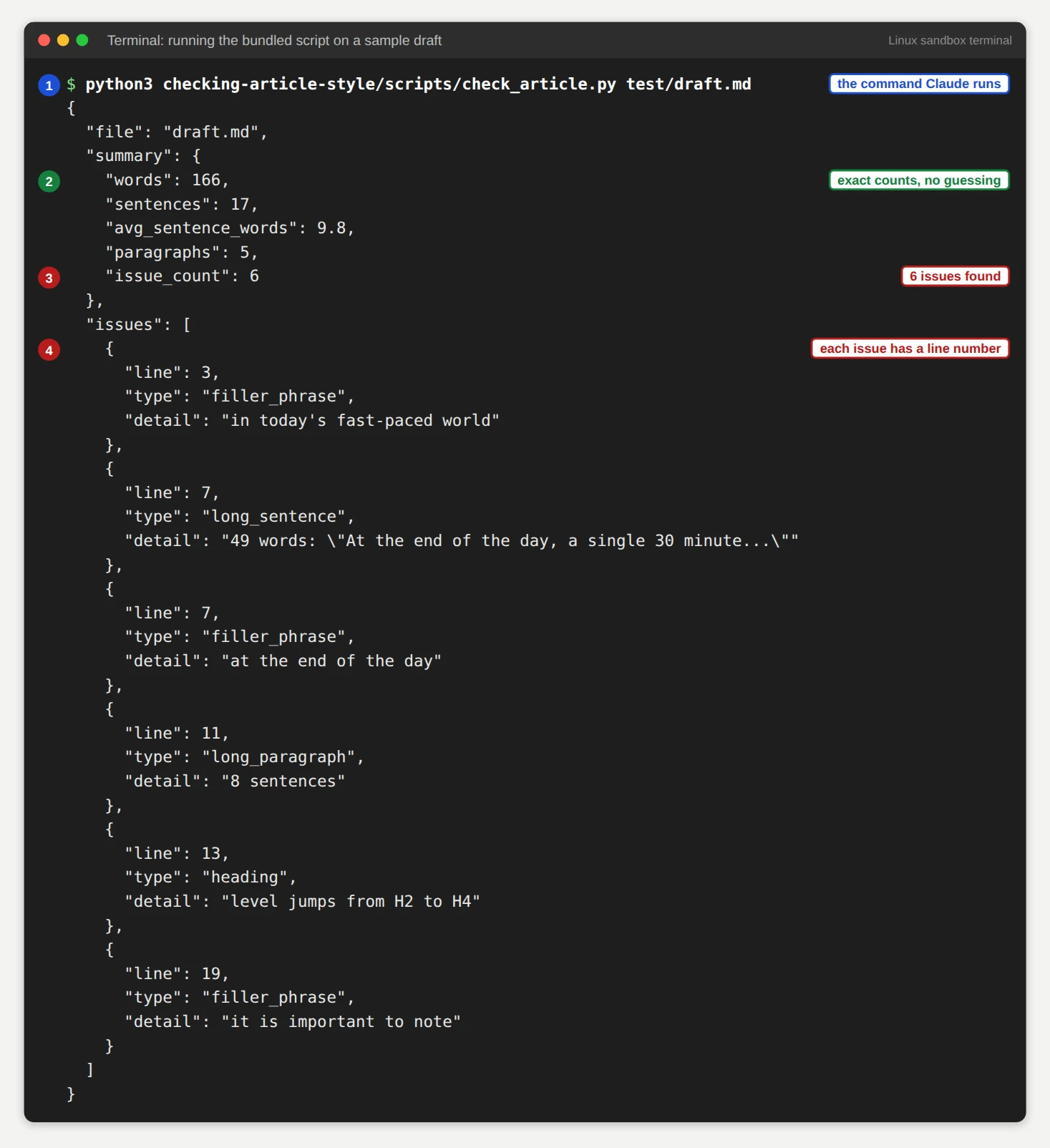
The script found six issues. It counted 166 words, 17 sentences and 5 paragraphs, and it measured the long sentence on line 7 at exactly 49 words. A script gives you a number you can check, which is the whole point of putting it in the skill.
Step 8: Validate the skill
A skill can look right and still fail to upload. Check the rules before you package it. Three tools help:
skills-ref validate ./my-skill is the reference validator for the open specification.quick_validate.py ships inside Anthropic's skill-creator skill, and package_skill.py runs similar checks when it packages a skill.claude plugin validate checks Claude Code skills. It needs the path to end in .claude/skills.I did not run skills-ref or quick_validate.py for this guide. I only ran the third tool and my own checker.
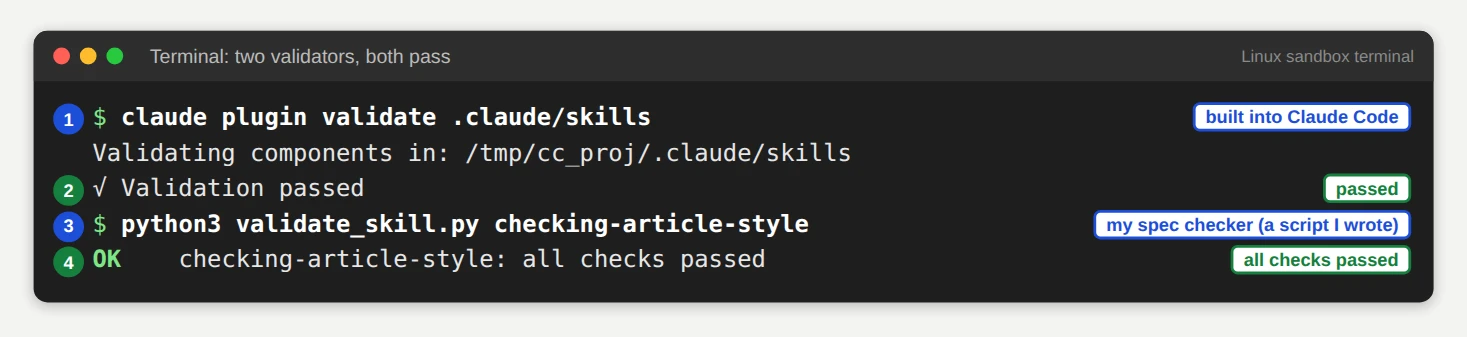
I tried claude plugin validate on my good skill, and it passed. I then fed it a skill with broken YAML, an uppercase name and an unknown field, and it did not flag them in my test. So I wrote a stricter checker that follows the rules in this guide. It reads the frontmatter and checks the name, the description, the allowed keys, the line count and every relative link.
#!/usr/bin/env python3
"""Check a skill folder against the Agent Skills spec and Anthropic's upload limits.

Usage: python3 validate_skill.py path/to/skill-folder

Rules come from agentskills.io/specification and the Claude API Skills docs:
  name         required, 1-64 chars, lowercase letters, digits and hyphens,
               no leading, trailing or double hyphen, must match the folder name,
               must not contain the reserved words "anthropic" or "claude"
  description  required, 1-1024 chars, no XML tags
  frontmatter  only name, description, license, compatibility, metadata, allowed-tools
  SKILL.md     under 500 lines; every relative file link must exist
"""
import re
import sys
from pathlib import Path

import yaml

ALLOWED_KEYS = {"name", "description", "license", "compatibility", "metadata", "allowed-tools"}
RESERVED = ("anthropic", "claude")


def check(folder: Path):
    errors, warnings = [], []
    skill_md = folder / "SKILL.md"
    if not skill_md.is_file():
        return ["SKILL.md not found (the file name is case sensitive)"], warnings

    text = skill_md.read_text(encoding="utf-8")
    lines = text.splitlines()
    if not lines or lines[0].strip() != "---":
        return ["frontmatter must start on line 1 with ---"], warnings
    try:
        end = next(i for i in range(1, len(lines)) if lines[i].strip() == "---")
    except StopIteration:
        return ["frontmatter has no closing ---"], warnings
    try:
        meta = yaml.safe_load("\n".join(lines[1:end])) or {}
    except yaml.YAMLError as exc:
        first = str(exc).splitlines()[0]
        return [f"frontmatter is not valid YAML: {first}"], warnings
    if not isinstance(meta, dict):
        return ["frontmatter must be a YAML mapping"], warnings

    name = meta.get("name")
    if not isinstance(name, str) or not name:
        errors.append("name is required")
    else:
        if len(name) > 64:
            errors.append(f"name is {len(name)} chars; the limit is 64")
        if not re.fullmatch(r"[a-z0-9-]+", name):
            errors.append("name may use only lowercase letters, digits and hyphens")
        if name.startswith("-") or name.endswith("-"):
            errors.append("name must not start or end with a hyphen")
        if "--" in name:
            errors.append("name must not contain consecutive hyphens")
        if name != folder.name:
            errors.append(f"name '{name}' does not match the folder name '{folder.name}'")
        for word in RESERVED:
            if word in name:
                errors.append(f"name must not contain the reserved word '{word}'")

    desc = meta.get("description")
    if not isinstance(desc, str) or not desc.strip():
        errors.append("description is required and must be a non-empty string")
    else:
        if len(desc) > 1024:
            errors.append(f"description is {len(desc)} chars; the limit is 1024")
        if re.search(r"<[^>]+>", desc):
            errors.append("description must not contain XML tags")
        if "use when" not in desc.lower():
            warnings.append("description should say when to use the skill (add 'Use when ...')")

    extra = sorted(set(meta) - ALLOWED_KEYS)
    if extra:
        errors.append("unexpected frontmatter key(s): " + ", ".join(extra)
                      + " (claude.ai upload and the API accept only: "
                      + ", ".join(sorted(ALLOWED_KEYS)) + ")")

    if len(lines) > 500:
        warnings.append(f"SKILL.md is {len(lines)} lines; keep it under 500")

    body = "\n".join(lines[end + 1:])
    for target in re.findall(r"\]\(([^)#\s]+)\)", body):
        if "://" in target or target.startswith("mailto:"):
            continue
        if not (folder / target).exists():
            errors.append(f"linked file does not exist: {target}")

    return errors, warnings


def main():
    if len(sys.argv) != 2:
        print(f"Usage: python3 {sys.argv[0]} <skill-folder>", file=sys.stderr)
        return 2
    folder = Path(sys.argv[1]).resolve()
    errors, warnings = check(folder)
    for w in warnings:
        print(f"WARN  {w}")
    for e in errors:
        print(f"FAIL  {e}")
    if errors:
        print(f"\n{folder.name}: {len(errors)} problem(s)")
        return 1
    print(f"OK    {folder.name}: all checks passed")
    return 0


if __name__ == "__main__":
    sys.exit(main())
The good skill passes cleanly.
Then I broke it on purpose, one rule at a time. Each broken copy fails with a message that names the exact problem: an uppercase name, a YAML colon, the reserved word claude, a 1,052 character description, an extra key plus a missing linked file, and a folder name mismatch.
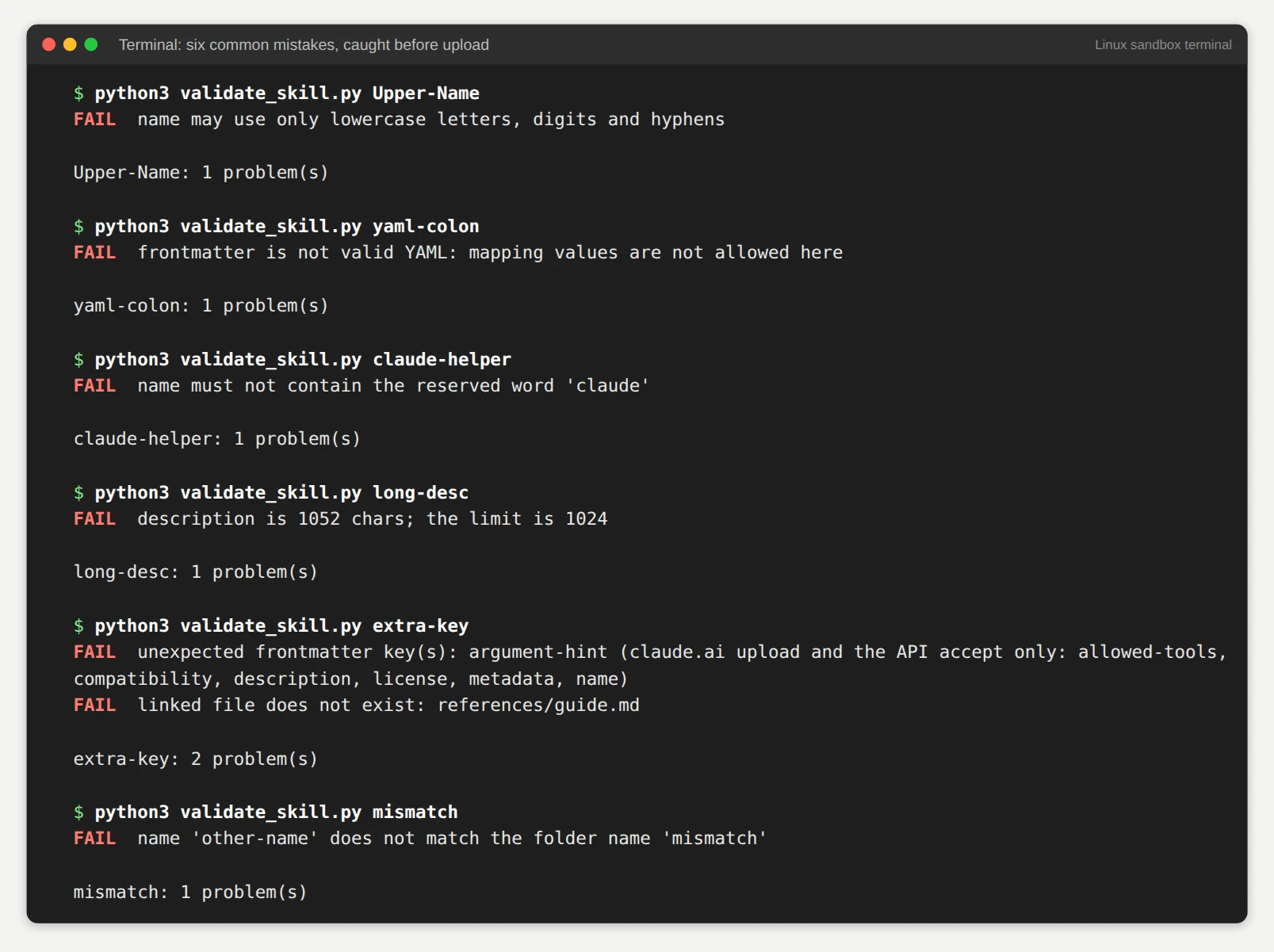
You can run these checks before every upload. The messages cost you a few seconds, and a failed upload costs you a lot more guessing.
Step 9: Package the folder as a ZIP
claude.ai takes skills as a ZIP file. The ZIP must contain the skill folder itself as the root, not the loose files. Run zip from the folder's parent directory.
zip -r checking-article-style.zip checking-article-style
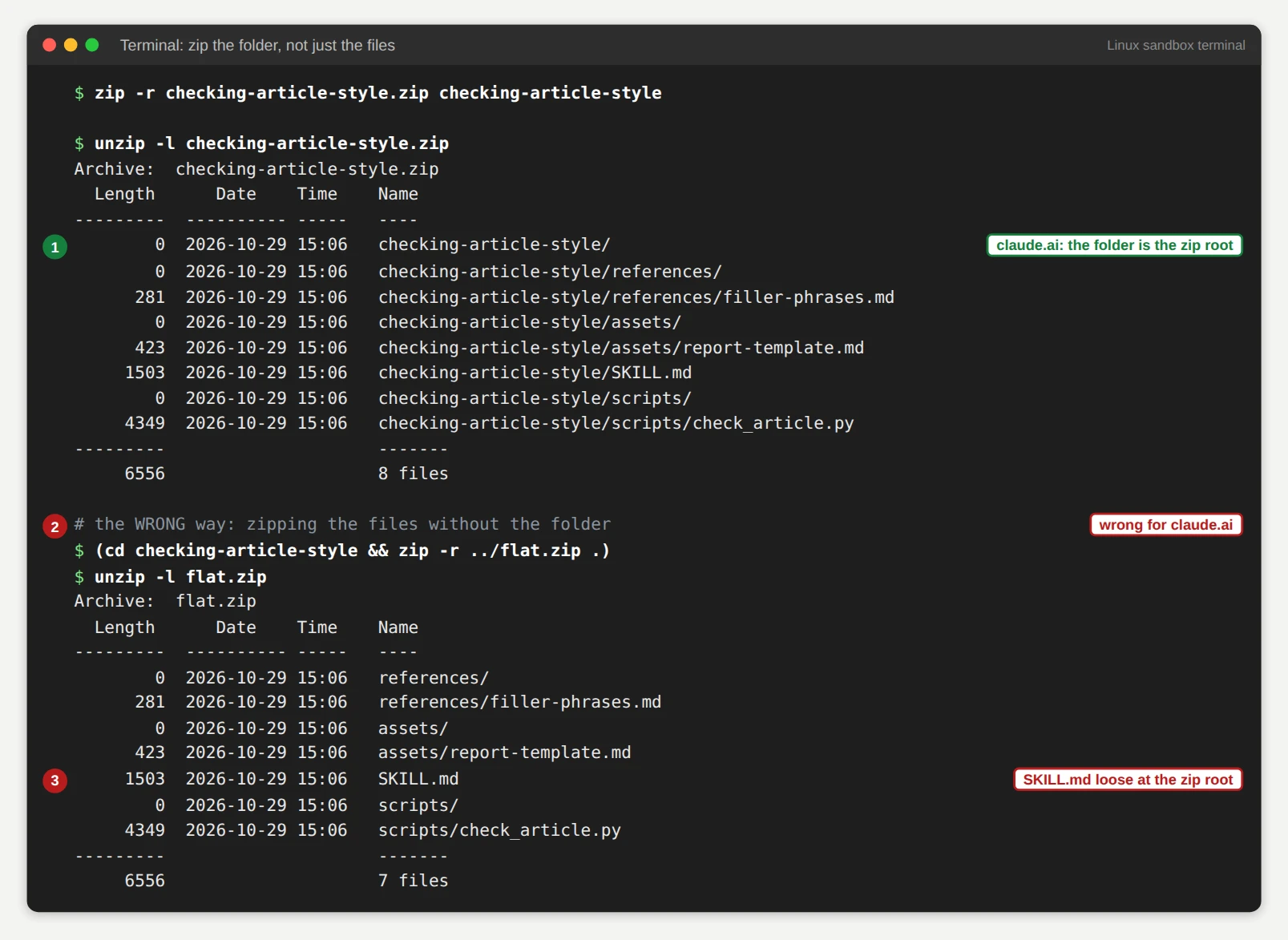
The listing shows every path starting with checking-article-style/. That is the right shape. If you zip from inside the folder, SKILL.md lands at the root of the ZIP, and the Help Center's instructions say the folder itself must be the root. My capture also shows that wrong version, so you can compare the two listings.
Step 10: Install it in Claude Code and test it
For Claude Code, you skip the ZIP. Copy the folder into a project's .claude/skills directory, or into ~/.claude/skills for every project.
mkdir -p .claude/skills
cp -r checking-article-style .claude/skills/
Claude Code watches these folders and picks up edits without a restart. If you create a brand new top level skills directory while a session is open, run /reload-skills. Then I asked Claude Code a question that never names the skill.
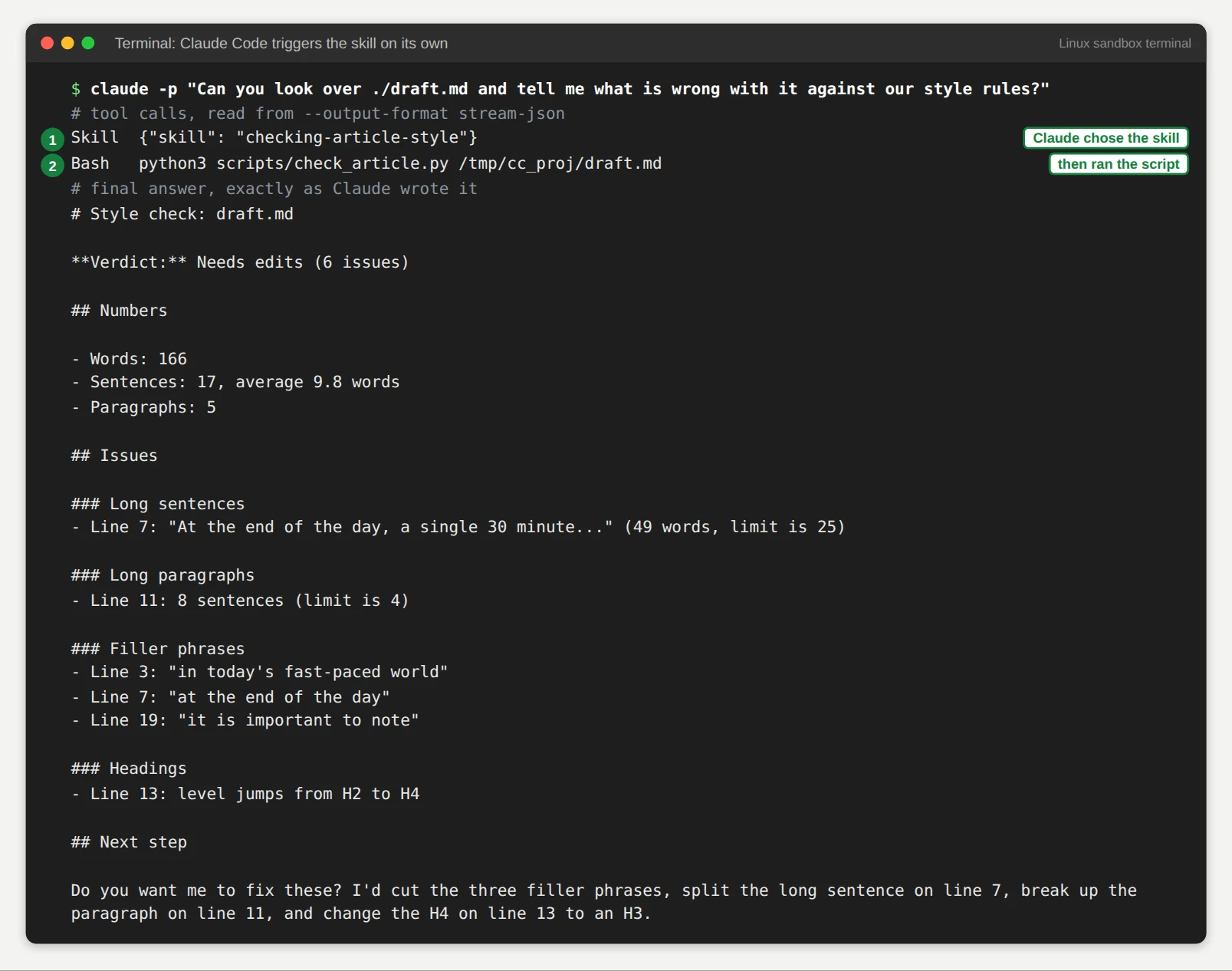
Claude called the skill first and then ran the script. Its final answer followed my template: a verdict, the numbers, the issues grouped by type and one closing offer to fix them. The run took 4 turns and about 8.6 seconds. That session had 162 skills loaded, and Claude still picked mine from the description alone.
Step 11: Compare against a baseline and a negative
One passing run proves little. You need two more checks: what happens without the skill, and what happens on an unrelated task.
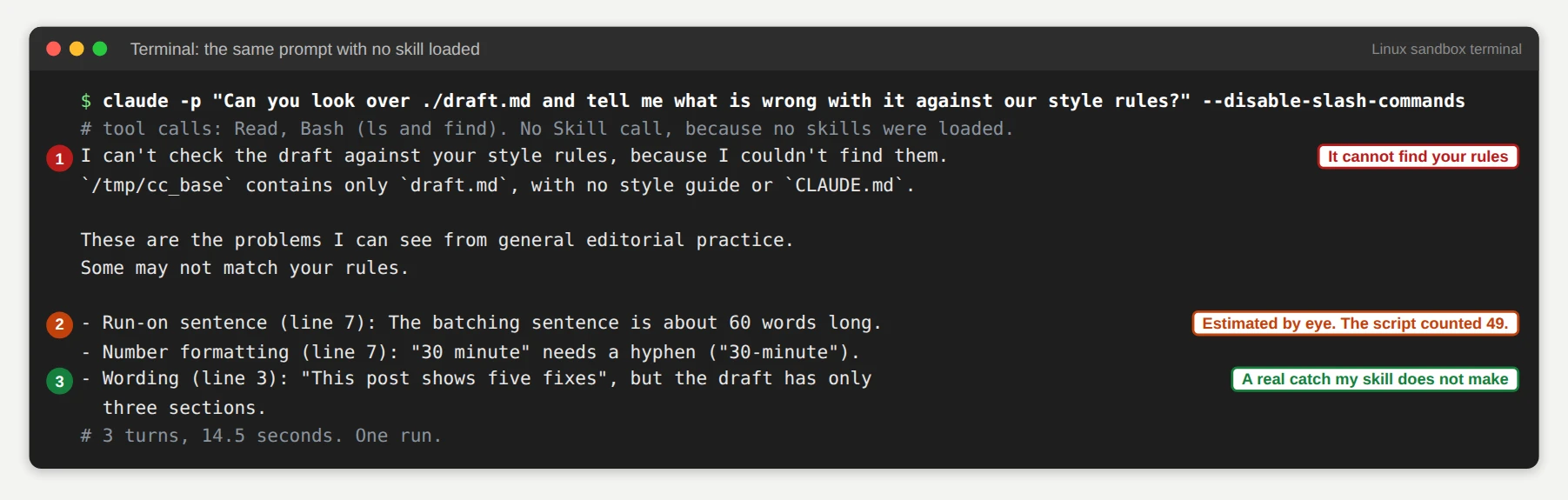
For the baseline, I ran the same prompt in a folder that held only the draft, with all skills turned off.
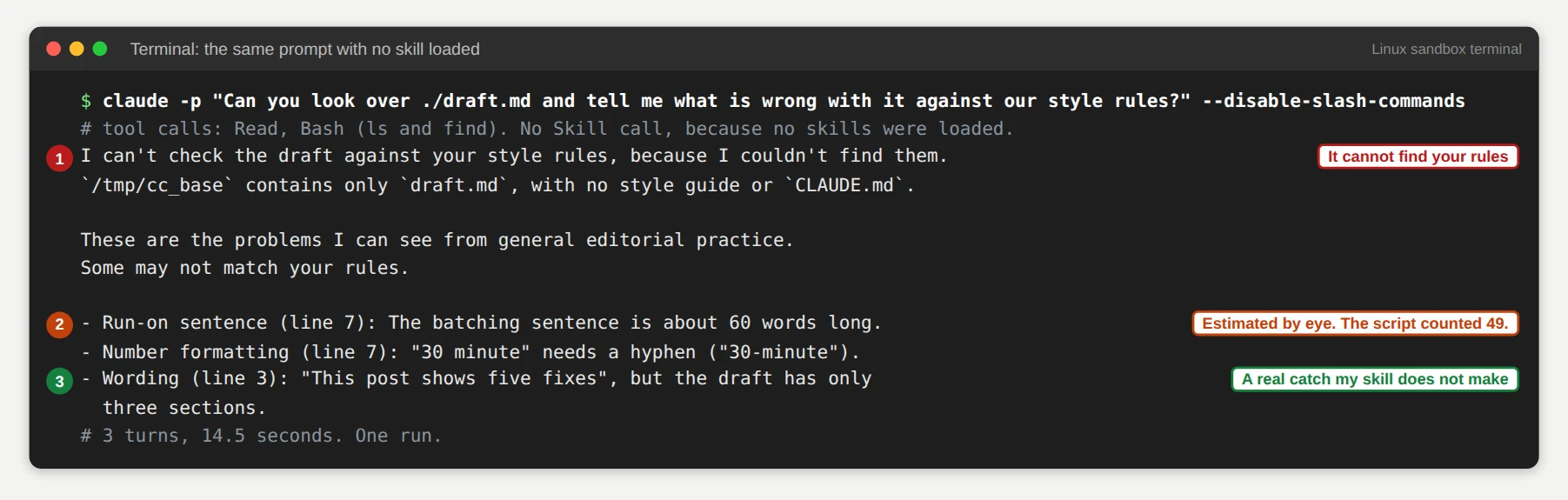
The baseline could not find my style rules, because they live inside the skill. So it fell back on general editing advice. It estimated the long sentence at "about 60 words", and my script had counted 49. It also gave a loose list with no verdict and no template.
This comparison favors the skill by design, so read it fairly. A tougher baseline would paste the rules into the prompt.
The run also taught me something: the baseline noticed that the draft's title promises five ways but delivers three. My skill does not check that. A baseline is a good way to find what your skill should learn next.
For the negative test, I asked an unrelated coding question with the skill installed.
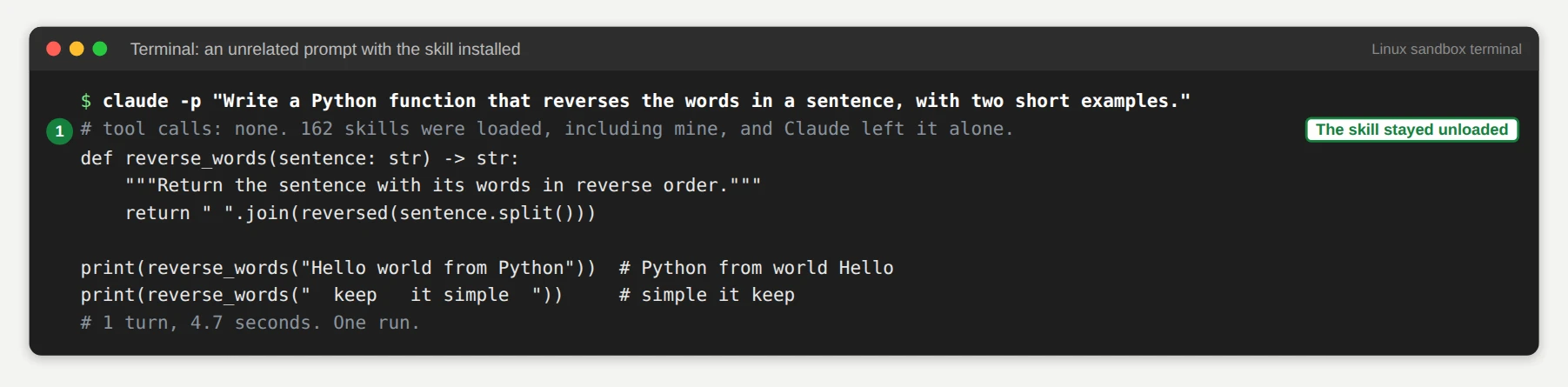
Claude answered in one turn and never called the skill. That is the behavior you want from a narrow skill.
Both runs are single runs, so they show the method and not a measured rate. Anthropic's guide suggests a trigger test of 10 to 20 prompts, with a goal of triggering on about 90% of relevant requests. Run more than I did.
Step 12: Upload it to claude.ai
To use the skill in claude.ai or the Claude app, follow these steps, which come from Anthropic's Help Center and the screens I captured earlier:
checking-article-style.zip.Using checking-article-style. That line shows the skill loaded.I did not run these steps. I did not upload this skill to any account, so I cannot show the result screen. If the upload fails, the Help Center lists the usual causes: a ZIP over the size limit, a folder name that does not match the skill name, a missing SKILL.md, and invalid characters in the name or description.
Build Faster With skill-creator and Create With Claude
You do not have to write every file by hand. Anthropic ships a skill called skill-creator that interviews you, drafts the skill, tests it and improves it. I saw it in three places while preparing this guide: as an Anthropic skill already on my claude.ai account, as a plugin in the directory, and as a source file in the anthropics/skills repository.
What skill-creator does
I read the 33 KB SKILL.md of skill-creator in Anthropic's repository. I did not run it. The process it describes has eight stages:
SKILL.md. Claude drafts the file.evals.json file.The Contents tab I showed earlier lists the files behind this loop. agents/ holds three instruction files named analyzer.md, comparator.md and grader.md. eval-viewer/ holds generate_review.py and viewer.html. scripts/ holds aggregate_benchmark.py, generate_report.py, improve_description.py, package_skill.py and quick_validate.py.
Description tuning
The skill also tunes your description. It asks Claude for about 20 realistic queries: 8 to 10 that should trigger the skill, and 8 to 10 near misses that should not. It then splits them 60% for training and 40% for a held out test, runs each query three times and proposes better descriptions for up to five rounds. You apply the best one at the end.
Anthropic's best practices page says there is no built in runner for evaluation files you write by hand, and the January guide said skill-creator did not run automated evaluations. The version I read in October does run them, so this tool has moved on quickly. Check its current behavior before you rely on this description.
Install skill-creator
In claude.ai, search for skill-creator in Customize, then Skills. On my account, Anthropic's version was already there, and the screenshot in the install section shows where to find it.
In Claude Code, install it as a plugin. These are the commands from Anthropic's documentation. I did not run them in my sandbox.
/plugin install skill-creator@claude-plugins-official
If Claude Code says the marketplace is missing, add it first and refresh the list.
/plugin marketplace add anthropics/claude-plugins-official
/plugin marketplace update claude-plugins-official
/reload-plugins
One caution: some third party guides give a different marketplace name for this plugin. The Claude Code documentation says claude-plugins-official, so use that one.
Create with Claude
The Add menu has an item called Create with Claude. Anthropic's tutorial describes the flow in four steps.
SKILL.md, organize your material, generate scripts and package the result as a skill file.I did not run this flow in my account. The steps come from Anthropic's tutorial, and the Add menu item is one I saw on screen.
Here is a prompt that gives Claude what it needs on the first message. Replace the job with your own.
I want to create a skill that checks my article drafts against my house style.

Before you write anything, ask me questions one at a time about:
- when the skill should trigger and what I usually say
- the rules it must apply
- what the final report should look like

Then build the skill with these limits: SKILL.md under 500 lines, a description under 1,024 characters that says what it does and when to use it, and long material in a references folder. Use a script for anything that needs exact counting.
Edit and trim what Claude writes
Claude's first draft is a starting point. Generated skills tend to run long, and Anthropic's best practices say that conciseness is the first rule, because the context window is shared with everything else. Read every line and ask whether Claude already knows it. Cut what Claude knows, and keep what is specific to you.
The Help Center also offers an editing shortcut. You highlight text in a skill file that opens beside the conversation and click Edit with Claude to rewrite just that part.
The two Claude method
Anthropic's best practices describe a pairing worth copying. You work with one Claude instance, "Claude A", to write the skill. You then open a fresh instance, "Claude B", with the skill loaded and give it real tasks.
Watch Claude B closely. Note where it takes unexpected paths, misses a link, leans too hard on one section or ignores a file. Return to Claude A with those specifics and ask for a fix. Each round teaches you how a Claude that has never seen your intent reads your instructions.
Write Descriptions That Trigger
Claude picks a skill from its name and description alone. A perfect SKILL.md behind a weak description never runs, so spend more time on this one field than on any other.
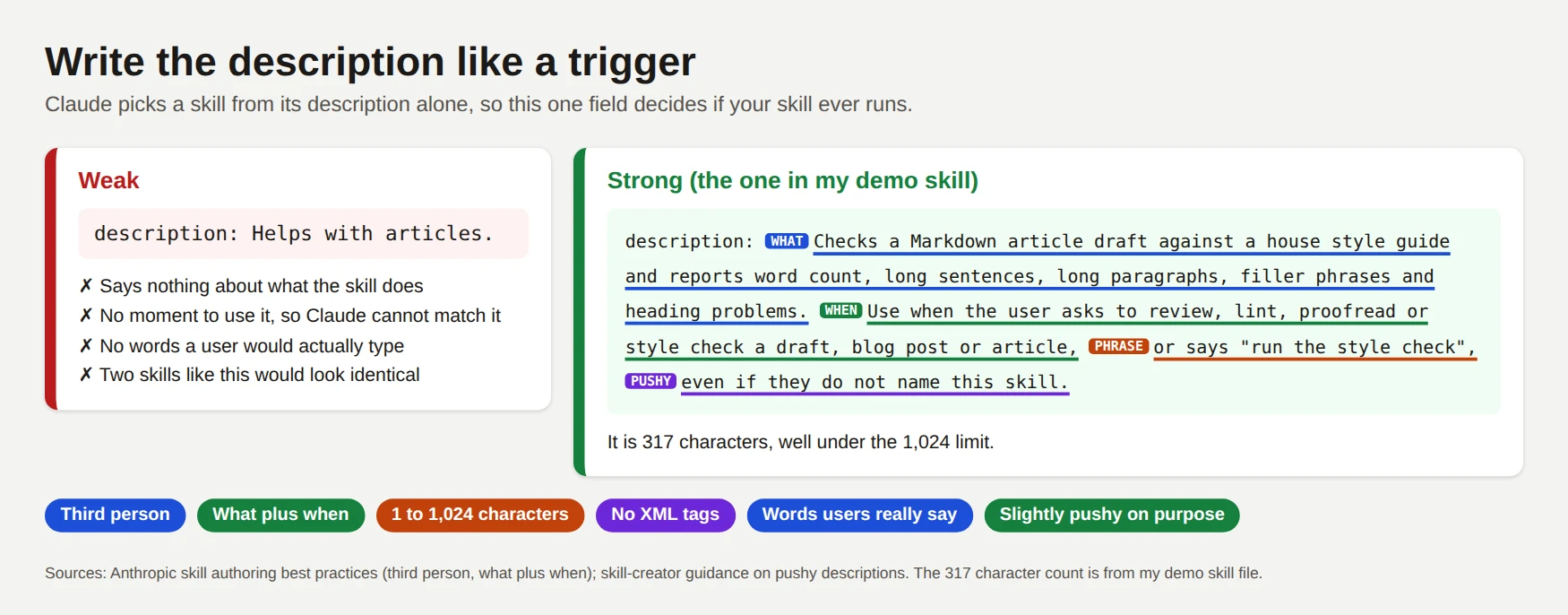
The rules
skill-creator notes that Claude tends to undertrigger skills, so list the contexts and add a clause like "even if they do not name this skill".A fill in template
Use this shape for your first draft, then edit it with your own words.
description: <What the skill produces or checks, in one sentence.> Use when the user asks to <task one>, <task two> or <task three>, or says "<a phrase they really type>", even if they do not name this skill. Do not use for <the nearest task it should leave alone>.
Three rewrites
Each pair below shows a weak description and a stronger one. These are my examples, not Anthropic's.
| Job | Weak | Stronger |
|---|---|---|
| PDF forms | Helps with PDFs. | Fills in and checks PDF forms, extracts field values and flags missing required fields. Use when the user mentions a PDF form, an application form or "fill this out", even if they do not say PDF. |
| Sprint planning | Plans sprints. | Turns a backlog into a sprint plan with capacity, goals and a risk list. Use when the user asks to plan a sprint, size tickets or prepare for sprint planning, or pastes a list of tickets. |
| Brand voice | Writes in our voice. | Rewrites a draft to match the company voice guide: short sentences, active voice, no jargon. Use when the user asks to edit, rewrite or polish copy for the company, or says "make this sound like us". |
When it triggers too often or too rarely
If the skill never triggers, add the phrases people really use and restate the contexts. Ask Claude directly: "When would you use the checking-article-style skill?" Claude quotes the description back, and you see what it sees. In Claude Code, "What skills are available?" lists everything it can load.
If the skill triggers on the wrong tasks, narrow the description and add a "Do not use for" clause. In Claude Code, you can also set disable-model-invocation: true so that only you can start the skill with a slash command.
Claude Code adds one more limit. It combines description and when_to_use and truncates the pair at 1,536 characters in the skill list. The whole list also has a budget of about 1% of the context window, so put the key trigger words first.
Test and Improve Your Skill
Testing turns a plausible skill into a reliable one. The loop below is the one I follow, and it matches Anthropic's best practices.
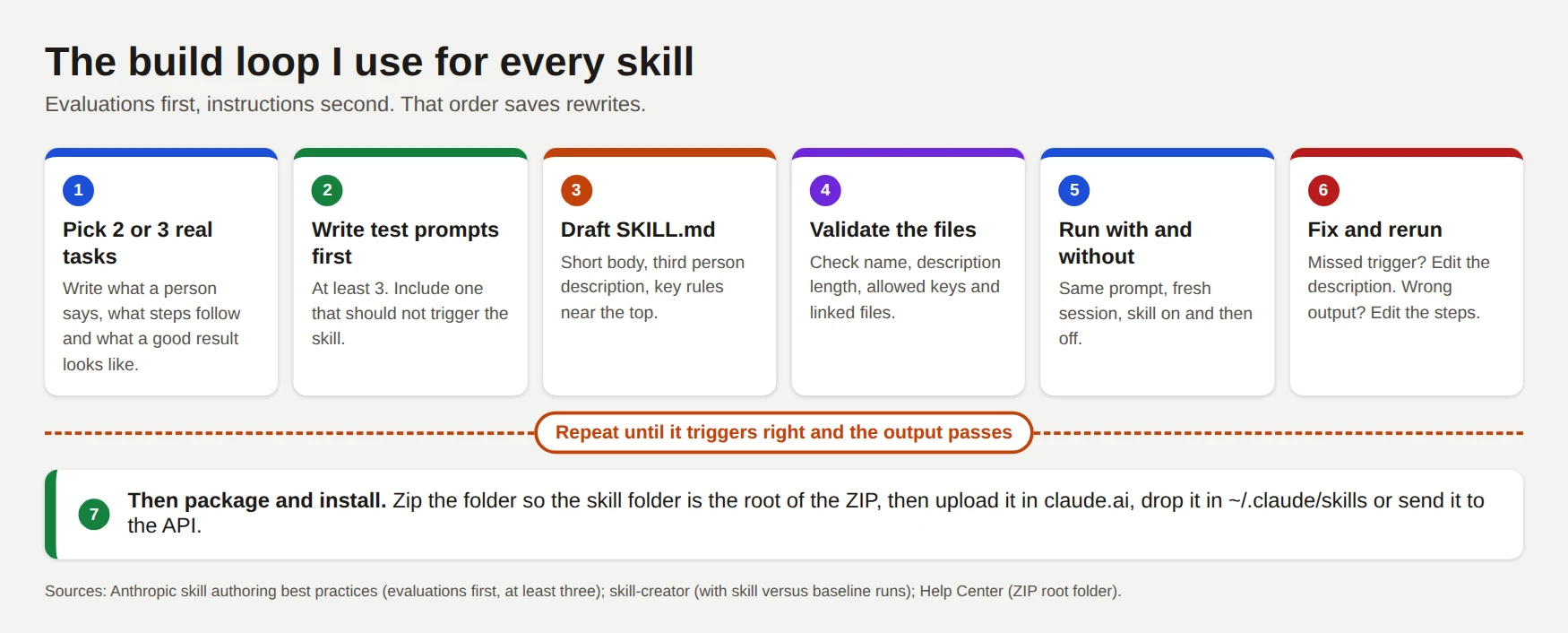
Write evaluations first
Anthropic's guide gives a five step recipe:
Anthropic suggests an evaluation shape with four fields: the skills involved, the query, any files and the behaviors you expect. Here is mine for the demo skill.
{
  "skills": ["checking-article-style"],
  "query": "Can you look over ./draft.md and tell me what is wrong with it against our style rules?",
  "files": ["test/draft.md"],
  "expected_behavior": [
    "Runs scripts/check_article.py instead of counting by eye",
    "Reports the long sentence on line 7 as 49 words",
    "Uses the report layout with a Verdict line",
    "Offers to fix the issues and waits for a yes"
  ]
}
Test three ways
Anthropic's guide groups tests into three areas.
The guide's sample numbers, such as 15 messages versus 2 and 12,000 tokens versus 6,000, are illustrations. They are not measurements, so do not quote them as results. Measure your own.
Test with every model you use
Skills behave differently on different models. Anthropic's best practices ask three questions:
A skill that works on one model can need more detail for a smaller one.
Ways to run a baseline
In Claude Code, you have three clean options. Run the prompt in a fresh session with the skill turned off through the skillOverrides setting. Start Claude with the --disable-slash-commands flag, which is how I ran my baseline. Or use a folder that has no copy of the skill.
For skills that ship in a plugin, Claude Code also has claude plugin eval, which runs graders and exits with an error below your threshold, so it fits a CI pipeline. Anthropic's skill-creator runs with and without comparisons for you.
Read the results
Each failure points to a fix. Use this map.
| What you see | What to change |
|---|---|
| The skill does not trigger | Add the words users type to the description |
| The skill triggers on unrelated tasks | Narrow the description and add a "Do not use for" clause |
| Claude skips steps | Shorten the body and move the critical rules to the top |
| Claude ignores a reference file | Link to it from SKILL.md and say when to read it |
| Output varies between runs | Move the fragile step into a script |
After each fix, rerun every test, not just the one that failed. A change that fixes one prompt often breaks another.
Skill Patterns and Writing Tips
Most good skills follow one of five patterns from Anthropic's guide. Knowing them helps you choose a shape before you start writing.
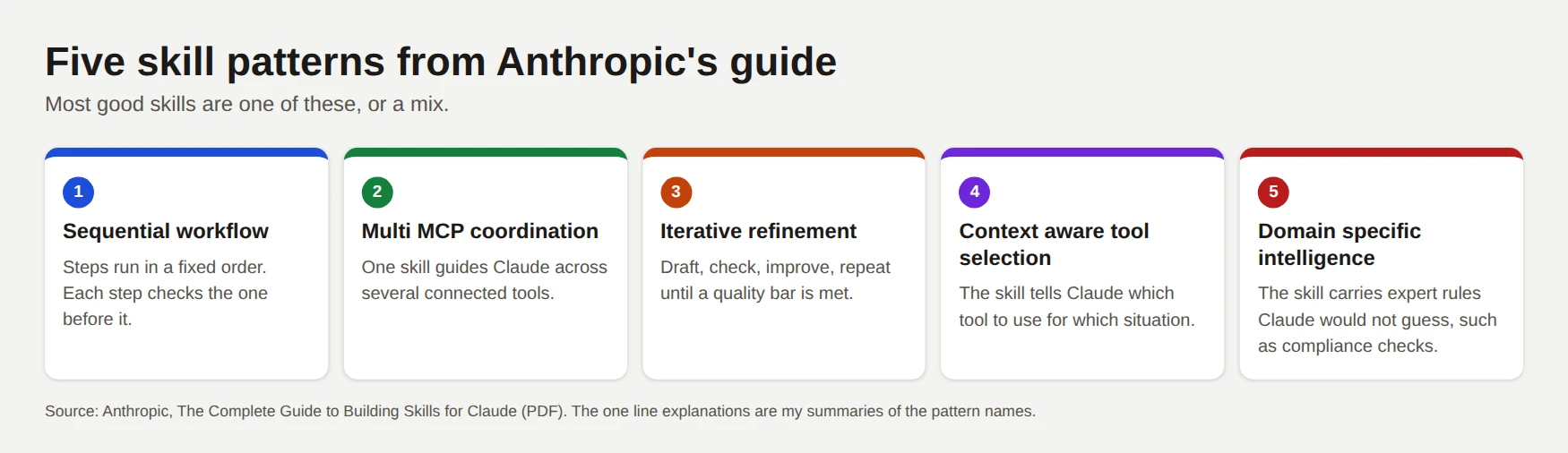
My demo skill is a sequential workflow with a small refinement loop at the end: it runs fixed steps in order, then offers to fix the issues. Pick the pattern first, because it tells you what the body of SKILL.md should contain.
Keep it short
Anthropic puts it plainly: the context window is a public good. Your skill shares it with the conversation, other skills and the user's files. For each paragraph, ask whether Claude already knows the content. If it does, cut it.
Anthropic's example compares two versions of a PDF extraction note. The short one runs about 50 tokens and the long one about 150. Both give Claude the same ability, and the short one costs a third as much.
Match the freedom to the risk
Anthropic describes three levels of freedom. Give Claude text instructions when many approaches work. Give pseudocode or a script with parameters when a preferred pattern exists. Give an exact script when the operation is fragile.
The comparison is a narrow bridge versus an open field. On a bridge, you want guardrails, and in a field, you let Claude choose the path.
Organize files for progressive disclosure
Three layouts work well:
SKILL.md gives the overview and links to FORMS.md, REFERENCE.md and EXAMPLES.md. Claude opens the one it needs.reference/finance.md and one file per other domain, so Claude reads only the domain in play.REDLINING.md".Keep each link one level deep. Add a table of contents at the top of any reference file over 100 lines, so that Claude sees the full scope even when it reads only part of the file.
Make scripts reliable
scripts/check.py" and "see scripts/check.py for the algorithm" mean different things.SKILL.md.Write instructions Claude can follow
pdfplumber. If it fails on scanned pages, use OCR" beats a list of five libraries.ServerName:tool_name, so Claude finds the right tool when several servers are connected.Claude Code Skills in Depth
Claude Code gives skills extra powers. The docs call these extensions, and they sit on top of the open standard.
Run a skill by name
Type / and the skill name to run a skill yourself, for example /checking-article-style draft.md. If the name comes at the start of your message, Claude Code runs the skill directly. If it comes after other text, the name only grants permission to use the skill.
Extra frontmatter fields
Every field below is optional in Claude Code, and unknown fields are ignored without an error. Remember that claude.ai uploads and the API accept only the six spec fields, so a skill that uses these extras belongs in Claude Code.
| Field | What it does |
|---|---|
when_to_use | Extra trigger text, combined with the description in the skill list |
argument-hint | Hint shown while you type arguments |
arguments | Names for positional arguments |
disable-model-invocation | Set to true so only you can start the skill |
user-invocable | Set to false so only Claude can use the skill, as background knowledge |
allowed-tools | Tools that need no approval while the skill runs |
disallowed-tools | Tools the skill may not use |
model and effort | Pick a model and an effort level from low to max |
context and agent | Run the skill in a forked subagent |
paths | Glob patterns that limit when the skill applies |
hooks | Hooks scoped to the skill |
shell | Use bash or powershell for injected commands |
Control who can start a skill
Two settings decide who invokes a skill. By default, both you and Claude can. With disable-model-invocation: true, Claude cannot start the skill and its description stays out of context, which suits commands with side effects such as a deploy. With user-invocable: false, only Claude can use it, which suits background knowledge.
Pass arguments
The text after the skill name arrives as $ARGUMENTS. You can also use $0 and $1 for positions, or named arguments. If your skill has no placeholder, Claude Code appends the text as "ARGUMENTS: value".
Here is a small example in the style of the documentation. I did not run it.
---
name: fix-issue
description: Fix a GitHub issue by number. Use when the user types /fix-issue.
disable-model-invocation: true
argument-hint: "[issue-number]"
---

Fix GitHub issue $ARGUMENTS.

1. Read the issue and restate the problem in one sentence.
2. Find the code that causes it and make the smallest fix.
3. Run the tests and report the result.
Inject live data
A line that starts with an exclamation mark and a backtick command runs before Claude sees the skill. The output replaces the line. This gives the skill fresh facts, such as the current Git diff, instead of old text. A failed command stops the invocation, and the feature does not work in claude.ai chat or the API.
---
description: Summarizes uncommitted changes. Use when the user asks what changed.
---

## Current changes

!`git diff HEAD`

Summarize the changes above in three short bullet points.
Point to your own files
Use ${CLAUDE_SKILL_DIR} to refer to the skill's folder, so a script path works wherever the skill lives. Claude Code also defines ${CLAUDE_SESSION_ID}, ${CLAUDE_PROJECT_DIR} and ${CLAUDE_PLUGIN_ROOT} for related paths.
Run a skill in a subagent
Add context: fork and an agent such as Explore, Plan or general-purpose, and the skill runs in a separate subagent. The skill content becomes the task, and the subagent does not see your conversation history. Use this for long research jobs that would flood your main context.
Pre approve tools, with care
allowed-tools lets a skill run named commands without a prompt, for example Bash(git add *) Bash(git commit *) Bash(git status *). The field pre approves tools for that turn. It does not block other tools. Read the allowed-tools line of any skill you clone from a repository before you run Claude Code there.
Manage skills
/skills shows every skill and lets you cycle each one through four states with the skillOverrides setting: on, name only, user invocable only and off./skill-doctor (Claude Code 2.1.252 and newer) shows the context cost and usage of each skill./doctor checks your installation, extensions and permissions./reload-skills picks up a new top level skills directory.claude plugin validate .claude/skills checks structure, though as I showed above, it is lenient.To stop Claude from using a skill at all, deny the Skill tool in /permissions, or deny one rule such as Skill(deploy *).
Install Anthropic's example skills
Anthropic's repository doubles as a plugin marketplace. These commands add it and install the document skills and the example skills. I did not run them.
/plugin marketplace add anthropics/skills
/plugin install document-skills@anthropic-agent-skills
/plugin install example-skills@anthropic-agent-skills
The repository says its demo skills are for education, so test them in your own environment. Its document skills for Word, PDF, PowerPoint and Excel are source available, and many of the others use the Apache 2.0 license.
Use Skills With the Claude API
On the API, you attach skills to a request through the container parameter and give Claude the code execution tool. The skills API is out of beta, so you do not need a beta header. You do need a recent SDK: Python 1.2.0 or newer, or TypeScript 0.122.0 or newer, for client.skills.
Call an Anthropic skill
Anthropic's skills use the type anthropic and the IDs pptx, xlsx, docx and pdf. This example follows the pattern in Anthropic's documentation. I did not run it, and you should check the current model name in the docs.
import anthropic

client = anthropic.Anthropic()

response = client.messages.create(
    model="claude-opus-5-5",
    max_tokens=4096,
    container={
        "skills": [
            {"type": "anthropic", "skill_id": "pptx", "version": "latest"}
        ]
    },
    tools=[{"type": "code_execution_20250825", "name": "code_execution"}],
    messages=[
        {"role": "user", "content": "Create a one slide deck that says hello."}
    ],
)
Claude builds the file inside the container and returns a file_id in the code execution result. You download the file with the Files API. For a long job, the response can stop with pause_turn, and you reuse the same container by passing its id on the next request.
Upload your own skill
You upload a custom skill once, and it becomes available to the whole workspace. The upload rules match the rules in this guide.
SKILL.md must sit at the root of the upload, or at the top of a single enclosing folder.name and description follow the same limits of 64 and 1,024 characters, with no XML tags and no reserved words.display_name of up to 255 characters is optional. If you leave it out, the API derives it from the name in SKILL.md.You can upload from the CLI with ant apply, or from the SDK with a helper that reads a whole folder. Then you refer to the skill by type custom, its ID (it starts with skill_01) and a version.
container={
    "skills": [
        {"type": "custom", "skill_id": "skill_01...", "version": "latest"}
    ]
}
Versions, limits and caching
latest while you develop, and pin a specific version when you ship./skills/{skill-name}/ inside the container.The container has no network access and cannot install packages at runtime. Skills on the API are also not covered by zero data retention.
Share, Publish and Manage Skills
How you share a skill depends on where it lives.
In claude.ai
A skill you upload is private. On Team and Enterprise plans, you open the skill's menu, click Share, and choose specific people or, on Enterprise, a group. A person you share with sees the skill grayed out until they enable it, and they get a view only copy that updates the next time they use it.
Owners can go further and publish a skill to the organization. They choose one of three modes: available to install, installed by default, or required. Enterprise adds optional review and security scanning of skills that people upload or edit. The scan usually takes a minute or two, and a blocked skill stays blocked until you fix it.
Sharing needs the toggles in Organization settings, then Plugins and skills, then Policy. Team and Enterprise skill lists have sections for Personal, Shared with you and Organization.
To remove a skill, open it, turn it off, open the menu, click Delete and confirm. You can restore it by uploading the ZIP again.
In Claude Code
You have three routes. Commit .claude/skills to your repository, and everyone who clones it gets the skills. Bundle skills in a plugin for wider distribution. Or push them through managed settings for a whole company.
Through GitHub
Anthropic's guide recommends hosting a skill on GitHub with a repository level README.md and a short install guide. Keep the README outside the skill folder, because the folder itself should hold only files that Claude uses. Add a short install guide to the README so a new user can copy the folder into the right place.
Skill Security: Treat Skills Like Software
A skill can instruct Claude to run code and call tools. That power makes a downloaded skill as sensitive as a downloaded program.
Anthropic's documentation says to use only trusted sources and to audit every bundled file before you enable a skill. The Help Center names two risks: prompt injection and data exfiltration. A malicious skill can hide instructions in a reference file or send data to another host from a script.
Use this checklist before you turn on a skill you did not write. It is my checklist, built from Anthropic's advice.
SKILL.md in full, including the parts Claude reads only on demand.curl, requests and fetch, and for reads of environment variables or files outside the skill.allowed-tools and hooks lines, because they can approve commands in advance.For your own skills, never hard code secrets, and use MCP connections for outside services. On Enterprise plans, owners can switch on skill scanning. Skills on the API are not covered by zero data retention, and the platform docs say they are not HIPAA eligible, so check your compliance needs before you send sensitive data through one.
Troubleshooting Skills
Skill problems fall into four groups: the skill never triggers, it triggers at the wrong time, the upload fails, or Claude stops following the steps. Find your symptom in the graphic and work down the list.
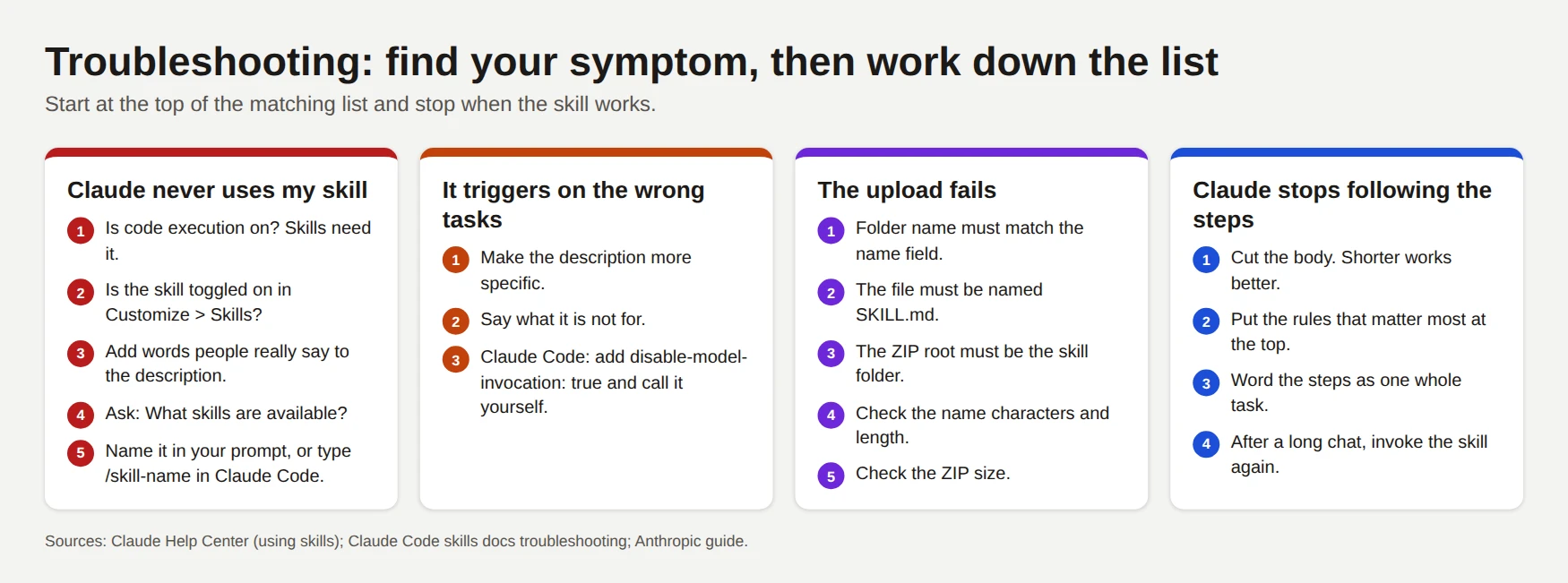
Upload errors
Anthropic's guide lists three messages you may see when you upload a skill.
| Message | What it usually means |
|---|---|
| Could not find SKILL.md | The file is not named exactly SKILL.md, or the ZIP has no skill folder at its root |
| Invalid frontmatter | The YAML is broken: a missing --- line, an unclosed quote or a colon inside an unquoted value |
| Invalid skill name | The name has spaces, capitals or underscores |
The Help Center adds three more causes: a ZIP over the size limit, a folder name that does not match the skill name, and invalid characters in the name or description. My validator catches the folder mismatch, the characters, the YAML and the missing file before you upload.
The Skills section is missing or grayed out
Turn on code execution first. On Team and Enterprise plans, an owner must also keep the Skills policy on. If you cannot create or upload skills, an owner may have switched off user created skills, or your role may lack the permission to create them.
The skill exists but Claude ignores it
Claude Code specific problems
--debug to see the parse error./doctor estimates the damage.CLAUDE.md. A skill alone may be skipped.Where the Docs Disagree
I read Anthropic's pages on 29 October 2026, and they do not all agree. The table shows each conflict and what I did about it. Check the live pages before you rely on a number that matters to you.
| Topic | One source says | Another source says | What I did |
|---|---|---|---|
| Description length | The Help Center page on custom skills says 200 characters | The specification and API docs say 1,024 | I could not test an upload, so I followed the spec and kept my description at 317 characters. If an upload rejects a long description, shorten it. |
| Skill name | The Help Center shows a human friendly name such as "Brand Guidelines" | The spec and API docs require lowercase letters, digits and hyphens | I used the spec rules. |
| Plans | The platform overview lists Pro, Max, Team and Enterprise | The Help Center lists Free, Pro, Max, Team and Enterprise | I followed the Help Center. |
| Where skills live in the UI | The platform overview says Settings, then Features | The live app uses Customize, then Skills, and Capabilities holds the code execution switch | I used the screens I captured. |
| Syncing | The API overview says skills do not sync across surfaces | Claude Code docs describe a one way sync from claude.ai | Both are true, with the sync limited to Claude Code. |
| Admin management | The platform overview says custom skills are individual to each user | The Help Center describes sharing and publishing to an organization | I followed the Help Center, which is newer. |
| Body size | Anthropic's January guide says under 5,000 words | The spec and best practices say under 5,000 tokens and 500 lines | Aim for the stricter limit. |
skill-creator install | Some third party guides name anthropic-agent-skills as the marketplace | Claude Code docs name claude-plugins-official | I used the docs. |
Anthropic updates these pages often, and some of them lag behind the product. When two pages conflict, trust the page that matches what you see on screen, and test the rule with a small skill.
Frequently Asked Questions (FAQs)
How do I add skills to Claude?
Turn on code execution in Settings, then Capabilities. Open Customize, then Skills, and click Add. Choose Upload skill and select a ZIP file that contains your skill folder. In Claude Code, you skip the upload and copy the folder into ~/.claude/skills or .claude/skills.
How do I use skill-creator in Claude?
Search for skill-creator under Customize, then Skills, and switch it on. Then ask Claude to build a skill, for example "Use skill-creator to help me build a skill that checks article drafts". It interviews you, drafts the skill, runs test prompts with and without the skill and tunes the description. In Claude Code, install it with /plugin install skill-creator@claude-plugins-official.
Where do Claude Code skills live?
Personal skills live in ~/.claude/skills/ and apply to every project on your machine. Project skills live in .claude/skills/ and apply to one repository. Plugins and managed enterprise settings can also supply skills, and enterprise skills win a name conflict.
What is the difference between skills and MCP?
MCP connects Claude to tools and data, such as a calendar, a database or a code host. A skill teaches Claude a method, such as the steps of a review or the layout of a report. Anthropic's guide compares MCP to a kitchen and skills to the recipes, and the two work best together.
Do Claude skills work on the free plan?
Anthropic's Help Center lists Free, Pro, Max, Team and Enterprise plans, with code execution turned on. Anthropic's platform overview lists only the paid plans, so the pages disagree. Check the Customize page in your own account, because the Skills tab shows whether you have access.
How long can a skill description be?
The Agent Skills specification and Anthropic's API docs allow 1,024 characters, and the name can have 64 characters. One Help Center page still says 200 characters for the description. Keep your description short and specific, and test an upload if you need a long one.
Final Thoughts
A skill is a folder, a text file and a good description. The skill you build matters less than the loop around it: write test prompts, validate the files, run the skill with and without, and fix what fails. My demo skill took one short session to build, and the first real run showed the payoff, a script that counted 49 words where Claude alone guessed 60.
Your next step is small. Pick one task you explain to Claude every week, write three test prompts for it, and build the folder from the files in this guide. Then run your prompts with the skill on and off, and keep the version that wins.